To set up Hostinger Email on Mozilla Thunderbird automatically, follow this article.
To set up Hostinger Email on Mozilla Thunderbird manually, make sure that:
-
You have created an email account with Hostinger Email
-
Your domain is pointed to Hostinger
-
The correct Hostinger Email MX records are added to your domain’s DNS zone
Then, proceed with the steps below 👇
Gather the Hostinger Email account details
Gather the configuration details of your email account:
|
IMAP (incoming) |
POP3 (incoming) |
SMTP (outgoing) |
|
Host: imap.hostinger.com Encryption: SSL Port number: 993 |
Host: pop.hostinger.com Encryption: SSL Port number: 995 |
Host: smtp.hostinger.com Encryption: SSL Port number: 465 |
If you’re not completely sure about your email password, you can easily reset it.
Set up Hostinger Email on Mozilla Thunderbird
First, make sure you have the Mozilla Thunderbird application installed on your device.
Option 1 – Automatic setup (Recommended)
Thunderbird can detect Hostinger email settings automatically in most cases. If for some reason this is not working, move to option 2.
Step-by-Step:
-
Open Thunderbird.
-
Go to Account Settings > Account Actions > Add Mail Account.
-
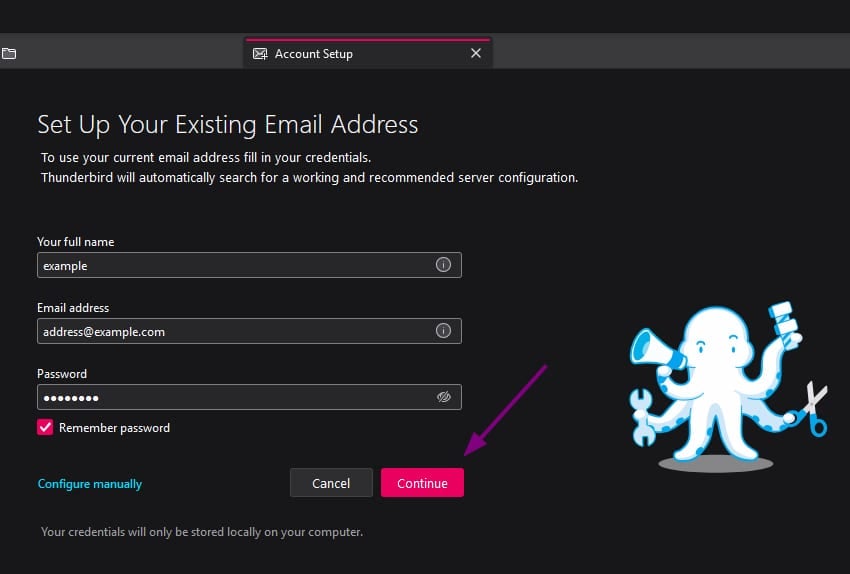
Fill in:
-
Your name (this will appear in outgoing emails)
-
Email address (e.g. example@yourdomain.com)
-
Password (email password)
-
-
Click Continue.
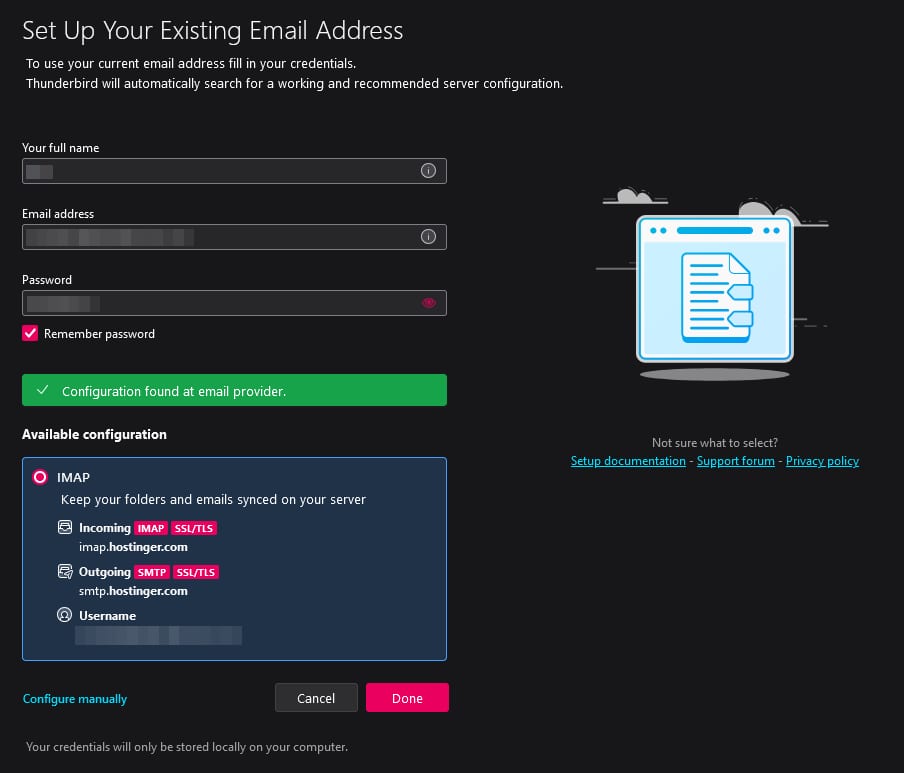
Thunderbird will attempt to auto-configure your account. If successful:
-
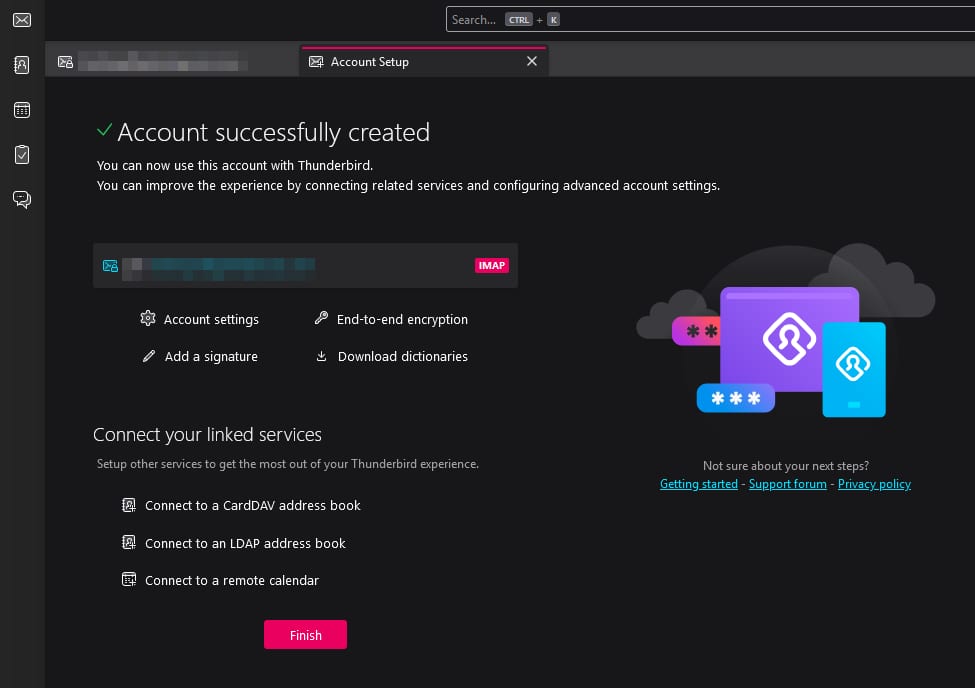
Click Done and then Finish.
Option 2 – Manual setup
If auto-configuration fails or you prefer to enter settings manually, follow these steps:
Step-by-Step:
Step 1 – Add a new mail account
-
Open Thunderbird.
-
Navigate to Account Settings > Account Actions > Add Mail Account.
-
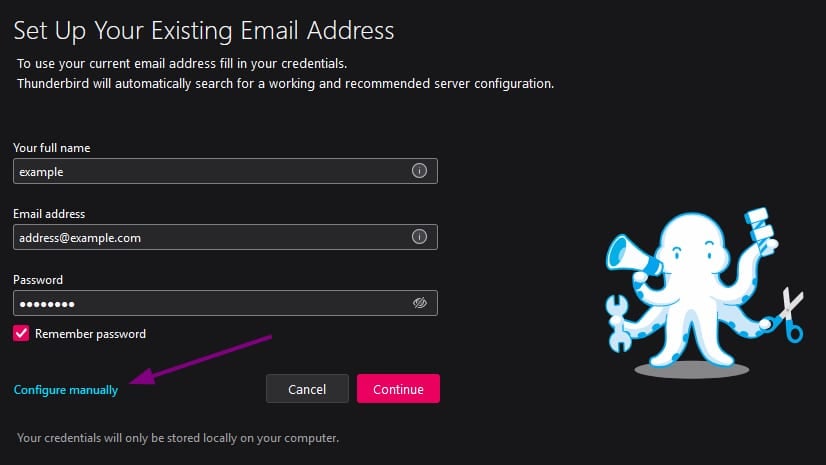
Enter your name, email address, and password.
-
Click Configure manually.
Step 2 – Enter server settings
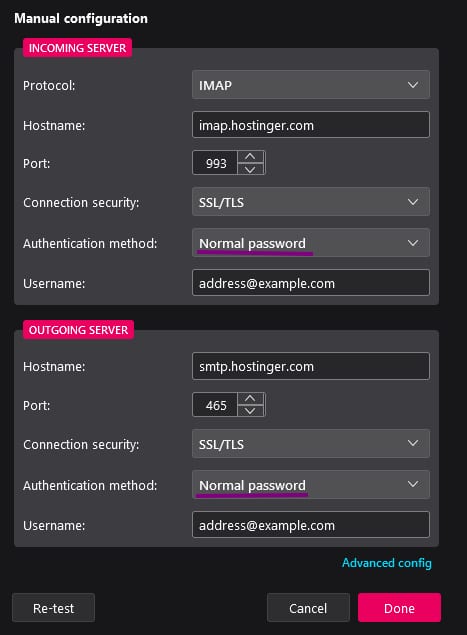
Choose either IMAP (recommended) or POP3.
👉 IMAP (Recommended):
-
Incoming server: imap.hostinger.com
-
Port: 993
-
SSL: SSL/TLS
-
Authentication: Normal password
-
Outgoing server (SMTP): smtp.hostinger.com
-
Port: 465
-
SSL: SSL/TLS
-
Authentication: Normal password
👉 POP3 (Alternative):
-
Incoming server: pop.hostinger.com
-
Port: 995
-
SSL: SSL/TLS
-
Authentication: Normal password
Use your full email address as the username for both incoming and outgoing servers.
Step 3 – Complete setup
-
Click Re-test to validate the configuration.
-
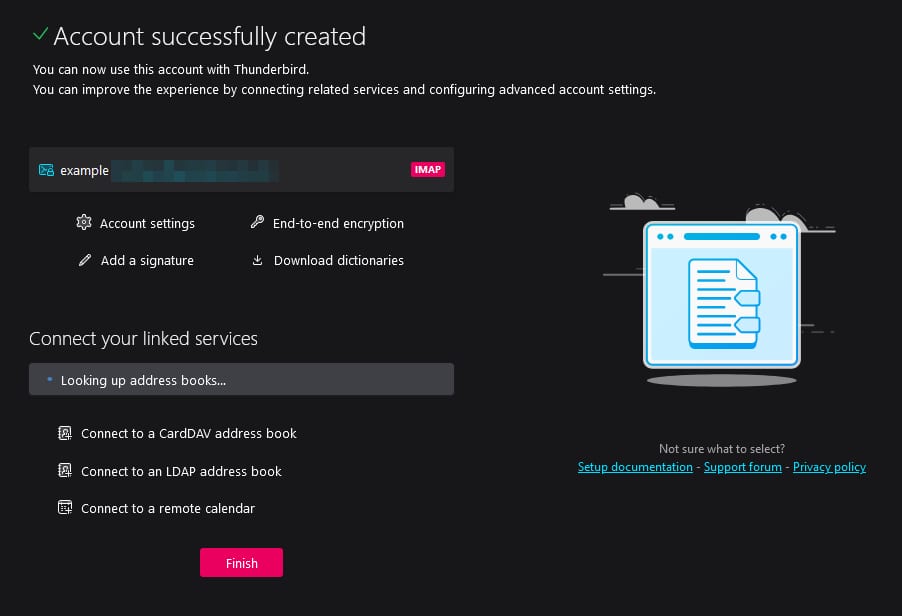
Once Thunderbird confirms everything is correct, click Done and then Finish.

✅ That’s It!
Your Hostinger email account is now ready in Thunderbird. You can send and receive emails without issues.
Troubleshooting
If something doesn’t work:
-
Double-check the server settings.
-
Make sure SSL/TLS is selected.
-
Confirm the email and password are correct. If you’re not sure, please try changing it How to reset a Hostinger Email mailbox password.
-
Check if your domain’s DNS (MX and SPF records) is properly set Hostinger Email MX records.