Hostinger Managed Hermes runs your Hermes AI agent in a Docker container that Hostinger manages, including server security and software updates. To get started, purchase an AI automation app plan, set up your AI provider and preferences, then manage Hermes from Hostinger dashboard. You can also switch to a KVM 1 VPS plan within 30 days of purchase.
One plan now includes both Hermes Agent and OpenClaw. When you purchase Managed Hermes, you also get access to OpenClaw under the same subscription — no separate purchase needed. You can switch between the two apps at any time from Hostinger dashboard. For step-by-step instructions, see How to switch your Hostinger AI Automation Application.
You can purchase a Managed Hermes subscription in two ways:
- From Hostinger dashboard — log in to Hostinger dashboard and click Hermes in the left sidebar. All users can see this menu item and purchase a subscription directly from there.
- From the Hostinger website — visit this page and select a plan.
With Managed Hermes, you receive:
- Automated Onboarding: Choose your AI provider and a communication channel like WhatsApp, Telegram, or Hostinger Email.
- Integrated AI Models: Use Hostinger AI Router with your Hostinger AI credits to access AI models like ChatGPT and Claude without a separate account or API key for each provider.
- Isolated Environment: Your Hermes instance runs within a secure, dedicated Docker container.
- Managed Infrastructure: Hostinger handles all backend security features and automatic software updates.
Prerequisites
- A Hostinger account with access to Managed Hermes (currently rolling out by region).
- An active Telegram or WhatsApp account, or a Hostinger Email address, for the AI communication channel.
Set up your Managed Hermes instance
To begin, you must first purchase a plan and configure the basic settings:
- Get your AI automation app plans.
- Select your plan duration and optional add-ons
- Ready-to-use AI: Selected by default; adds Hostinger AI credits, such as 1,000 credits, so you can use AI models like ChatGPT and Claude right away.
- Instant web search: Add 1000 free Oxylabs AI Studio credits to empower your agents for internet browsing.
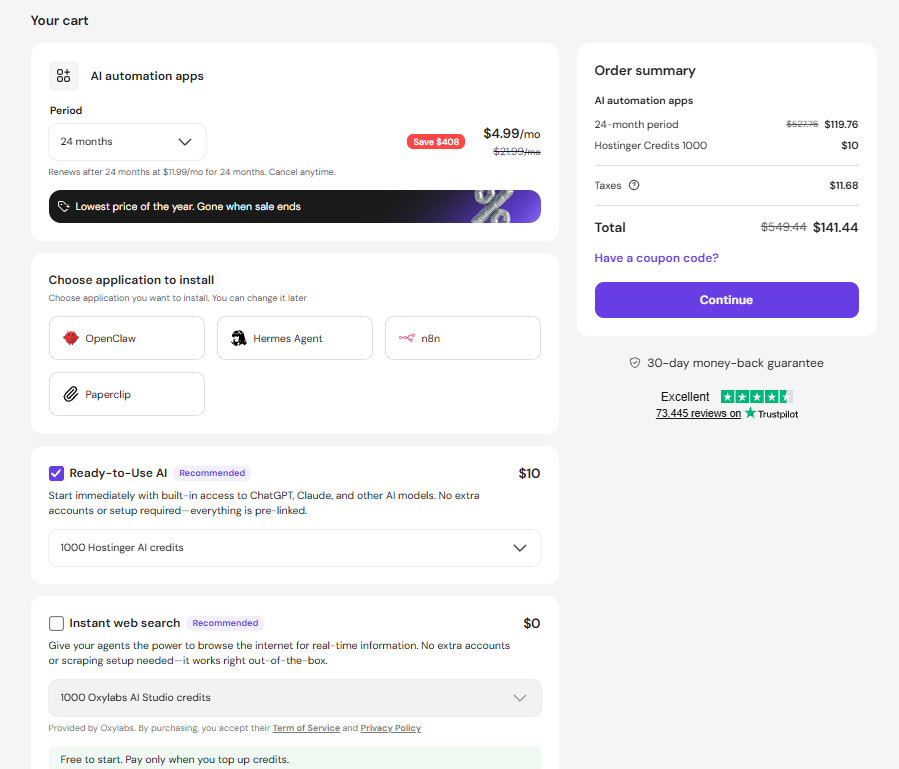
- Configure the AI Provider: If you added Ready-to-Use AI, create a Hostinger AI Router API key during app setup. You can top up Hostinger AI credits at any time after setup. If you purchased the version without Ready-to-Use AI, enter your externally generated API key during the onboarding process.
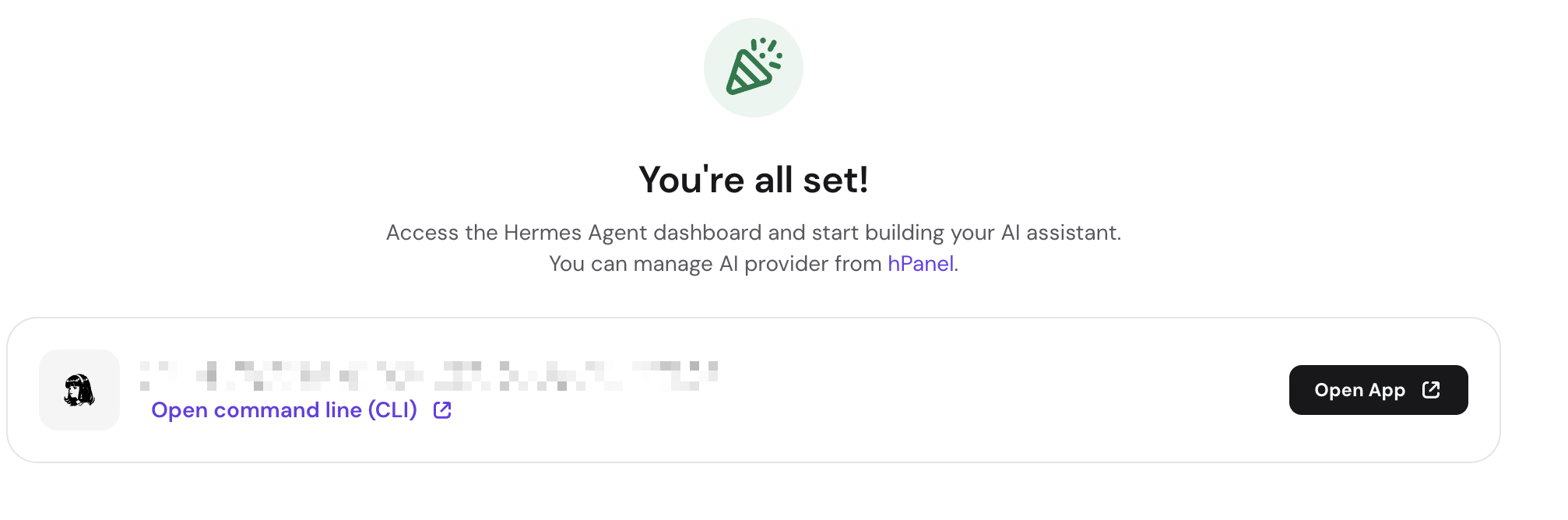
- Finalize the installation: The system will prepare your environment. Once complete, click the Hermes button to open the interface, or click Access key to copy your unique token.
Set up your AI preferences
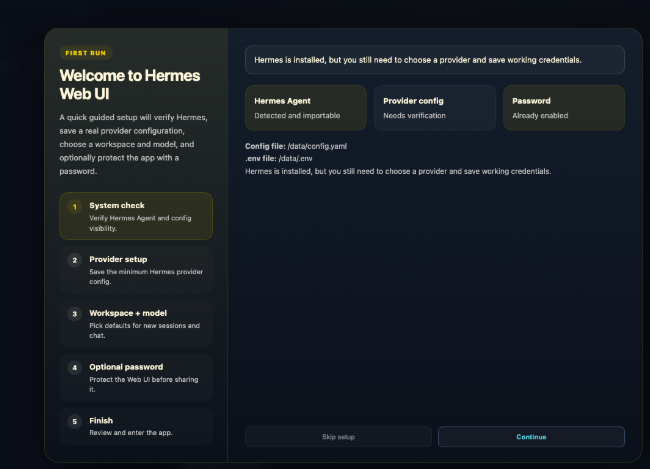
After the environment is prepared, you’ll be prompted to configure it inside the application via an initial setup window.
- You will see an overview on what has already been selected, and what you still need to do. Click on Continue:
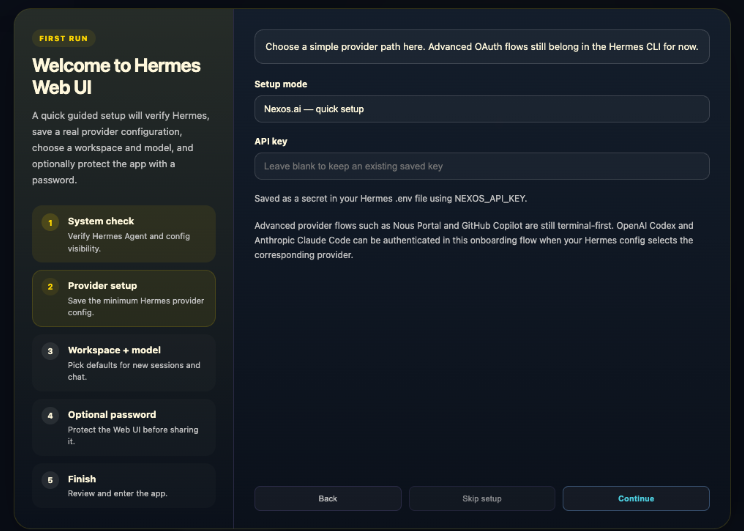
- If you purchased the version without Ready-to-use AI, enter your externally generated API key and select a setup mode too, and click on Continue once done:
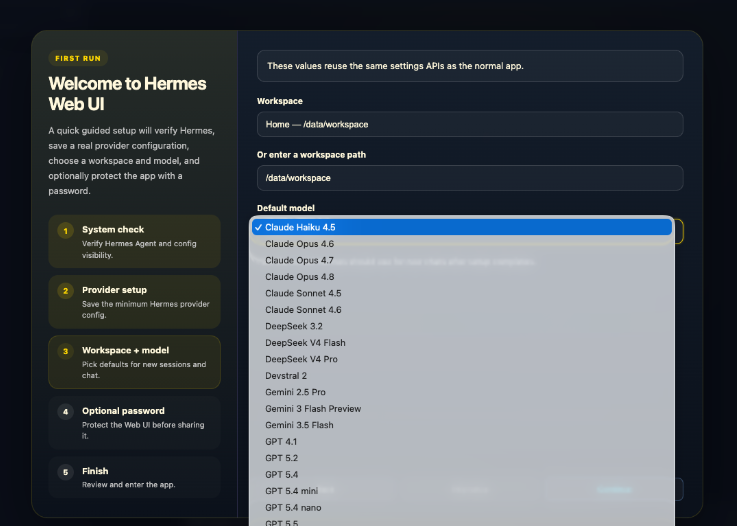
- Select AI model you want to use for your Agent. Model selection is now available for all AI providers.
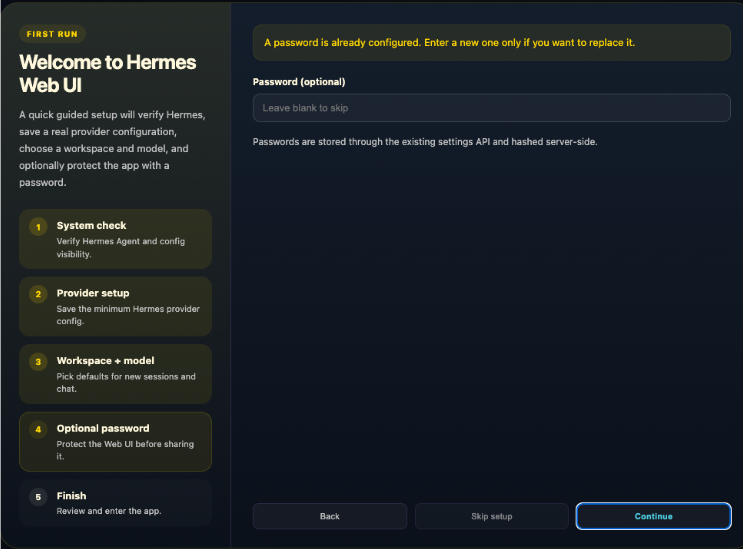
- Your password is by default pre-configured, so this step should be skipped:
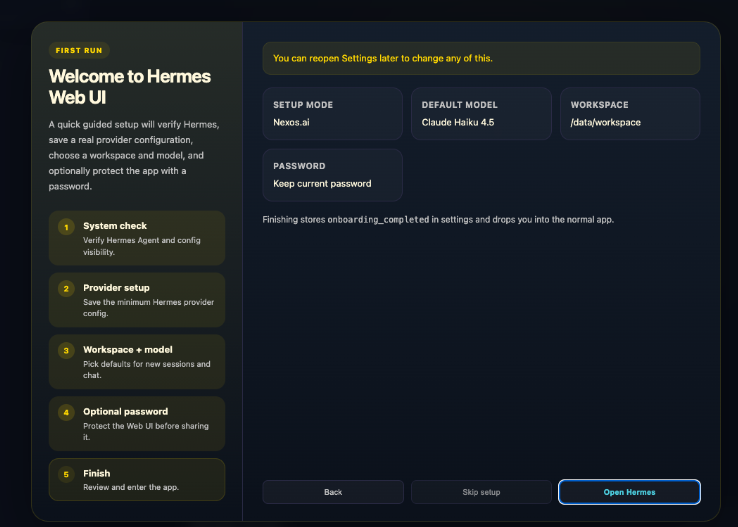
- Review your whole configuration from the setup:
Manage your Hermes application
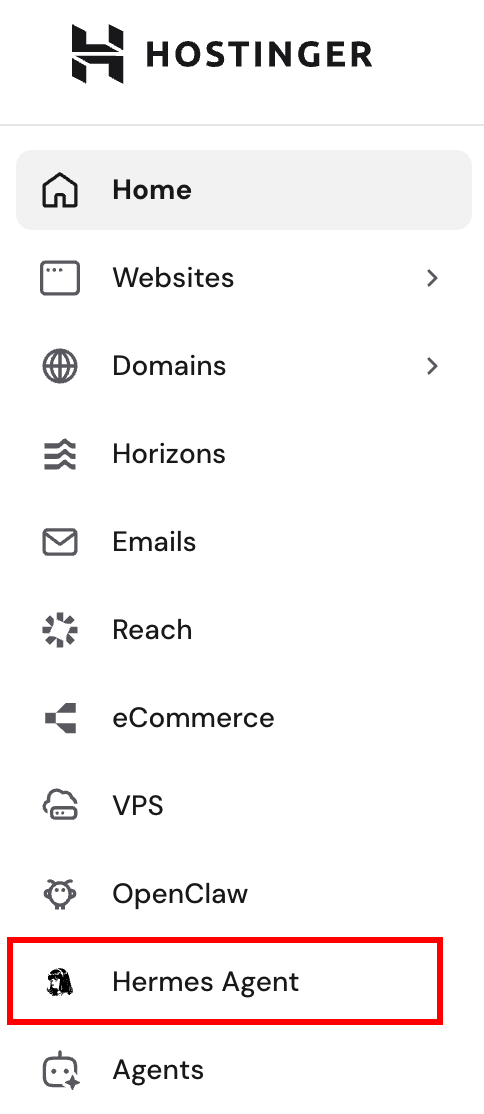
After completing the initial setup, you can manage your Managed Hermes instances at any time from the Hermes section on the Hostinger dashboard side menu. This page lists both your OpenClaw and Hermes Agent instances together, and you can toggle between apps using the tabs at the top of each application card.
Connect Hostinger Connector to your Hermes Agent application
Hostinger Connector lets your Hermes agent read and manage your Hostinger resources, including VPS, domains, DNS, email, and billing, directly from chat.
- Open your Hermes application dashboard.
- In the Settings section, next to Hostinger Connector, click Connect.
- Confirm the action. Your application restarts to apply the change.
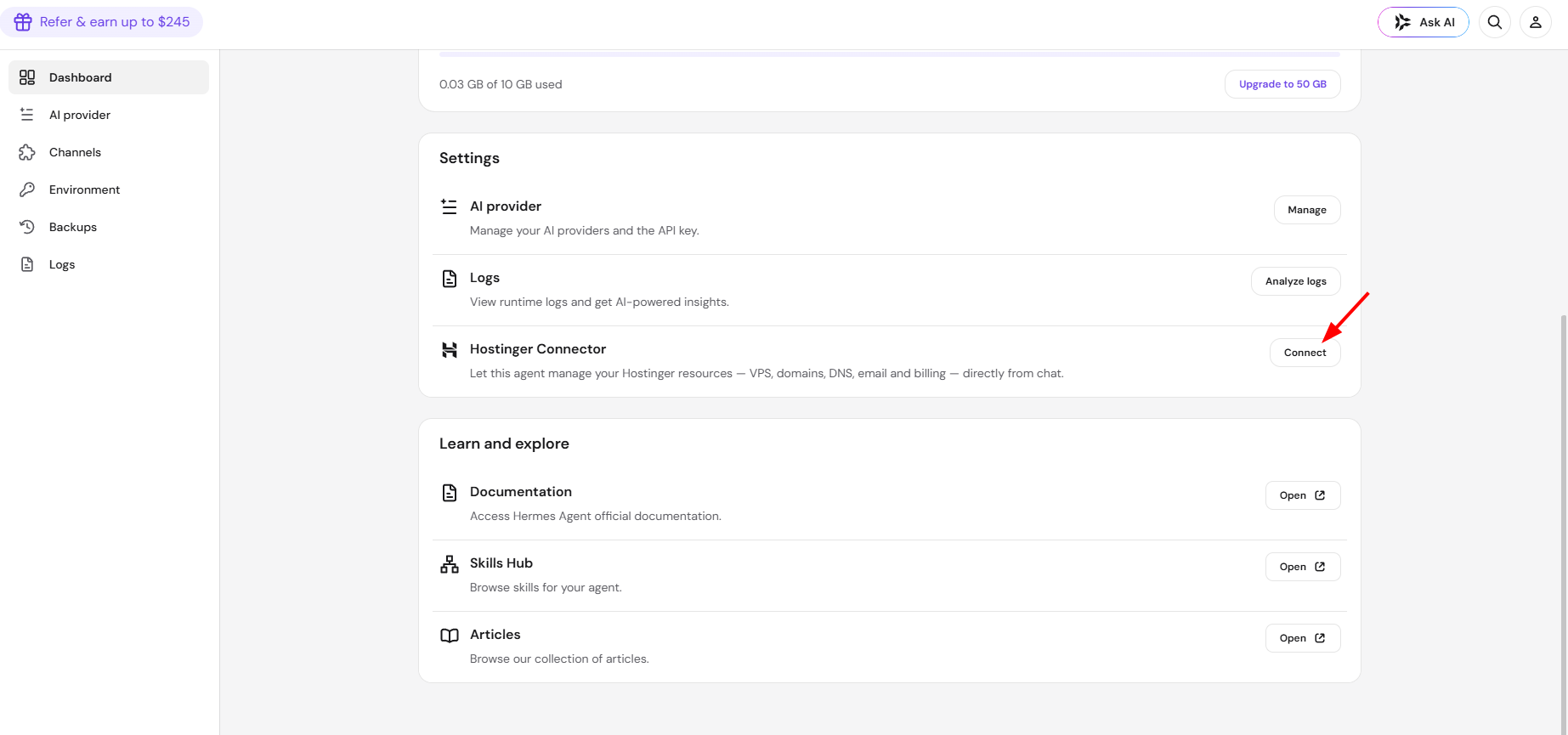
Once connected, Hermes registers the Hostinger API MCP server automatically, giving it access to your Hostinger resources through chat.
NOTE
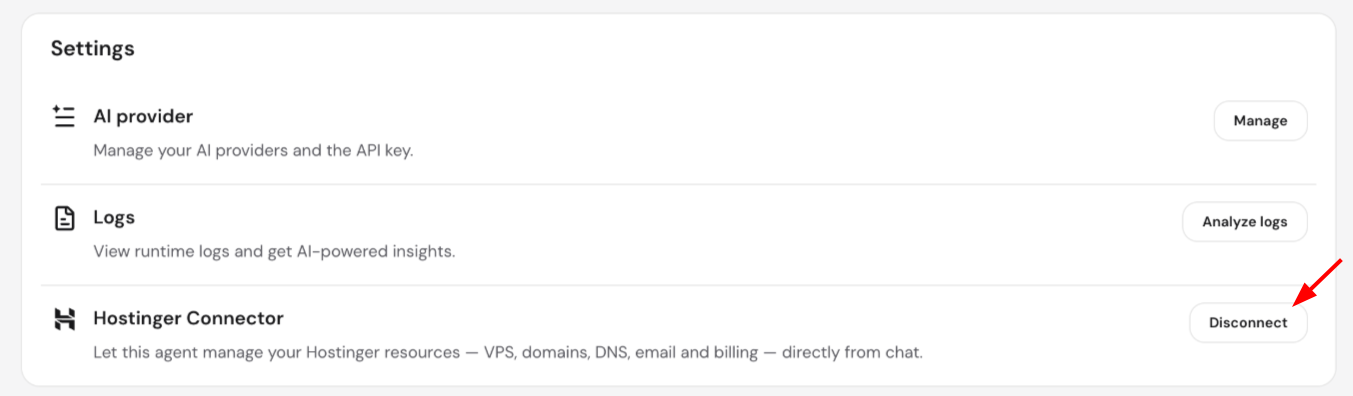
- Hostinger Connector requires Hermes version v2026.6.5-10 or later. To disconnect, go to Settings and click Disconnect next to Hostinger Connector; this also restarts the application.
By completing these steps, you have successfully deployed a AI automation application environment. You can now interact with your Hermes instance to automate tasks and streamline your workflow.
Switching to a VPS plan
Managed Hermes customers can switch their AI automation app plan to a KVM 1 VPS plan at no charge, once, within 30 days of purchase. Switching to a VPS plan is a subscription change, not a data migration. Your current Managed Hermes setup and data don’t move to the VPS.
Switching to a VPS plan doesn’t transfer your Managed Hermes data and can’t be undone. Save anything you want to keep before you request the switch.
Who can switch from Managed Hermes to a VPS plan
You can switch to a VPS plan if both of the following apply:
- You purchased the AI automation app plan within the last 30 days.
- You haven’t used the free switch before. The free switch to a VPS plan is limited to one per customer.
Request the switch through Hostinger Agent, which checks your eligibility before any change is made.
What happens when you switch from Managed Hermes to a VPS plan
Switching to a VPS plan makes three changes:
- Your AI automation app subscription is canceled.
- A new KVM 1 VPS subscription is created.
- You receive an onboarding link to set up the VPS, including choosing its location. The VPS includes a new Hermes instance.
Your current Hermes setup isn’t transferred to the VPS, including memory, agents, configurations, and conversation history. Data in your Managed Hermes instance may be permanently lost after the switch. There’s no automatic way to return to Managed Hermes after the switch.
Billing after switching from Managed Hermes to a VPS plan
The AI automation app subscription and the KVM 1 VPS subscription are separate orders. The VPS order gets its own invoice, issued at no charge. Your original payment stays on the AI automation app invoice in your billing history.
NOTE
- Migration between Managed Hermes and Managed OpenClaw is no longer available in either direction. This applies to subscription migration only — you can still switch which app you use at any time from Hostinger dashboard, since both are included under the same plan.
- If you require full root access or manual server control, we recommend exploring our Hermes VPS options.
- See Hostinger AI Automation Applications overview for how Managed Hermes fits among Hostinger’s other AI Automation Application.
- Check the new update of Hermes below