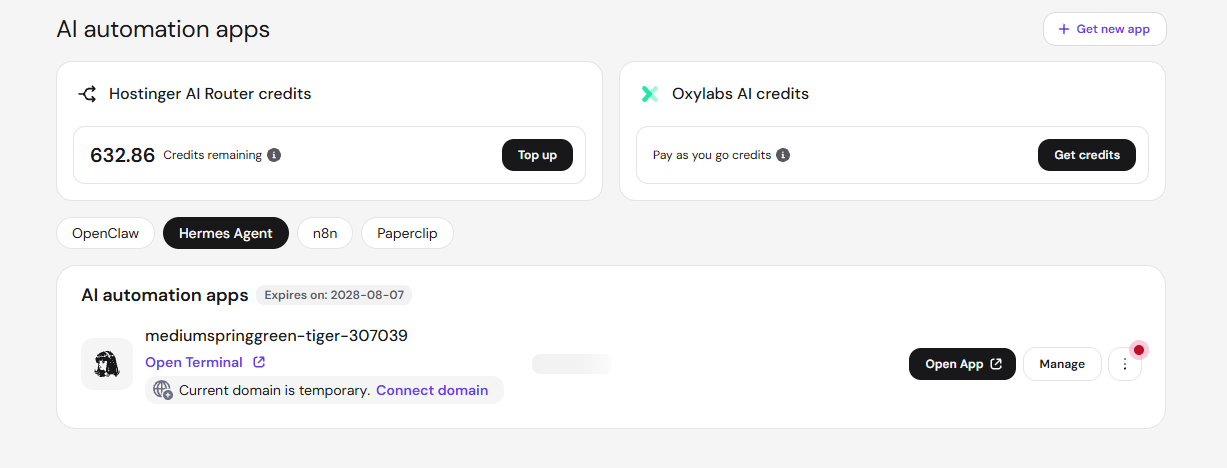
You can manage your Hostinger Managed Hermes applications directly from the Hermes section on the Hostinger dashboard sidebar. This interface allows you to monitor your Hostinger AI credits and Oxylabs AI credits, access your environment, and perform maintenance tasks such as restarting your application or renewing your subscription.
Before you start
The Hermes section of Hostinger dashboard is displayed on the left. You can purchase a managed Hermes Hostinger plan on that section or on the Hostinger page:
- New to Managed Hermes? See Hostinger Managed Hermes: overview and setup first.
- The option to purchase an AI automation apps plan is currently not available through the Hostinger dashboard Marketplace.
- This guide covers the managed solution, not Hermes inside VPS.
Manage your Managed Hermes application
To access your management options, log in to Hostinger dashboard and navigate to the Hermes section on the sidebar.
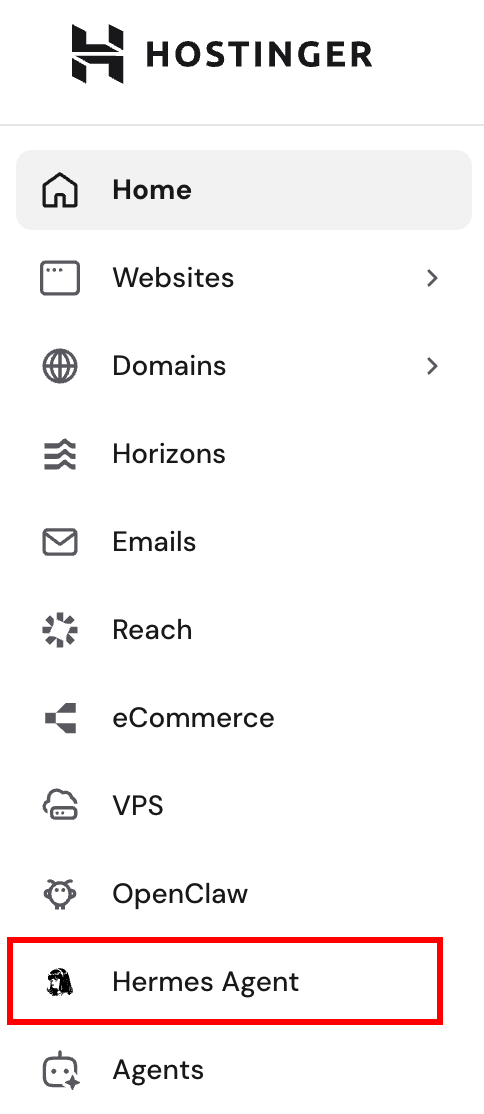
The main page provides an overview of your AI resources and active installations.
AI integrated credit management
Hermes requires AI credits to respond to interactions and perform automated tasks. You can manage these directly from Hostinger dashboard.
- Hostinger AI Router credits: shows your Hostinger AI credit balance, which Hermes spends through Hostinger AI Router. Hostinger AI Router gives Hermes access to AI models like ChatGPT and Claude without a separate account or API key for each provider. To add credits, click Top up on the Hostinger AI Router credits card and select a credit amount. If you have no Hostinger AI credits yet, top up and create a Hostinger AI Router API key before Hermes can use AI. Your Hostinger AI credit balance is shared with other Hostinger products, as explained in Hostinger AI credits: How the shared balance works.
-
Oxylabs credits: These enable your application to access live web content and extract data. If you chose this option upon purchase, you will start with 1,000 free credits, which can be topped up at any time. More information: Oxylabs credits overview.
-
API keys: Manage your Hostinger AI Router API keys on the AI Router page in Hostinger dashboard. From the AI Router page, you can create keys, and choose which AI models each key can use.
Application list
Each of your AI automation app plans is listed on a separate card with the following details:
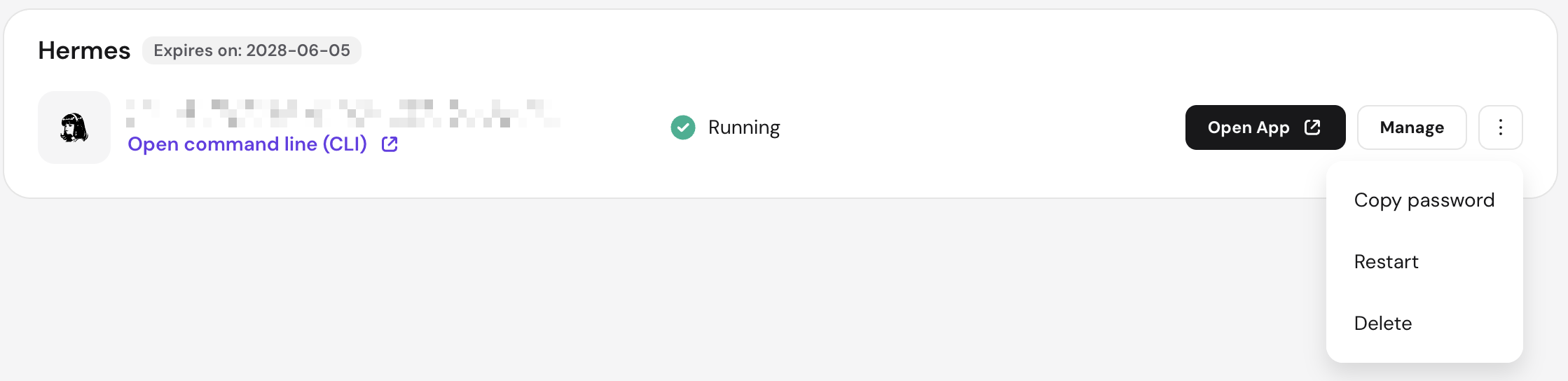
- Expires on: Displays the next renewal date for your hosting plan.
- Instance name: An automatically generated name associated with your application URL. This name is fixed and cannot be changed.
- Status: Indicates if your server is online. If the status is Running but you encounter errors, you may need to check your internal Hermes settings.
- Quick access: Click the Open App button to open your application interface. You’ll be prompted to log in with your access key (gateway token) — copy it beforehand using Copy password from the Options (⋮) menu, or the Access key button in the Managed Hermes dashboard.
- Manage: Access the Managed Hermes dashboard.
- Options (⋮): Click this button to copy your password, reboot, or delete your application.
Managed Hermes dashboard
After clicking Manage next to your Managed Hermes installation, you will access the following options:
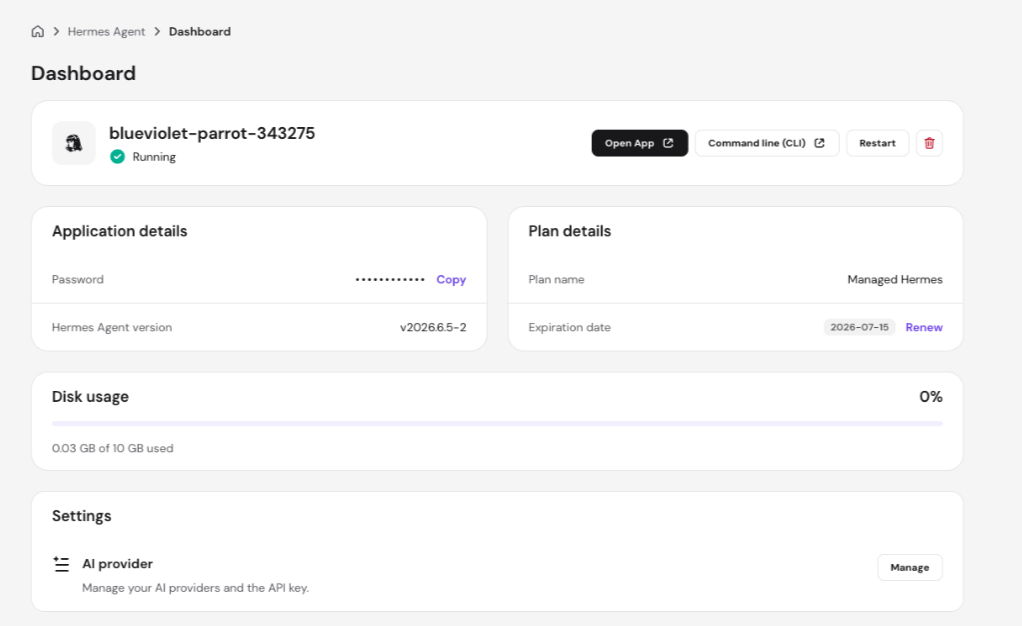
- Hermes quick access button to open your application’s control panel. Enter the access key you copied from Access key to log in.
- Maintenance: Use the Restart button to reboot your instance.
- Delete application: Click the bin icon to permanently remove the application. This action cannot be undone.
- Once deleted, you can create a new application from the Hermes main page on Hostinger dashboard by clicking Setup.

- Once deleted, you can create a new application from the Hermes main page on Hostinger dashboard by clicking Setup.
- Access key: Copy your Hermes gateway token. You can view or change this token at any time from the Environment section.
- Hermes Agent version: Shows your currently installed Hermes Agent version in the App details card. Click Update next to it to upgrade to the latest version.
- Plan details: View your current plan name and expiration date. Click Renew to extend your subscription
- Select a renewal period and payment method, and click Complete payment.
- AI providers: Manage your AI provider settings from this section, including entering API keys and selecting your AI model. On the Hostinger AI Router tab, select a key from the AI Router API key dropdown, or click New key to create one. Existing nexos.ai keys appear in the dropdown labeled nexos.ai. For step-by-step instructions on switching providers, entering API keys, selecting a model, or connecting your OpenAI subscription via OAuth, see How to change the AI model in Hostinger Managed Hermes.
- If you’d rather connect your ChatGPT Plus or Pro subscription instead of a pay-per-token API key, see how to use your ChatGPT subscription in Managed Hermes.
- Hostinger Connector: Lets your Hermes agent read and manage your Hostinger resources, including VPS, domains, DNS, email, and billing, directly from chat. Click Connect to enable it, or Disconnect to remove it; either action restarts your application. Once connected, Hermes registers the Hostinger API MCP server automatically. Hostinger Connector requires Hermes version v2026.6.5-10 or later.
- Environment: Manage the environment variables your application uses directly from Hostinger dashboard. See how to manage environment variables in Managed Hermes for the full walkthrough. This includes:
- Viewing all current keys and values — values are hidden by default; click the eye icon next to an individual value to reveal it, or use Show all values to reveal them all at once.
- Editing an existing variable’s value using the pencil icon — this is how you change your gateway token/password.
- Adding a new environment variable by clicking Add environment variable, for any additional secrets or settings your application needs to run.
- Deleting a variable using the bin icon. Note that core system variables (such as your gateway/webUI password and default provider API keys) cannot be deleted — only edited.
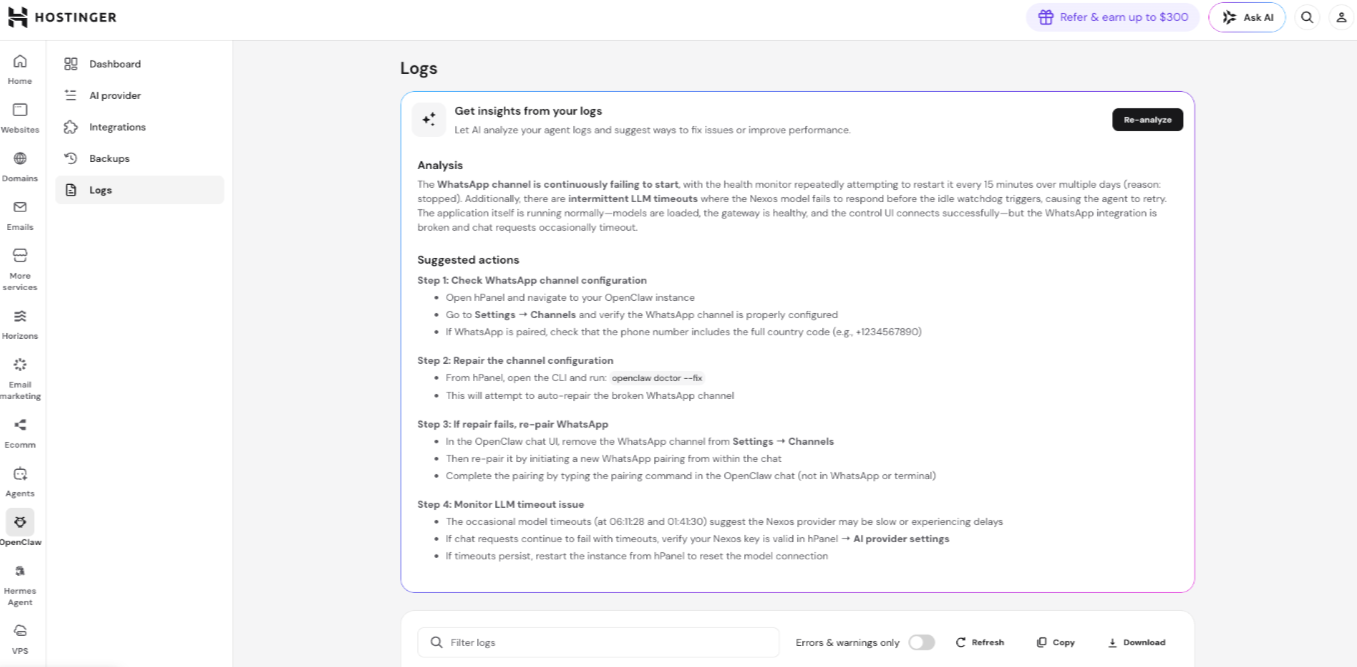
- Logs: View real-time application output directly from the dashboard. The Logs section displays your application’s activity, which can help you diagnose issues and understand what is happening when errors occur. Click Get insights from your logs to have AI analyze your log entries and suggest ways to fix issues or improve performance — the results will appear as an Analysis summary and a list of Suggested actions. Click Re-analyze to run a fresh analysis at any time. You can also click Refresh to load the latest entries, Copy to copy the log contents, or Download to save the log file locally. See how to get insights from your logs in the Managed Hermes application for more detail.
- Storage upgrade: You can upgrade your application storage to 50 GB directly from Hostinger dashboard. Select the upgrade option and complete the purchase. The upgrade is applied to your application immediately.

- CLI – open a web-based terminal to run commands directly against your Hermes environment, without needing the visual interface. See how to use Managed Hermes CLI for setup and usage.
- Backups – Managed Hermes automatically backs up your application daily, letting you restore, download, or audit past restores at any time. See how to manage backups in Managed Hermes for the full process.
Managing your Managed Hermes hosting plan ensures your AI applications remain active and your resources are correctly allocated. By monitoring your expiration dates and credit balances in Hostinger dashboard, you can maintain uninterrupted service and scale your AI capabilities as needed.