Manually enabling the WordPress Overview section on Hostinger dashboard adds WordPress management tools to a website where WordPress was migrated or installed manually. Open WordPress Overview in the website’s dashboard, select the domain or subdomain, and click Detect.
It is enabled automatically whenever you install WordPress via Auto Installer.
NOTE
- This does not apply to Agency Hosting plans, since Agency Hosting does not have a separate WordPress Overview page. If you plan to use WordPress on an Agency Hosting plan, install it directly when adding a new website.
Enable WordPress Overview
If you migrated or installed WordPress manually, you can easily enable it by opening Websites → Manage site, searching for WordPress → Overview on the left sidebar, and clicking on it:
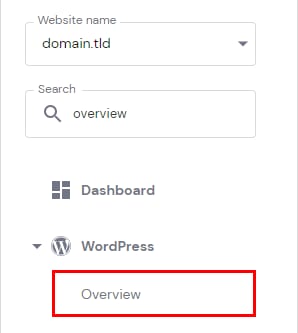
If the Overview option does not appear, search WordPress Install under the Website section, and you can also take this action from there.
Next, select the domain or subdomain from the drop-down list and click on Detect:
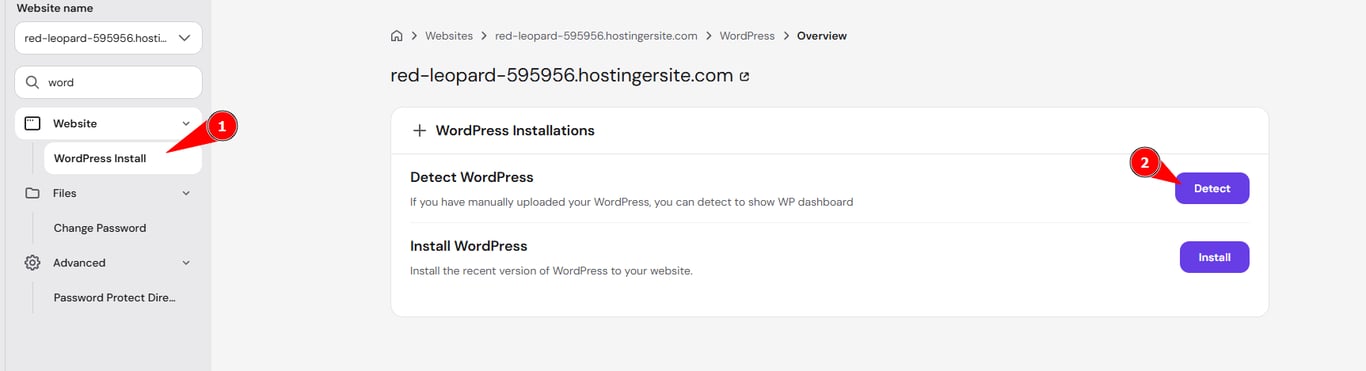
The drop-down will be available only if you have created subdomains.
Give it up to 10 minutes and refresh the page – the WordPress overview should be added to your Hostinger dashboard.
If WordPress is still not detected, make sure all files are located in the correct directory—typically the public_html folder or the root directory of your domain.
WordPress tools temporarily unavailable during migration
If you have an existing WordPress installation and initiate a migration to the same domain, certain WordPress features in Hostinger dashboard (WordPress section in the sidebar, WP Admin button, AI Troubleshooter) will be temporarily disabled until the migration is complete. This is expected behavior — files are being transferred and the database is being updated, so accessing these tools during migration may cause errors. Once the migration finishes, all WordPress tools will be available again.