Move your Hostinger AI Builder website from one hosting plan to another within the same Hostinger account.
❗ IMPORTANT NOTES ❗
-
The procedures below apply to websites created with Hostinger AI Builder, and they explain how to move a site from one hosting plan to another within the same Hostinger account.
-
Moving a builder-based website to another Hostinger account isn’t available yet.
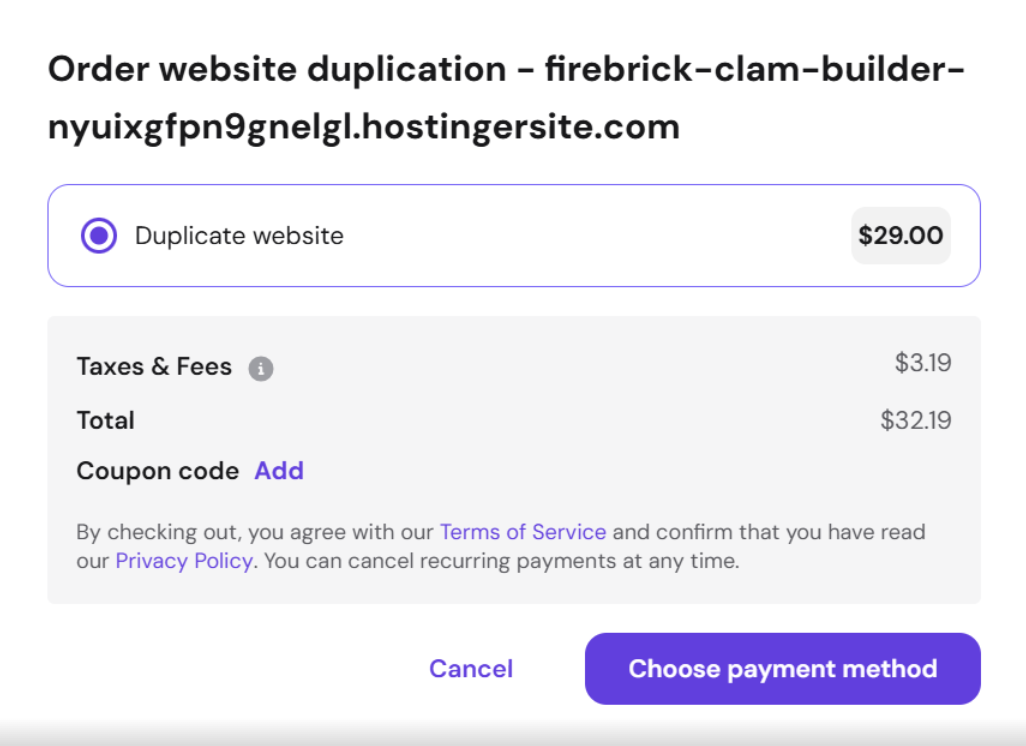
- A duplication fee applies when moving a AI builder manual mode site between different hosting plans. You’ll see the fee amount when you select the destination plan during the duplication process.
Moving a website to another hosting plan while using the same domain name
To move a builder-based site to another hosting plan while keeping the same domain name, follow the steps below:
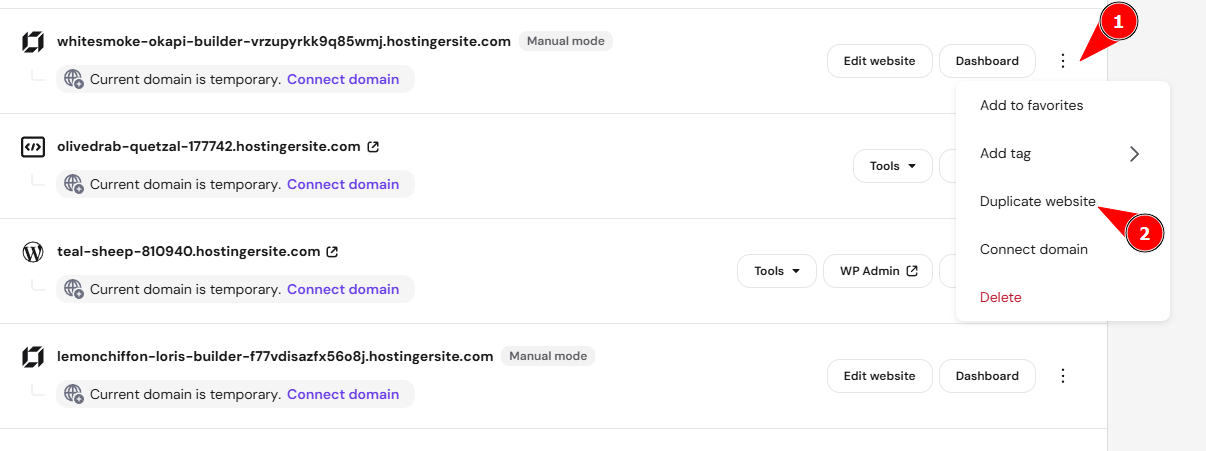
- On the Websites page, find the site in question, click on the ellipsis ⋯ button, and select Duplicate website:

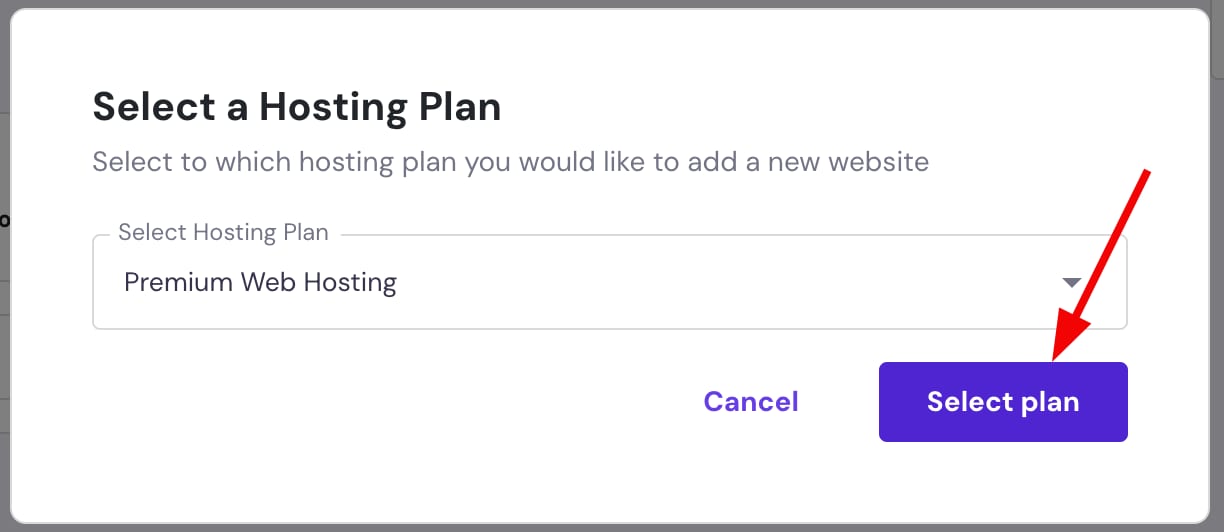
- In the pop-up, choose the preferred hosting plan from the dropdown, and click on Select plan:

- For manual mode, you’ll see a duplication fee displayed for moving the site to the selected plan. Select the payment method, then continue the payment. For agentic mode, skip this step.

- A randomly generated domain name —
xxx.builder-preview.com— will be automatically assigned to the duplicated website. - Delete the original builder-based website — this way, you’ll release the domain name and will be able to connect it to the duplicated website in the next step.
- Replace the preview domain with your actual domain name this way: How to Change a Domain.
- Finally, publish your website.
All the website’s content and settings are duplicated except for the online store and its content: products and all the store settings are not copied
Moving a website to another hosting plan and another domain name
To move a builder-based site to another hosting plan and another domain name, follow the steps below:
- On the Websites page, find the site in question, click on the ellipsis ⋯ button, and select Duplicate website:
- In the pop-up, choose the preferred hosting plan from the dropdown, and click on Select plan:

- For manual mode, you’ll see a duplication fee displayed for moving the site to the selected plan. Select the payment method, then continue the payment. For agentic mode, skip this step.
- A randomly generated domain name —
xxx.builder-preview.com— will be automatically assigned to the duplicated website. - Replace the preview domain with your actual domain name this way: How to Change a Domain.
- Finally, publish your website.
Your website is now moved to the new hosting plan and accessible under your chosen domain.