Add a search element to your Hostinger AI Builder manual mode website, letting visitors search your products, blog posts, and general content directly from a customizable search bar. You can add a search element to most pages, enable a dedicated search feature within your blog section, and let visitors view full results on a dedicated search results page.
Add a search element to your website
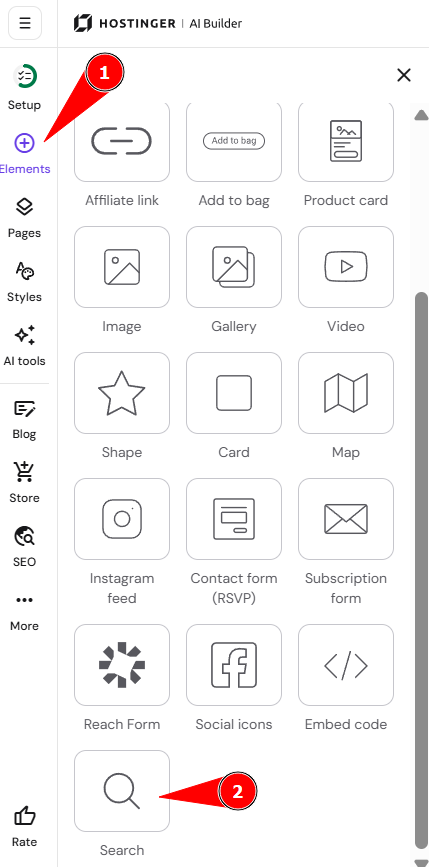
- In the builder, expand the Elements tab on the left.
- Find the Search element and drag it to the preferred place on your page.

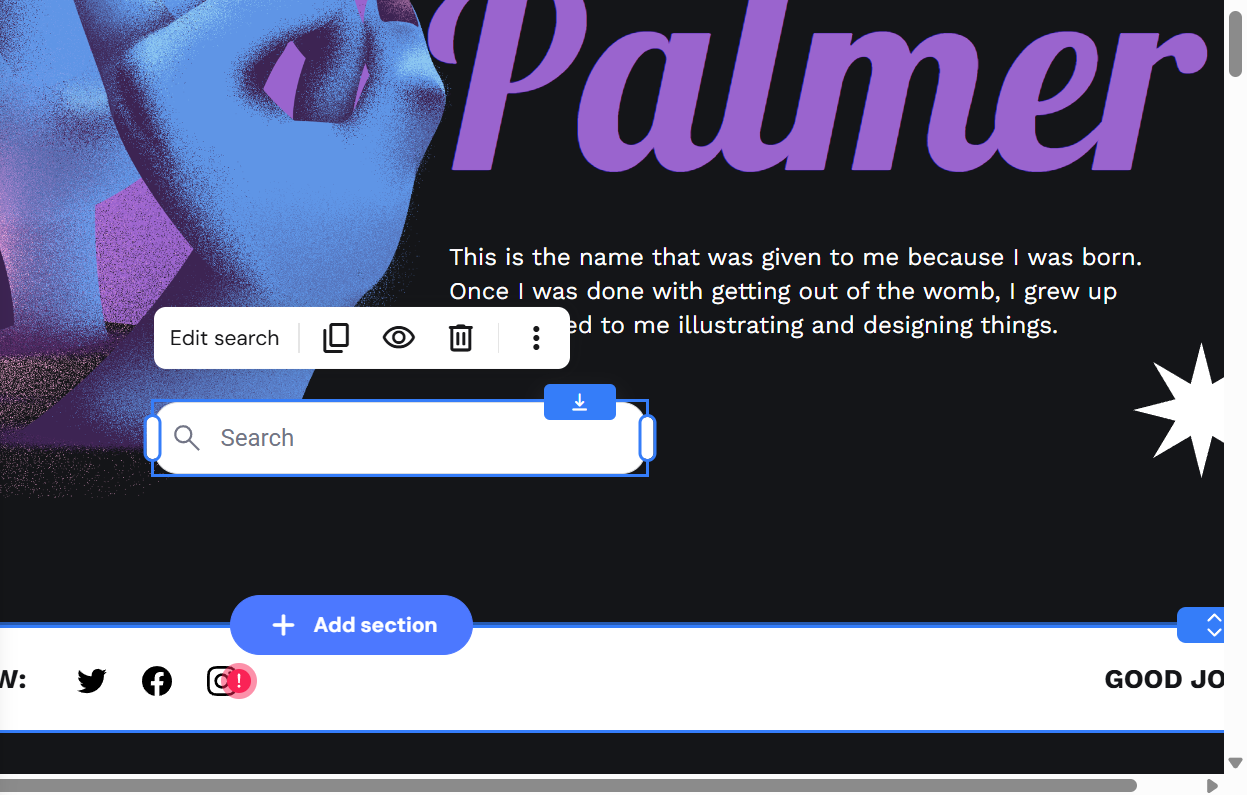
- Click on the element to see more options, such as edit, duplicate, change visibility, or delete.
- Click Edit search to open the search settings pop-up.

NOTE
- The search element cannot be added within the following sections: Header, Product list, Single product, Blog post header.
Configure general search settings
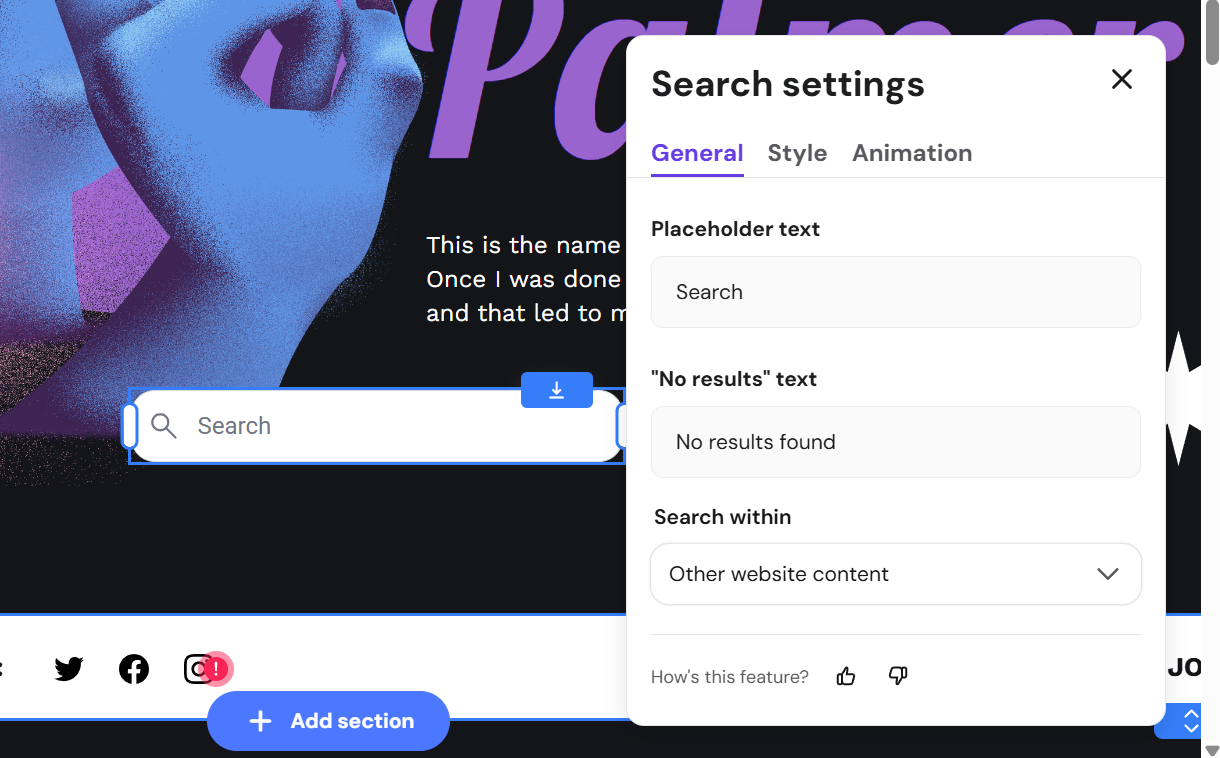
Under the General tab, you can set:
- Placeholder text: by default, it’s Search.
- “No results” text: by default, it’s No results found.
- Search within: choose which content types the element searches. Select or deselect Products, Blog posts, or Other website content, depending on what you want visitors to find.
Configure search style and animation
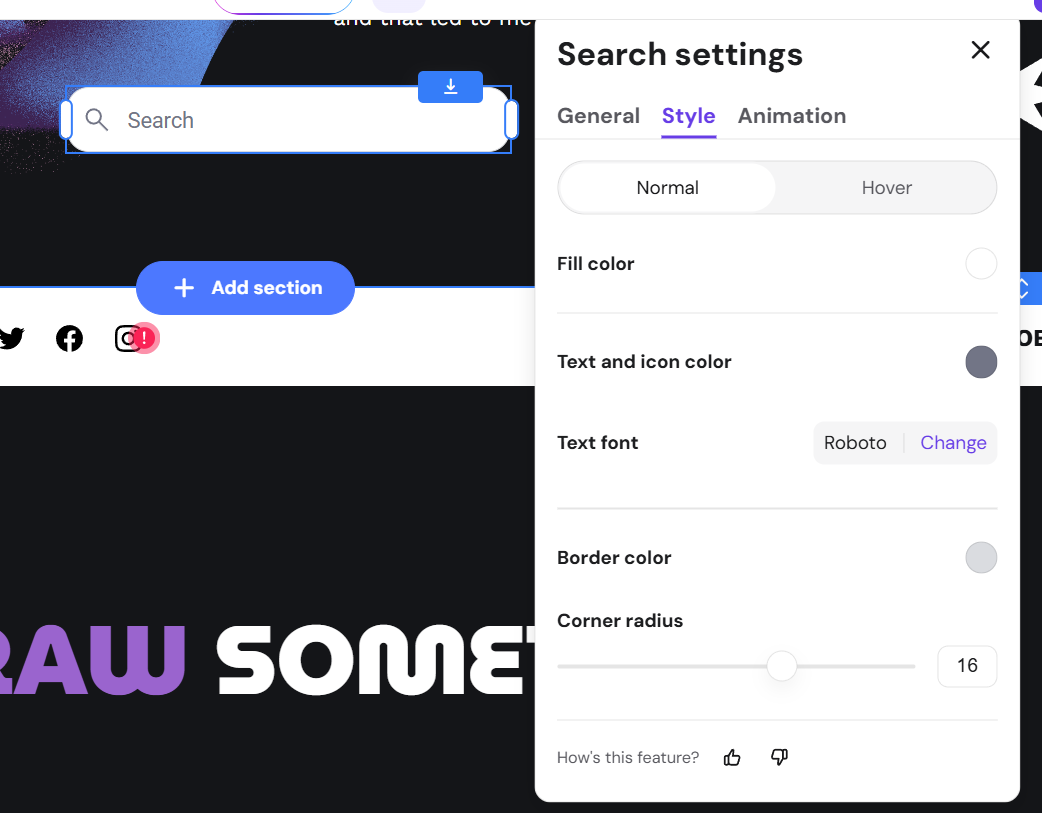
Under the Style tab, you can set:
- Fill color (normal and hover)
- Text and icon color (normal and hover)
- Text font
- Border color (normal and hover)
- Corner radius
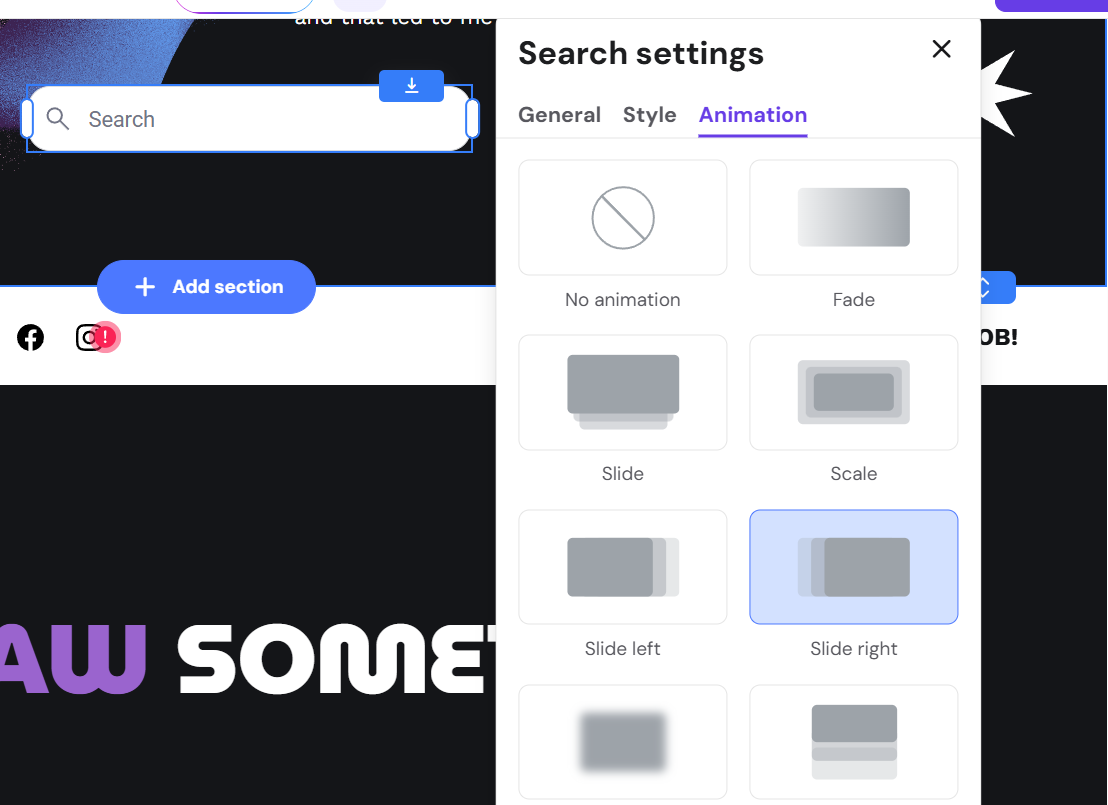
Under the Animation tab, set a preferred animation for the element.
Enable search within your blog section
The Blog list section includes its own dedicated search feature, separate from the general Search element.
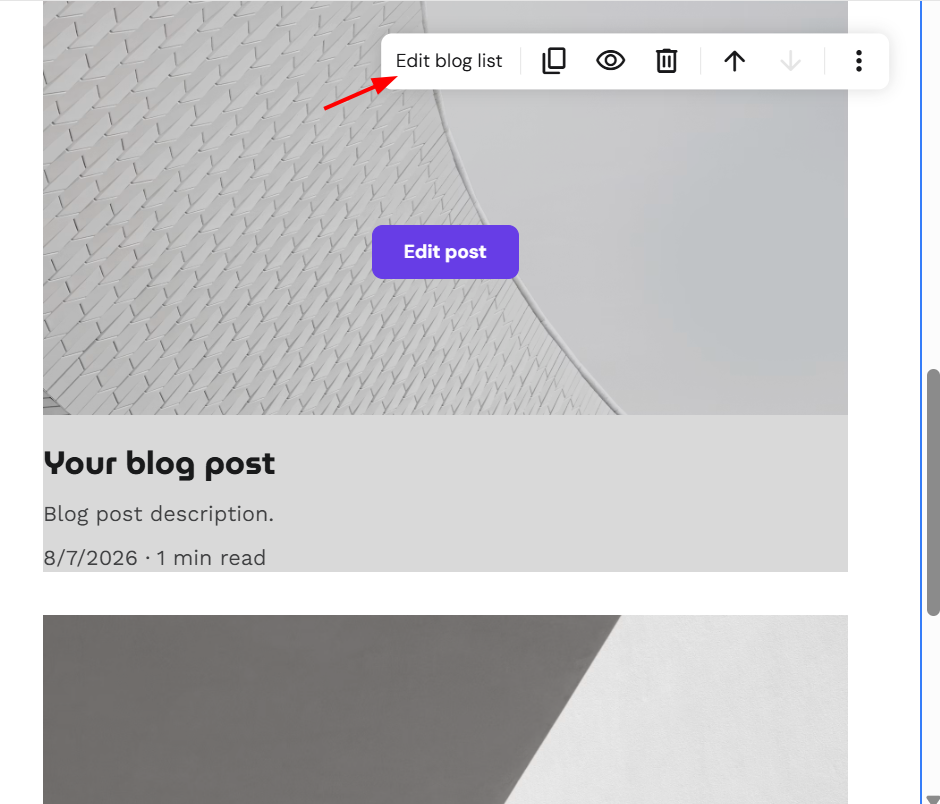
- Click on your Edit blog list section.

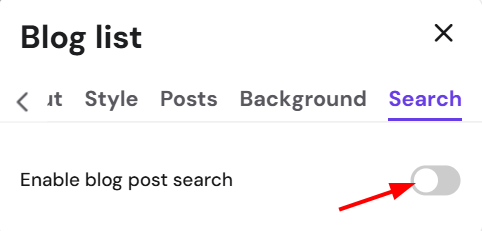
- Click the Search tab.
- Toggle Enable blog post search on.

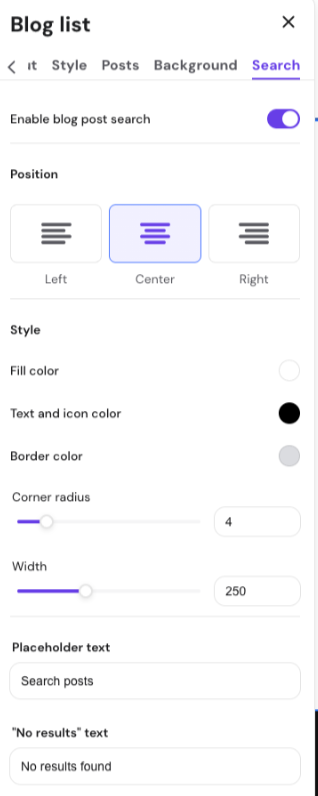
- Choose a Position: Left, Center, or Right.
- Set the Style options, including fill color, text and icon color, border color, corner radius, and width.
- Set the Placeholder text and “No results” text for this search bar.
NOTE
- This blog search only searches blog posts within that section. It works independently from the general Search element’s Search within setting.
View search results
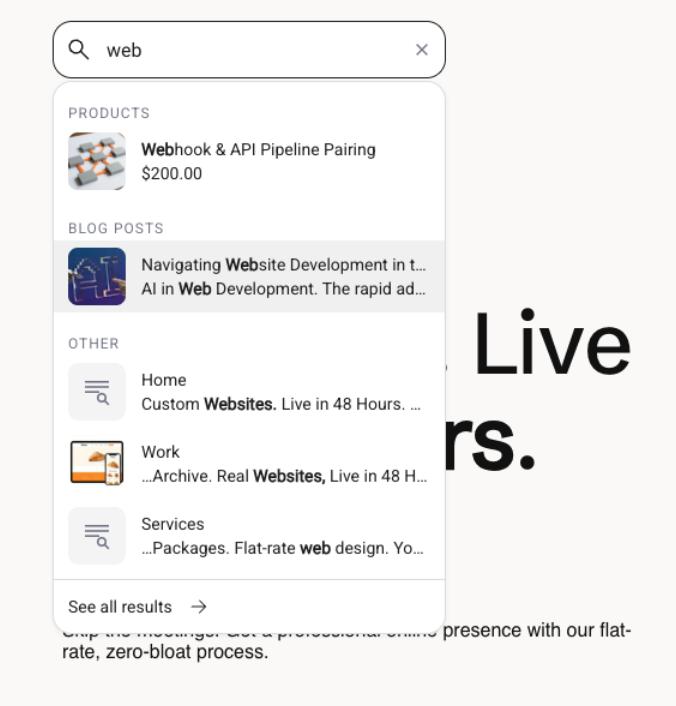
When a visitor types a query into a search bar, a preview of matching results appears, grouped under Products, Blog posts, and Other. Clicking See all results, or pressing Enter, opens a dedicated search results page, where results are organized into tabs — Products, Blog posts, and Other — each showing a result count, with matching terms highlighted.
With these updates, visitors can search across an entire AI Builder site, not only the product catalog, making it easier for them to find blog posts, pages, and other content.