Add an image gallery to your Hostinger AI Builder manual mode website using the Gallery element or a third-party widget.
Image gallery element
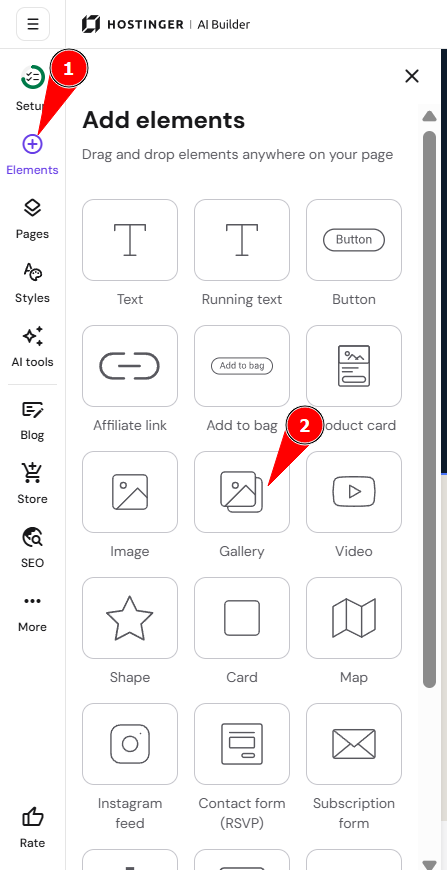
- Within the website editor, expand the Add element panel on the left.
- Drag and drop the Gallery element to the preferred place on your web page:

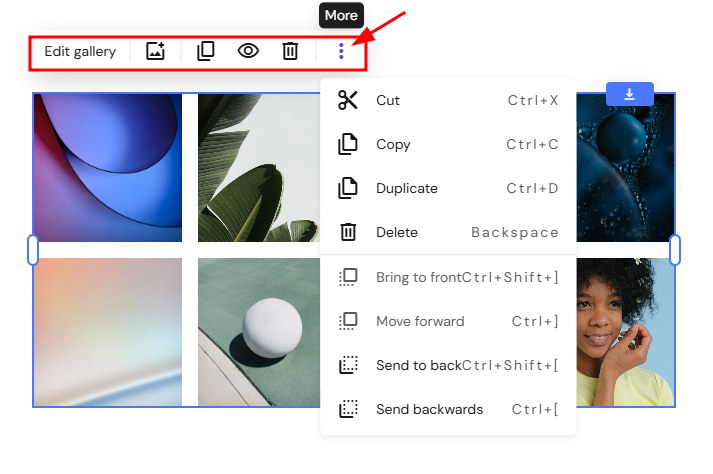
- Click on the element to see more options (edit, manage, duplicate, hide, delete, resize, etc.):

|
Edit gallery |
Manage gallery |
|
Click on Edit gallery to open the settings General settings:
Animation settings: How to Add Animations |
Click on Manage gallery (the small picture icon located to the right of the Edit gallery button) to do the following:
|
NOTE
-
The grid layout displays images in strict squares and the masonry layout displays images in their original proportions:


Third-Party image gallery widget
If you want something more custom, feel free to use third-party tools. Elfsight is one of many platforms that offer various embeddable widgets, including the Photo Gallery widget.
- On Elfsight, you’ll find a variety of image gallery templates.
- Once you select a template, customize it to your liking:
- Once you’re finished creating your widget, save it:
- Then, click on Add to website and copy the integration code:
- Paste the code into your website using the embed code element and resize it if necessary.
- Once done, update your website for the changes to reflect online.


Your image gallery is now live on your website.