Set up two-factor authentication (2FA) on your Hostinger account to require a one-time code each time you log in. There are two 2FA methods: an authentication app, such as Authy, Google Authenticator, or NordPass, and email codes. Only one method can be active at a time, and the authentication app is the more secure option.
Turn on two-factor authentication in Hostinger dashboard
- Log in to Hostinger dashboard, click the profile icon, and choose Security.
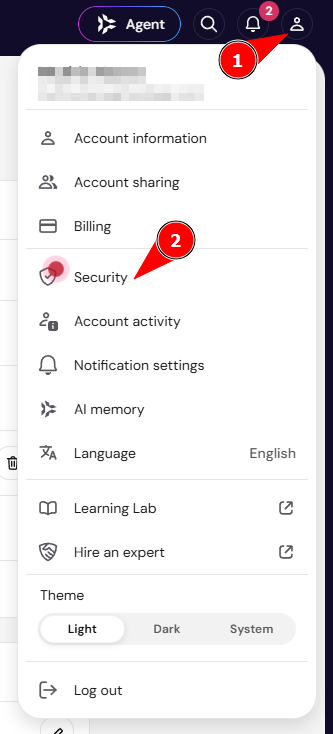
- On the Two-Factor Authentication Setup page, click Turn on next to Two-factor authentication.
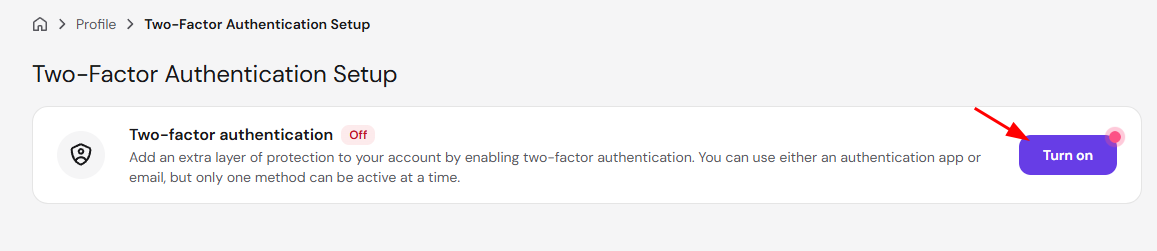
- Select Authentication app or Email, then click Select.
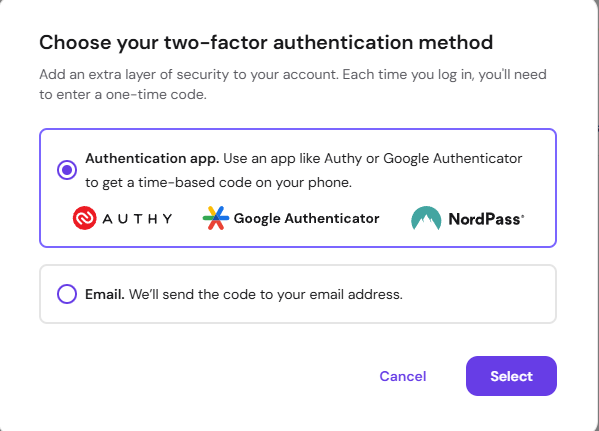
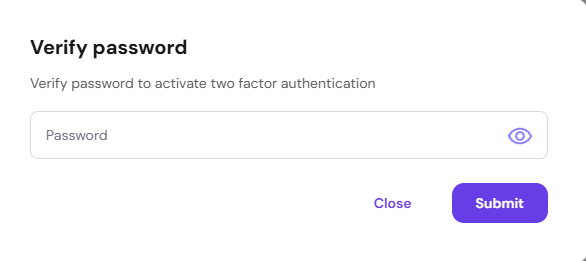
- Enter your Hostinger account password and click Submit.
Next, follow the steps for the method you selected.
Set up 2FA with an authentication app
The authentication app method is the recommended option. It generates a new time-based code on your phone each time you log in.
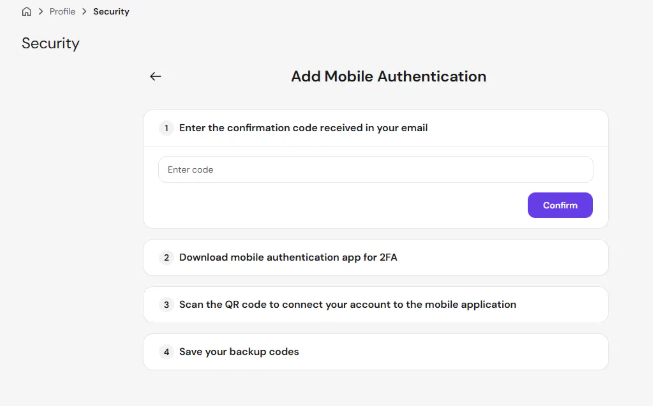
- Enter the confirmation code sent to your account email address and click Confirm.
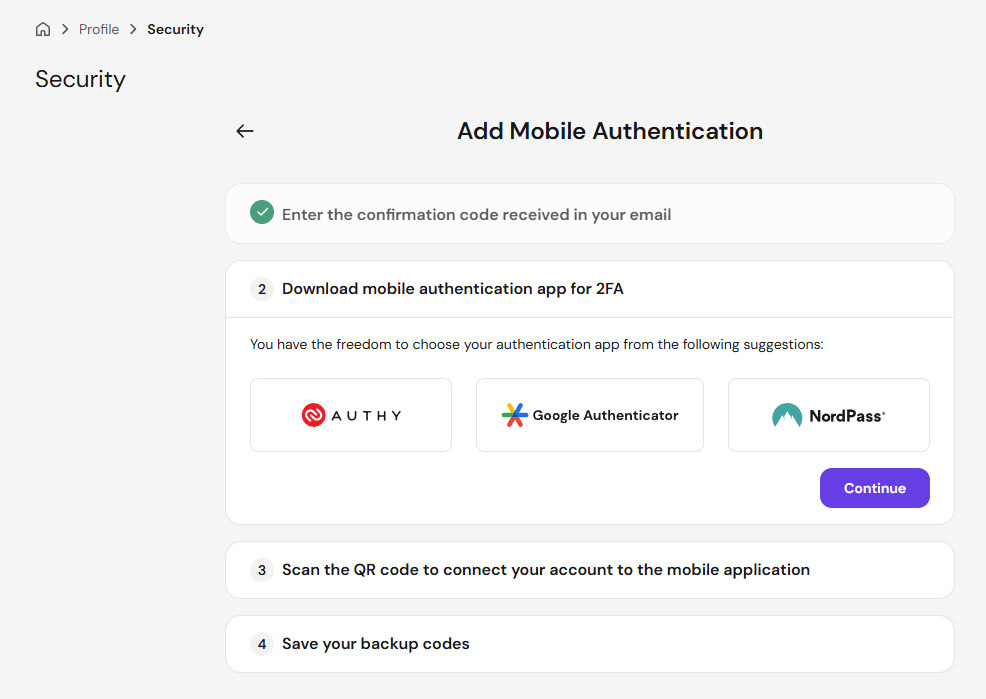
- Install an authentication app on your phone, such as Authy, Google Authenticator, or NordPass, and click Continue.
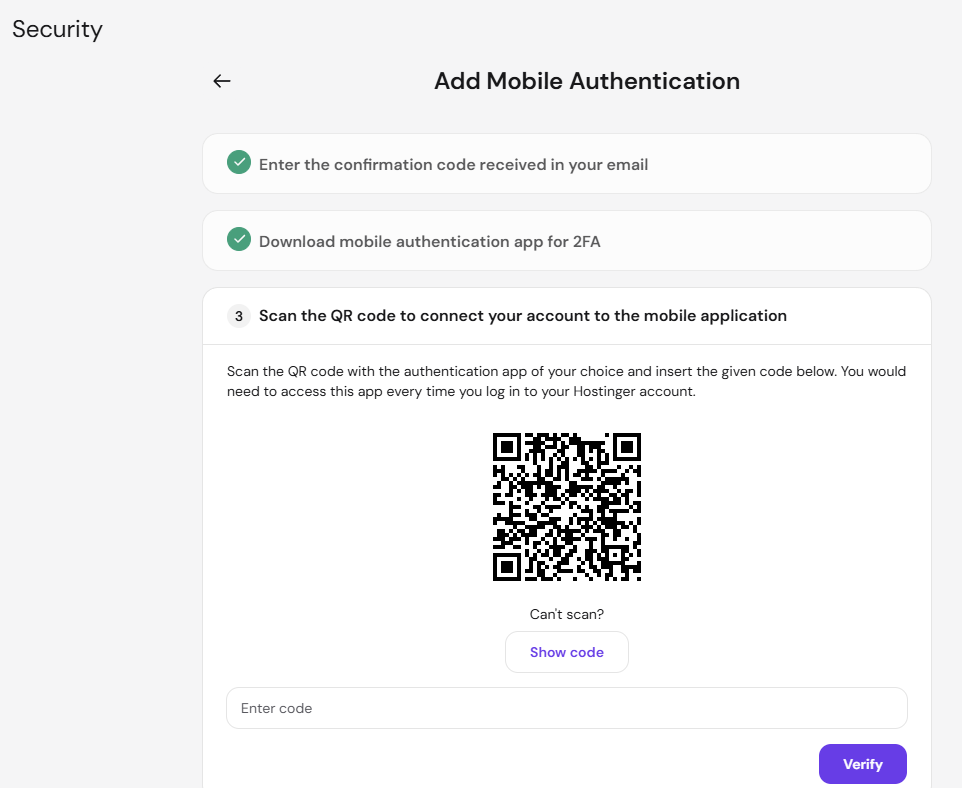
- Scan the QR code with your authentication app, enter the code the app generates, and click Verify. If you can’t scan the QR code, click Show code and enter the setup code in your app manually.
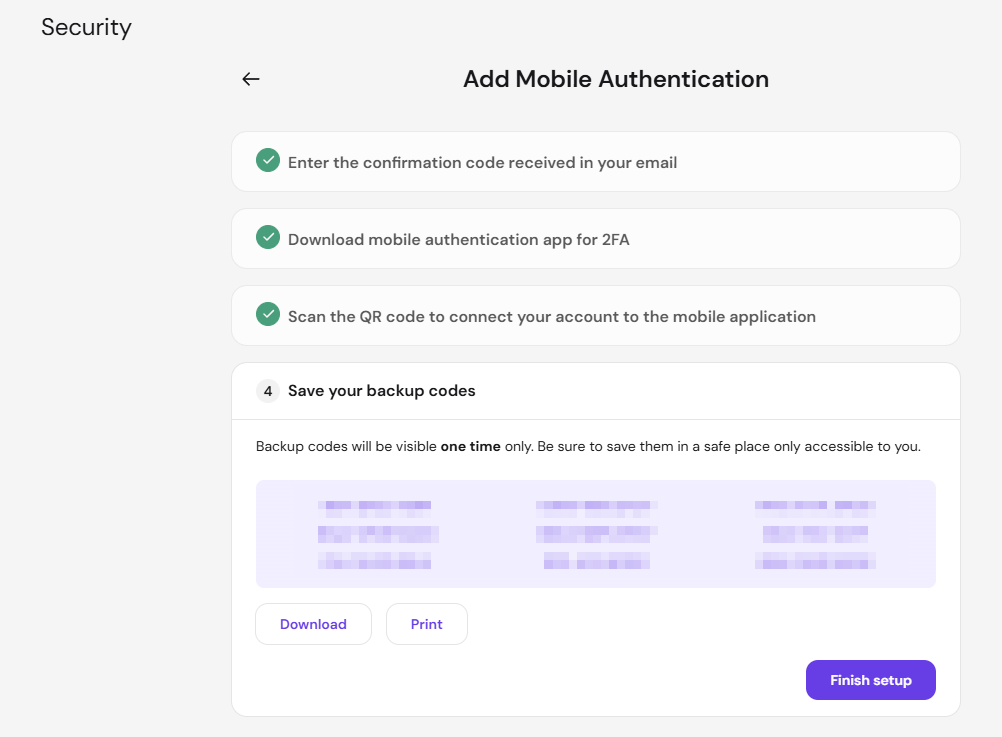
- Save your backup codes with Download or Print, then click Finish setup.
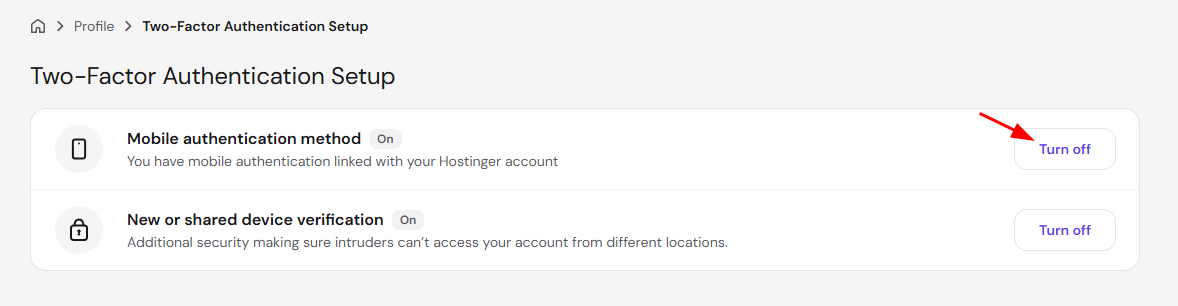
The Two-Factor Authentication Setup page now shows Mobile authentication method as On.
Set up 2FA with email codes
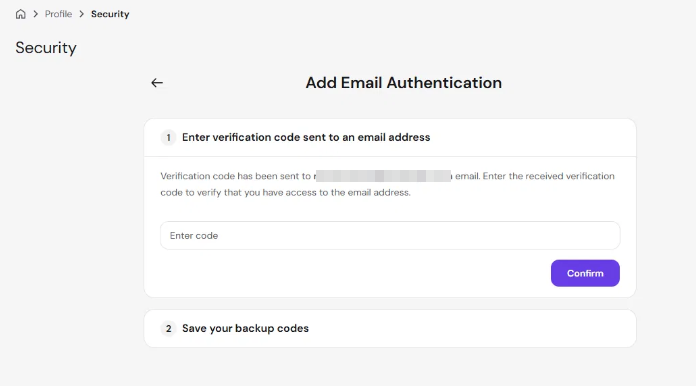
With the email method, Hostinger sends a one-time code to your account email address each time you log in.
- Enter the verification code sent to your account email address and click Confirm.
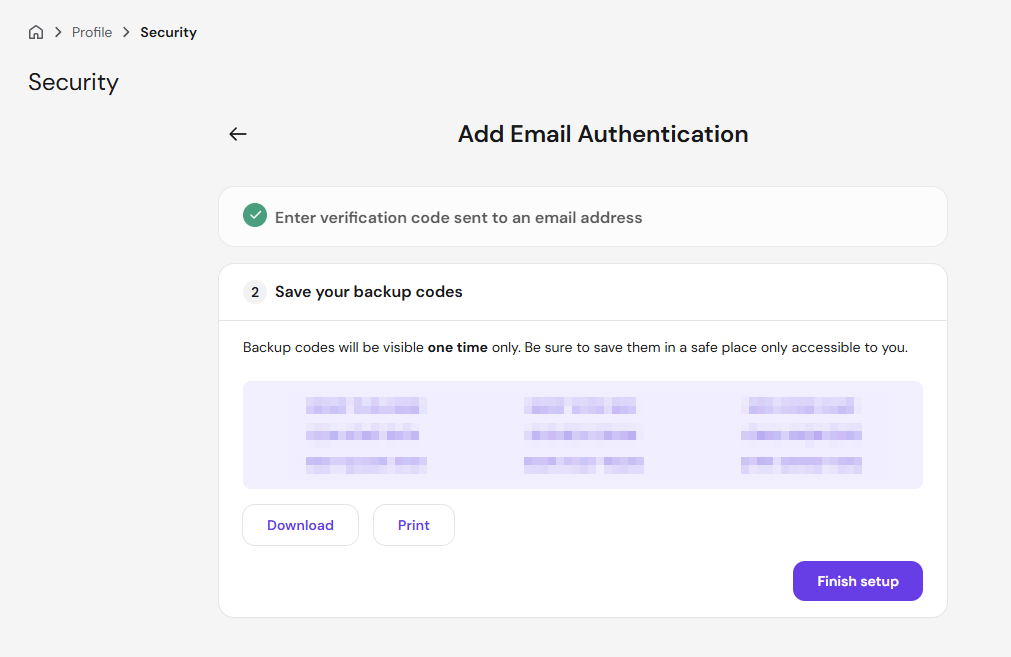
- Save your backup codes with Download or Print, then click Finish setup.
NOTES
- Backup codes are shown only once. If you didn’t save them, turn two-factor authentication off and set it up again to get new codes.
- If you lost access to your 2FA device or your registered email, recover your Hostinger account.
- If you have a verified recovery email, you can choose to receive your email 2FA code there when you log in.
Use new or shared device verification
New or shared device verification adds an extra security check when someone tries to access your Hostinger account from a different location. The setting appears on the Two-Factor Authentication Setup page, and you can turn it on or off at any time with the Turn on or Turn off button.
Turn off two-factor authentication
Turning off two-factor authentication is not recommended, but you can do it at any time, for example to switch from email codes to an authentication app.
- Go to the Two-Factor Authentication Setup page and click Turn off next to your active method.
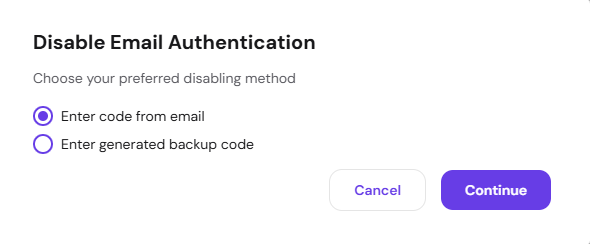
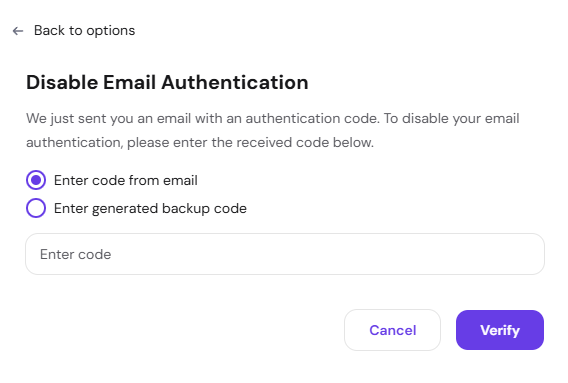
- Select how to verify the change: your current method (authentication app or email) or a backup code. Then click Continue.
- Enter the code and click Verify.
Two-factor authentication is now off, and you can turn it on again with either method.
Your Hostinger account now asks for a one-time code from your authentication app or email each time you log in.