Unlink your Hostinger account from social login to switch to logging in with your email address and a password. Click Unlink in the Social logins section of the Account information page, set a new password, and confirm the change by email.
If you no longer have access to Google account linked to Hostinger, contact our team for assistance.
Step 1 – Unlink your social login
-
Log into your Hostinger account using your current social login.
-
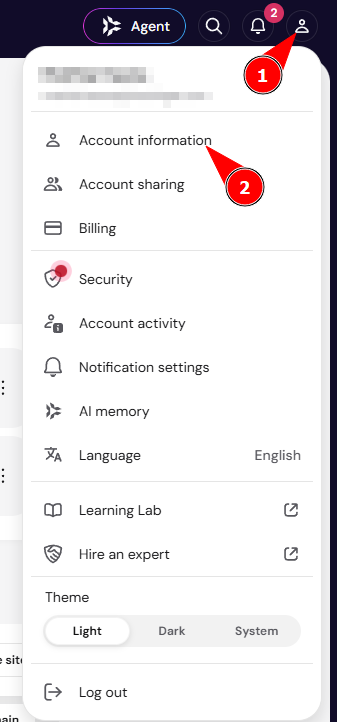
On the Hostinger dashboard home, click on the profile icon and select Account Information.

-
Scroll down to the Social logins section and click on Unlink next to the connected account.

-
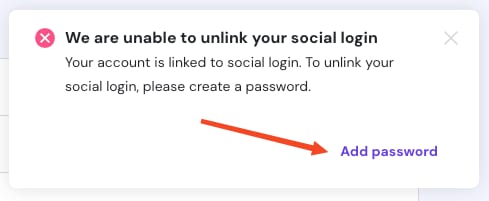
A prompt will appear asking you to set a password. Click Add password.

-
Enter a strong, unique password and click Confirm.

For added security, enable two-factor authentication (2FA) after unlinking your social account.
Step 2 – Confirm the change
-
Check your registered email for a confirmation message with a link to set your new password. It may take up to 15 minutes to arrive—don’t forget to check your spam and trash folders.
-
Once confirmed, you can log in to your Hostinger account using your email and the new password.
Your Hostinger account now uses email and password login. To switch back to social login later, link your Hostinger account to social login again.