Check resource usage in Hostinger on the Resources Usage page, which shows your hosting plan’s disk space and inode usage, the folders that use the most of each, and graphs for CPU, memory, and other limits. Use it to spot what is filling up your hosting plan and how close your websites are to the plan’s limits.
Access resource usage statistics
To reach the resource usage statistics, follow these steps:
- On web or cloud hosting plan, go to the Websites page, hover over any website added to the hosting and click Manage site, it will redirect to Dashboard section, on the sidebar click on Hosting plan → Resources Usage. The data shown is aggregated for all the websites on the hosting plan, not per website.
- On Agency hosting, go to Websites → Manage site → Resources Usage. The data will be shown per hosting plan by default; to display per website, click on the Website button next to Resources overview.
- For VPS, refer to this guide: How to check VPS resources usage.
What the resource usage page shows
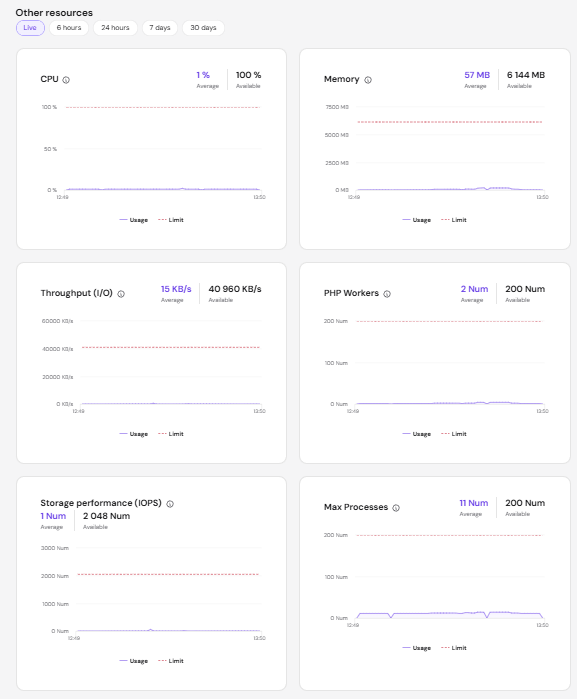
The resource usage will be displayed as visual representation of the current disk usage and the number of files and directories (inodes) , as well as graphs for the following data:
|
CPU |
The number of CPU power consumed. |
|
Memory |
The amount of RAM used by all the processes. |
|
Throughput (input/output) |
The speed of data transfer between the hard disk and RAM. |
|
PHP Workers |
The number of processes requested by your websites. |
|
Storage performance (IOPS) |
The standard unit of measurement for the maximum number of reads and writes to non-contiguous storage locations. |
|
Max processes |
The total number of all processes running in your hosting plan. |
The red line on the graphs shows the limit set for your hosting plan. It’s recommended that your websites don’t reach the limits for stable and uninterrupted work. marked as Faults in the chart legend, it indicates that the limits were hit briefly during that period while the total average was still within limits.
By default, you will be presented with live statistics. You can also check historical data for the last 6 hours, 24 hours, 7 days, or 30 days, or select a Custom date.
NOTES
-
The graphs showing usage over time are on the GMT+0 timezone.
-
The data is updated every 10–15 minutes.
- If you reach your plan’s limits, see what to do if your hosting plan limits are reached in Hostinger.
Check which folders use the most disk space and inodes in Hostinger
The What’s using your storage section on the Resources Usage page lists the largest folders on your hosting plan, by disk space or by number of files and directories (inodes). Use it to find what fills up your hosting plan without connecting via SSH.
- Go to Websites → Manage site → Hosting Plan → Resources Usage.
- Scroll to What’s using your storage.
- In the Largest folders card, select Disk usage to see the folders that take up the most disk space. Select Files and directories (inodes) to see the folders that hold the most files and directories.
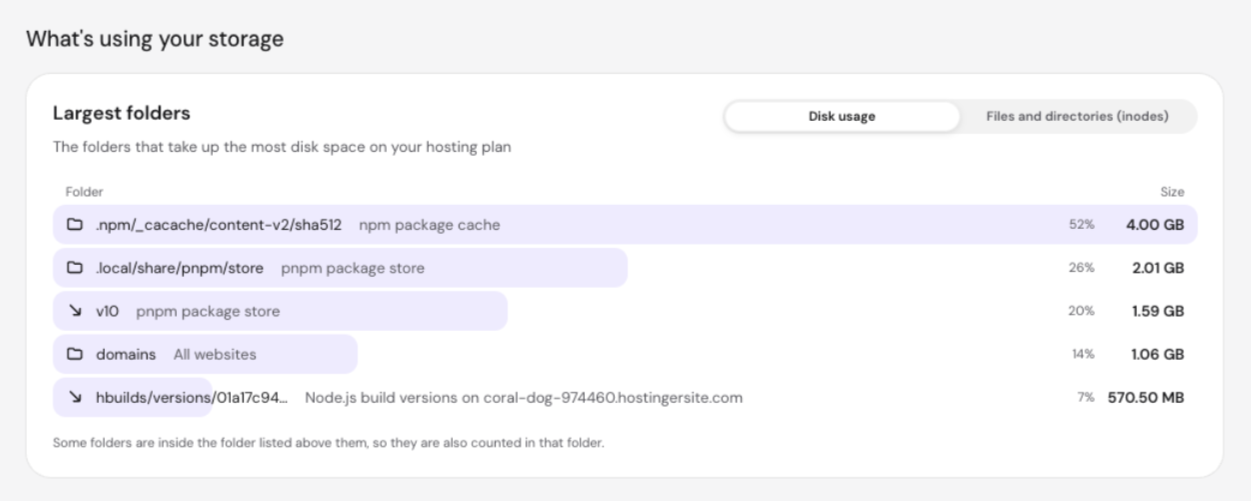
Each row shows the folder path and a label describing the folder, such as All websites for the domains folder or npm package cache. Each row also shows the folder’s share of your used disk space or inodes, and its size or number of files and directories. Some folders sit inside the folder listed above them, so their usage also counts toward that folder.
Click a folder path to open that folder in Hostinger File Manager. This link works only in the new Hostinger File Manager, which is rolling out gradually. If File Manager has no Deploy button in the top-right corner, you’re still using the previous version. See How to use the Hostinger File Manager for details.