This guide shows you how to log in to Hostinger Email webmail using the available access methods.
Before You Start
Make sure you have:
-
An active Hostinger Email mailbox
-
Your full email address (for example,
user@yourdomain.com, instead of just “user”) -
Your email password
Option 1: Access Webmail via Direct URL (Recommended)
Use this option for the fastest and simplest access.
-
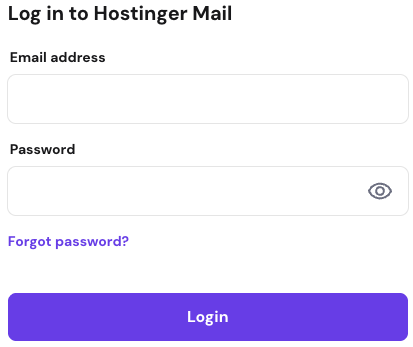
Open your browser and go to: https://mail.hostinger.com
NOTE: The webmail URL is fixed and cannot be customized. -
Enter your full email address.
-
Enter your email password.
-
Click Log In.
Tip: Bookmark this page for daily use.
Option 2: Access Webmail via hPanel
Use this option if you are already managing email settings in hPanel.
-
Open your browser and go to: https://hpanel.hostinger.com
-
Enter your full email address that you used when registering with Hostinger
-
Go to Emails page
-
Click Mailboxes next to your domain
-
Click Webmail next to a mailbox you want to login to
- Enter your full email address.
- Enter your email password.
- Click Log In.

Session persistence: If you are already logged into Webmail, clicking the Webmail button in hPanel will open your current active session directly — no need to log in again.
Tab sync: If you have multiple Webmail tabs open, they automatically refresh when you log in or log out in another tab.
When you log in to Hostinger Mail for the first time, a Setup Guide is displayed to help you configure your mailbox.
The guide walks you through 5 onboarding steps:
- Selecting a theme
- Selecting a layout
- Adding a sender name
- Adding an email signature
- Connecting a device
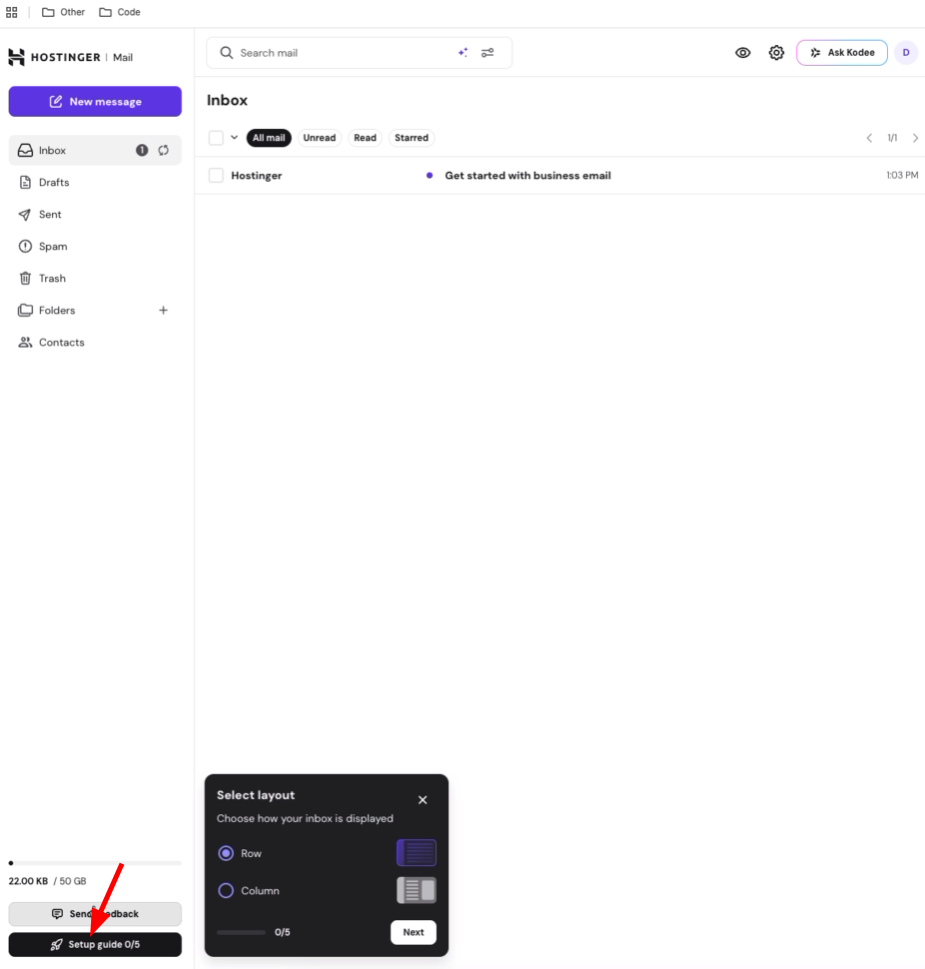
You can complete the steps in any order. If you prefer to set them up later, you can skip the guide and return to it from Settings at any time.
Language Settings in Hostinger Mail
To change your Webmail display language:
- Click the gear (Settings) icon in the top right corner of Webmail.
- In the dropdown menu, find Language, which shows your current language (e.g. Language (English)).
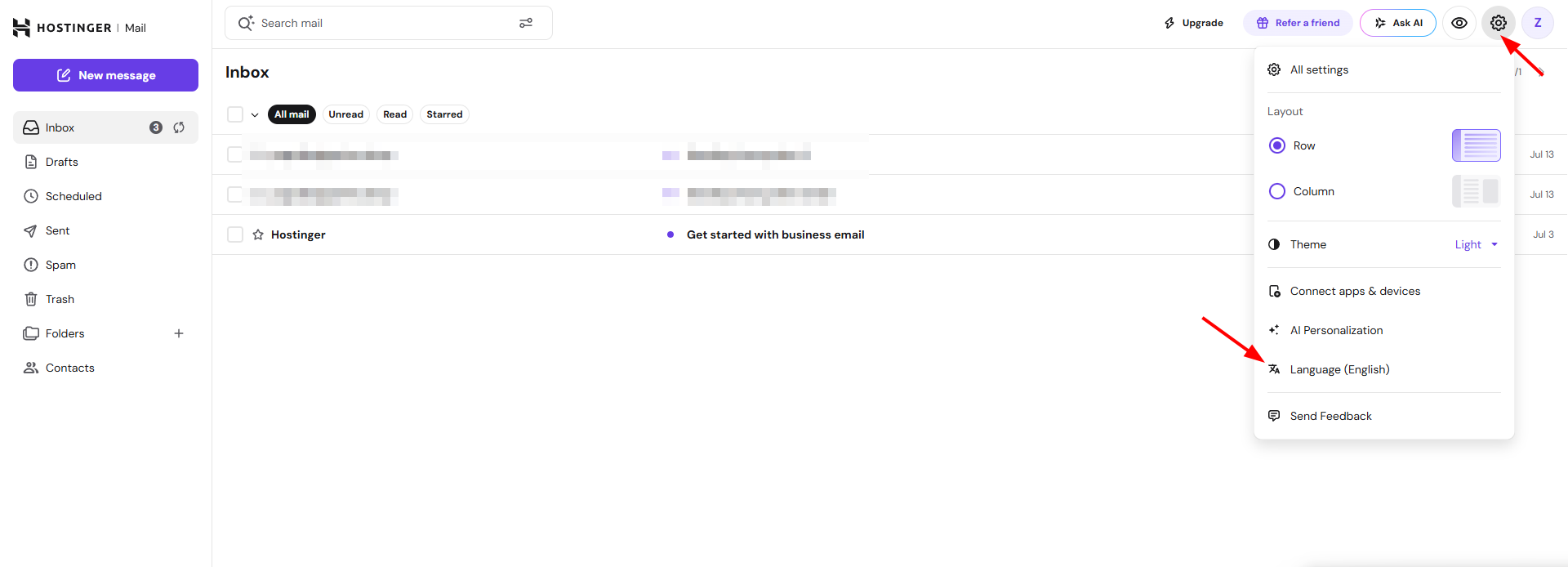
- Click it and choose your preferred language from the list.
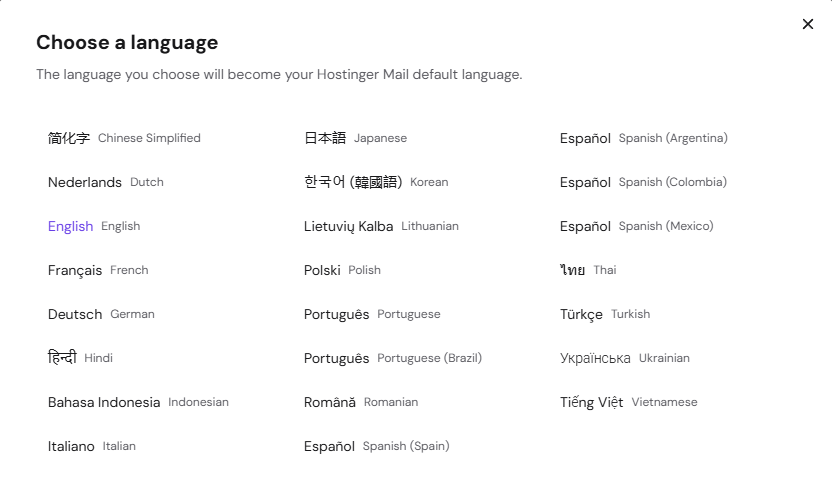
- The interface updates immediately.
Sending options in Hostinger Mail
Hostinger Mail provides advanced tools to manage how and when your messages are delivered. These features help you maintain control over your communication by allowing you to retract accidental sends or plan messages in advance.
Undo send
After clicking Send, a brief window allows you to cancel the message before it is delivered. Click Undo in the notification that appears at the bottom of the screen to retract the email.
-
Available for: All Hostinger Email users.
Schedule send – Hostinger Email Business plan
You can write your email and choose a specific date and time for delivery instead of sending it immediately.
To schedule an email:
-
Compose your message in Hostinger Mail.
-
Click the arrow next to the Send button.
-
Select Schedule send.
-
Choose the desired date and time.
-
Click Schedule.
To cancel a scheduled email, open the Scheduled folder, select the message, and click Cancel send.
-
Available for: Business plan users.
Unsubscribe from emails (all Hostinger Email plans):
When an email supports it, Hostinger Mail will display an Unsubscribe button directly inside the message view. This lets you opt out of mailing lists or newsletters with a single click — without leaving Webmail or searching for an unsubscribe link inside the email.
To unsubscribe from an email:
- Open the email in Hostinger Mail.
- Look for the Unsubscribe button near the sender’s name or at the top of the message.
- Click Unsubscribe.
- Confirm the action if prompted.
The sender will be notified of your unsubscribe request. You may still receive emails that were already queued before the request was processed.
Email List Statuses
When viewing your inbox or any email folder, each message may display a status indicator to help you track your interactions. The following statuses are available:
- Replied — you have replied to this email
- Forwarded — you have forwarded this email
- Replied & Forwarded — you have both replied to and forwarded this email
Viewing and Downloading Attachments
When you open an email with attachments in Hostinger Mail:
- Attachments are listed at the top of the email message.
- Each file type displays its own icon (for example, PDF, image, or document) for quick identification.
- Up to 5 attachments are visible at a glance on desktop, and 1 on mobile. If there are more, select Show all to expand the full list.
- For long emails, an attachment summary also appears at the bottom of the message, with a link to jump back to the top attachment list.
- To download all attachments at once, click Download all — available from both the top and bottom attachment areas.
- To download a single file, click the attachment directly.
Composing Emails in Webmail
When replying to or forwarding a message, a composer appears at the bottom of the message thread. This is called the inline composer.
Pop-up mode for the email composer
The inline composer supports two display modes:
- Inline mode — the composer appears at the bottom of the message thread (default).
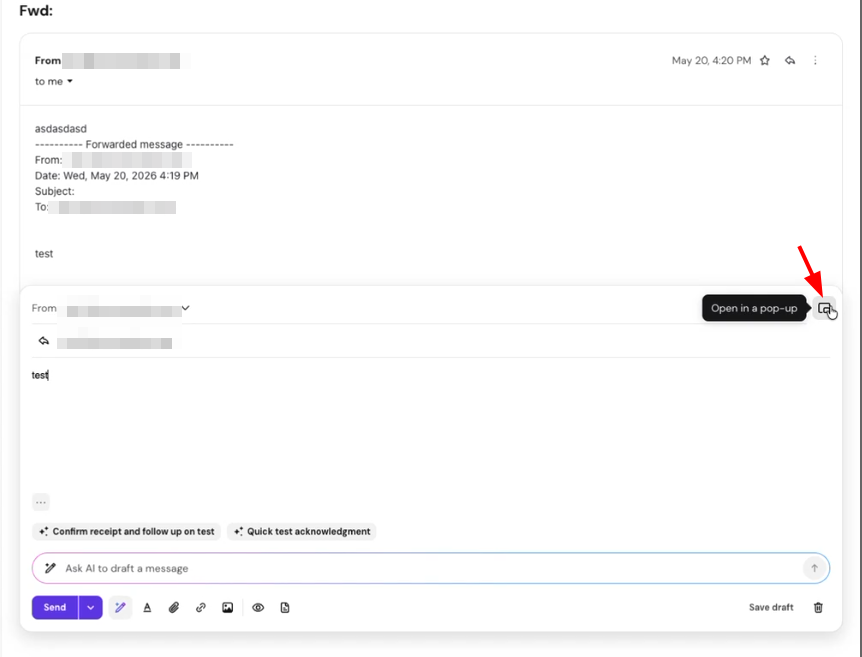
- Pop-up mode — the composer opens in a floating window, giving more space to write.
To switch to pop-up mode:
- Open a message and click Reply or Forward.
- In the inline composer, click the pop-up icon at the end of the message. The composer expands into a floating window.
To return to inline mode:
- Click the same button inside the pop-up window to collapse it back to inline.
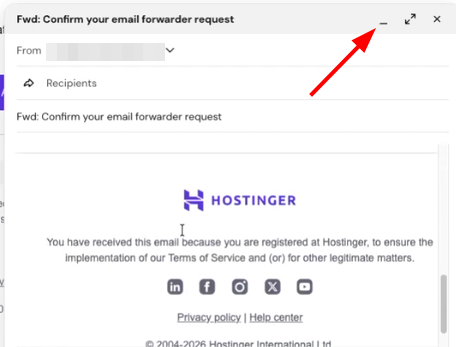
Both modes support the same formatting options, templates, and send controls.
Resizing inline images
To resize an image inserted in the email body, click the image to select it, then drag the resize handle to the desired size. Image resizing is also available when editing email templates and creating signatures.
Attachments section in the composer
Before sending, you can preview attached files directly in the composer. Attached files appear in the composer area; click a file to preview its contents and confirm the correct file is attached.
Sorting and Selecting Emails
Sorting emails
In any folder or search results view, click the sort control at the top of the message list and select Date or Size. The selected sort order is saved and applied consistently across all folders and search results.
Star action in the message list
The star action on messages in your inbox list is always visible. You can star any message with a single click to mark it for easy follow-up.
Selecting multiple emails (desktop)
Use keyboard and mouse shortcuts to select multiple messages at once:
- Ctrl/Cmd + A — select all messages in the current view
- Shift + click — select a range of messages between two clicks
- Ctrl/Cmd + click — add or remove individual messages from the selection
After selecting multiple messages, use the toolbar actions (Delete, Move, Mark as read, etc.) to apply changes in bulk.
Monitor Hostinger Email storage warning notifications
Hostinger Mail displays direct notifications in Webmail when your mailbox storage nears its limit. Warning banners appear at the following thresholds:
- 90% full – A dismissible banner suggests upgrading your plan or purchasing more storage.
- 94% full – A more prominent dismissible banner appears.
- 98% full – An urgent dismissible banner is displayed.
- 100% full (storage limit reached) – The warning banner becomes permanent and cannot be dismissed. At this point, you cannot receive new emails until storage space is freed up or expanded.
When a storage warning banner appears, you can temporarily dismiss it (at 90%, 94%, and 98%) to continue using Webmail, or click the direct link within the banner to upgrade your email plan or purchase additional storage.
Performance and display appearance
Faster email loading
Hostinger Mail includes enhanced performance optimizations for email message rendering. Messages open faster, and during high-load scenarios, memory usage is optimized to be up to two times lower. This ensures a responsive experience when navigating large mailboxes.
Display appearance in the message view and composer
The message details page and the email composer (both inline and pop-up modes) are displayed in light mode, regardless of your system or browser dark mode settings. This ensures a consistent and predictable experience when reading and composing emails in Hostinger Mail.
Contacts section layout
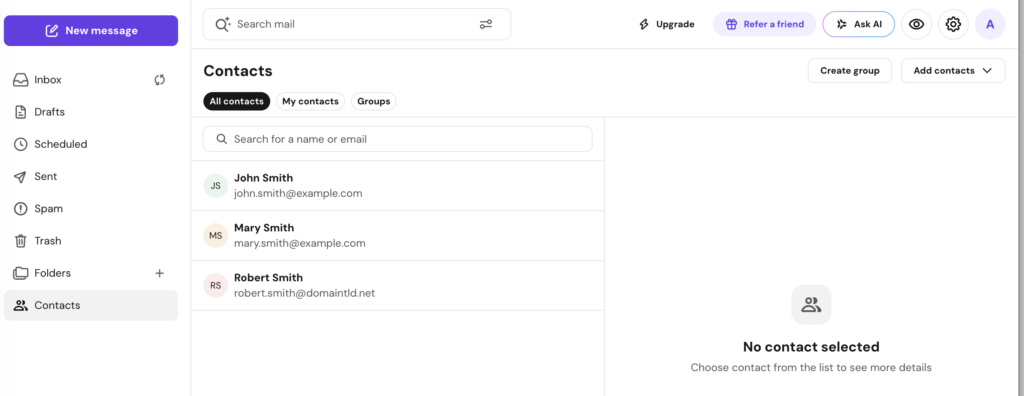
The Contacts section features an expanded contact card system that supports detailed records beyond a name and email address.
Available contact details
- Phone numbers – Supports custom labels such as Work, Home, or Mobile.
- Multiple addresses – Supports labeled physical addresses.
- Company details – Includes organization names and specific job titles.
- Birthday
- Additional email addresses
Clicking a contact opens a side panel on the right side of the screen where you can view all saved details, click Edit to update information, click Delete to remove the contact, or start a new email message directly from the card. Contact avatars pull automatically from Gravatar when available.
NOTES
- If your email account was migrated from Roundcube, your additional contact details (phone numbers, addresses, etc.) were preserved during the migration. They will automatically appear in your new contact cards without any action needed.
Managing the Trash Folder
Emptying the Trash folder
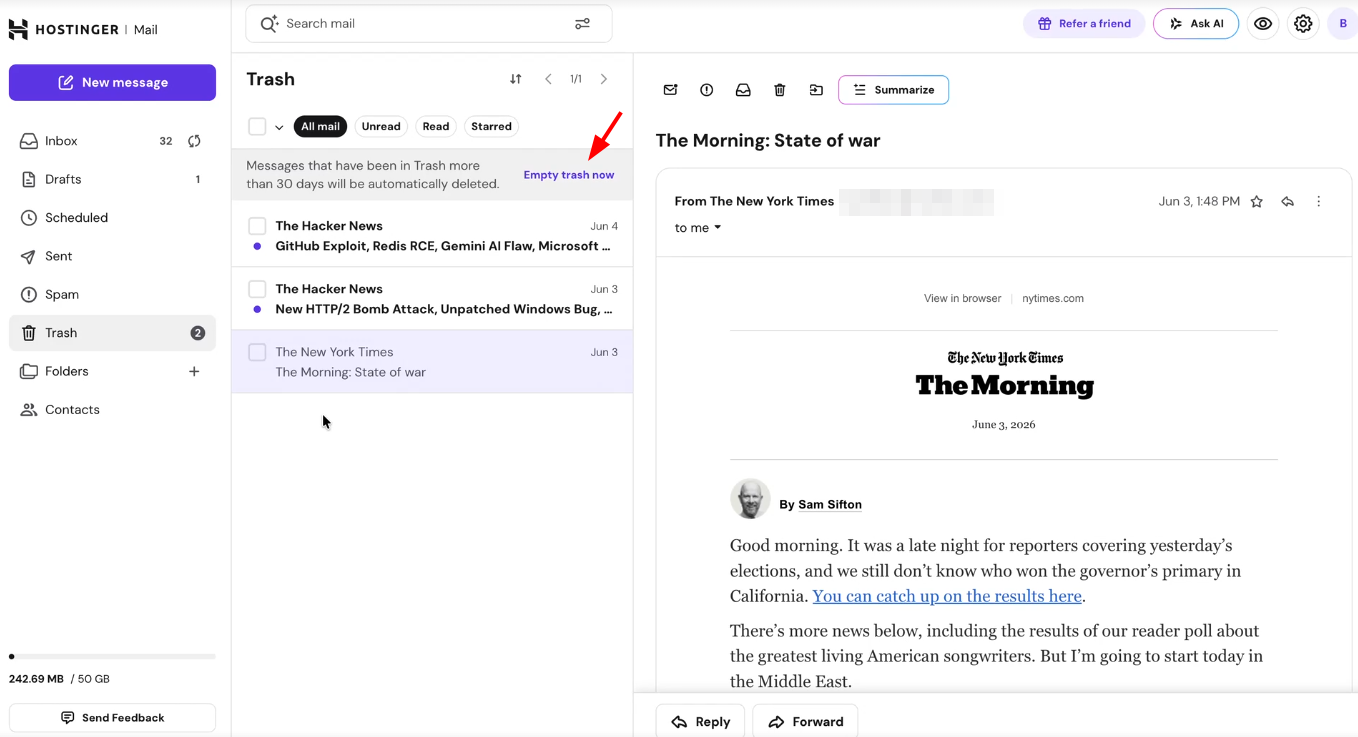
To remove all messages from Trash at once, open the Trash and click Empty Trash Now. This permanently deletes all messages in Trash and cannot be undone.
Automatic Trash Cleanup
Messages in Trash are automatically and permanently deleted after 30 days. Webmail displays a notice in the Trash folder as a reminder. To recover a message before it is permanently deleted, move it to another folder (e.g., Inbox).
Display appearance in the message view and composer
The message details page and the email composer (both inline and pop-up modes) are displayed in light mode, regardless of your system or browser dark mode setting. This ensures a consistent and predictable experience when reading and composing emails in Hostinger Mail.
Troubleshooting Login Issues
If you cannot access webmail, check this article: What to Do if You Can’t Log in to Your Hostinger Email Account
The usual reasons are:
-
Incorrect email address
Make sure you enter the full email address, including the domain. -
Incorrect password
Reset the email password from hPanel and try again. -
Email account does not exist
Confirm the email account is created and active in hPanel. - Mailbox is suspended
This can happen if -
Mailbox temporarily blocked
Multiple failed login attempts can temporarily block access. Wait a few minutes and try again.
Security Tips
-
Always log out when using webmail on shared or public devices.
-
Use a strong, unique password for your email account.
-
Keep your login details private.