SSH keys let you authenticate to a remote server using a pair of authentication keys; one public, one private. You use this pair of keys instead of a password to make remote access more secure. It’s also faster than typing a password each time.
Setting up SSH keys involves five steps:
- Generating an SSH key pair.
- Saving the key and adding a passphrase.
- Adding the public key to the server or hPanel.
- Testing SSH key authentication.
- Disabling password authentication after SSH key login works.
- Managing and troubleshooting SSH keys.
How do SSH keys work?
SSH keys authenticate the connection by signature, not by sending a password. The keys work as a matched pair: one public key and one private key. The public key goes on the remote server, where it checks that signature. The private key stays on your local machine and signs the server’s challenge when prompted.
The server then verifies the signature with the stored public key. If it matches, access is granted, all without sending a password over the network. You should never share your private SSH keys with anyone.
Key type | Where it lives | What it does |
Public key | Remote server | Verifies your identity |
Private key | Your local machine | Authenticates the connection |
Using SSH keys is more secure than normal password authentication. It’s resistant to cyberattacks that target passwords (like brute-force attacks). Even if bad actors intercept your network traffic, the private key doesn’t leave your machine.
What do you need before setting up SSH keys?
Before you can generate SSH keys, you’ll need these three things:
- A local computer with a terminal. Linux and macOS users can use the built-in Terminal. Windows users can use PowerShell, Windows Subsystem for Linux (WSL), Git Bash, or PuTTY for SSH.
- Your remote server’s username and IP address. You use both to copy the public key to the server and to test the login.
- Initial access to your server. Log in with a password, open the console, or add the key in hPanel before you turn off password authentication.
You also need permission to edit the server’s SSH configuration if you plan to disable password authentication after setting up SSH keys.
Keep your current SSH session open while changing authentication settings. You could lock yourself out of the server if the new key doesn't work and you've already closed your only session.
How to set up SSH keys step by step
SSH key setup requires five steps, starting with key pair generation and ending with disabling password authentication once key-based login is confirmed.
1. Generate an SSH key pair
SSH key generation creates two files: a private key and a public key. Generate an Ed25519 key. It’s the recommended algorithm: a 256-bit key, supported on current macOS, Linux, and Windows OpenSSH.
Use RSA with a 4096-bit key size instead if your server or client is older and doesn’t support Ed25519
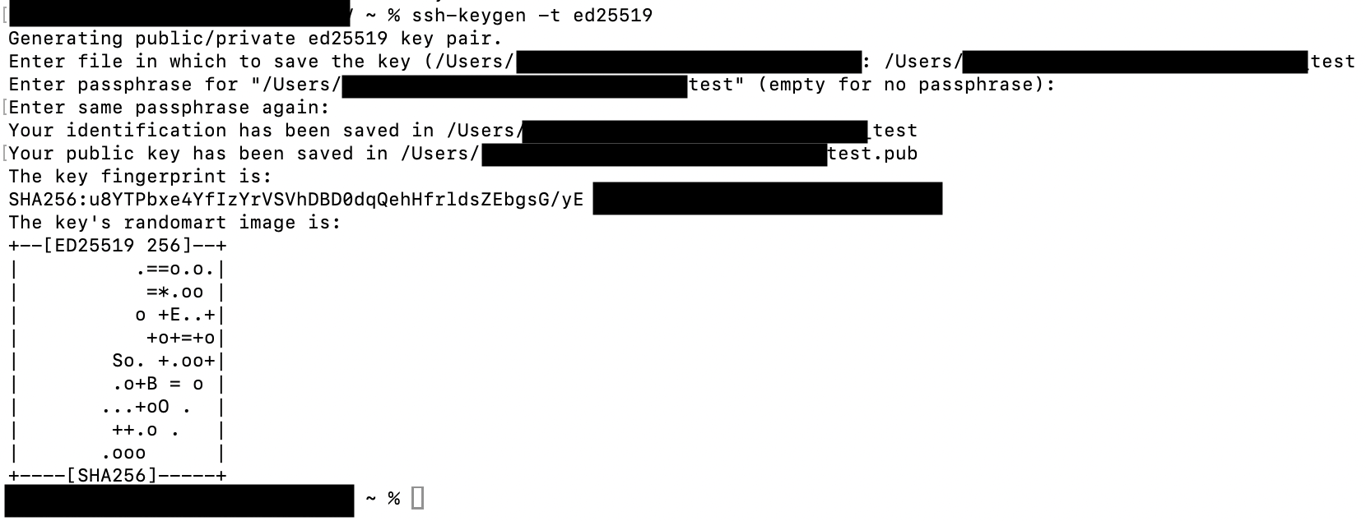
Open your terminal and run:
ssh-keygen -t ed25519
For RSA, use:
ssh-keygen -t rsa -b 4096
The rest of this tutorial uses Ed25519 file names. Substitute id_rsa wherever you see id_ed25519 if you generated an RSA key.
You can also add a comment to label the key – useful when managing multiple keys for different servers or accounts:
ssh-keygen -t ed25519 -C "your-label"
Replace your-label with something identifiable, like a server name or project name.
PuTTY uses its own key format and generator. Follow our guide to generate SSH keys with PuTTY instead.
2. Choose the key location and add a passphrase
After running ssh-keygen, the command asks where to save the key:
Enter file in which to save the key (/home/username/.ssh/id_ed25519):
Press Enter to accept the path. On macOS the default is /Users/username/.ssh/id_ed25519. On Windows OpenSSH it is C:Usersusername.sshid_ed25519. Type a custom path only when you keep more than one key.
If that file already exists, ssh-keygen asks Overwrite (y/n)?. It overwrites the key only if you type y. Type n unless the existing key is no longer in use.
Next, the command prompts for a passphrase:
Enter passphrase (leave empty for no passphrase):
A passphrase is optional, but strongly recommended. It encrypts the private key on disk, so if someone gains access to your machine, they still can’t use the key without knowing your passphrase.
Choose something long and unique. A short phrase or a mix of unrelated words works well.
Enter the passphrase twice to confirm. The command outputs a fingerprint and random art image confirming the key was created.
Your two key files are now saved in the specified location. The public key has a .pub extension – for example, id_ed25519.pub. The private key has no extension.
3. Copy the public key to the remote server
The public key has to be on the server for SSH key authentication to work. The server uses it to verify that your machine holds the matching private key. Only the public key goes to the server – never copy your private key file.
There are three ways to do this.
Option 1: Add the key through hPanel
Hostinger VPS users can add the public key directly through Hostinger dashboard:
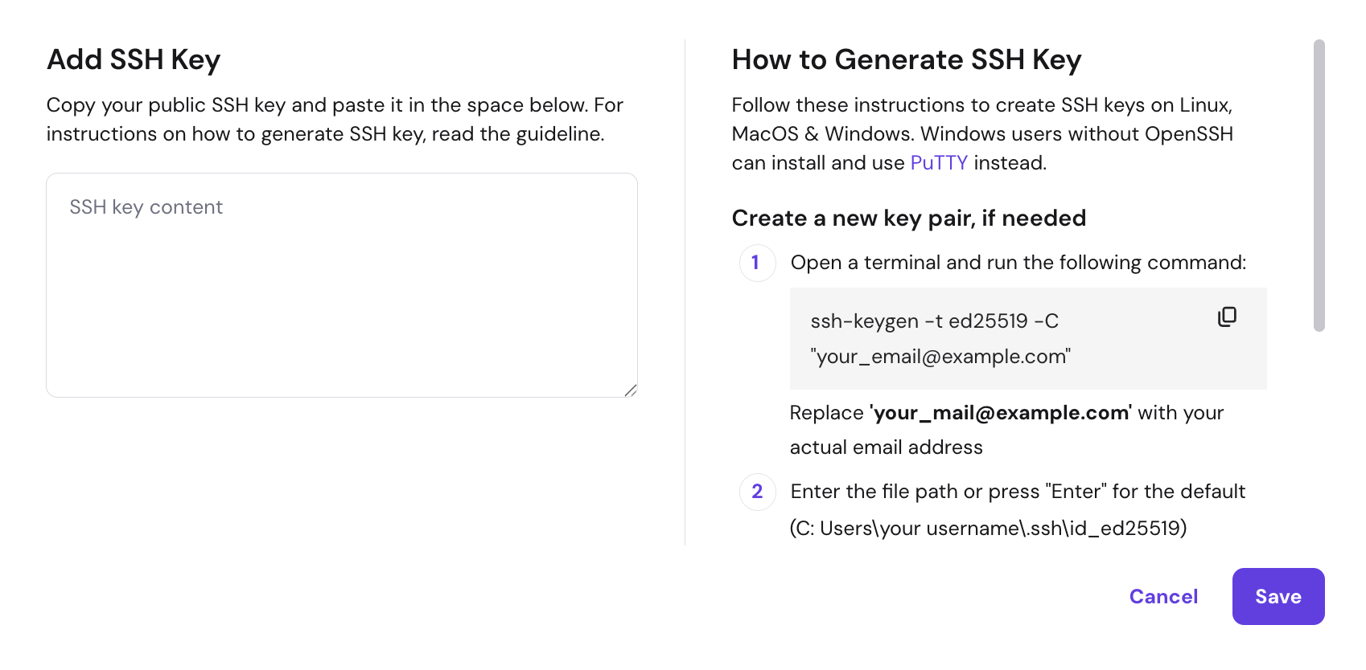
- Open the id_ed25519.pub file in a text editor and copy its contents.
- Log in to Hostinger dashboard and go to VPS → your server → Settings → SSH keys.
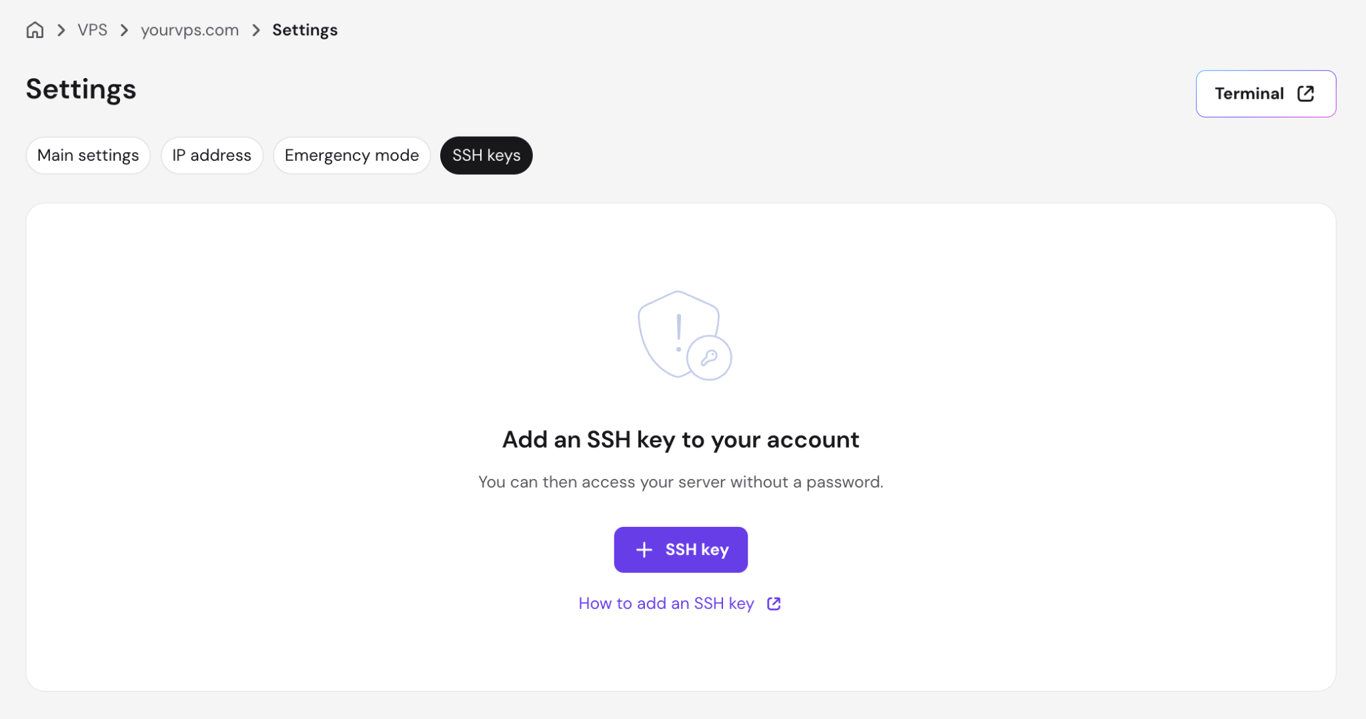
- Click + SSH key, paste the public key into the SSH key content field, then click Save.
Want to see this key generation and hPanel setup in action, across Linux, macOS, and Windows? This video also covers managing multiple SSH keys with an SSH agent.



Option 2: Use ssh-copy-id
ssh-copy-id copies the public key to the server automatically, enabling passwordless SSH login over an existing password connection:
ssh-copy-id username@192.0.2.1
Replace username with your server username and 192.0.2.1 with your server’s IP address. Enter your password when prompted. A successful transfer shows:
Number of key(s) added: 1
Option 3: Add the key manually
Log in to the server with your password and add the public key manually if ssh-copy-id isn’t available:
mkdir -p ~/.ssh chmod 700 ~/.ssh echo "your-public-key-content" >> ~/.ssh/authorized_keys chmod 600 ~/.ssh/authorized_keys
Replace your-public-key-content with the full contents of your .pub file.
4. Test SSH key authentication
Test the connection before making any other changes to your server’s SSH settings:
ssh username@192.0.2.1
A successful login ends at the server shell prompt. When you set a passphrase, SSH asks for that passphrase first, then opens the shell. A server password prompt could mean key authentication didn’t work.
When the server still asks for a password, these are four common reasons:
- You didn’t add the public key to the correct user account on the server.
- You used the wrong private key locally.
- Password authentication is still active as a fallback.
- File permissions on ~/.ssh or authorized_keys are too open.
Check these before you proceed to the next step. A “Permission denied” error or persistent password prompt usually points to a misconfigured authorized_keys file or incorrect file permissions on the server.
5. Disable password authentication after SSH keys work
Once SSH key login is confirmed, you can disable SSH password authentication to close password logins, so brute-force and credential-stuffing attacks have no password to guess.
Only do this after testing SSH key login in a separate session. You'll lose access to the server. Keep at least one active SSH session open as a safety net if you disable password authentication and your key doesn't work.
The process involves editing the sshd_config file on your server, setting PasswordAuthentication to no, and reloading the SSH service to apply the change.
How to manage SSH keys securely
SSH key management covers three areas: how to keep passphrases accessible without retyping them, how to organize multiple keys across servers, and how to respond when a key is lost or compromised.
Use ssh-agent to manage passphrase-protected keys
ssh-agent runs in the background and stores your unlocked private keys for the duration of a session. Once you add a key to the agent, you don’t need to enter the passphrase every time you connect to a server.
To start the agent and add a key:
eval "$(ssh-agent -s)" ssh-add ~/.ssh/id_ed25519
Replace ~/.ssh/id_ed25519 with your private key path if it differs. To confirm the key was added:
ssh-add -l
This lists all identities currently held by the agent.
Those commands above work on any Linux distribution. For other operating systems:
- macOS. Integrates with Keychain – add –apple-use-keychain to the ssh-add command to persist the passphrase across reboots.
- Windows PuTTY. Users can use Pageant, PuTTY’s equivalent key agent, available from the PuTTY downloads page.
Use the SSH config file for multiple servers
The SSH config file lets you define connection settings – server address, username, port, and private key – for each server in one place. This way, you don’t have to type them out each time you connect.
The file lives at ~/.ssh/config. Here’s an example entry:
Host my-server HostName 192.0.2.1 User username IdentityFile ~/.ssh/id_ed25519 Port 22
With this in place, ssh my-server connects using the settings defined above. You can add as many entries as needed, one per server or project.
Using a separate key pair for each server is recommended. When one private key is compromised, it only affects the server it’s associated with, not every server you manage.
What should you do if an SSH key is lost or compromised?
Remove the public key from every server that has it, then delete the private key and make a new pair. Simply deleting the private key from your local computer isn’t enough. Anyone with a copy can still log in.
The public key must be removed from every server it was added to. To do this:
- Remove the affected public key from the server’s authorized_keys file, or delete it through hPanel under Settings → SSH keys.
- Delete or quarantine the exposed private key from your local machine.
- Generate a new SSH key pair using ssh-keygen.
- Add the new public key to the server through hPanel, ssh-copy-id, or by editing authorized_keys manually.
- Test the new key to confirm it works before closing your session.
How to troubleshoot SSH key authentication
Match the error to a row below, then run the check in that row. These are the usual causes: wrong permissions, the wrong key, or a configuration change that wasn’t applied.
Issue | Likely cause | What to check |
Server still asks for a password | Public key not installed correctly or password fallback enabled | Verify the public key is in ~/.ssh/authorized_keys on the server |
Permission denied error | Incorrect file permissions on ~/.ssh or authorized_keys | Set ~/.ssh to 700 and authorized_keys to 600 |
Wrong private key being used | SSH client defaulting to a different key | Use ssh -i ~/.ssh/id_ed25519 username@192.0.2.1 to specify the key explicitly |
Public key added to wrong user account | Key added to a different user’s authorized_keys | Confirm you’re connecting with the same username whose authorized_keys holds the public key |
SSH service not reloaded after config changes | sshd_config changes not applied | Run sudo systemctl reload ssh (for Ubuntu/Debian) or sudo systemctl reload sshd (for CentOS/Rocky Linux/AlmaLinux) to reload the SSH service |
Firewall, port, or IP address issues | Port 22 blocked or wrong IP used | Check your firewall rules and confirm the server’s IP address and SSH port are correct. SSH connection refused errors often point to a blocked port or incorrect IP |
Next steps after setting up SSH keys
Now that you have SSH key authentication in place, your password login is off, and your keys organized, the server connection is secure. SSH key login is set, and the server is ready for daily work.
File management, process checks, user permissions, and service settings all happen in the command line, and basic SSH commands cover the ones you use each session.
You can learn basic SSH commands to cover the essential operations you’ll use for every session. It covers things like navigating directories, transferring files, checking running processes, and managing services.
This article is a localized version of How to set up SSH keys for secure server authentication, originally published in English.
All of the tutorial content on this website is subject to Hostinger's rigorous editorial standards and values.

Bruno is a Content Writer at Hostinger, focused on creating and optimizing helpful, engaging articles about web development and marketing. With a background in journalism, he combines storytelling with practical insights to make complex topics easier to understand. He has also contributed to publications like MacMagazine and Jornal A Tarde. Outside of work, Bruno enjoys exploring art, cooking, and technology.