4 methods to check WordPress version of your website – step-by-step
Sep 15, 2026
/
By Leonardus N.
/
6 min Read
WordPress is constantly improving its software, with each version bringing new features, performance enhancements, and security fixes. Thus, having the latest WordPress version is crucial to make a website safe from malicious threats and to ensure compatibility with different tools.
To keep users informed about current and upcoming updates, WordPress provides a list of the previous and current software versions. That said, you may still be left wondering where to find which core version powers your website. There are a few ways to learn that.
This article will discuss four methods to check the WordPress version without having to delve too deep into the technical aspects of the website.
Why Check Your Current WordPress Version?
Keeping WordPress sites updated with the software’s latest version is necessary to ensure they work perfectly and are safe from cyber-attacks.
The WordPress version used on the site affects its compatibility with plugins and themes. If you update WordPress regularly, it’ll be possible to use newer themes and plugins without any issue, as they’re developed to work with the latest version of WordPress.
However, the most important reason to check the current WordPress version is keeping the site secure, since 5% of WordPress vulnerabilities are related to the core software. This is because each new version of WordPress fixes previous errors in the code.
Checking the WordPress version and ensuring that it is the latest version will help you avoid these issues. Now, let’s learn how to check your WordPress version.

Four Methods to Check WordPress’s Current Version
There are a few ways to check the WordPress version used on a website. The first one is through the WordPress admin area, which requires logging in to the dashboard.
If it’s impossible to log in due to an error and you need to check the WordPress version to resolve it, the page’s source code may store the information.
Alternatively, check the WordPress version by opening the version.php file on your hosting account or, if you use Hostinger web hosting, simply check the WordPress section on Hostinger dashboard.
Let’s take a look at four methods to check the WordPress version used on a site.
Method 1 – Checking WordPress Version in the Admin Area
The WordPress admin area contains a lot of helpful information – you’ll find the WordPress version listed there in four different places.
The first one is in the WordPress Updates section. Log in to the WordPress dashboard and head to Dashboard -> Updates. It will display the currently installed version of WordPress as well as the latest WordPress version released.
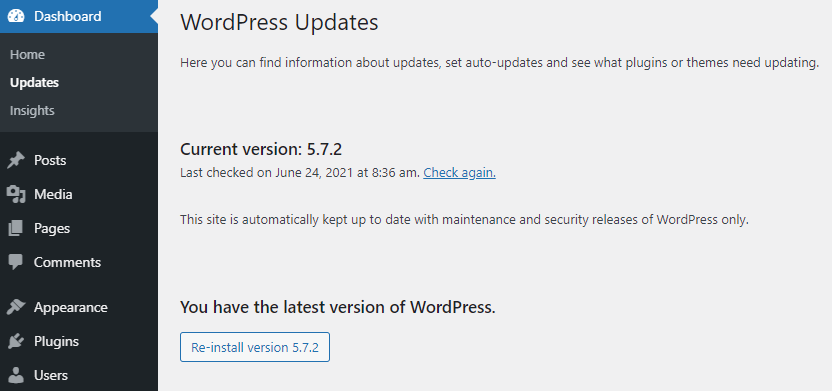
If it says that the site doesn’t have its latest version, make sure to back up your WordPress site before upgrading the WordPress version.
You will also find the version number displayed prominently on the footer. Simply scroll down to any page of the admin area, and the WordPress version number will be on the bottom right corner, next to the “Thank you for creating with WordPress” message.

However, if the site has one of the outdated versions of WordPress, there will be a link to the newest version instead.

The third place is the At a Glance admin widget. This widget’s location differs depending on the settings, but there should be a box containing the number of posts and pages of your WordPress site right on the admin dashboard. Under that information, it displays the WordPress version number and the theme running on the website.
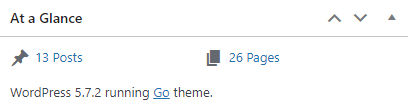
If the site is using one of the older WordPress versions, this widget will add a button to update to the most recent version of WordPress.
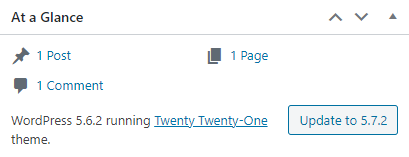
However, keep in mind that installing a custom admin theme or installing a WordPress dashboard plugin may remove this widget.
The fourth place in which the WordPress version is located is the About WordPress screen. Hover the WordPress logo on the top-left corner until you see the drop-down menu. Select About WordPress to see a banner that displays the installed version prominently.
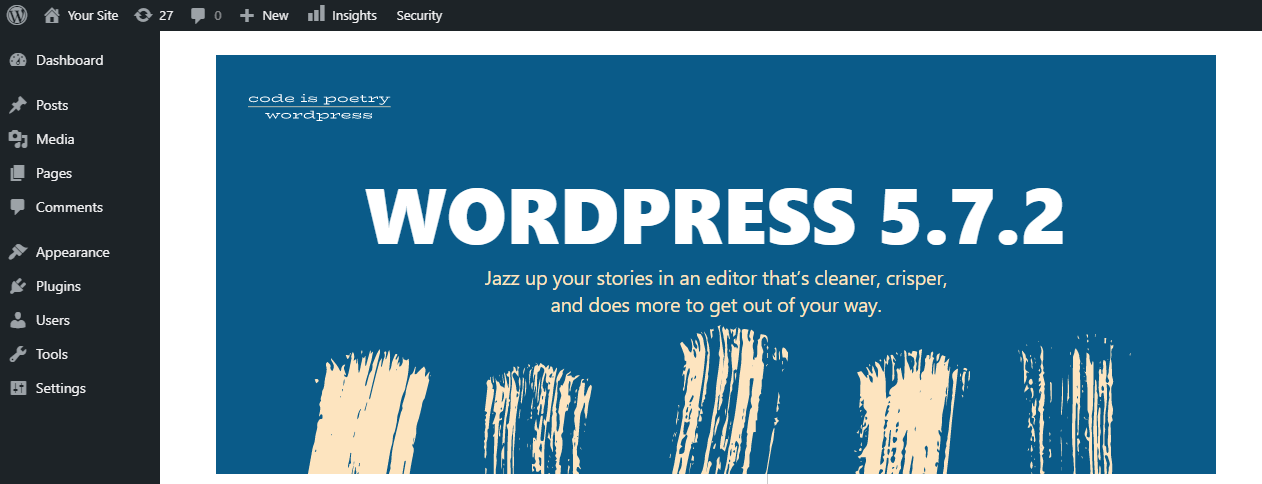
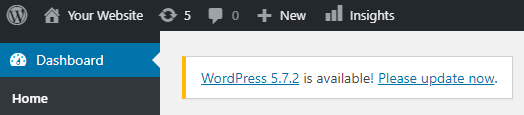
Together with the four locations that show WordPress versions on the admin panel, WordPress will also provide a notification if there is an outdated version installed on your web hosting account.
A notification box will appear on the top of the website’s back-end screen, prompting you to update to the latest version of WordPress.
Method 2 – Checking WordPress version in the Page Source
Alternatively, check the WordPress version number on the site’s source code. This option is suitable for when you can’t log in to the WordPress admin dashboard or want to check the currently installed version of another WordPress site.
WordPress websites carry the version number in an HTML meta tag, which is inserted by default by the WordPress theme in use. Follow these steps to find the site’s version information through the page’s source code:
- Open your WordPress website on a web browser. Right-click anywhere on the site and select the View Page Source option. A new tab will open containing the source HTML code of the page.
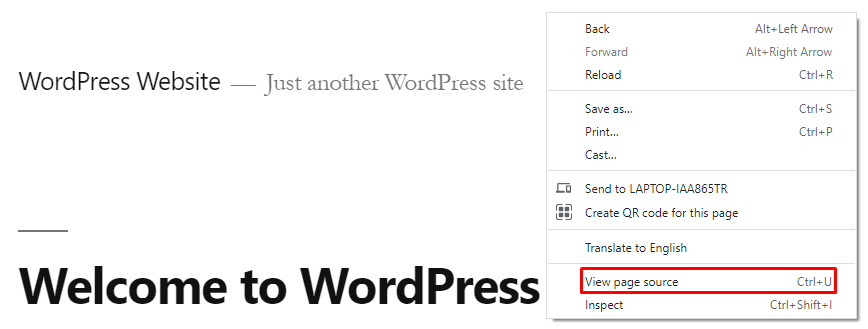
- Press CTRL + F (Windows and Linux) or COMMAND + F (macOS) to open the browser’s search feature. Type “generator” in the search field and see if anything comes up. If the generator tag is not disabled, this line will be available:
<meta name="generator" content="WordPress 5.7.2" />

From the results, note that our current WordPress version in the example is 5.7.2.
Keep in mind that this method only works if the website owner left the default settings intact, since allowing the site to show its WordPress version via the source code is risky. The website is more susceptible to malicious attacks if the knowledge that it runs on an older WordPress version is public.
This is why web admins often hide their WordPress version from the source code. With that in mind, we also recommend you do the same to make the WordPress site secure.
Hiding the meta tag requires making changes to the functions.php file of your active theme:
- Access the WordPress admin panel. Then, navigate to Appearance -> Theme Editor.
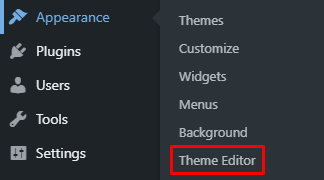
- Select the site’s current theme and choose the functions.php file. Paste the following code at the very bottom of the file:
remove_action('wp_head', 'wp_generator');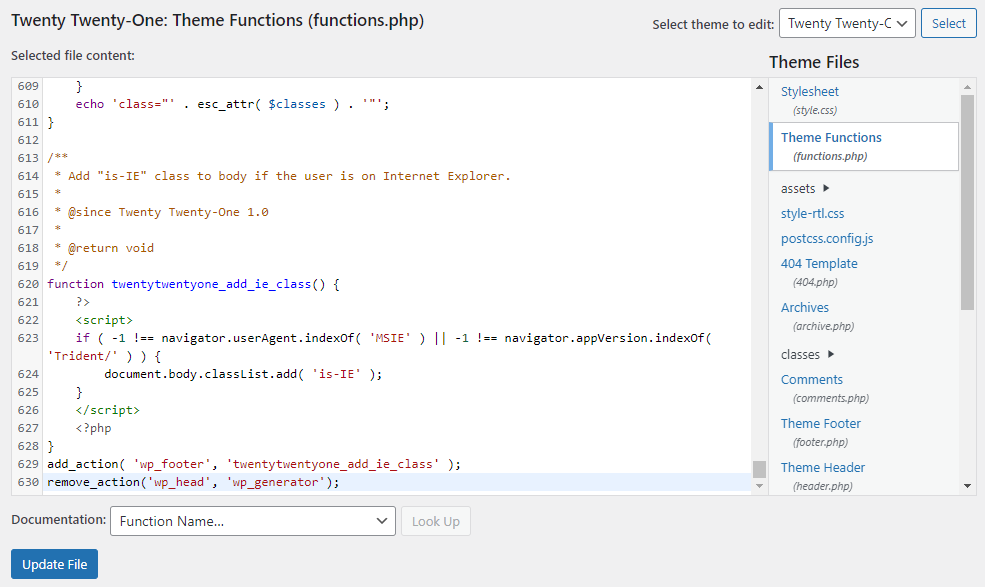
- Press Update File to save all changes.
Important! Remember to create a backup file before making any changes.
Method 3 – Checking WordPress Version in the version.php File
This is the most reliable method to view your current WordPress version. The information is contained within the site files and won’t be a part of the page’s HTML. However, this method requires more time and technical knowledge.
- Log in to your hosting account and access its file manager. If you’re using Hostinger dashboard, go to the Files section and select File Manager.

- Open the public-html directory. Then, find and open the wp-includes folder.
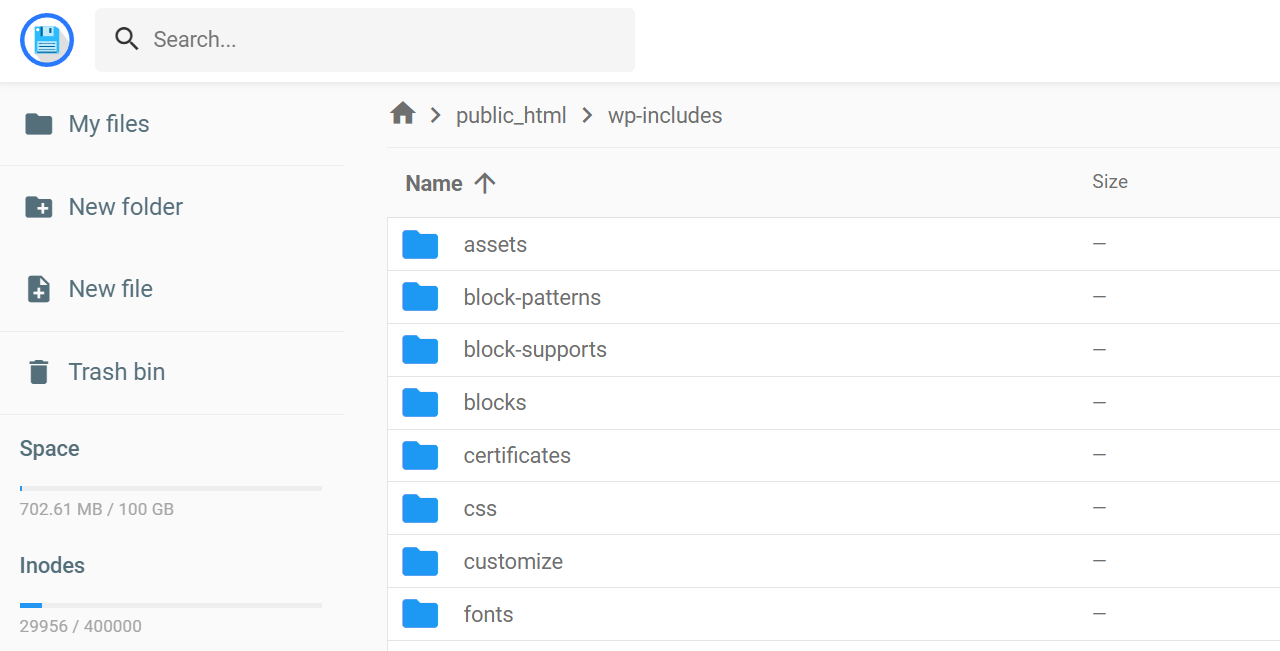
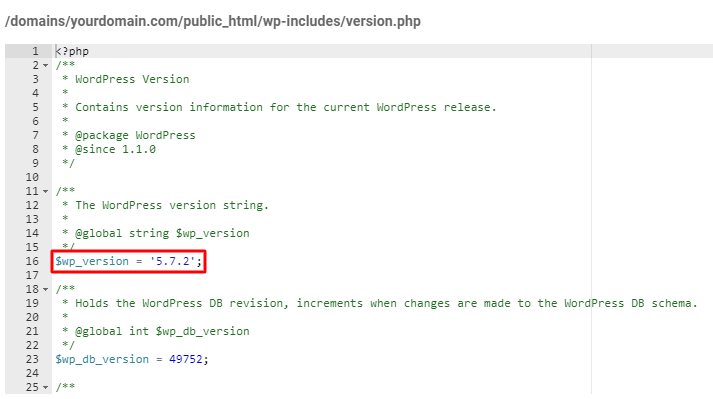
- Look for the version.php file and open it. The version number of your WordPress installation should be on line 16, which looks like this:
If you opt to use a File Transfer Protocol (FTP) client such as FileZilla, follow these steps to get FTP access to the website and open the version.php file:
- Download and install FileZilla if you haven’t done so already.
- Connect to FileZilla using your FTP details. Click the File menu on the top-left corner and choose Site Manager.
- Enter the website’s domain and the FTP login credentials that you get on the hosting control panel. If you’re using Hostinger dashboard, go to Files -> FTP Accounts.
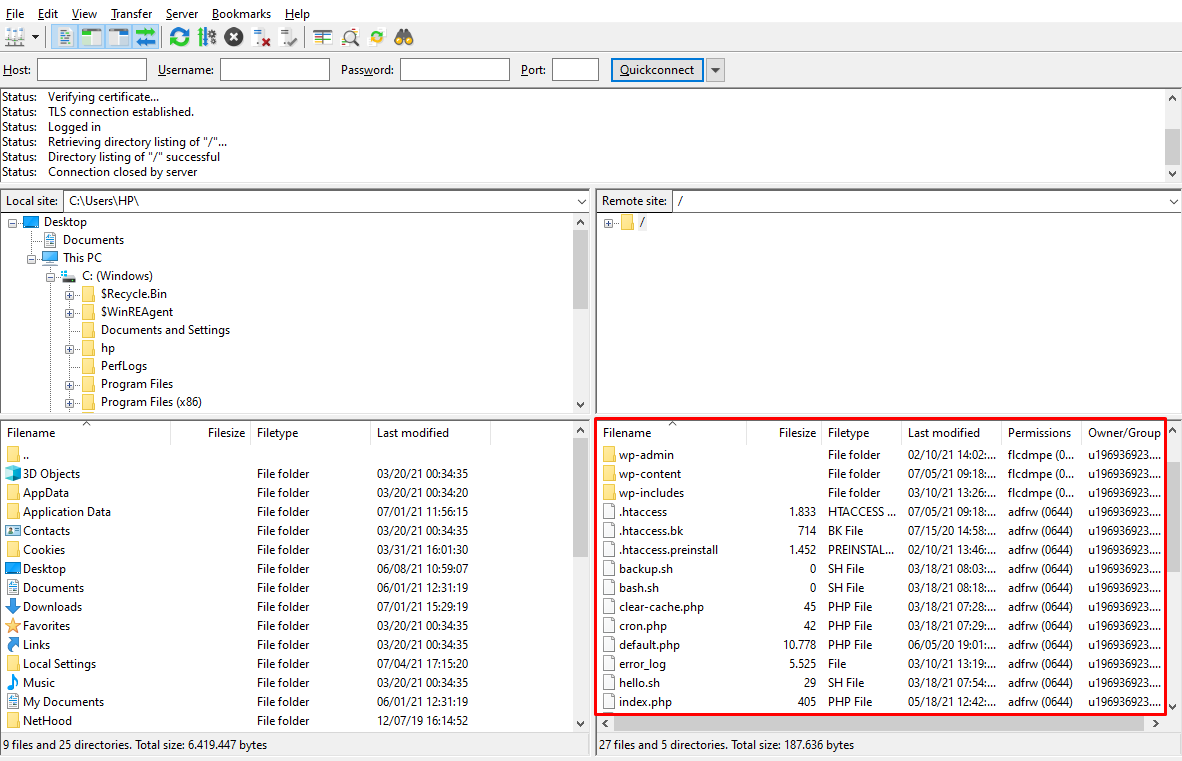
- Once the site is connected to the FTP, the bottom-right section should show the site’s files stored in the public-html directory.
- Find and open the wp-includes folder.
- Look for the version.php file and open it.
Once you’ve got the information, close the file. Make sure that you don’t change anything on it.
Method 4 – Checking WordPress Version in Hostinger dashboard
There’s an easy way to see the WordPress version on Hostinger dashboard. On the WordPress section, choose Dashboard. The WordPress information is located on the right side – you may have to scroll down to find it.
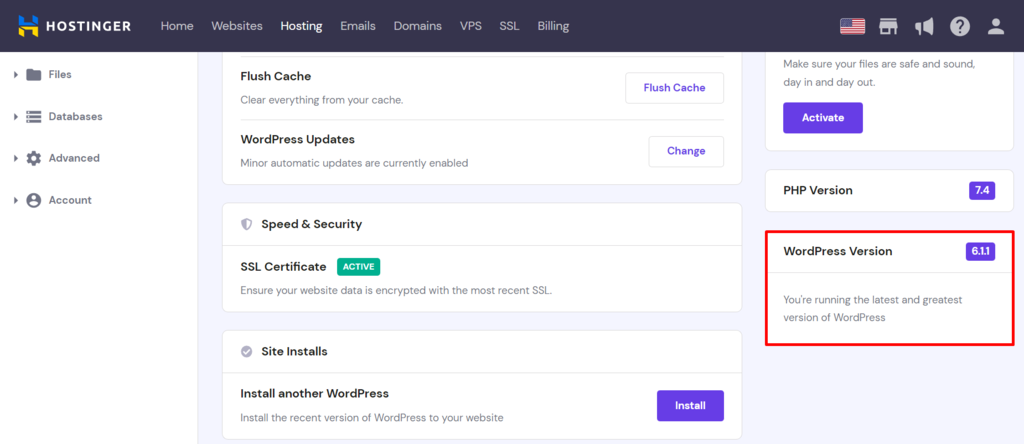
If the site is running an older version of WordPress, go to the WordPress admin dashboard by clicking Edit Website and update the WordPress software.
Learn What Else You Can Do With WordPress
How to Duplicate Pages and Posts on WordPress
2 Methods on Adding WordPress Menu Icons"
How to Install WordPress
How to Delete WordPress
WordPress Taxonomy Guide
Guide to WordPress Revisions
Conclusion
Checking the current WordPress version is essential to ensure the website is up to date and improve its security and performance. You will also know whether a particular theme or plugin is compatible with the site or not.
There are four methods of finding out which version of WordPress your website uses. Let’s review each option:
- Admin area – four places on the WordPress admin area show the version number, namely the Updates section, the admin area footer, the At a Glance widget, and the About WordPress screen.
- Page source – check the current WordPress version via the generator tag of the page. With that in mind, we suggest that you hide this information from visitors.
- Version.php file – use the hosting file manager or FTP client to locate this file on the /public_html/wp-includes/ folder.
- Via the Hostinger dashboard – it’s the easiest way to find the current WordPress version used. Simply log in to the Hostinger dashboard account and go to the WordPress admin panel.
Remember that simply knowing the WordPress version used on the website may not be enough. Check WordPress’s list of released versions to compare the one on your site with the latest and upcoming WordPress updates.
Check WordPress Version FAQ
There are many methods to check your WordPress version. Take a look at these frequently asked questions to understand the topic better.
How Do I Find My WordPress Version?
First, log in to your WordPress dashboard and head to the Updates section. It will display the currently installed version of WordPress as well as the latest WordPress version released.
How to Check My PHP Version WordPress?
The simplest way to check your current WordPress PHP version is by accessing your Dashboard → Tools → Site Health. Click on Server to find the PHP Version section.
How Do I Update to the Newest WordPress Version?
When accessing your WordPress admin dashboard, you can see if there is a newer version available at the top of the page. If there is a newer version, click Please update now to initiate the website update. Then, press the Update Now button again to finalize the process.
All of the tutorial content on this website is subject to Hostinger's rigorous editorial standards and values.

Leo is a Content SEO Specialist and WordPress contributor. Armed with his experience as a WordPress Release Co-Lead and Documentation Team Representative, he loves sharing his knowledge to help people build successful websites. Follow him on LinkedIn.