8 Black Friday website performance strategies to prevent slowdowns
Aug 31, 2026
/
By Bruno S.
/
10 min Read

To prevent Black Friday website slowdowns, size your hosting for peak traffic, strip down your key pages, and test your checkout before the sale starts.
Speed matters most. Shoppers abandon pages that make them wait, so every extra second of load time costs you visitors who never reach checkout.
There are eight strategies that keep an ecommerce site responsive through Black Friday:
- Sizing hosting capacity for the traffic peak.
- Testing the store at sale-level traffic.
- Trimming campaign and product pages.
- Caching shared pages without touching shopper data.
- Distributing static files through a content delivery network (CDN).
- Cutting nonessential third-party code.
- Verifying every checkout and payment path.
- Monitoring the sale with a recovery plan ready.
1. Plan hosting capacity for peak Black Friday traffic
To plan hosting capacity for Black Friday, estimate your peak concurrent users – how many shoppers will use your store at the same time – then confirm that your plan can handle that many without hitting its limits.
Concurrent users matter more than daily visits because your server only processes a set number of requests at once. Once that queue fills, pages slow down or stop loading. A single promotional email can deliver a full day’s traffic in minutes.
A reliable baseline formula is peak hourly sessions × average session duration in seconds ÷ 3,600. A store with 6,000 sessions in its busiest hour and a 240-second average session gets about 400 concurrent users. Treat that number as a minimum, not a target.
Not every visitor puts the same pressure on your server. Browsing a product page takes far less server capacity than adding to cart or checking out, so estimate how many shoppers will be at each stage, not just the total count.
Four things limit how much simultaneous traffic your hosting plan can handle:
- CPU and memory. The processing power and working space behind every request.
- PHP workers. The processes that handle dynamic requests, such as cart updates; when all workers are busy, new requests wait in line.
- Database connections. The cap on simultaneous queries for stock, prices, and orders.
- Storage speed. How fast files and database records are read and written.
Keep in mind that unlimited bandwidth doesn’t mean unlimited traffic: bandwidth covers data transfer, while traffic spikes can still overwhelm your server’s processing capacity.
Hostinger web hosting plans have a Resource Usage section in hPanel; check it before the sale to see how close you’re running to each limit.
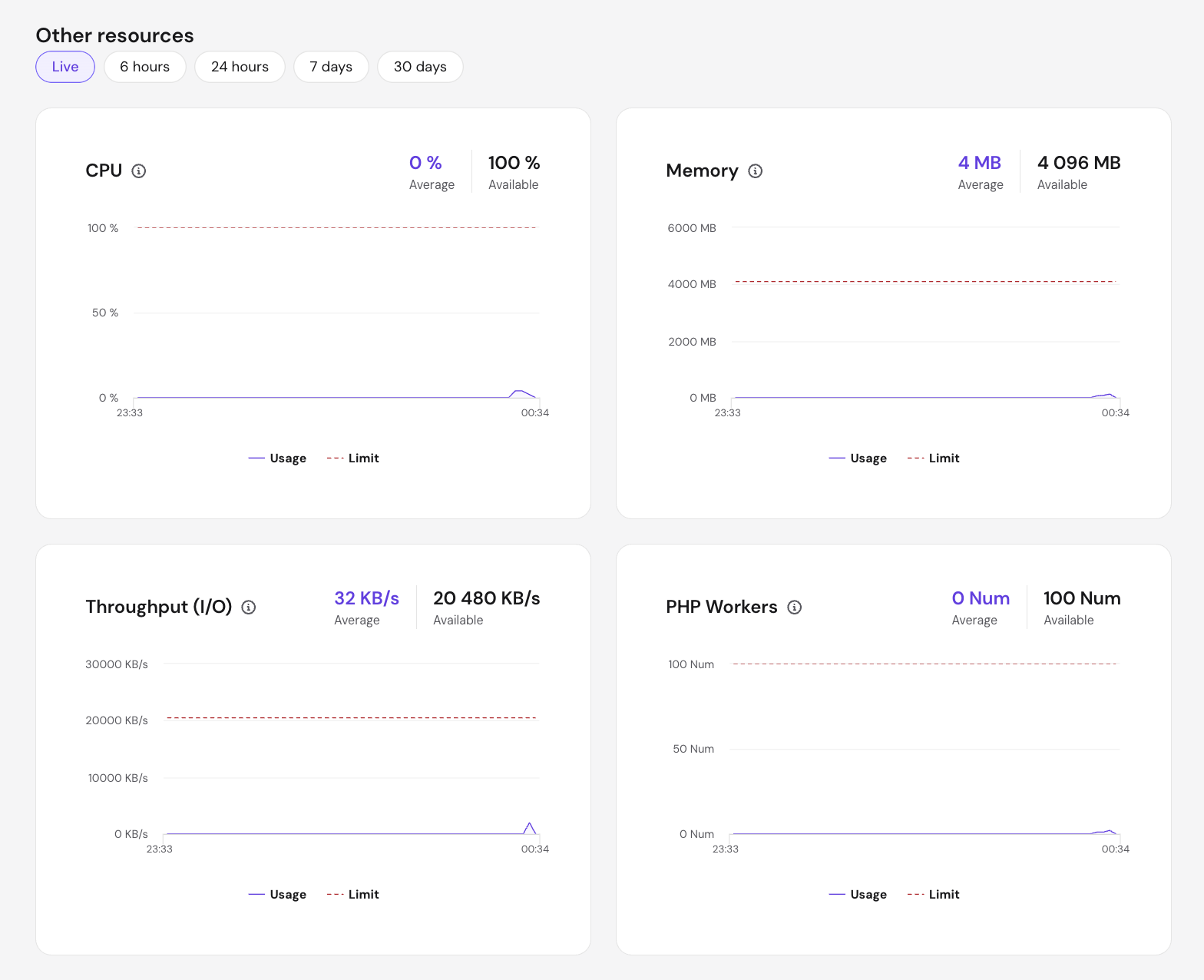
A one-day peak rarely justifies a permanent upgrade. Hostinger’s free Plan Boost feature applies the capacity of a higher plan for 24 hours. To use it, open your plan’s options menu in hPanel and select Boost resources to activate it.
Pro tip
The free boost can be activated for 24 hours once per month per account, so schedule it around your single busiest window. For Cloud hosting plans, there's also the option of paid 7-day and 30-day boosts; the 7-day option spans the whole Black Friday to Cyber Monday weekend.

2. Test your store at Black Friday traffic levels
To test your store at Black Friday traffic levels, run simulated shoppers through the full purchase journey – browsing, cart updates, and checkout – at the concurrency number you calculated, then watch for what slows down or breaks.
Four test types answer different questions:
Test type | What it simulates | What it tells you |
Load test | Your forecast peak traffic | Whether your store handles expected traffic without slowing down |
Spike test | A sudden surge from an email or ad launch | Whether your store recovers when traffic arrives all at once |
Stress test | Traffic beyond the peak, to find where problems start | The traffic level at which performance starts to break |
Soak test | Elevated traffic sustained for hours | Whether your store stays stable under prolonged pressure |
Running these tests requires a load testing tool – software that sends virtual shoppers through your store simultaneously. k6 is a popular free option for developers; BlazeMeter has a browser-based recorder that works without writing code, but its free tier limits how many virtual shoppers you can run.
Configure the test to behave like real shoppers. A realistic starting split is 70% browsing, 20% updating carts, and 10% going through checkout. Adjust it to match your own analytics.
Decide what a passing result looks like before you start: pages loading within 2.5 seconds, fewer than 1 in 100 requests failing, and checkout completing successfully.
Then run the test in five steps:
- Send a small number of virtual users through first to confirm everything is set up correctly.
- Ramp up gradually to the concurrency number you calculated.
- Push above that peak to simulate a sudden surge, such as an email drop.
- Watch where pages slow down, errors appear, or server resources spike.
- Fix the first issue you find, then run the test again.
Vary the test data. If every virtual shopper requests the same product page, caching absorbs the load and your results look far better than real traffic would. Mix in different products, categories, and cart contents so each request does real work.
Keep live payment systems out of load tests. Stripe warns that its test environment enforces stricter request caps, so heavy traffic there returns misleading errors – replace the payment call with a mock (a stand-in response) and test payments separately.
Pro tip
A high PageSpeed score is not a load test. It measures one page under fixed conditions, while load testing measures the whole store as demand climbs.
3. Keep Black Friday landing and product pages light
To keep your Black Friday pages light, compress the campaign images, lazy load everything below the fold, and strip out the extra banners, timers, and popups added for the sale.
Start with the pages that receive the first surge, such as the main Black Friday landing page, promoted collections, and your best-selling product pages. Test each one on a phone before a desktop: mobile accounted for 53% of all US holiday online spending in 2024, per Hostinger’s Black Friday statistics.
Three measurements set the targets that count as fast, grouped under the Core Web Vitals standard:
- Largest Contentful Paint (LCP) – the main content appears within 2.5 seconds.
- Interaction to Next Paint (INP) – taps and clicks respond within 200 milliseconds.
- Cumulative Layout Shift (CLS) – the layout shifts less than 0.1 while loading.
Google measures all three at the 75th percentile of real visits, so a few fast loads don’t compensate for a slow majority.
Campaign images are usually the biggest source of added weight. Compress each one before uploading, and serve a smaller version to mobile visitors rather than having phones download a desktop-sized file.
Apply lazy loading to images below the first screen so they load only when shoppers scroll to them. The hero or main product image must load immediately – delaying it slows down the content shoppers see first.
Retest after the last campaign change goes live. A page that loaded fast in October slows in November once a heavier hero image, a countdown widget, and a chat tool pile on.
4. Cache high-traffic pages without caching shopper data
Cache your high-traffic landing, category, and product pages to reduce server load during Black Friday, but exclude pages that show personal shopper data, such as carts, checkout, and account pages. These parts of the store are safe to cache:
- The Black Friday landing page.
- Category and collection pages.
- Product page content that every shopper sees.
- Images, stylesheets, scripts, and fonts.
These must stay out of full-page caching:
- Shopping carts.
- Checkout pages.
- Customer accounts.
- Personalized prices and recommendations.
- Order confirmations.
Your store caches content in multiple places at once: the server, your browser, and any caching plugins you use. When you update sale prices or promotions, clear all of them, not just one, or some shoppers will still see outdated content. If you use WordPress, use only one caching plugin to avoid conflicts.
Hostinger Cache Manager controls LiteSpeed server caching. Turn on Automatic cache in your site’s dashboard to cache static content and refresh it every 30 minutes.. Unlimited and Cloud Startup plans also include Object Cache, which stores frequently requested database results, such as product queries.
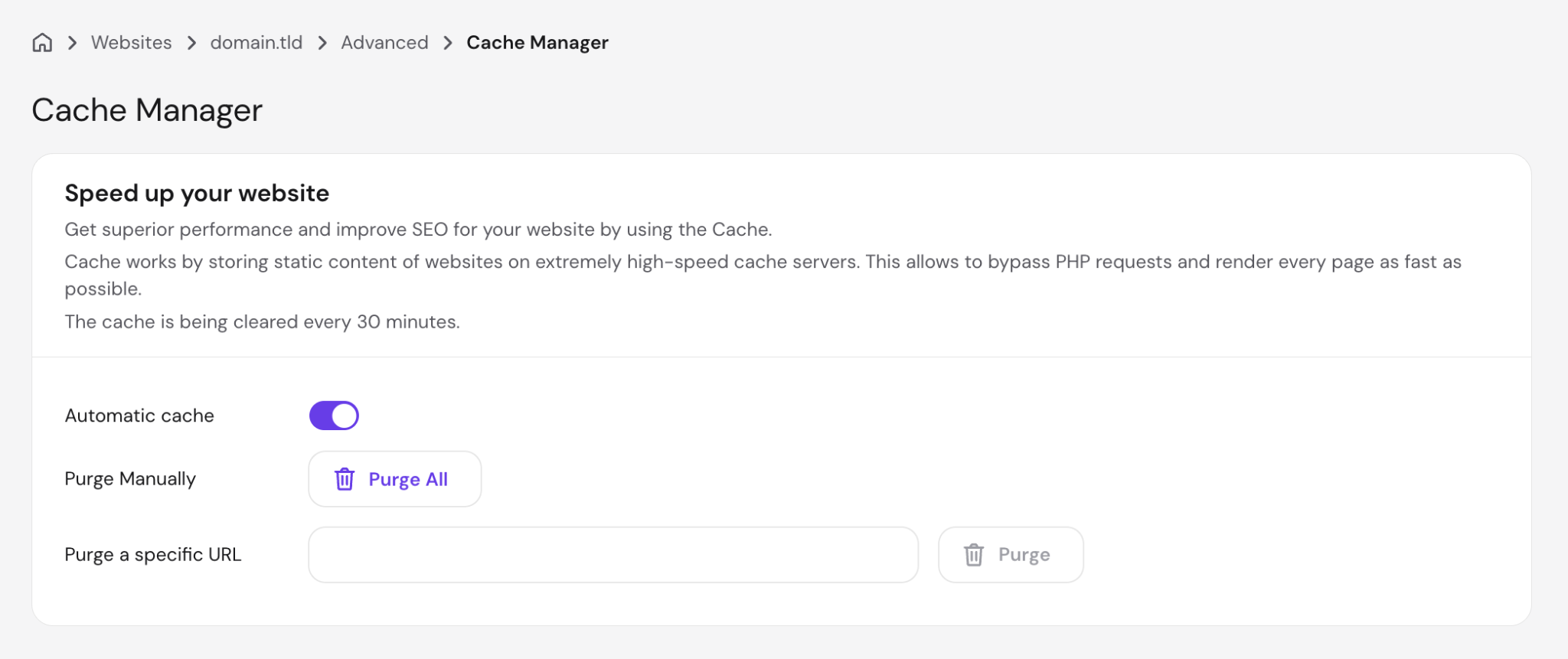
After your final changes, manually reload your key pages to refresh their cache. Don’t click Purge All right before the sale: clearing all cached pages forces the server to rebuild them from scratch for the first visitors, slowing things down when you need speed most.
5. Serve static content through a CDN
To serve static content through a CDN, enable one on your hosting or through a CDN provider, then confirm your images, stylesheets, scripts, and fonts load from it instead of your main server.
A CDN keeps copies of those files on servers around the world, so each shopper downloads them from a nearby location. Fewer requests reach your main server, which frees it for checkout and order processing.
It doesn’t cover checkout itself: when shoppers add to cart, check stock, or complete a payment, those requests still run on your main server. A CDN alone won’t prevent slowdowns if that server runs out of capacity.
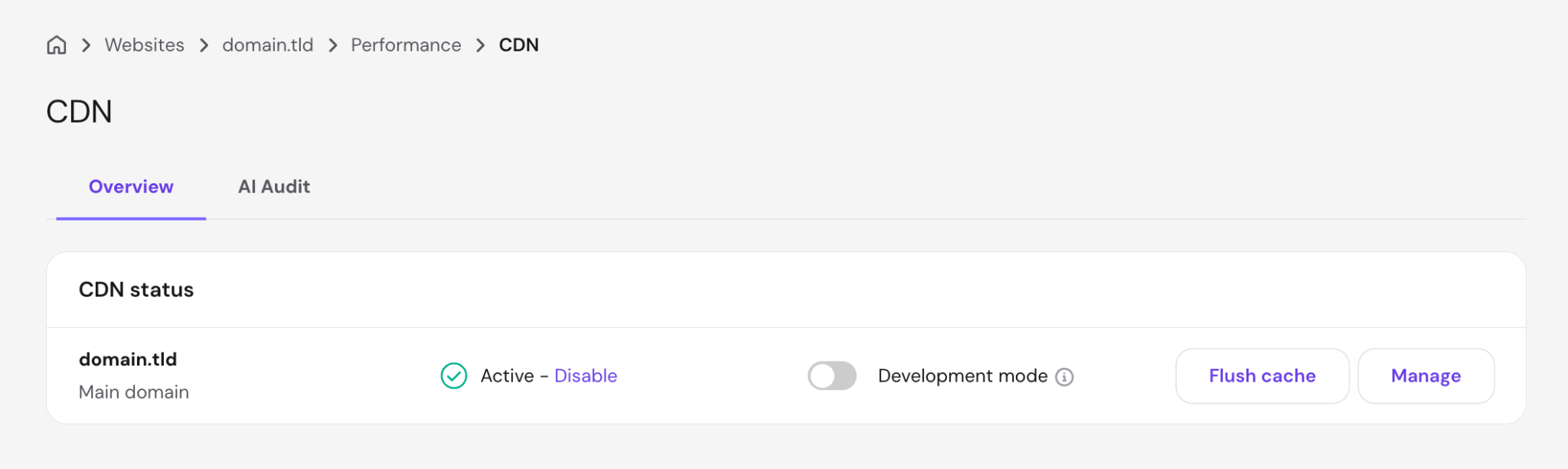
Hostinger CDN can be activated from the site’s dashboard under Performance → CDN. Click Enable, then confirm static files are loading through the CDN and your sale content displays correctly.
6. Remove nonessential third-party scripts
Remove or delay every third-party script – code added by outside services – that doesn’t directly support browsing, cart, or checkout. Black Friday campaigns tend to pile them on: countdown timers, popups, chat widgets, heatmaps, A/B testing tools, and a fresh layer of ad and analytics tags.
Payment, consent, and fraud prevention scripts stay.
Trim the scripts in four steps. First, run your page through PageSpeed Insights to see which scripts contribute most to loading time. Second, temporarily disable the suspected script and reload the page to check the difference.
Third, delay the remaining non-essential scripts, so they load after the main content appears. Fourth, remove duplicates – two analytics tags doing the same job add cost for nothing.
Test for failure too: check how the page behaves when a third-party service is slow or unavailable. A chat widget that fails to load shouldn’t freeze the rest of the page.
Before removing any tracking code, check what data it collects. A faster page that loses campaign tracking is only trading one problem for another.
7. Test every checkout and payment scenario
Work through every purchase scenario your shoppers will attempt, including the paths that fail, before Black Friday traffic arrives.
Cart and checkout pages can’t be safely cached, so each one is built fresh for every shopper. That means they put more pressure on the server exactly when traffic is highest – and a bug there costs you the sale, not just a slow page.
Work through each of these:
- Add-to-cart from your promoted products.
- Quantity updates and item removals.
- Guest checkout and account checkout.
- Sale prices matching between product page, cart, and checkout.
- Coupon success, failure, and expiry.
- Shipping and tax calculations.
- All payment methods you offer.
- Declined cards and payment retries.
- 3D Secure checks (the extra verification step some banks require).
- Duplicate-order protection (what happens when a shopper double-clicks Pay or refreshes the confirmation page).
- Confirmation page and email.
Run the payment scenarios in your payment provider’s test environment, never against live payments. Test-mode cards cover successful charges, declines, and authentication challenges without moving money.
Three results prove the flow is solid: every successful payment creates exactly one order, failed payments never create paid orders, and retries never charge twice.
8. Set up monitoring and a tested recovery plan
Set up alerts on every step of the purchase path, and decide in advance who responds when one fires. Uptime monitoring isn’t enough on its own – those tools check whether your site responds, so they report everything healthy while checkout is failing.
These are the signals that matter:
- Landing page availability.
- Product page response times.
- Add-to-cart success rate.
- Checkout completion rate.
- Payment failure rate.
- Server errors (5xx responses, which mean the server itself failed).
- CPU and memory usage.
Route every alert to a named owner, and write down contact details for your host, developer, and payment provider before the sale. Nobody assigns responsibilities well at midnight during an outage.
Take a fresh backup before the final campaign launch, then restore it somewhere safe to confirm it works.
Don’t make significant changes to your site in the days before Black Friday. New plugins, theme updates, and untested add-ons can introduce problems at the worst possible time. Keep a copy of the current working version saved so you can quickly undo any change that causes issues.
On Hostinger, Premium plans include weekly backups, while Unlimited and Cloud Startup plans run daily backups and add on-demand backups, useful for moments like the final pre-sale launch.
Restoring an older database rolls the store back completely, so orders placed after that backup disappear. Check the backup’s timestamp against recent orders before restoring during a sale.
What to do if your website slows down or crashes during Black Friday
Work through a fixed order when your store slows down: confirm what’s broken, then fix the biggest constraint – starting with anything blocking checkout.
- Test the purchase path yourself. Load the landing page, one promoted product, the cart, and checkout, then place a small real order and refund it..
- Read errors and resources together. High CPU or memory usage alongside server errors points to a capacity problem; errors while resource usage looks normal suggest a broken change or a failing third-party service.
- Switch off nonessential features. Chat, recommendation carousels, videos, and background jobs all free capacity for shoppers.
- Add temporary hosting capacity. Activate your host’s boost option once resource graphs show the server is at its limit.
- Protect checkout while simplifying browsing. Extend caching on public pages and ensure that cart and checkout pages remain uncached and fully responsive.
- Roll back the last risky change. Switch back to the previous working version when the slowdown started right after a plugin, theme, or script update.
- Contact your host’s support. If nothing else resolves the issue, reach out to your host’s support team directly; they can diagnose server-level problems you can’t see.
The symptom narrows the cause: a slow site with a working checkout usually needs caching and delivery fixes, while a fast site with a failing checkout points to a payment service issue or too many simultaneous checkout requests.
Payment failures with everything else running normally usually sit with your payment provider, not your hosting. Check its status page and escalate there instead of changing hosting settings that aren’t the problem.
Unexplained traffic that consumes resources without producing sales is often bot activity. Block it through your host’s firewall or your CDN’s rate limiting to return that capacity to real shoppers.
Which pages should you protect first during a slowdown?
Protect the cart, checkout, payment flow, and promoted product pages first, because those steps decide whether active shoppers finish their orders. Everything else can degrade for an hour without costing revenue; a broken checkout costs every order attempted during the outage.
Is your website ready for Black Friday?
Your website is ready for Black Friday when five things check out: hosting capacity, page speed, checkout testing, monitoring, and recovery.
Run the final review as a gate; each check either passes or blocks the launch until fixed.
Check | It passes when |
Hosting capacity | Load tests reach your expected peak with resource usage staying below your plan’s limits |
Checkout | Every payment scenario behaves as expected on mobile and desktop, including declines and retries |
Page speed | The final campaign pages meet Core Web Vitals targets on mobile |
Monitoring | Alerts are working and reach a named owner, with contact details saved for your host, developer, and payment provider |
Recovery | A fresh backup exists, the restore has been tested, and a copy of the current working site is saved |
Black Friday 2026 lands on November 27. Finish the first full test round two to three weeks earlier, then repeat the page and checkout checks after the final campaign banners and tags are installed.
Deeper website speed optimization, including advanced speed improvements that go beyond campaign prep, is year-round work, not a last-minute task.
Performance keeps the store standing while the campaign brings the crowd, so prepare your ecommerce store for Black Friday to cover the offers, stock, and marketing side. Run the checks, fix what blocks the gate, and let November 27 be busy for the right reasons.
All of the tutorial content on this website is subject to Hostinger's rigorous editorial standards and values.

Bruno is a Content Writer at Hostinger, focused on creating and optimizing helpful, engaging articles about web development and marketing. With a background in journalism, he combines storytelling with practical insights to make complex topics easier to understand. He has also contributed to publications like MacMagazine and Jornal A Tarde. Outside of work, Bruno enjoys exploring art, cooking, and technology.