Cursor vs VS Code: which AI code editor should you choose?
Oct 23, 2026
/
By Bruno S.
/
12 min Read
In the Cursor vs. VS Code decision, Cursor is the better choice if you want an editor built around AI agents from the ground up, and VS Code if you want a free, open-source editor where you pick your own AI tools.
Both run capable AI agents and support many of the same leading AI models. Cursor bundles the editor, agents, and its own AI models into one subscription starting $20/month. VS Code is free; the AI comes from GitHub Copilot, Claude Code, or any provider you connect to.
The two tools share a codebase: Cursor forked VS Code (copied its open-source code to build a separate product), which is why they feel familiar side by side. Nine differences drive the choice between them: AI agents, codebase context, multi-file editing, autocomplete, extensions, customization, pricing, privacy, and team use.
Cursor vs. VS Code at a glance
The main difference between Cursor and VS Code is that Cursor is a single product that covers the editor, agents, and models on a single subscription, while VS Code is a free editor with an AI layer that is separate and entirely yours to choose.
Criterion | Cursor | VS Code |
Price | Free version available; paid from $20/month | Free; Copilot from $10/month |
AI agents | Built-in Agent, cloud agents, Automations | Copilot, Claude, and Codex in one Agent Sessions view |
First-party models | Composer 2.5, Grok 4.6, Grok 4.7 | MAI-Code-1.1-Flash |
Autocomplete | Cursor Tab: predicts next edit | Copilot inline and next-edit suggestions |
Extensions | Open VSX registry | Microsoft Marketplace, 80,000+ extensions |
Privacy | Privacy Mode: code not used for training | No training on Business and Enterprise; individual plans must opt out |
Team plans | Teams from $40/user/month | Copilot Business $19/user/month |
Best for | Integrated, agent-first development | Flexible AI setup, free for any workflow |
Most developers evaluating AI assistants for writing and editing code focus mainly on agents and pricing. The differences run deeper than the table suggests, because both editors are built on the same code.
Is Cursor the same as VS Code?
No. Cursor is a commercial fork of VS Code’s open-source codebase. It looks and works like VS Code on the surface, but uses its own AI system, extension marketplace, and pricing model.
Cursor’s team took VS Code’s source code, which Microsoft publishes under an open-source license (the MIT license), and rebuilt the AI layer and extension marketplace on top of the same editing engine.
Because Cursor started from VS Code’s code, the two feel nearly identical to use. The keyboard shortcuts are the same, and Cursor imports your existing VS Code settings and extensions on first launch.
Cursor is not replacing VS Code. Both are actively maintained, and Cursor regularly pulls in VS Code’s editor updates.
Cursor’s parent company, Anysphere, became part of SpaceX in August 2026. SpaceX’s AI division (formerly xAI) develops the Grok models that now appear in Cursor’s model picker alongside Claude and GPT.
Pro tip
Already using VS Code? When you first open Cursor, go to Settings → Import VS Code Settings to carry over your extensions, keyboard shortcuts, and preferences in one step.
What is Cursor?
Cursor is a code editor by Anysphere, built on VS Code’s open-source codebase, that adds a built-in AI agent system on top of the standard editing experience.
The central feature is the agent: you describe what to build, and it reads the codebase, writes a plan, edits files, runs terminal commands, and keeps going until the code’s automated tests pass.
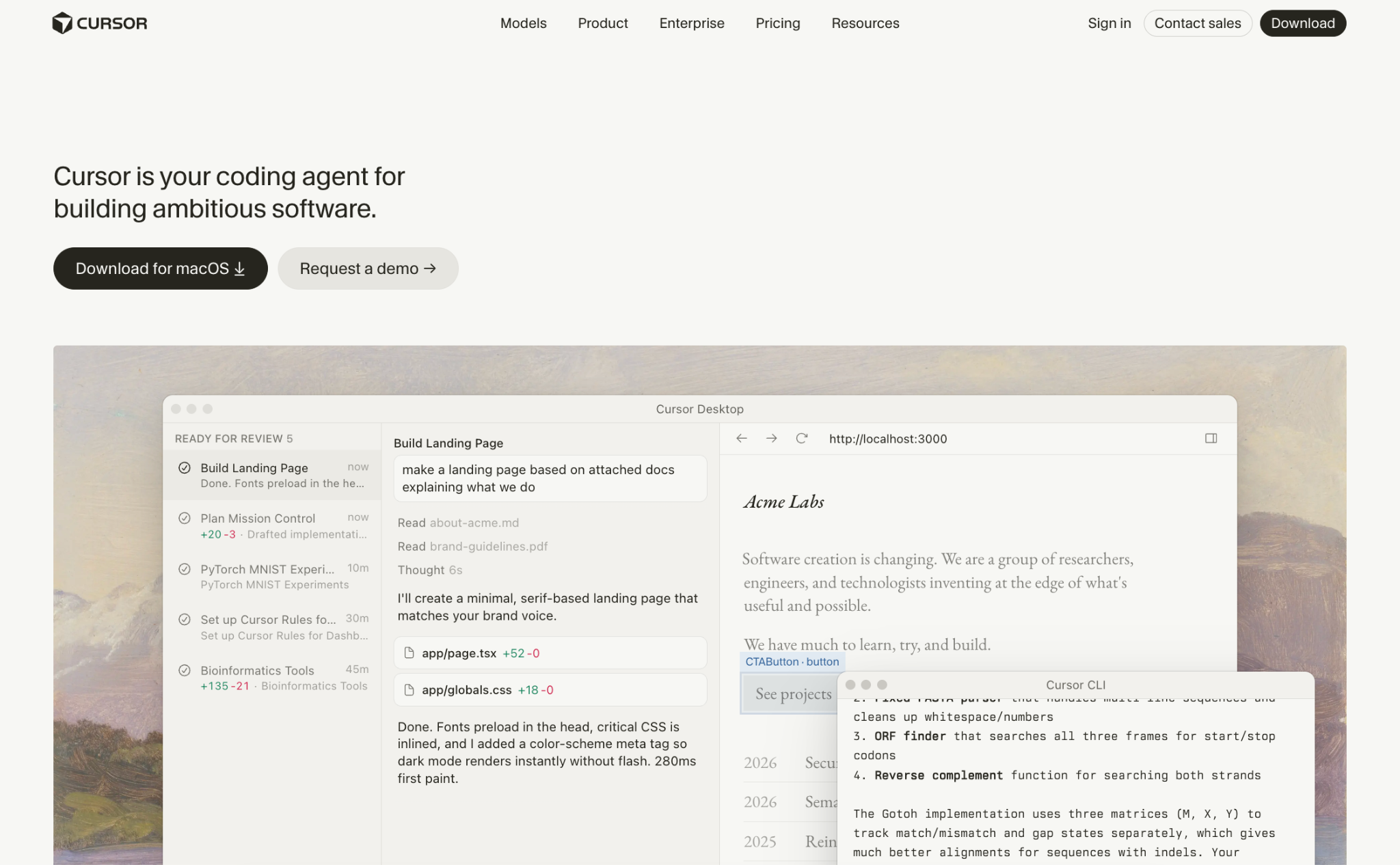
Cloud agents take this further – each one runs on its own computer in the cloud, so multiple agents can work on separate tasks simultaneously, building and testing their code independently.
Beyond the agent, Cursor includes Automations (agents triggered on schedules, GitHub events such as a new pull request, or Slack messages), Bugbot (automated code review on every pull request), Model Context Protocol (MCP) support for connecting external tools, and a plugin and skill system for sharing coding rules and reusable instructions.
You’re not tied to the desktop app: the agent also runs in the command line, on native iOS, in JetBrains code editors, and through Slack, Linear, Jira, and GitHub. Cursor isn’t the only editor built around AI agents; other AI coding editors have taken the same direction.
What is VS Code?
Visual Studio Code (VS Code) is a free, open-source code editor by Microsoft. Its January 2026 release turned it into a platform that runs GitHub Copilot, Claude, and Codex agents side by side.
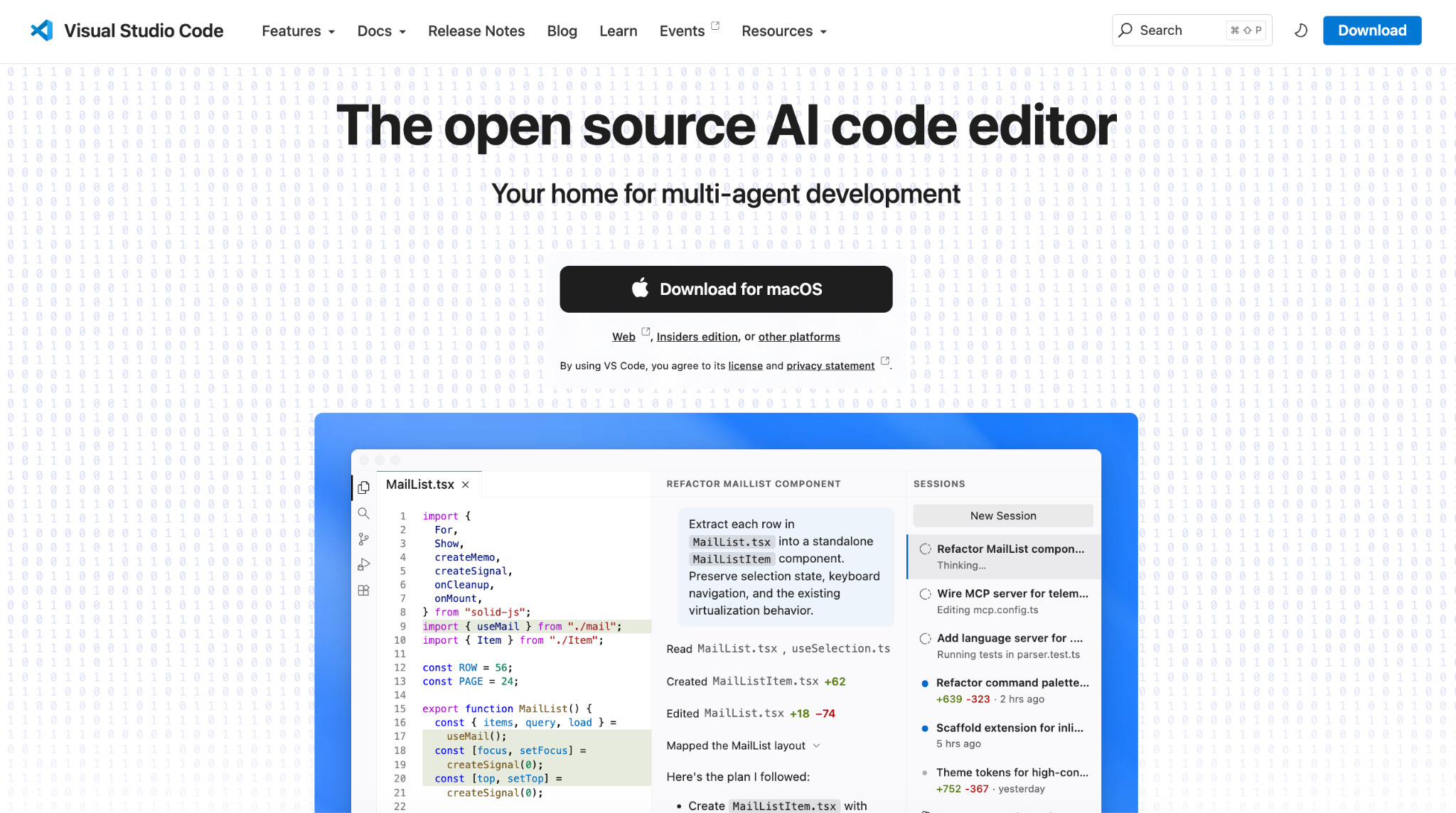
VS Code 1.109, released in February 2026, brought Claude and Codex agents into the Agent Sessions view alongside Copilot, running on your computer or in the cloud from a single panel. You pick which agent handles each task and switch mid-session without losing context.
VS Code supports both AI-assisted and traditional development workflows through a single interface, so the editor works the same whether you use agents all day or write everything yourself.
In VS Code, you choose the agent harness and the AI model separately. The harness is the software that controls how the agent accesses your files and runs commands. The model is the AI that reads your request and writes the code.
You pick GitHub Copilot, Claude Code, or Codex as the harness, then pick the model independently from Anthropic, OpenAI, Google, or other providers. You can also connect your account to a specific AI provider or run AI models on your computer with tools like Ollama or Hugging Face, so you don’t pay per request.
Cursor vs. VS Code compared: nine key differences
Cursor and VS Code differ across nine aspects that affect daily work: AI agents, codebase context, multi-file editing, autocomplete, extensions, customization, pricing, privacy, and team use.
Which has better AI agents: Cursor or VS Code?
Cursor’s agent is stronger for autonomous, end-to-end task execution; VS Code is stronger for running multiple different agents side by side. Cursor has its own dedicated agent system; VS Code runs Copilot, Claude, and Codex together in a single panel, each with distinct tools and capabilities.
Cursor’s agent runs terminal commands in a sandbox (a walled-off space that protects the rest of your computer) where possible and splits complex work across parallel agents, each using a different model. Cloud agents produce screenshots, videos, and logs of what they built, so you can review the result without downloading their code to your computer.
Automations remember previous runs, so a recurring job, such as fixing tests that fail at random, improves with repetition. Bugbot goes beyond flagging problems: Bugbot Autofix starts a cloud agent to fix the issue it found and test the change.
In VS Code, the Claude agent runs on Anthropic’s own harness, so it behaves the same as Claude Code elsewhere. The Claude and Codex agents come with Copilot Pro; delegating tasks to them in the cloud needs Pro+ or higher. Running agents side by side also lets you hand one task to two of them and compare the results.
Delegating a longer task to a cloud agent runs it on GitHub’s cloud servers (GitHub Actions) and returns a pull request for review. Copilot’s agent mode also works in JetBrains, Eclipse, and Xcode, one sign of how AI is changing software development.
Which understands your codebase better: Cursor or VS Code?
Cursor understands your codebase more thoroughly by default, because it builds a semantic index of your whole project as soon as you open a project; how well VS Code does depends on which agent you’re running.
A semantic index is a searchable map of your code, its files, and the relationships between them. The index is always available to the agent, so you don’t have to tell it which files to look at. Cursor also uses Instant Grep, a fast text search tool, to search millions of files in milliseconds and launches multiple agents in parallel to explore the codebase during complex tasks.
GitHub Copilot in VS Code automatically searches your open project. Claude Code doesn’t build an index; it searches your files as needed while it works. Both work well for typical single-project work; the difference shows in large monorepos (repositories containing many separate projects in a single codebase), where Cursor’s dedicated indexing is most useful.
How do Cursor and VS Code handle multi-file editing?
Both editors let an agent change many files in one go, but they handle control differently: Cursor plans first and lets you roll back to checkpoints; VS Code lets you decide which actions need approval and logs every step of the session.
Cursor’s Plan mode asks clarifying questions before the agent edits anything, then shows the resulting changes as before-and-after comparisons (diffs) across every affected file and saves checkpoints you can roll back to from the history panel.
VS Code agents apply edits across files and let you inspect each change as it happens; you choose which actions, such as terminal commands, need your approval, and the session log records every response and action the agent takes.
Which has better autocomplete: Cursor Tab or GitHub Copilot?
Cursor Tab is stronger at predicting where to make your next edit across multiple files; Copilot is stronger at volume, with unlimited inline completions on all paid plans.
For most developers trying out tools for AI-assisted development, autocomplete is the first thing they notice when switching editors.
Cursor Tab predicts your next edit rather than completing the current line. After you change a function’s name or inputs, it suggests matching updates everywhere that function is used and jumps to the next likely edit location.
GitHub Copilot provides inline suggestions and next-edit suggestions on all paid plans, and completions don’t consume AI Credits.
Pro tip
Both tools offer a free tier for testing autocomplete before paying. Cursor's Hobby plan gives access to Composer, while Copilot Free provides 2,000 completions per month with no credit card required.
Does Cursor support VS Code extensions?
Cursor supports most VS Code extensions, but not all. The two editors pull from different extension stores.
VS Code uses Microsoft’s official extension marketplace, which lists over 80,000 extensions. Cursor uses Open VSX, an open-source alternative managed by the Eclipse Foundation. Most popular extensions are published to both stores, so the selection feels similar for most developers.
The gap matters most for developers who rely on Microsoft’s own tools used throughout the development process. Check Open VSX for your key extensions before switching to Cursor.
Microsoft locks several of its extensions to its own products, so they don’t run in forks like Cursor. The main ones are:
- Pylance. Microsoft’s tool for Python code suggestions, error checking, and navigation. Community alternatives on Open VSX handle most of what it does.
- C/C++ extension. Microsoft’s tool for C and C++ code suggestions and debugging. Alternatives are available on Open VSX.
- C# Dev Kit. Microsoft’s toolkit for building C# projects. Community alternatives on Open VSX work for C# development in Cursor.
- Live Share. Microsoft’s real-time collaboration tool, which lets several people edit the same code at once. No direct Open VSX equivalent.
Cursor’s extension panel routes searches through its own security layer, which scans extensions for malware and security risks before installation.
Which is more customizable: Cursor or VS Code?
VS Code is more customizable overall; Cursor focuses its customization on AI workflows.
VS Code lets developers build their own extensions from scratch, from language support and debuggers to custom editors and panels. Profiles bundle settings, extensions, and keyboard shortcuts into setups you can switch between for different projects.
Organizations can host private extension marketplaces and enforce policies through Microsoft’s device management tools (Group Policy and Intune) or other mobile device management (MDM) tools.
Cursor keeps VS Code’s editor customization options and adds an AI-specific layer on top: team rules, skills, hooks, MCP server connections, and a marketplace for packaging and sharing agent setups.
Both editors support custom agents that always use a model you choose, custom instructions per project, and MCP connections to external tools and data sources, such as GitHub and Figma.
Cursor vs. VS Code pricing: which costs more?
Cursor costs more to start: its paid plans begin at $20/month, while VS Code is free, and Copilot Pro costs $10/month. With VS Code, you only pay for the AI you add on top.
Cursor sells the editor and AI as one subscription. Individual plans differ mainly in how much Agent usage they include:
- Hobby. Free. Limited Agent requests and access to Composer.
- Pro. $20/month. Extended Agent limits, generous Grok limits, access to all leading AI models, cloud agents, Bugbot, MCPs, skills, and hooks.
- Pro+. $60/month. 3x the Agent usage of Pro, recommended for daily agent users who regularly run out of their Pro allowance.
- Ultra. $200/month. 20x the Agent usage of Pro, recommended for developers running multiple agents throughout the day.
Yearly billing saves about 20% on all individual plans.
GitHub Copilot adds AI capabilities to VS Code for an additional cost.
- Free. 2,000 completions per month, limited agent access.
- Pro. $10/user/month. Unlimited completions, $15 in monthly AI Credits, Claude Code and Codex access, model selection.
- Pro+. $39/user/month. $70 monthly AI Credits, premium models including Opus.
- Max. $100/user/month. $200 monthly AI Credits, priority model access.
- Business. $19/user/month. Pooled credits, access controls, budget governance, IP indemnity.
- Enterprise. $39/user/month. Everything in Business, 2,000 more credits per user, priority model access.
Both tools switched to usage-based AI billing in mid-2026. GitHub Copilot replaced request counting with AI Credits on June 1, 2026.
Pro tip
On Cursor, Auto mode picks the model for each request, but it bills at that model's list price, so it doesn't stretch your included usage. For routine tasks, pick Composer 2.5 or a Grok model yourself: Cursor's own models draw from a separate, more generous usage pool than Claude, GPT, or Gemini, so your included usage lasts longer.
Which is more private: Cursor or VS Code?
Cursor keeps your code out of AI training on every plan once Privacy Mode is on; Copilot does so by default only on Business and Enterprise, and VS Code with no AI connected is the strictest option of all.
Cursor’s Privacy Mode, toggled in settings or turned on for the whole company by a team admin, guarantees that code is not used for training by Cursor or any of its model providers. Cursor holds third-party security certifications: SOC 2 Type 2, ISO 27001, ISO 42001, and AIUC-1.
GitHub does not use Copilot Business or Enterprise data to train its models. On Free, Pro, Pro+, and Max plans, GitHub may use your interactions, including code snippets, for training unless you turn off “Allow GitHub to use my data for AI model training” in Copilot settings.
For the strictest privacy, use VS Code with no AI connected. The editor runs fully offline, and enterprise policies can turn off telemetry (automatic usage data collection) entirely. For AI that stays private, run models on your own computer with Ollama or Hugging Face, which keeps all requests on your machine.
Which is better for teams: Cursor or VS Code?
Cursor Teams offers deeper AI collaboration features; VS Code with Copilot Business is the cheaper option for teams already on GitHub.
Cursor Teams ($40/user/month) includes:
- Centralized team billing and administration.
- Team marketplace for shared rules, skills, and plugins.
- Cloud agents and Automations that share your team’s rules and project knowledge.
- Automated AI code reviews with Bugbot.
- Team-wide privacy mode.
- Single sign-on (SSO).
Cursor Enterprise (custom pricing) adds pooled usage, automatic user syncing across your identity provider, role-based permissions, audit logs, auto-run and network controls, an AI code tracking API, and priority support.
VS Code + Copilot Business ($19/user/month) includes:
- Unlimited completions and access to all three agent harnesses.
- Pooled AI Credits with admin spending controls.
- IP indemnity and data privacy.
- Agent mode in VS Code, JetBrains, Eclipse, and Xcode.
VS Code also includes a free set of admin tools that let companies control which extensions team members can install.
Teams already on GitHub get the most from Copilot Business at $19/user. Teams that want shared agent context, automated code reviews, and shared plugins for coding standards will get more from Cursor Teams.
How to deploy from Cursor or VS Code with Hostinger Connector
You deploy from either Cursor or VS Code by installing Hostinger Connector and asking your AI assistant to publish the project. Connector handles the hosting, domain, and SSL in the same chat where you built the project.
Hostinger Connector links your editor to Hostinger through MCP, a standard protocol for connecting AI tools to external services. For developers deploying a web app after development, it eliminates the need to open a separate hosting dashboard.
Connector is free with every Hostinger plan, and it supports VS Code, Cursor, Antigravity, Claude Code, Codex, and Devin. You sign in once through your browser, and the assistant receives limited access to your account, which you can review or revoke at any time in your Hostinger account settings.
Some examples of what you can ask your AI assistant to do through Connector:
- Deploy PHP, HTML, Node.js, and static websites.
- Manage posts, pages, and media on your WordPress sites.
- Connect a domain, set up SSL, and manage DNS records.
- Check your virtual private server (VPS) resources, update firewall rules, and restart a server.
- Update store products, inventory, and orders.
- Create and send email campaigns.
- Check billing and active plans.
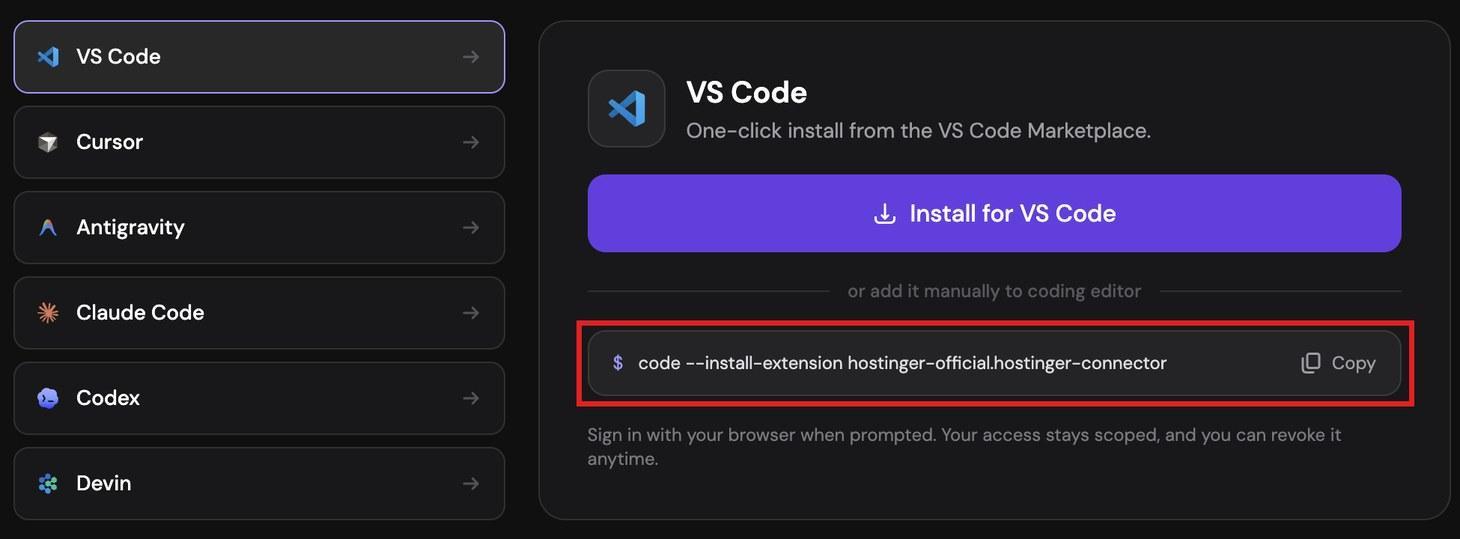
To install in VS Code: search for Hostinger Connector in the Extensions panel and click Install. You can also run code –install-extension hostinger-official.hostinger-connector in the terminal. Sign in with your browser when prompted.
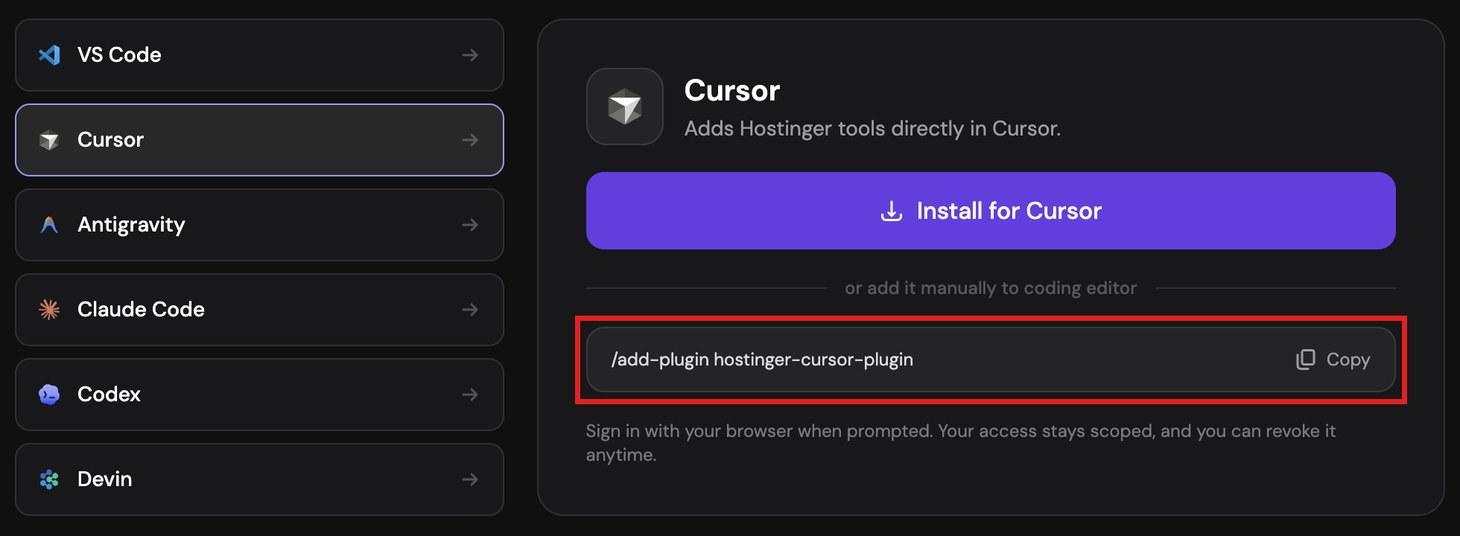
To install in Cursor: type /add-plugin hostinger-cursor-plugin in the agent chat. Sign in with your browser when prompted.
Connector supports PHP, HTML, Node.js, and static sites. Each connected WordPress site appears as its own MCP with tools for posts, pages, categories, tags, and media. Visual editing of pages and blocks in WP Admin is coming in a future update.

Which should you choose: Cursor or VS Code?
Choose Cursor if AI agents are central to how you write code; choose VS Code if you want a free editor where you pick your own AI tools.
Both have free tiers worth testing before committing. Cursor imports VS Code settings in one step on first launch, so switching is easy.
Choose Cursor if you:
- Write most of your code through agents rather than manually.
- Want cloud agents, Automations, and Bugbot included without separate setup.
- Prefer one subscription that covers both the editor and the AI tools.
- Need your team to share agent skills, rules, and plugins in one place.
Choose VS Code if you:
- Want a free editor without being tied to one AI company.
- Rely on Pylance, C# Dev Kit, or other Microsoft-only extensions.
- Use GitHub and want Copilot Business.
- Prefer running Copilot, Claude, and Codex side by side rather than committing to one.
- Want to run AI models on your own computer or use your own account with an AI provider.
The two tools are converging: Cursor’s agent now runs in JetBrains code editors, on mobile, and in the command line beyond its own editor. VS Code has had Claude and Codex built in since its January 2026 release. The choice is increasingly about which company you buy AI from, not which editor you type in.
Is Cursor better than VS Code with Copilot?
Neither is better outright: Cursor Pro offers deeper agent integration and its own AI models at $20/month. VS Code with Copilot Pro includes Claude and Codex agents under the same subscription at $10/month.
Which one works better for you depends on how much you rely on agents. Cursor Pro is the better pick if you run agents throughout the day and want Cursor Tab’s next-edit prediction and cloud agents included.
Copilot Pro suits developers who primarily work in VS Code, rely on autocomplete more than agents, and want access to multiple third-party agents at a lower monthly cost.
For teams, Copilot Business at $19/user is less than half the price of Cursor Teams at $40/user.
Cursor Teams earns the higher price if your workflow relies on Bugbot reviews, shared agent context, and a plugin system for team standards. For teams that use AI primarily for completions and occasional agent tasks, Copilot Business offers greater value.
All of the tutorial content on this website is subject to Hostinger's rigorous editorial standards and values.

Bruno is a Content Writer at Hostinger, focused on creating and optimizing helpful, engaging articles about web development and marketing. With a background in journalism, he combines storytelling with practical insights to make complex topics easier to understand. He has also contributed to publications like MacMagazine and Jornal A Tarde. Outside of work, Bruno enjoys exploring art, cooking, and technology.