Email tracking (read receipts) lets you see when your email is opened and who opened it. This helps you confirm if your message was received and viewed.
Before you start
- Email tracking is available only on selected Hostinger Mail plans
- Tracking is disabled by default and must be enabled for each email
Enable email tracking
- Open Hostinger Webmail and click New message
- Compose your email
- Click the eye icon (Enable tracking) at the bottom of the composer
- Make sure the icon turns green
- Click Send
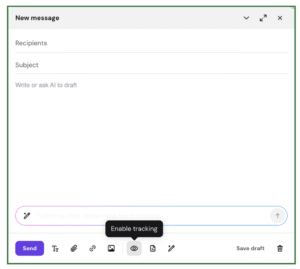
Once enabled, you will receive notifications when the email is opened.
Check who opened your email
You can view email tracking details in two ways:
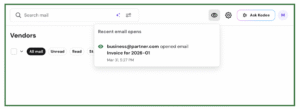
Option 1 – From notifications
- Click the eye icon in the top bar
- View recent email opens in the notifications panel
- Click a notification to open full tracking details
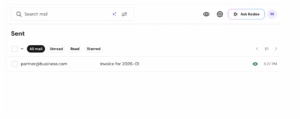
Option 2 – From the Sent folder
- Go to the Sent folder
- Find the email with the eye icon
- Click the icon to open the tracking dashboard
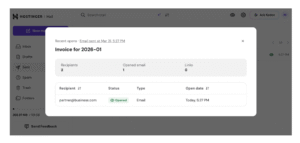
The dashboard shows:
- Who opened the email
- When it was opened
Troubleshooting
Tracking is not working
- Make sure you enabled tracking before sending the email
- Check if your plan supports email tracking
Email shows as opened but wasn’t read
- Some email providers scan messages for security
- This can trigger a false “opened” status