Hostinger Agency Hosting plans let you install a custom SSL certificate from another provider if you prefer not to use the free SSL that comes with your plan.
All Agency Hosting plans include free SSL certificates for every website. Lifetime SSL installs automatically as soon as you add a website, create a subdomain, or park a domain.
If you have purchased an SSL certificate from another provider, you can easily use it by following the steps below.
Access the SSL installation panel
- Go to your website dashboard
- Locate Security section on the left side menu
- Select SSL
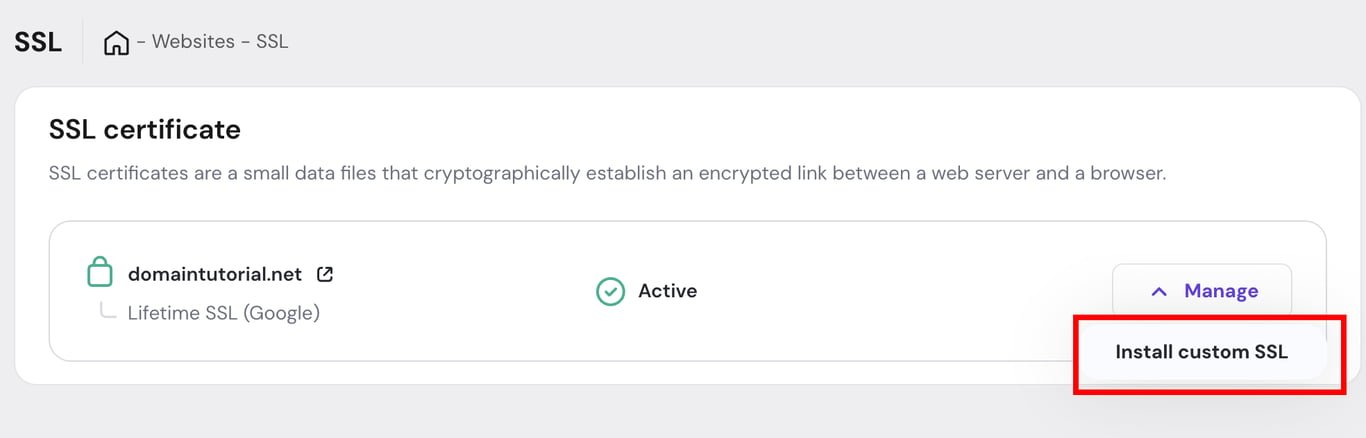
- Click Manage and then select “Install custom SSL”

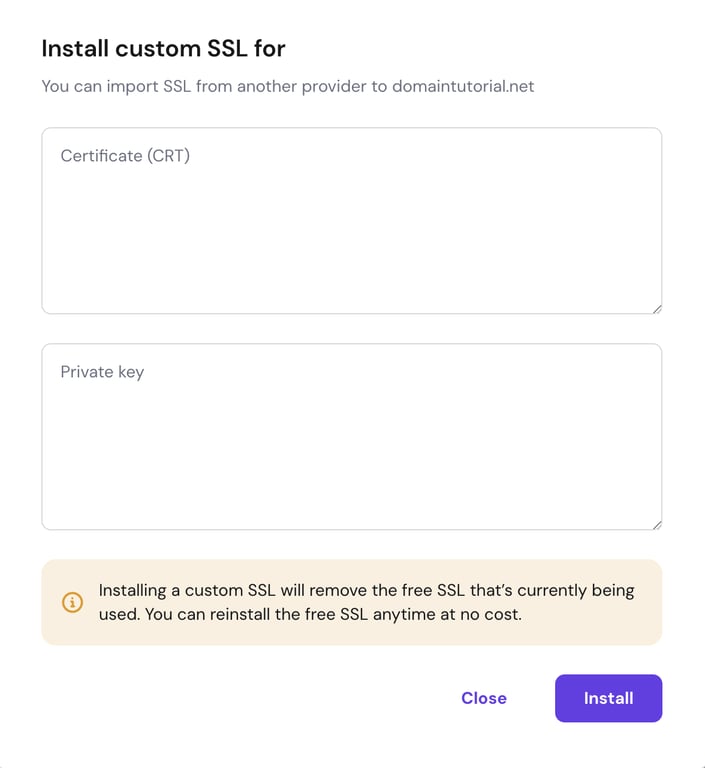
- Import your custom SSL
Import your custom SSL
A custom certificate is usually a compressed folder (e.g., a .zip) of the following files:
- Certificate — the certificate’s public key, usually a file named domain.crt
where the domain is your actual domain - Private Key — the certificate’s private key, usually the only file with the ending .key
- Certificate authority bundle (CABUNDLE) — the file that contains root and intermediate certificates
Open each one in a text editor such as Notepad, copy the content, and paste it into its corresponding section. Next, click on Install, and your certificate will be installed.
Your website now uses your custom SSL certificate instead of the default Lifetime SSL. For more on your plan’s features, see how to get started with Hostinger Agency Hosting plans.