To import contacts into Hostinger Email, you can upload a CSV or XLSX file directly in Webmail and map its columns to the correct contact fields. This is useful when migrating contacts from another email provider or address book, saving you from adding them one by one.
Before you start
- A CSV or XLSX file containing your contacts, up to 5 MB or 5,000 rows.
- Access to Hostinger Webmail.
Import contacts from a file
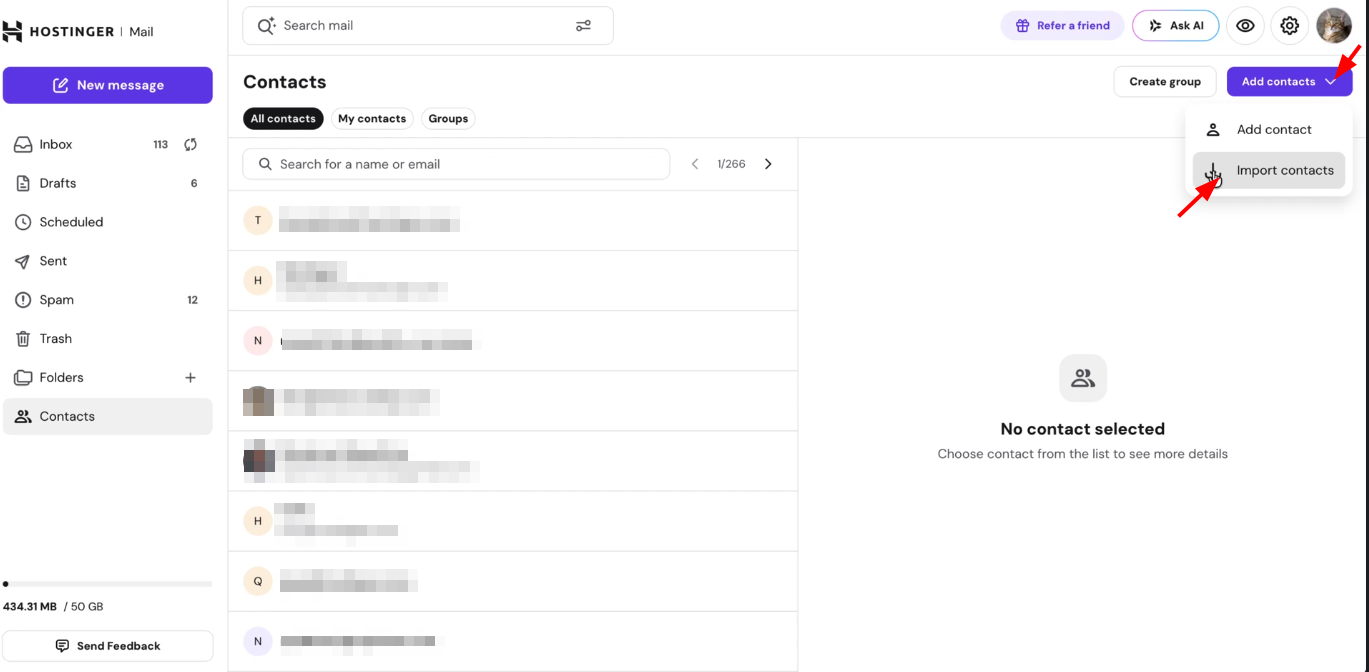
- Access Hostinger Webmail and go to Contacts.
- Click Add contacts ❯ Import contacts.
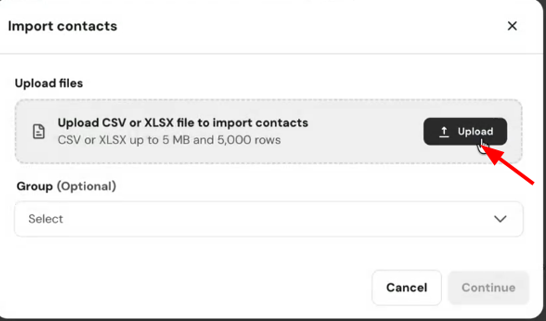
- Click Upload and select your CSV or XLSX file.

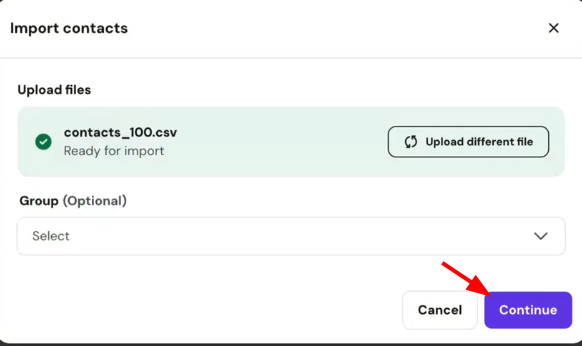
- Optionally, choose a Group to add the imported contacts to, then click Continue.

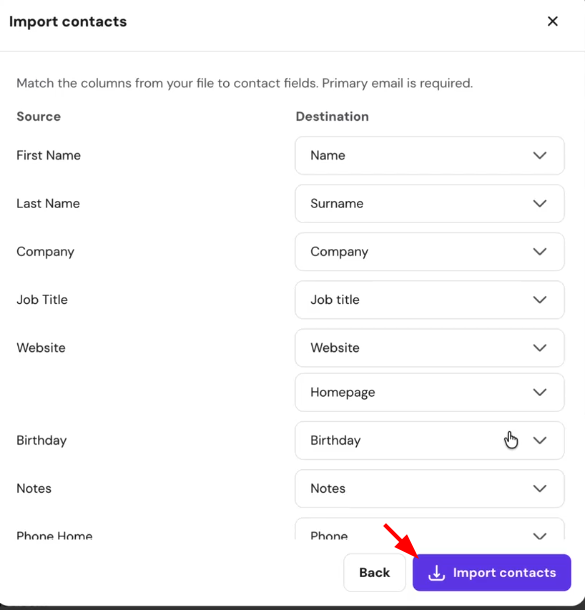
- Match the columns from your file to the corresponding contact fields. A primary email is required for each contact.
- Click Import contacts.

Once the import finishes, a summary shows how many contacts were imported, how many duplicates were skipped, and how many failed. Imported contacts are grouped together under an Imported label with the date of the import, making them easy to review or edit afterward.
NOTES
- If some rows fail to import, review the file for missing or invalid primary email addresses, as this field is required for every contact.
- Duplicate contacts, based on matching email addresses, are skipped automatically and counted separately in the import summary.
Your contacts are now available in Webmail and can be searched, edited, or added to groups like any other contact.