By default, nothing running inside a Hostinger GPU instance can be reached from outside it. This article explains what exposing a service does, when you need to use it, and how to add one to your GPU instance.
What exposing a service does
A Hostinger GPU instance only allows one connection from outside by default: SSH access, used to connect to the instance directly. Anything else running inside the instance, such as a web application or an API, is not reachable from the internet until you expose it.
Exposing a service creates a mapping between a port inside your GPU instance and a public address, so that whatever is running on that internal port becomes reachable from outside the instance.
Check what’s already exposed for you
If you deployed your GPU instance using an application template, such as Ollama or JupyterLab, Hostinger may have already exposed the relevant service for you automatically. Before adding a new one, check your existing exposed services first.
- Log in to Hostinger dashboard.
- Go to GPU.
- Select your GPU instance.
- Go to Exposed services.
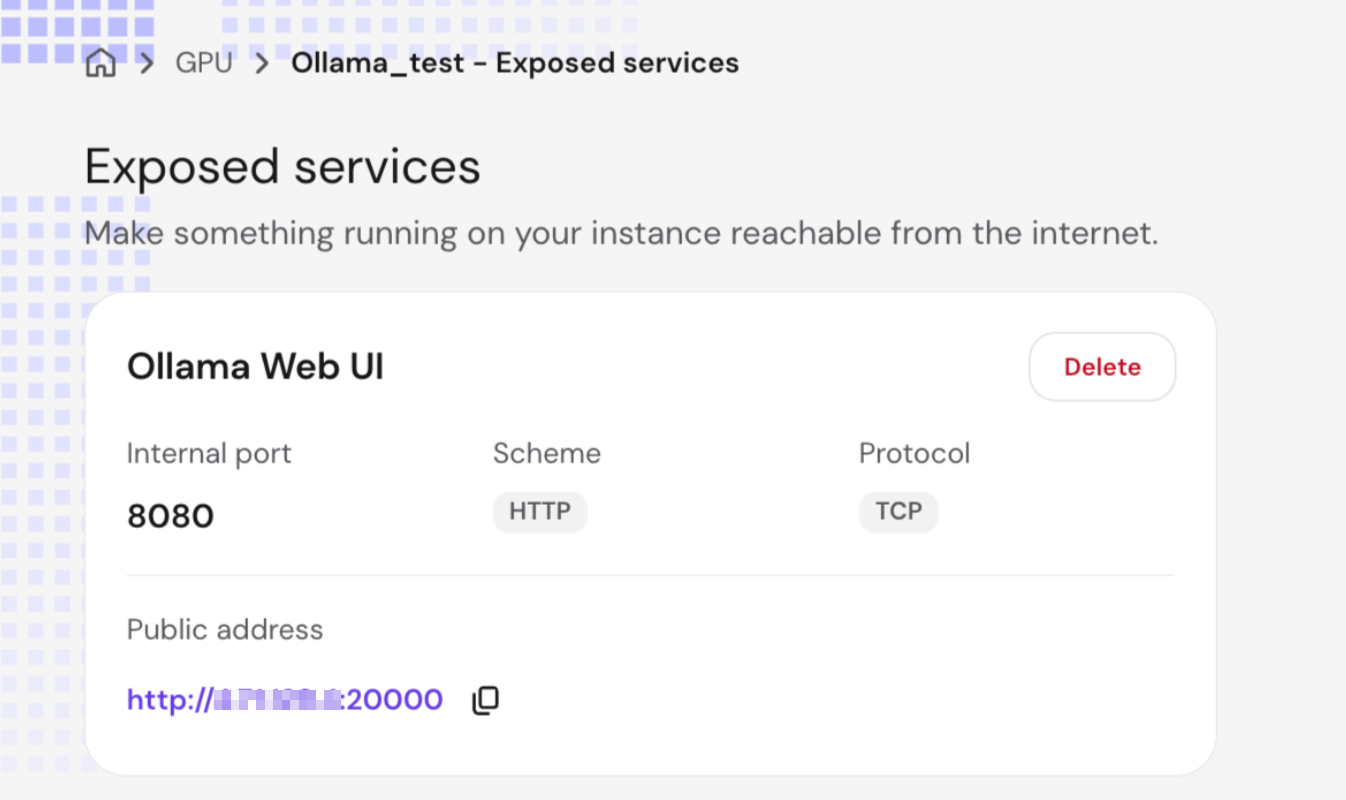
Not everything inside a GPU instance is exposed by default, even with a template. For example, the Ollama application programming interface itself stays private and is only reachable from inside the instance. Only the Ollama Web UI, the browser-based interface built on top of it, is exposed automatically.
When you need to add an exposed service yourself
You need to add an exposed service manually when:
- You install your own application, script, or tool on the GPU instance and want to open it in a browser.
- You want another application or service, outside the GPU instance, to be able to call something running on your GPU instance, such as an application programming interface.
- You are running more than one service on the same GPU instance and want each one reachable at its own address.
How to add an exposed service
- Log in to Hostinger dashboard.
- Go to GPU.
- Select your GPU instance.
- Go to Exposed services.
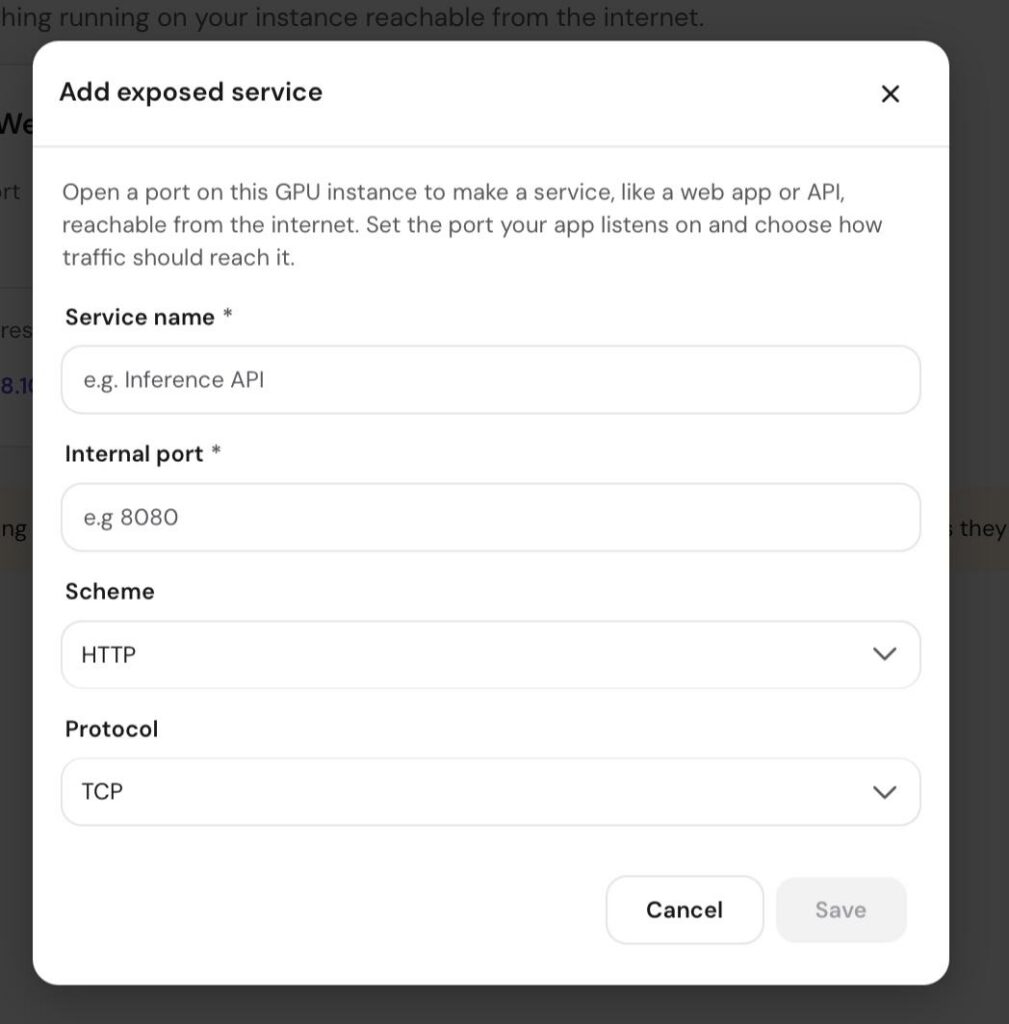
- Select Add service.
- In the Service name field, enter a name to help you identify the service, for example
Inference API. - In the Internal port field, enter the port your application is already listening on inside the GPU instance.
- From the Scheme dropdown, select either HTTP or HTTPS.
- From the Protocol dropdown, select TCP or UDP. Most applications use TCP.
- Select Save.
NOTE
- The Scheme field only labels how the public address is displayed to you. Selecting HTTPS does not set up encryption for you. Your application still needs to be configured to serve HTTPS itself on the internal port for the public address to work correctly.
Once saved, a public address appears for your exposed service. Use this address to reach your application from a browser, or to call it from another service.
Finding your application’s internal port
If you’re not sure which port your application is listening on inside the GPU instance, check the application’s own documentation, or connect to your GPU instance over SSH and run:
ss -tulnpThis lists all ports currently listening for connections inside the instance, along with the process using each one.
Removing an exposed service
If you no longer need a service to be reachable from outside your GPU instance, go to Exposed services, find the service in the list, and select Delete.
NOTE
- Once a service is exposed, its public address is reachable by anyone who has that address, not only you. Before exposing anything that handles sensitive data or gives administrative access, review how to secure exposed services on your Hostinger GPU instance.
Frequently asked questions
Can I have more than one exposed service on the same GPU instance?
Yes. Each exposed service has its own name, internal port, and public address, so you can expose multiple applications running on the same GPU instance independently.
Do I need to expose an application’s internal API as well as its user interface?
Usually not. In most cases, only the user-facing part of an application, such as its web interface, needs to be exposed. Internal components are often designed to stay private and communicate only with the parts of the application running inside the same instance.
Exposing a service is what turns an application running privately inside your GPU instance into something you or others can actually reach. Once you’re comfortable with the basics, take a look at securing exposed services to make sure what you’ve opened up is protected properly.