You can personalize every email you send by adding a custom email signature. Hostinger Mail now supports multiple signatures per mailbox. You can create several signatures, set one as the default to automatically insert when composing, or choose to send without any signature at all.
This guide shows you how to create and edit a signature in the Hostinger Mail web app (Webmail) – adding your name, contact details, or even a company logo.
Before you start
- Sign in to your mailbox via the Webmail
- The signature feature is available only in the web app and does not sync with other email applications (like mobile or desktop clients).
ℹ️ Note for Free and Trial Users
If you’re using a Free or Trial plan, your sent emails will include a “Sent via Hostinger Email” footer after your signature.
You can remove it by upgrading to a paid plan (Business Starter or Business Premium).
Create your email signature
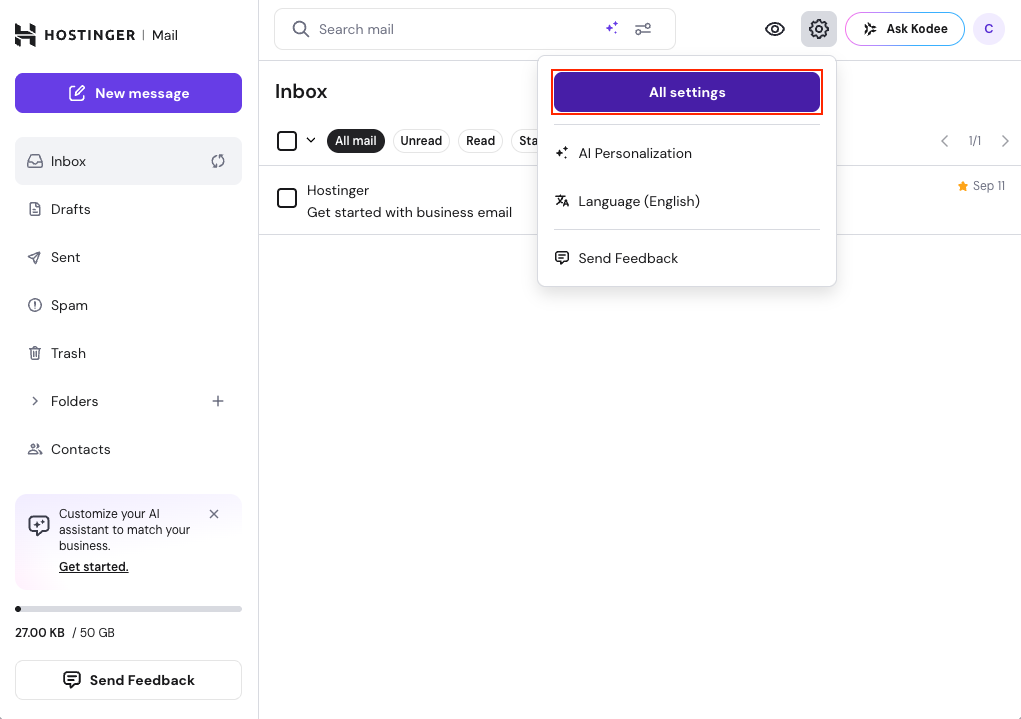
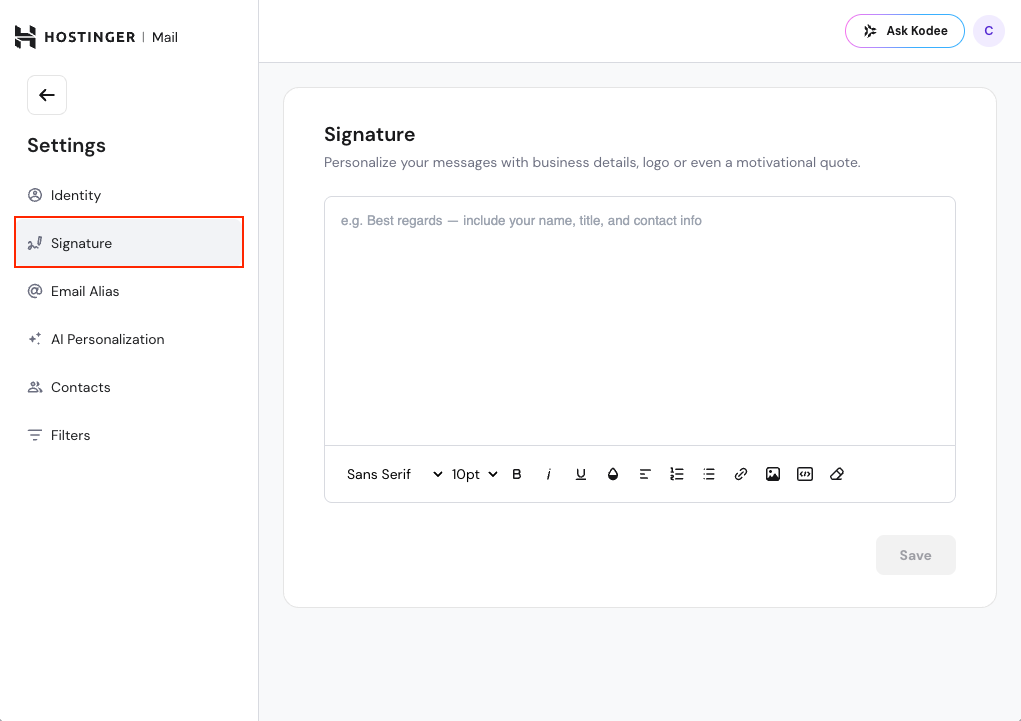
- Click on the settings wheel in the top-right, click on All settings, and select Signature on the left.
- Enter or paste your desired signature in the text box.
- Use the toolbar below the box to style text (font, color, bold, bullet points, etc.).
- When finished, click Save.
Once saved, your signature will automatically appear in every new email composed in Hostinger Mail.
How to add more signatures
- Go to Settings → All settings → Signature.
- Click + Add Signature.
- Enter a name and your signature content.
- Format it using the toolbar (font, color, bold, links, images, etc.).
- Click Save.
- You can repeat this to create as many signatures as you need for your mailbox.
Setting a default signature
- Your first signature is automatically set as the default.
- To change the default, open the signature you want and select Set as default.
- The default signature is automatically added when you open the email composer.
- If you delete your default signature, Webmail will automatically promote another signature as the new default.
Choosing no signature when composing
When writing an email, you can select No Signature from the signature picker in the composer. This lets you send that specific email without a signature, without affecting your default setting.
Add images to your signature
You can include company logos, profile photos, or icons in your signature.
There are several ways to add an image:
- Click the image icon in the toolbar below the signature box, and select a file from your device
- Drag and drop an image directly into the signature box
- Copy an image from another source and paste it into the signature box (Ctrl + V or Cmd + V)
Once an image is added, you can resize it directly in the signature editor: click the image to select it, then drag the resize handle to the desired size.
Add links to your signature
Add links to your website, social media profiles, or any other online resource.
You can attach links to text or images in two ways:
- Select the element (text or image) → click the link icon in the toolbar below the signature box → enter the link URL
- Select the element (text or image) → paste the link (Ctrl + V or Cmd + V)
Use styling and formatting
You can enhance your signature with:
- Font selection (Sans Serif, Serif, etc.)
- Font size, color, and emphasis (bold, italic, underline)
- Lists (bulleted or numbered)
- Alignment options and spacing
If you try to leave the signature editor with unsaved changes, Webmail will ask you to confirm before exiting. This helps prevent accidentally losing your edits.
Troubleshooting
- My signature doesn’t appear when composing a new email: Make sure it’s saved under Settings → Signature and refresh the page.
- Images in my signature don’t show: Check that the images are uploaded correctly or try re-adding them using the image icon.
- My links don’t work: Confirm that the link includes
https://orhttp://.