The Spam Checker tool in Hostinger Reach uses AI to rate your email template across five areas: overall quality, spam risk, grammar, links and buttons, and accessibility and readability. Spam Checker suggests fixes before you send, and applying them with AI takes 1 AI credit per request. Run Spam Checker anytime while creating or editing an email template.
Where to find Spam Checker
Open your Reach dashboard and go to Templates. While editing or creating an email template, look at the top area of the page and click the Spam Checker button.
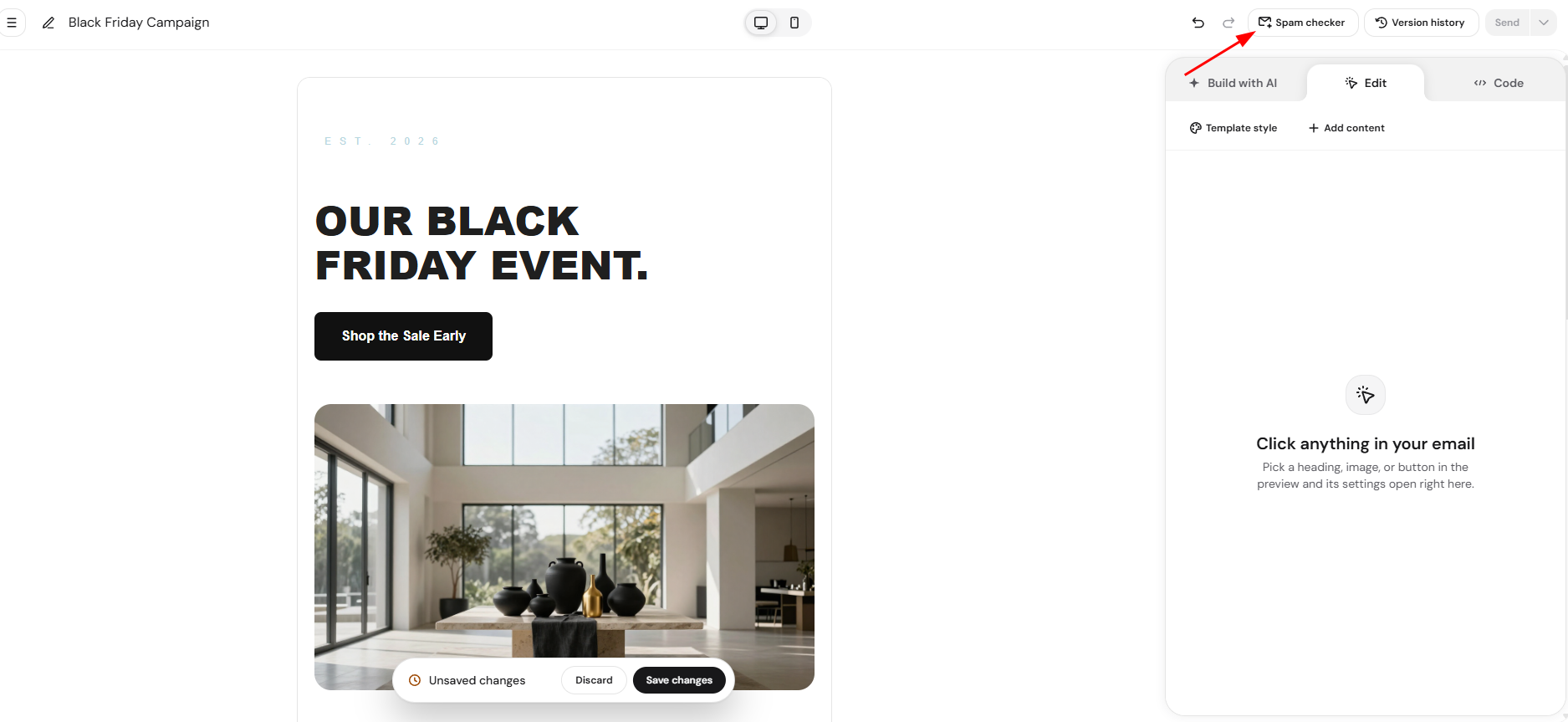
Once clicked, AI will analyze your email template.
What Spam Checker evaluates
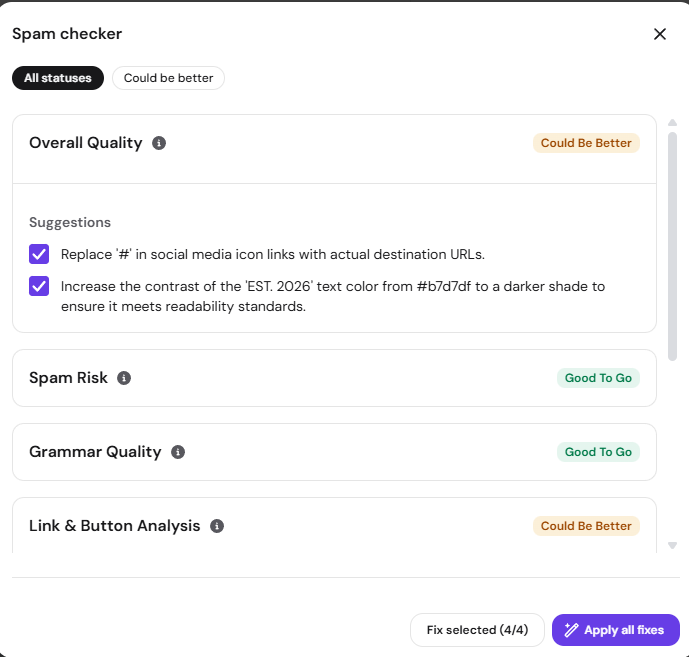
After the scan, you’ll see results for several key areas:
Overall Quality
A general quality score based on:
- Email design
- Content quality
- Functionality
- User experience
Spam Risk
A rating based on:
- Deliverability-related factors
- Content quality and potential spam signals
Grammar Quality
Checks:
- Spelling
- Grammar
- Language quality
Link & Button Analysis
Evaluates:
- URL validity
- CTA (call-to-action) clarity
- Placement of buttons and links
- Quantity of links
Accessibility & Readability
Checks for:
- Color contrast
- Font sizes
- Visual hierarchy
- Sentence structure
Understanding the Statuses
Each category receives a status, such as:
- Good to go
- Needs improvement
- Needs major work
If your template shows Good to go across all areas, it means your email meets quality best practices and is ready for sending with strong engagement potential.
What Spam Checker does not check
Spam Checker focuses on your current template quality, but it does not evaluate:
- Your domain status or domain validity
- Sender reputation based on previous campaigns
- Full inbox placement likelihood
For more details, refer to the deliverability-related article.
How to fix issues found by Spam Checker
If any category shows Needs improvement or Needs major work, Spam Checker will provide improvement suggestions.
You have three ways to handle them:
Option 1 – Apply all suggestions (Recommended)
By default, all suggestions are pre-selected.
Click Apply all fixes to automatically fix everything using AI.
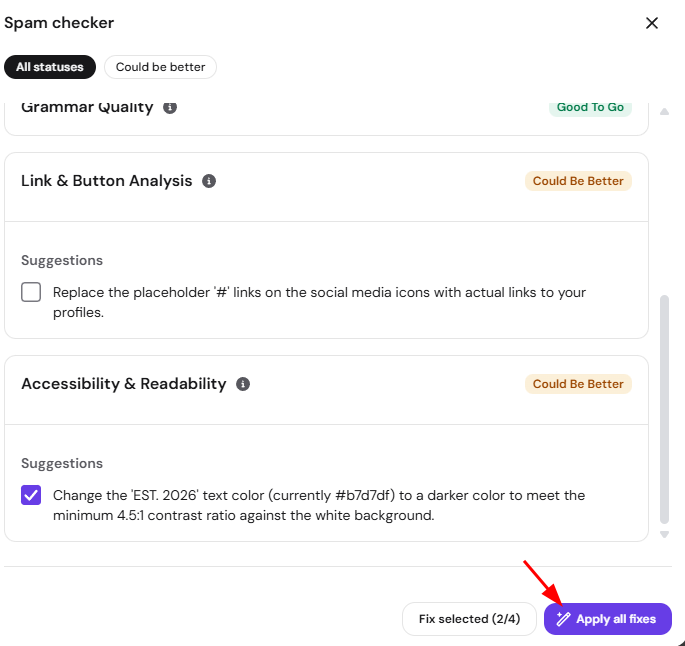
It is a one-click interaction, and results in automatically sending a message to AI chat.
It takes 1 credit and AI applies all suggested improvements automatically.
Option 2 – Apply selected suggestions
If you don’t want to follow every suggestion:
- Untick the checkbox for the suggestions you don’t want
- Click Fix selected
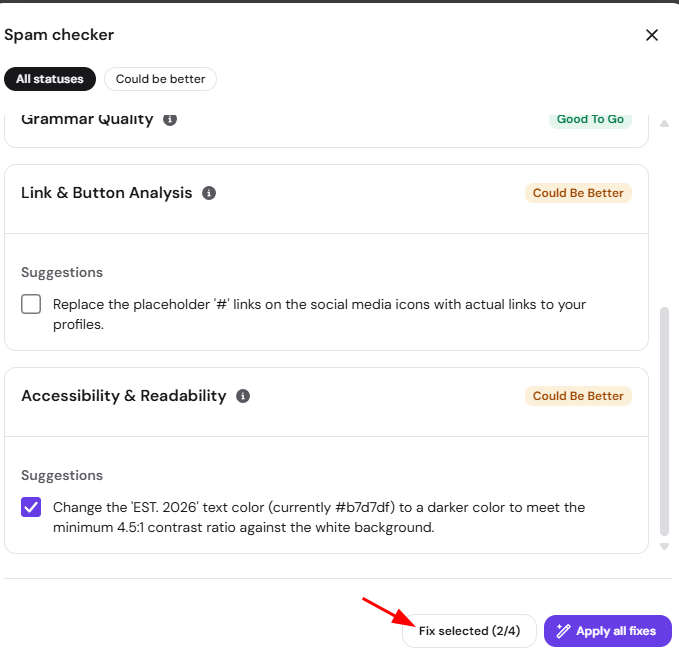
It is a one-click interaction, and results in automatically sending a message to AI chat.
It takes 1 credit and AI applies only selected suggestions automatically.
Option 3 – Fix issues manually
You can also fix issues yourself using Edit Mode.
This is useful if you want full control over your wording, layout, or design, although it may be more time consuming.
Re-checking your template
After applying fixes (automatically or manually), click Spam Checker again to re-run the scan.
You should see improved scores and ideally Good to go statuses across all categories.
Important note about Edit Mode
If you are in Edit Mode, you can still run Spam Checker and view results.
Applying AI fixes automatically (Apply All Suggestions / Apply Selected) is not available in Edit Mode.
To apply AI suggestions:
- Switch back to AI chat mode
- Click Spam Checker
- Apply suggestions there
This ensures your manual changes are fully saved and prevents unsaved edits from being overridden.
Once every category shows Good to go, your Hostinger Reach email template meets quality best practices and is ready to send.