Overview
Once your form is created in Hostinger Reach, you can add it to your website to start collecting subscribers directly from your pages.
This guide focuses on adding your already created form to a Hostinger Website Builder site.
Add your form to Website Builder
This guide explains how to display your form on a Hostinger Website Builder site using the Reach form element.
1. Open your Website Builder editor
- Log in to your Hostinger account
- Go to Websites
- Click Edit website for your Website Builder site
2. Add the Reach form element
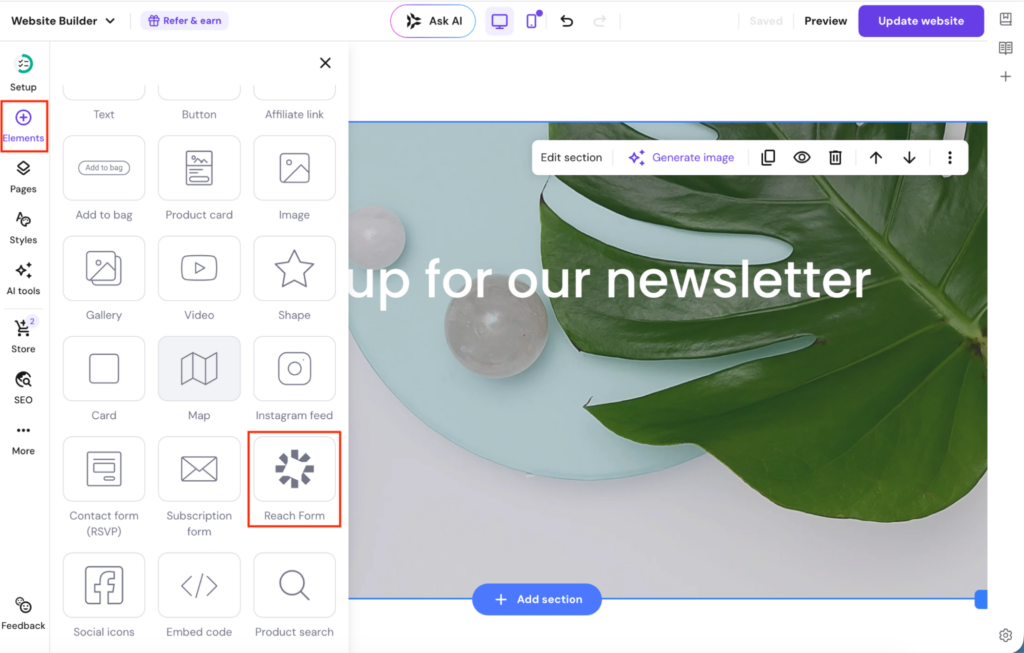
- Navigate to the page where you want the form
- Click Elements
- Find and select Reach form
- Drag and drop it onto your page
3. Choose your form
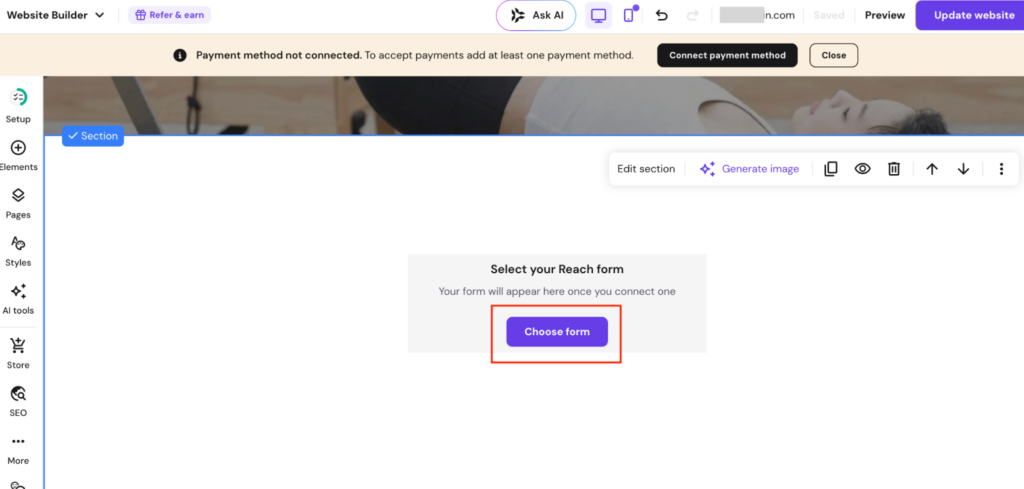
- Click on the added Reach form element
- Click Choose form
- Select one of the forms you created in Hostinger Reach
- Click Select
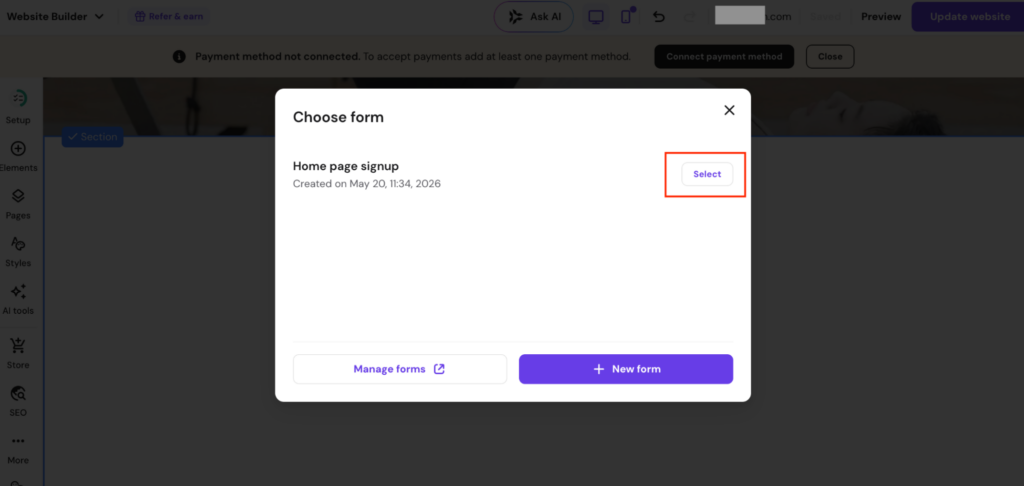
The selected form will now appear on your website.
You can also click Manage forms to create a new form in Hostinger Reach. This opens Reach in a new browser tab, where you can create and manage your forms.
Final check
If the form is not displaying:
- Make sure the form is activated in Reach
- Confirm the correct form was selected
- Ensure the website was updated (not just previewed)