Drag and drop elements in Hostinger Reach to reorder text, images, buttons, and other content blocks inside an email template without rebuilding sections. Click Edit, select an element, and drag its handle above or below other content. Reordering changes only the template, not your automation logic or sending rules.
Reordering content in email templates
The drag-and-drop reordering feature allows you to change the position of elements directly inside the email editor.
You can move:
-
Text sections
-
Images
- Other content blocks
This works within a single email template and does not affect your automation logic or sending rules.
How the drag-and-drop editor works
Reordering content is simple and intuitive:
- Open an email template in the Reach email editor. Click Edit to be able to move elements.
- Click on any section, image, or button
- A drag handle will appear on the selected element

- Grab the handle and drag the element to a new position
- Drop it above or below other content to rearrange your email
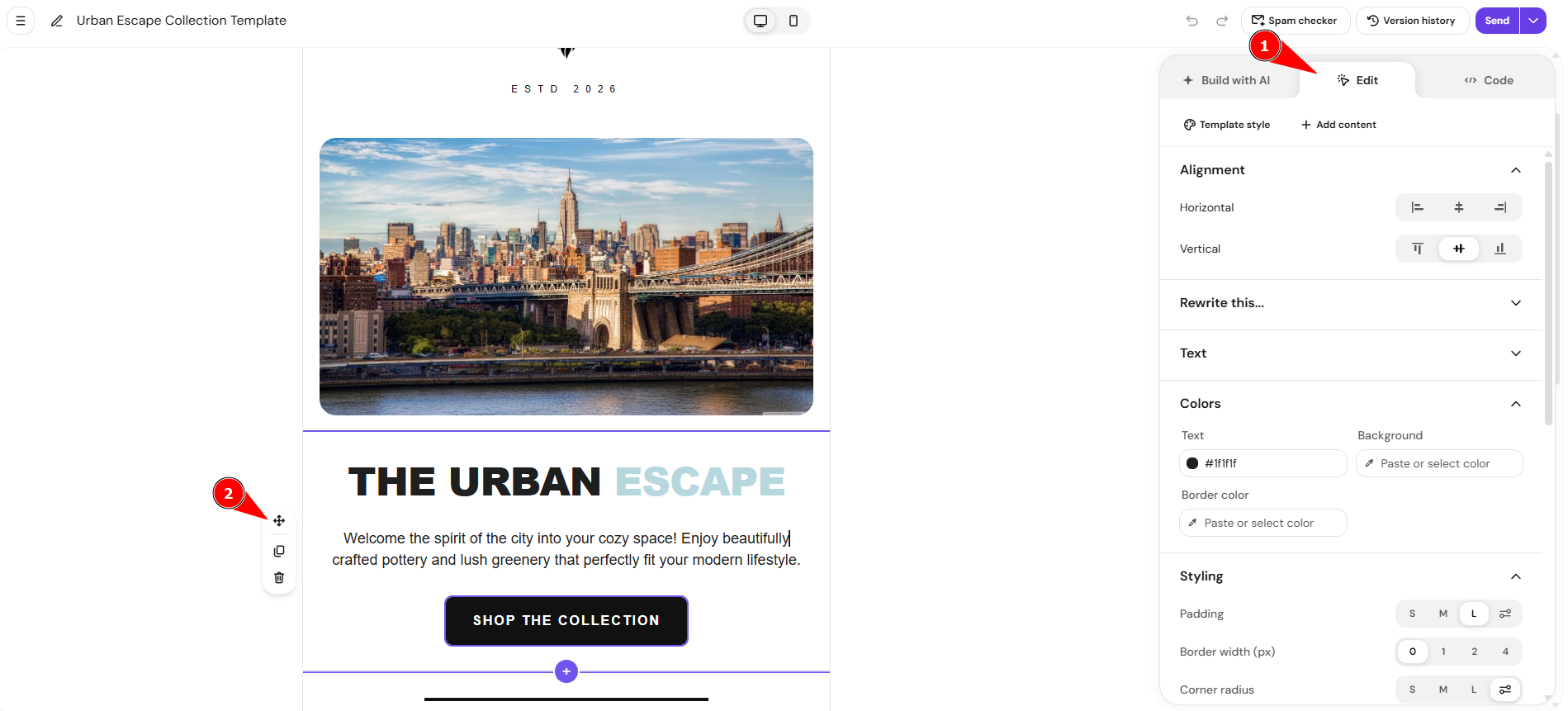
Changes are applied instantly, allowing you to preview the updated structure as you work.