Once you’ve deployed a Managed n8n instance, you can monitor and manage it directly from its dashboard in Hostinger dashboard. This guide covers the Dashboard, Environment, Backups, and Logs sections available for your n8n application.
Before you start
- An active Managed n8n instance. See Hostinger Managed n8n: Overview and setup if you haven’t deployed one yet.
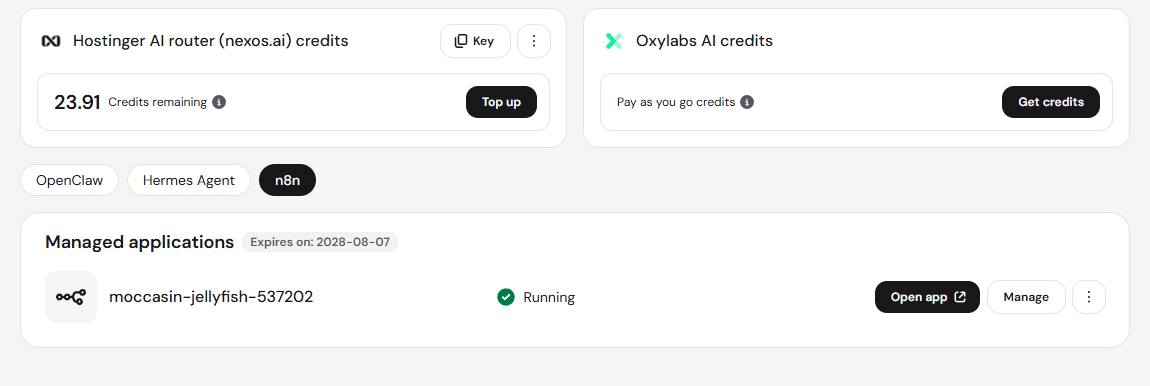
Access your n8n dashboard
- Log in to Hostinger dashboard and click n8n under AI agents in the sidebar.
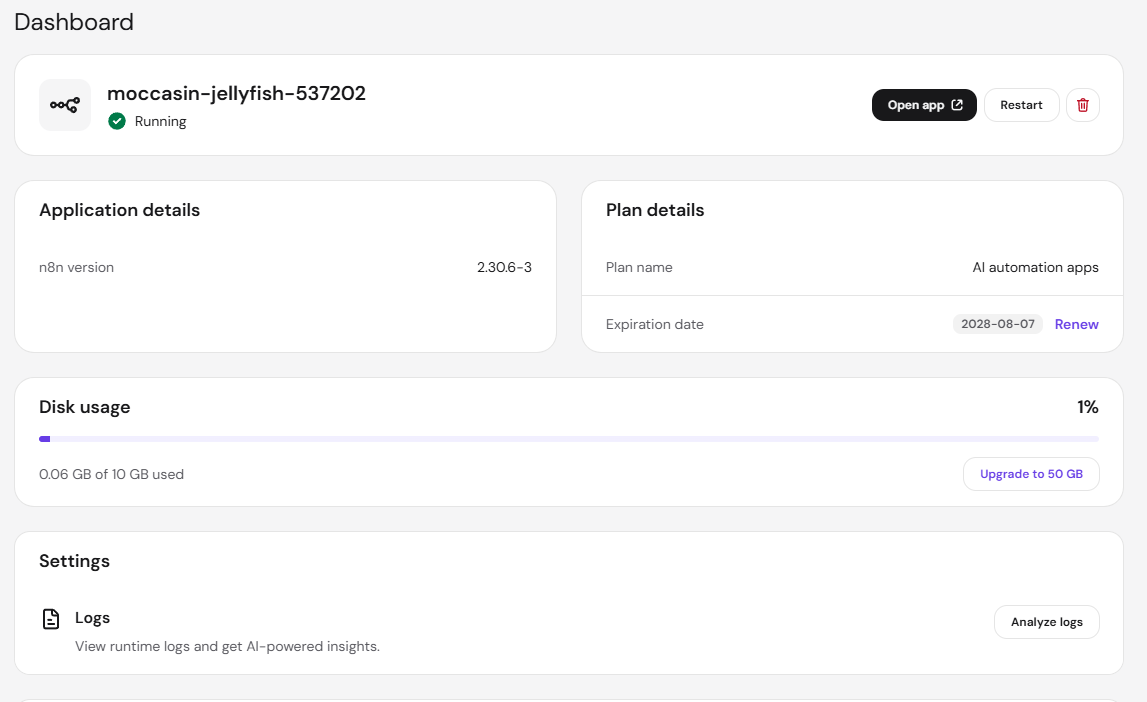
- Your instance dashboard opens, showing its status, application details, and plan details.
Dashboard overview
The Dashboard section shows:
- Application status, along with Open app, Restart, and delete controls for your instance.
- Application details, including the installed n8n version.
- Plan details, including the plan name and expiration date. Click Renew to extend your plan before it expires.
- Disk usage, showing how much storage your instance has used. Click Upgrade to 50 GB if you need more space.
- Settings, with a shortcut to Logs and AI-powered log analysis.
Manage environment variables
The Environment section stores the keys, passwords, and settings your n8n instance needs to run, including N8N_WEBHOOK_URL and N8N_EDITOR_BASE_URL.
- In the sidebar, click Environment.
- Use the search bar to find a specific variable, or click Show all values to reveal them.
- Click the pencil icon next to a variable to edit its value, or the trash icon to delete it.
- To add a new variable, click Add environment variable.
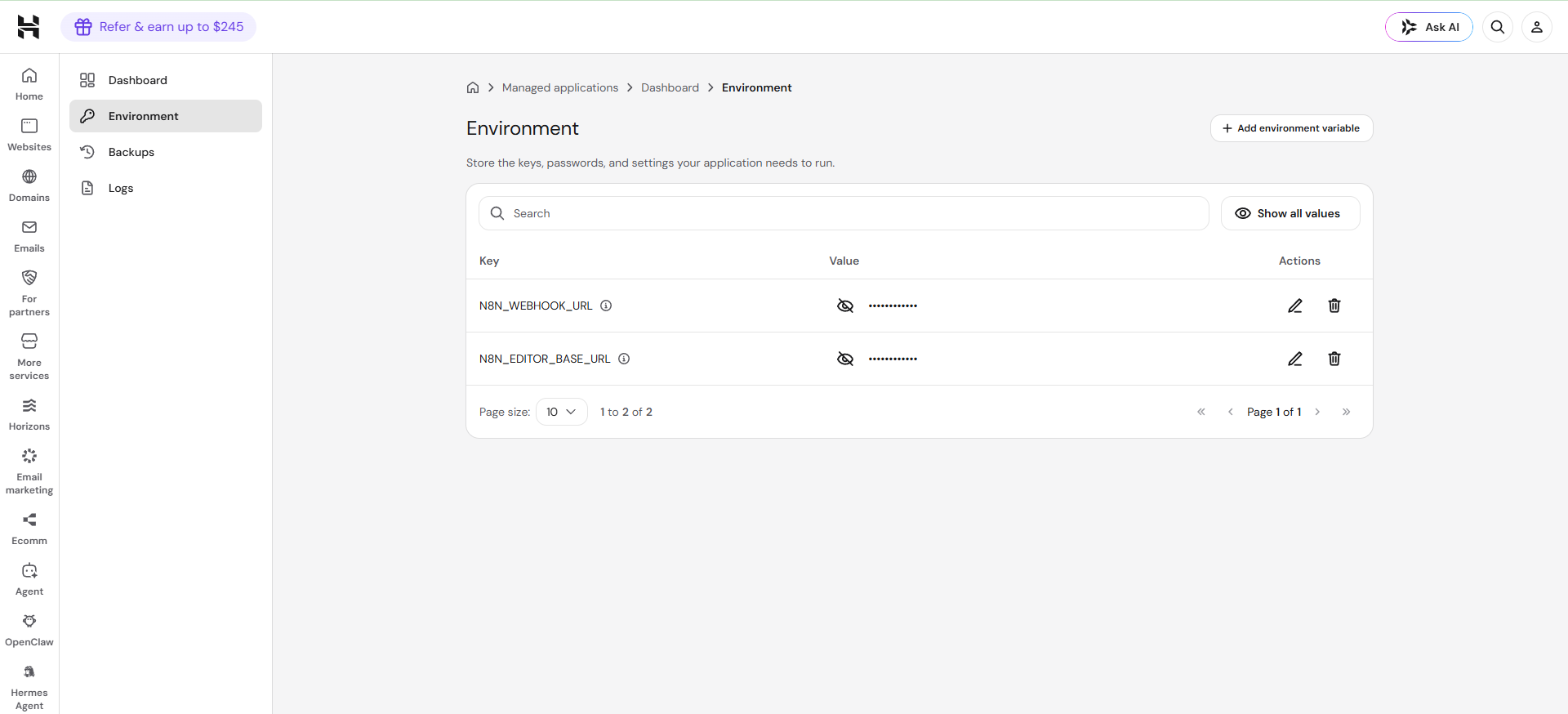
Editing or removing environment variables that n8n relies on to run, such as N8N_WEBHOOK_URL or N8N_EDITOR_BASE_URL, can affect your instance’s functionality.
Restore or download a backup
- In the sidebar, click Backups.
- Under Restore and download, select a backup by date and time, then click Restore application or Download backup.
- Click Restore history to view past restore actions.
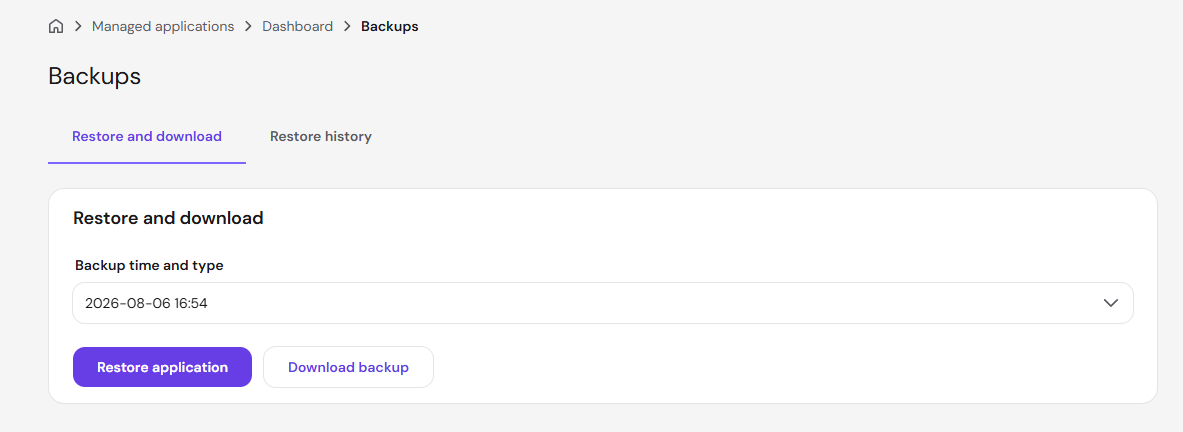
Backups appear once daily and are kept for 7 days. If no backup has been created yet, this section shows no available backups.
Review logs
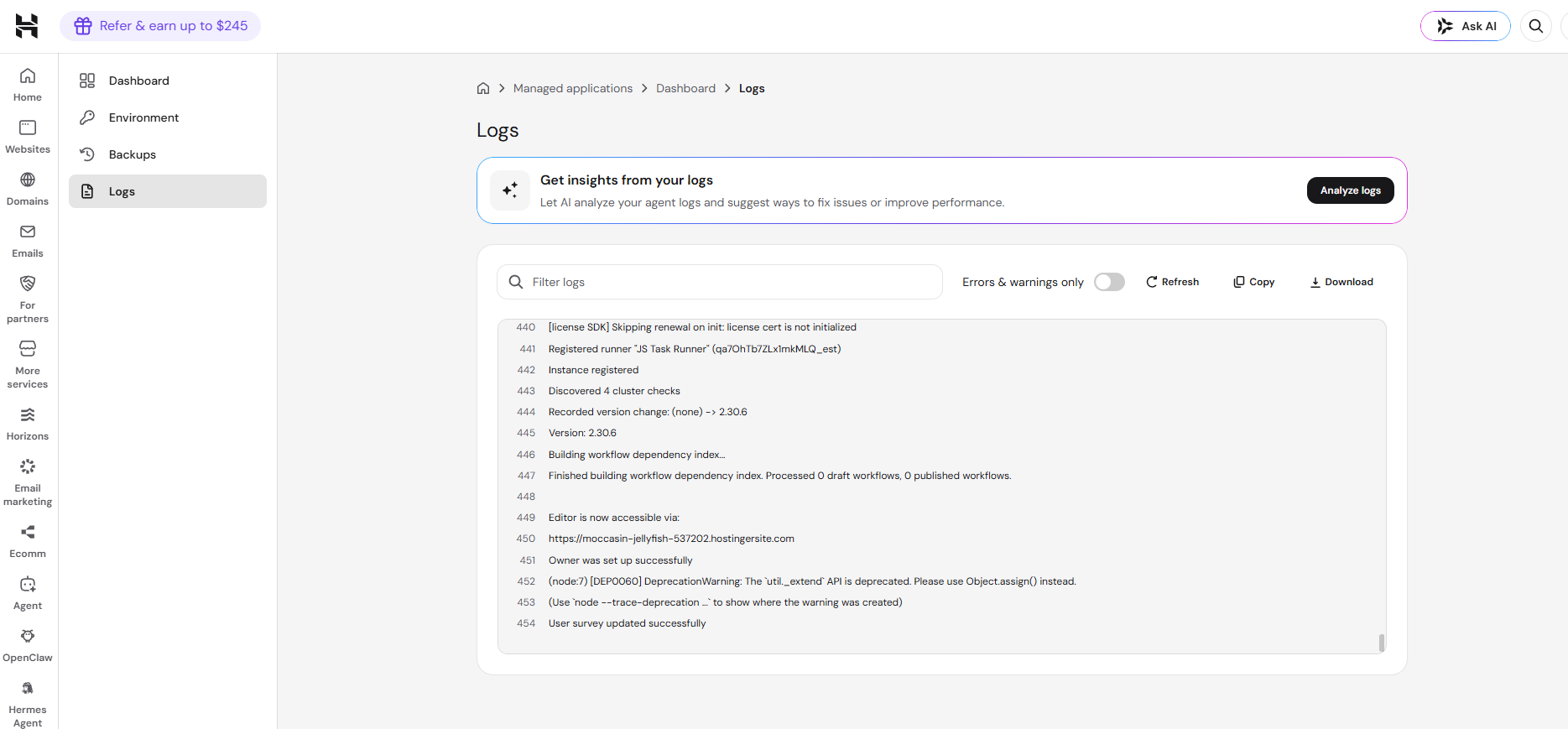
- In the sidebar, click Logs.
- Use Filter logs to search for specific entries, or enable Errors & warnings only to narrow the view.
- Click Refresh to load the latest entries, Copy to copy the visible logs, or Download to save them as a file.
- Click Analyze logs to let AI review your logs and suggest fixes for issues or performance improvements.
Once you’re familiar with these sections, you can keep your Managed n8n instance running smoothly and troubleshoot issues directly from Hostinger dashboard.