Paperclip in Hostinger Managed apps runs Paperclip, an AI orchestration platform for teams of autonomous AI agents, on its own dedicated microVM managed by Hostinger. You create a Paperclip admin account during setup, then log in to Paperclip to name your organization, create your first agent, and connect a model. Paperclip connects to a Claude or OpenAI subscription, or to an API key.
Before you start
- You need a Hostinger Managed apps plan. See Hostinger Managed apps: What it is and how to get started for plans and how to add an app.
- To connect a model, you need a Claude or OpenAI subscription, or an API key from an AI provider.
- If your Paperclip app is listed under AI agents → Paperclip, follow Hostinger Managed Paperclip: Overview and setup instead.
How to set up Paperclip in Hostinger Managed apps
Step 1 – Start the setup
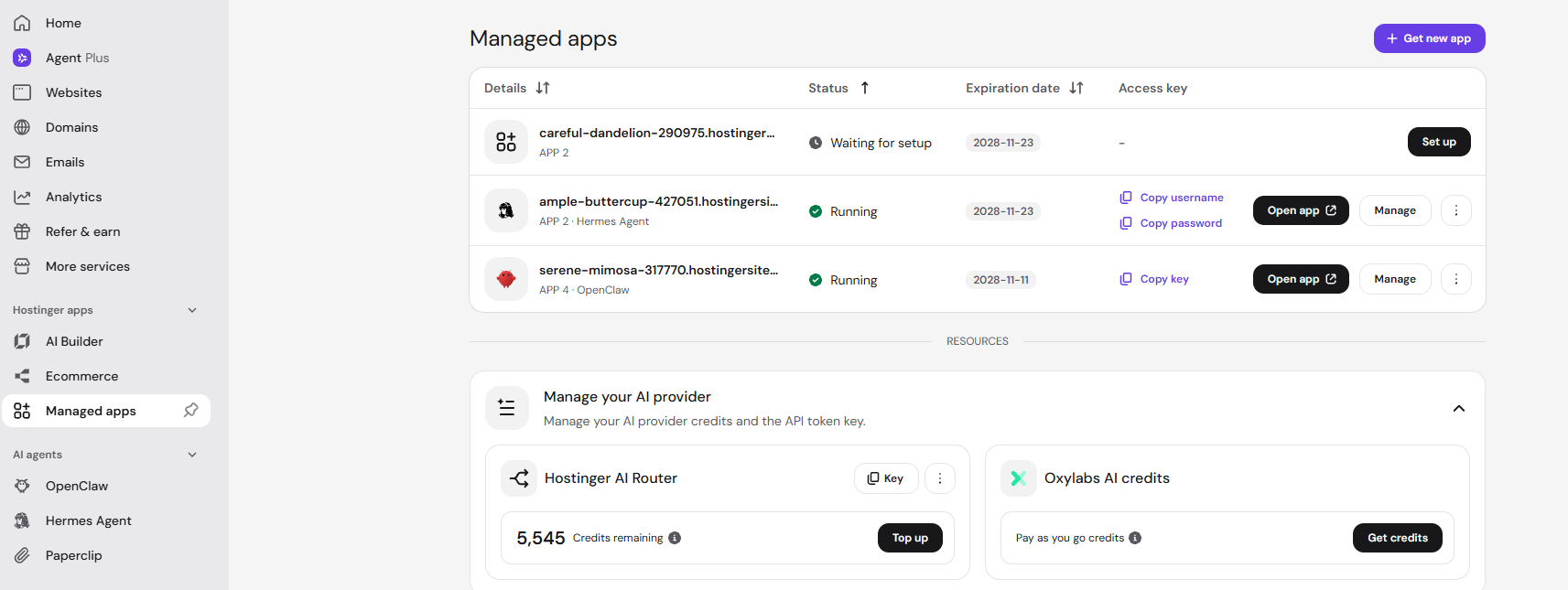
- In the Hostinger dashboard, go to Managed apps in the left sidebar.
- Click Set up next to a plan with the status Waiting for setup, and select Paperclip. To buy a new plan for Paperclip, click Get new app instead.

Step 2 – Create your Paperclip admin account
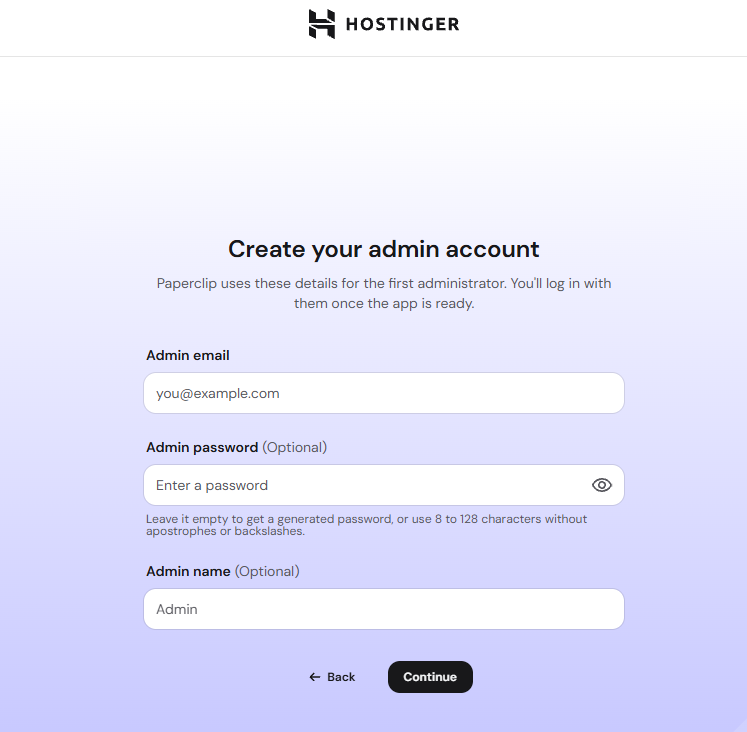
- Enter an Admin email.
- Enter an Admin password with 8 to 128 characters and no apostrophes or backslashes. Leave it empty to get a generated password.
- Optionally, enter an Admin name.
- Click Continue.
Paperclip setup starts and takes a few minutes. You can leave the page, and the setup will keep going.
Step 3 – Log in to Paperclip
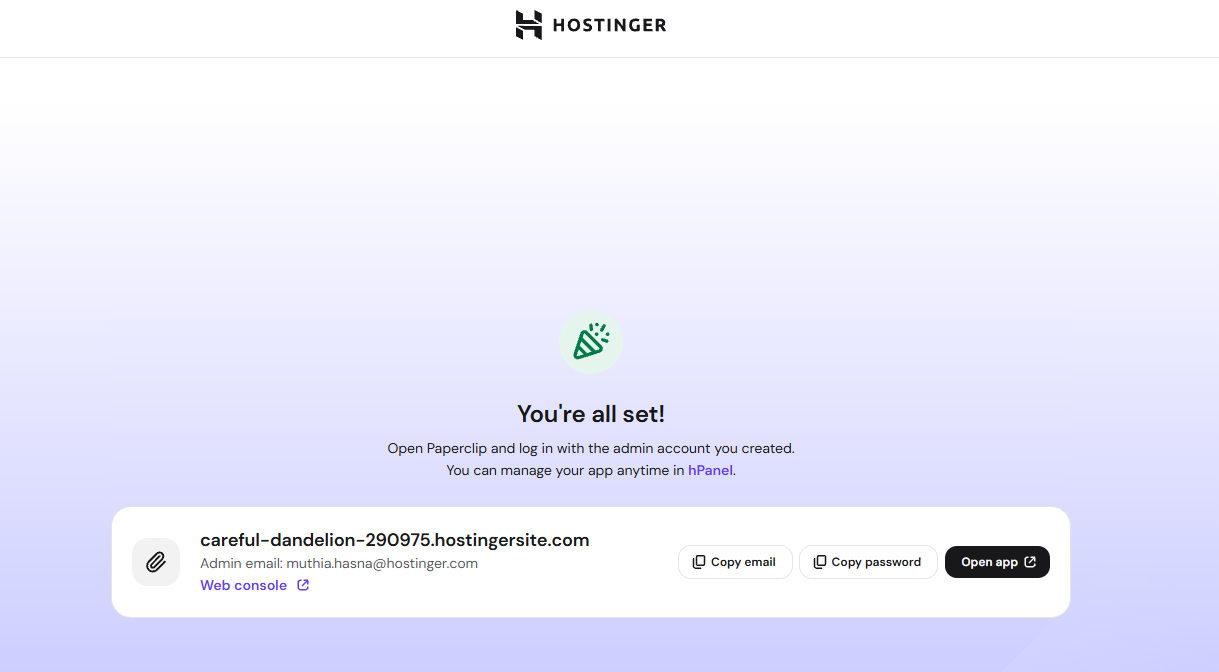
- When setup finishes, click Copy email and Copy password.
- Click Open app.

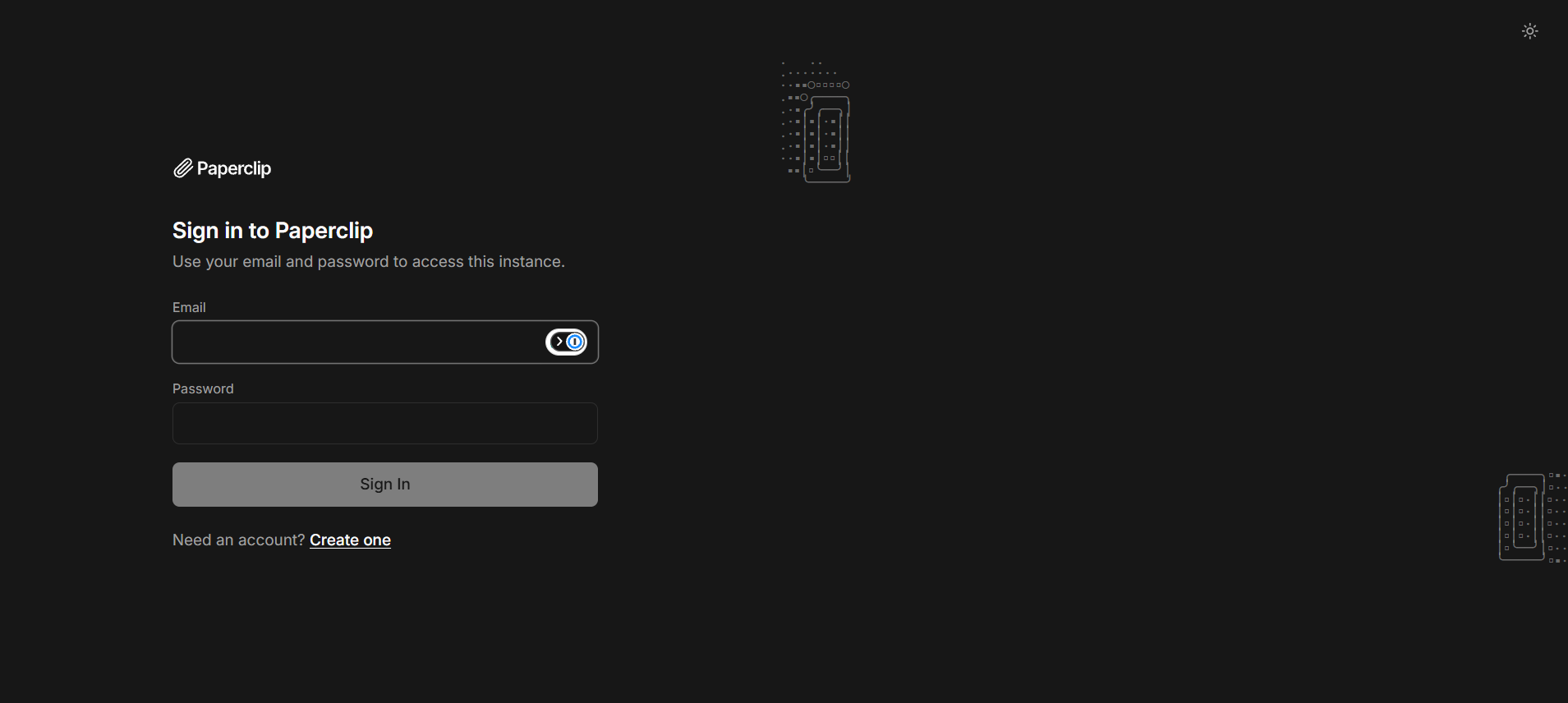
- On the Sign in to Paperclip page, enter the admin email and password, and click Sign In.

Step 4 – Set up your organization and first agent
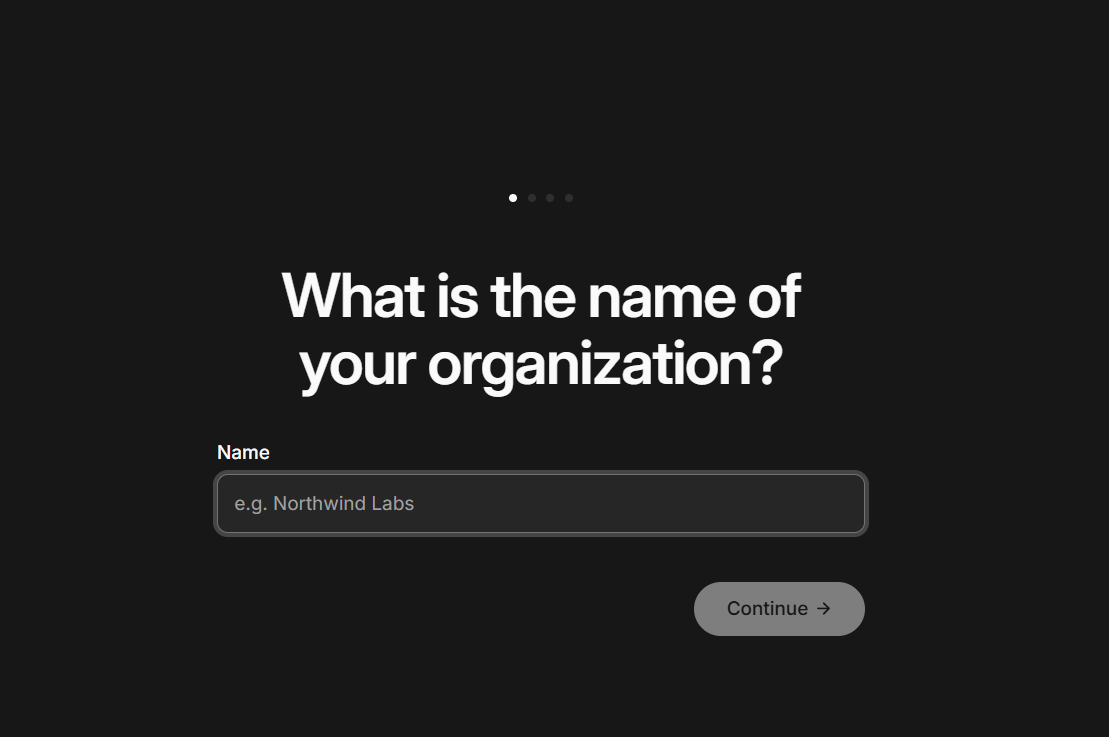
- Enter the name of your organization and click Continue.

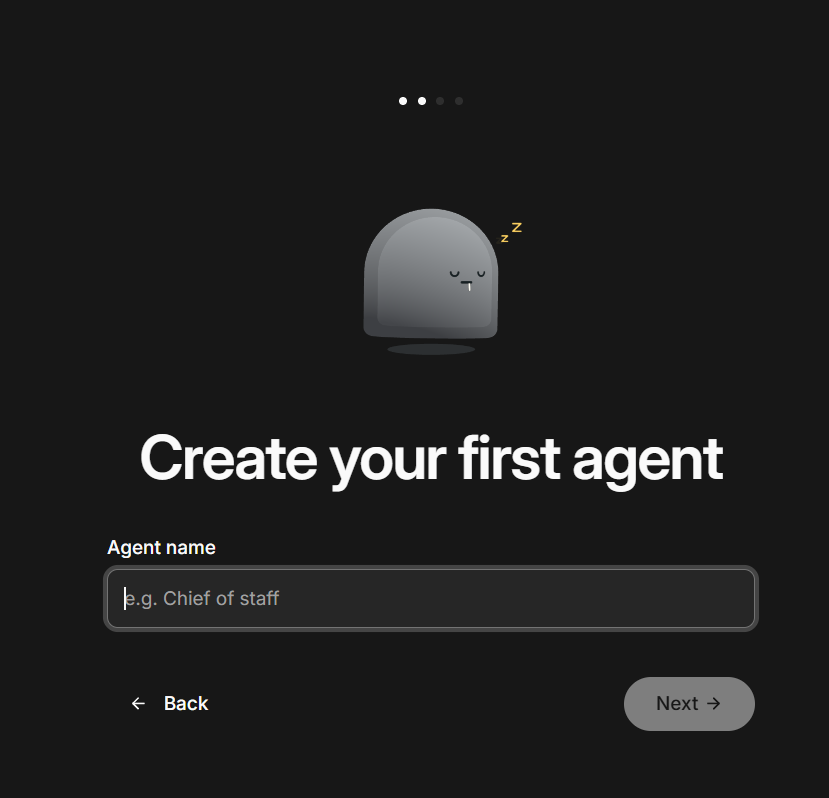
- Enter a name for your first agent and click Next.

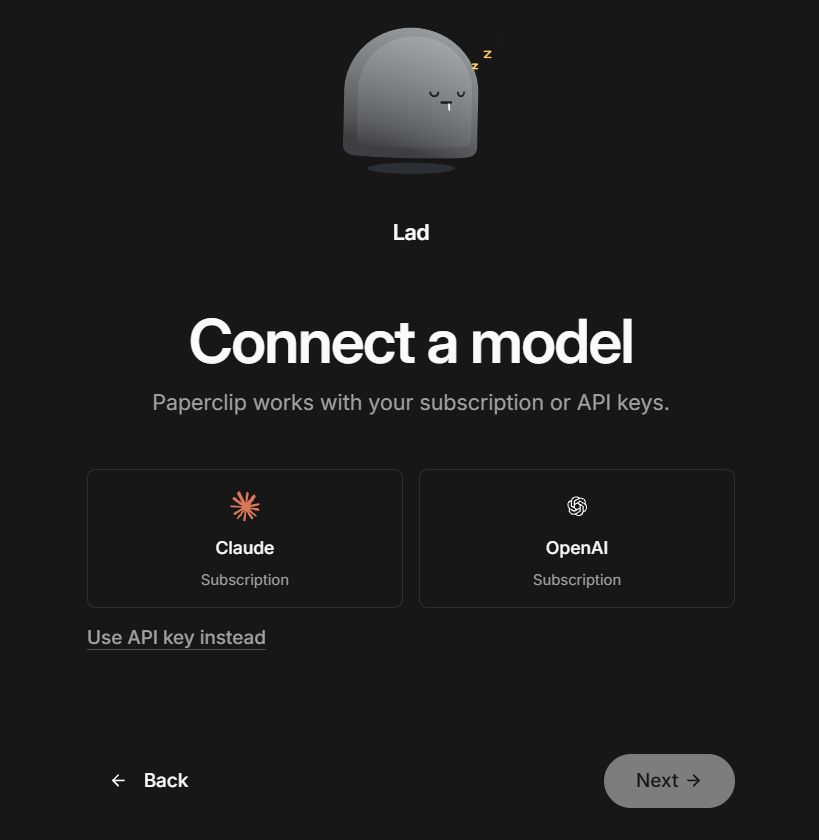
- On the Connect a model page, select Claude or OpenAI to use your subscription, or click Use API key instead.

- Follow the sign-in steps for your choice and complete the setup.
How to manage Paperclip in Hostinger Managed apps
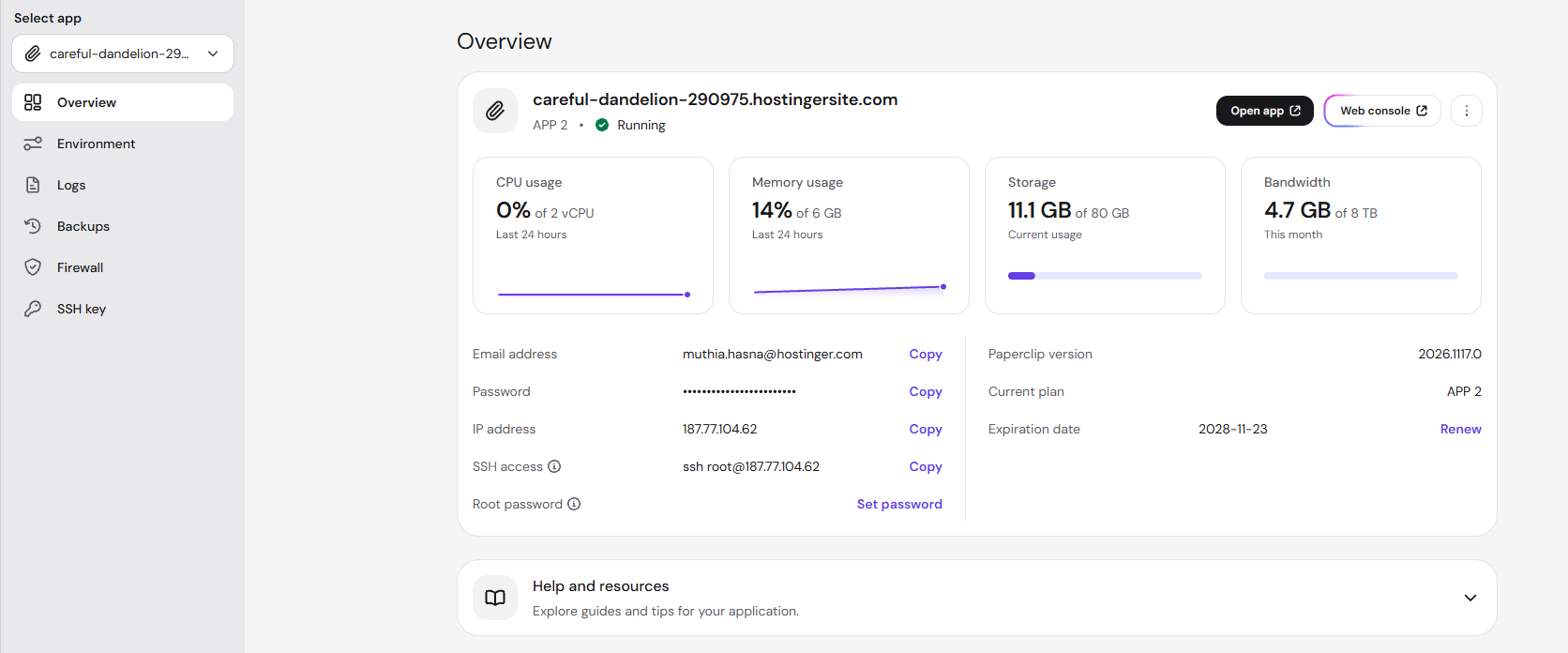
Go to Managed apps and click Manage next to your Paperclip app to open its Overview page. Besides the usage tiles and plan details, the page shows the Paperclip login details:
- Email address and Password: your Paperclip admin login. Click Copy to copy either one.
- Paperclip version: the version installed on your app.
Paperclip connects to AI models inside the Paperclip app, so its left menu in the Hostinger dashboard has no AI provider or Channels section. To connect with SSH or the Web console, or to stop, restart, or delete Paperclip, see Hostinger Managed apps: What it is and how to get started.
Paperclip environment variables in Hostinger Managed apps
Hostinger creates the Paperclip environment variables during setup, including PAPERCLIP_ADMIN_EMAIL, PAPERCLIP_ADMIN_PASSWORD, and PAPERCLIP_ADMIN_NAME for your admin account, PAPERCLIP_AGENT_JWT_SECRET and PAPERCLIP_TOOL_ACTION_SIGNING_SECRET for securing agent actions, and PAPERCLIP_PUBLIC_HOST for your app’s address. To view, add, or edit variables, select Environment in the left menu. See Hostinger Managed apps: What it is and how to get started for the steps.
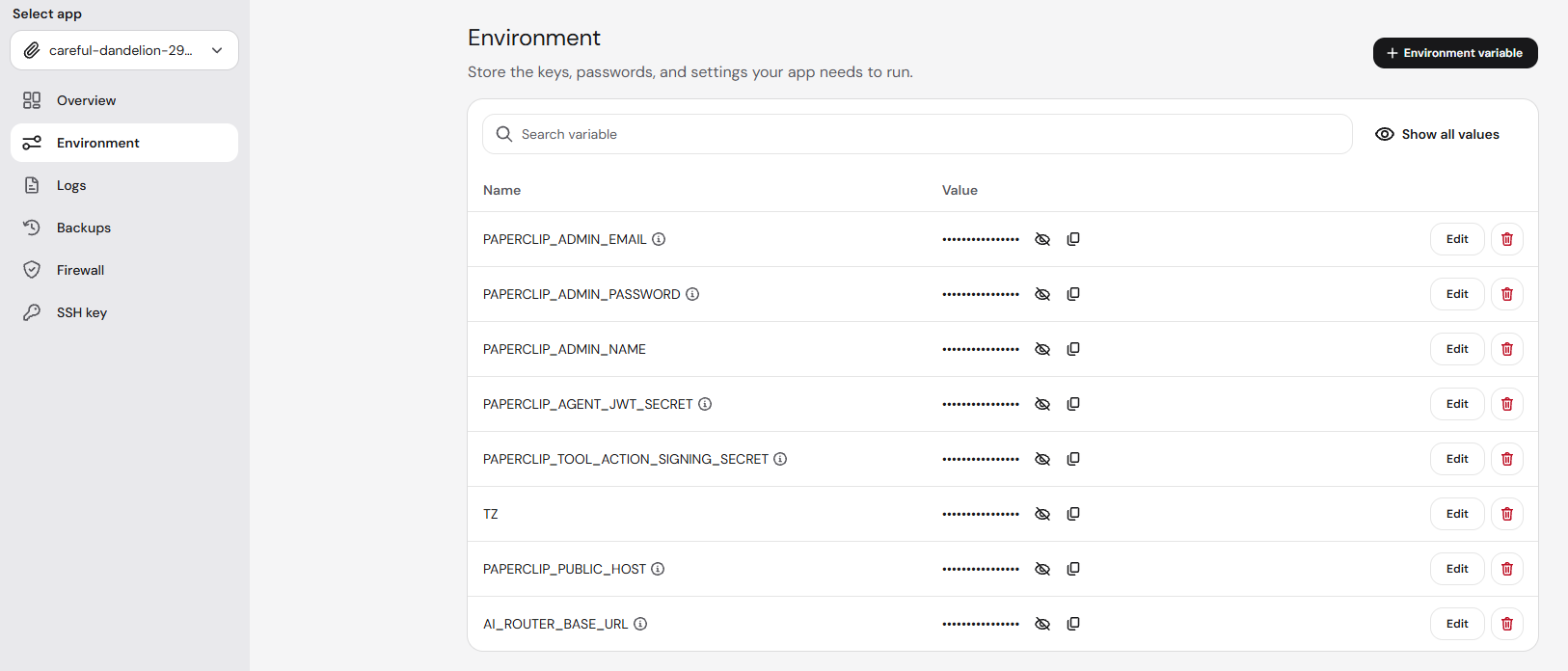
Editing the Paperclip admin or secret variables can change or block your Paperclip login.
Your Paperclip app is now set up in Hostinger Managed apps. Log in with your admin account to manage your organization and agents, and return to the Hostinger dashboard to check usage or connect with SSH.