Check the login history of your Hostinger account on the Account Activity page. The page lists the date and time, device, location, IP address, and login method of each login to your Hostinger profile. If you don’t recognize a login, log out of all devices and change your password from the same page.
Check the login history in Hostinger dashboard
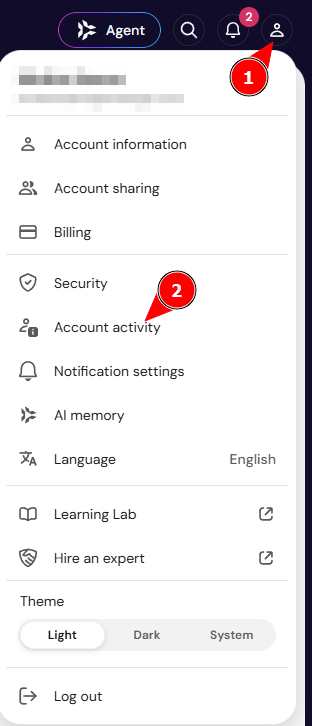
To check who logged into your Hostinger account, navigate to your Hostinger dashboard, click on the profile icon in the top right, and select Account Activity:
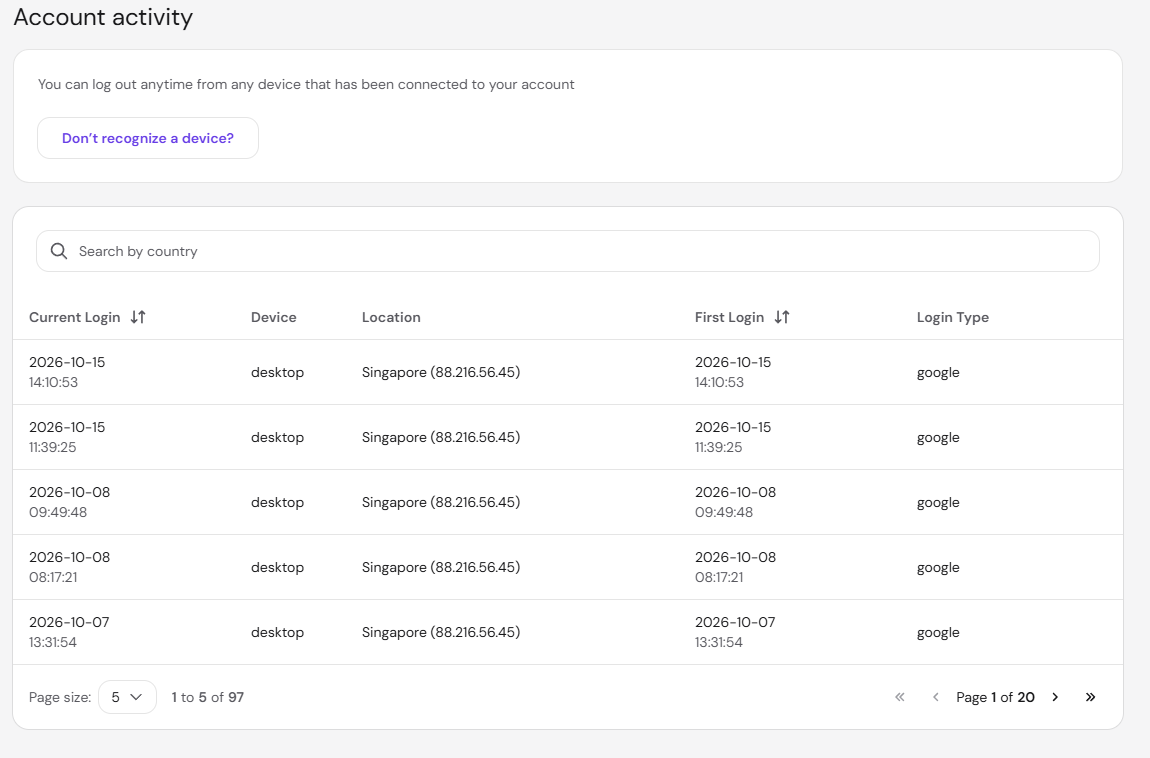
There, you can see information about the previous logins, including the date and time, device, location, IP, and login method. To confirm that a login came from you, compare its IP with the IP address of your computer:
What to do if you don’t recognize some logins?
If some previous logins don’t look familiar, or you suspect that someone has gained access to your account, you can always log off from all the devices and change the password in just a couple of clicks. Click on the Don’t recognize a device? button at the top of the page:

If you can’t log in to Hostinger dashboard at all, the Hostinger firewall may be blocking your IP address. See How to check if your IP is blocked by Hostinger firewall.
Review your login history regularly to catch unrecognized logins early. To check the activity of a single hosting plan instead of your whole Hostinger profile, see how to check the activity log of your hosting plan.