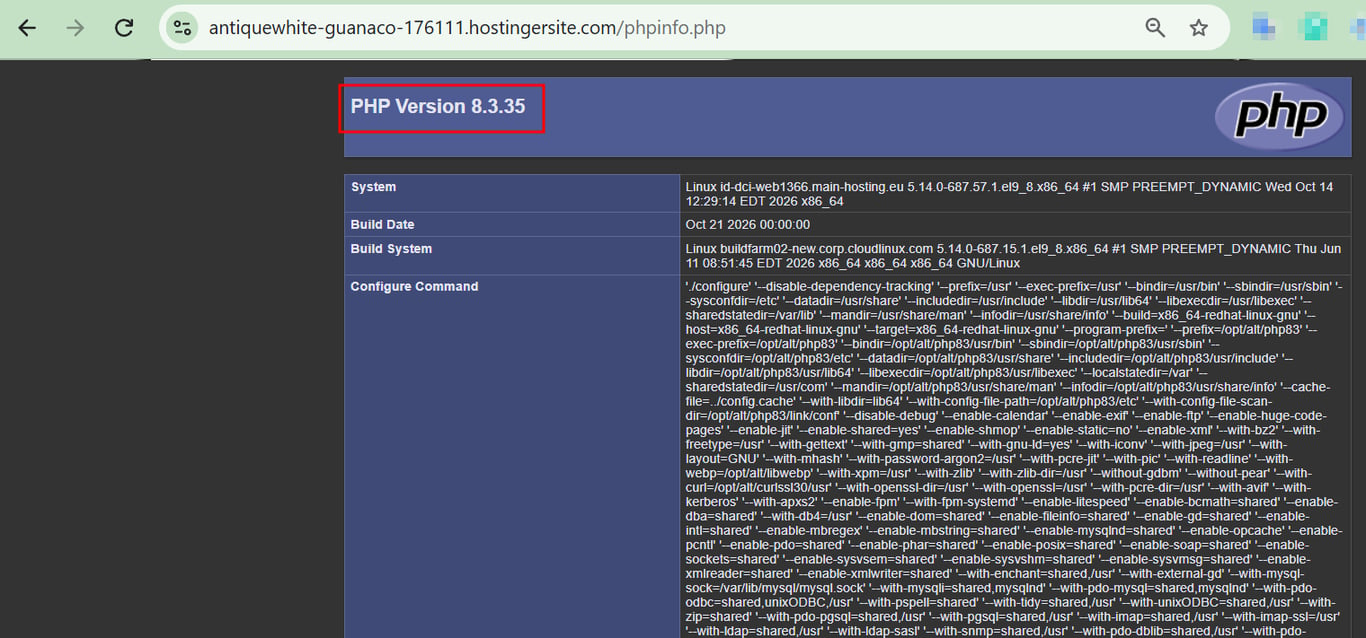
Check the PHP version in Hostinger on the PHP Info page of your website’s dashboard, or with a phpinfo.php file to confirm the version used by a specific folder or subdomain. The PHP Info page also shows the PHP build date, which confirms whether your website has the fix for the php2shell vulnerabilities. Upgrade to PHP 8.3 or newer if your website still runs an outdated PHP version.
The information below doesn’t apply to websites created with Hostinger AI Builder
Check PHP version in the PHP Info section
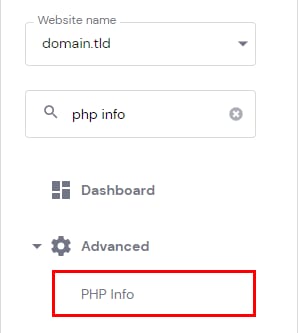
To check the PHP version of your website, go to the Websites section, hover over the website in question, and click Manage site. Then, search for PHP Info on the sidebar, and click on it:
Your current PHP version will be displayed at the top:
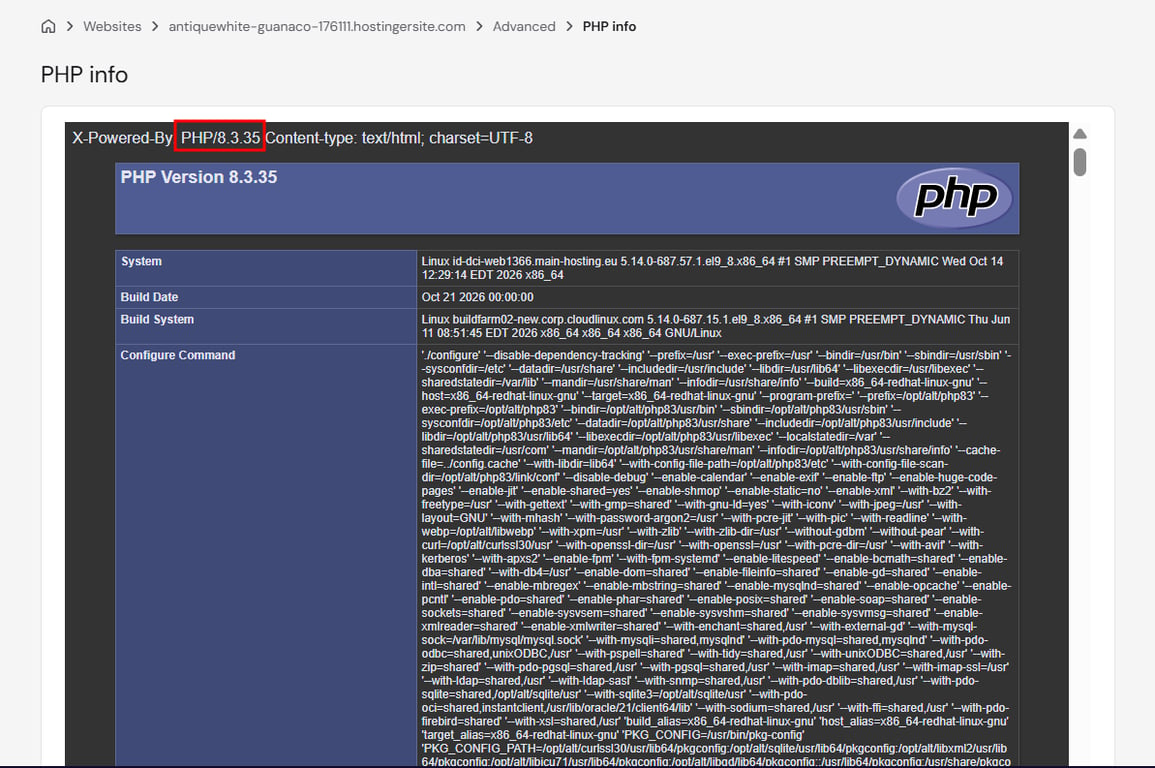
To change it, go to the PHP configuration settings.
Check whether your website has the php2shell fix in Hostinger
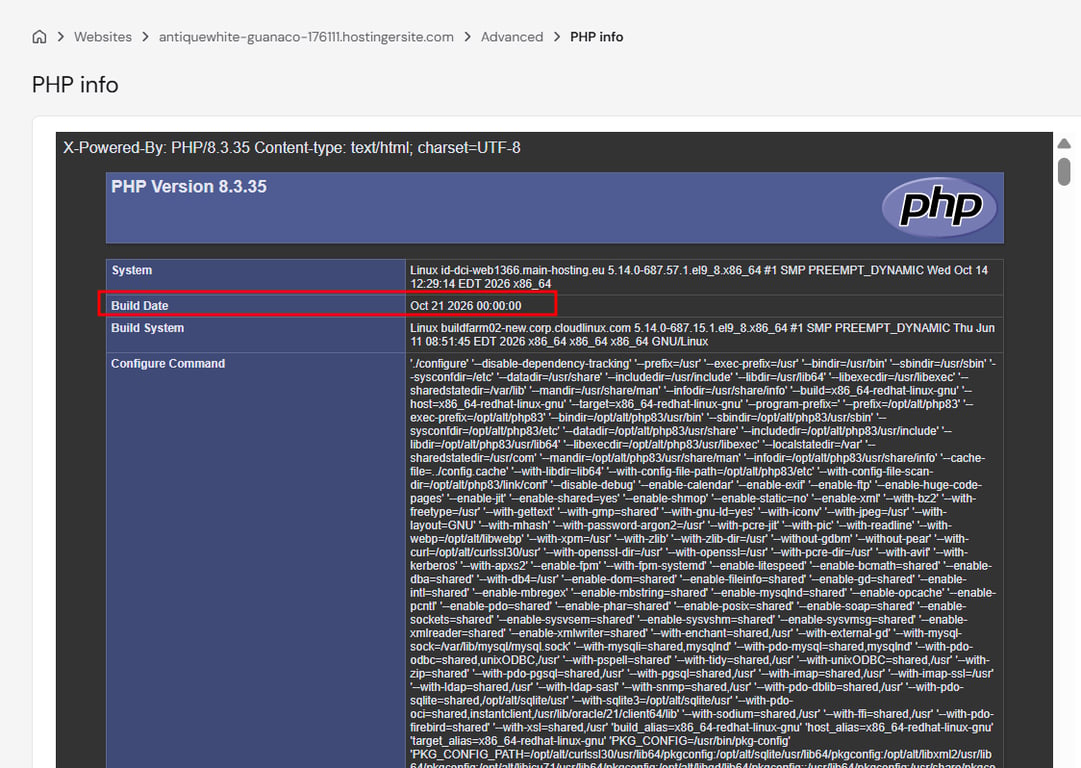
Check the Build Date on the PHP Info page to confirm your website has the php2shell fix. On every Hostinger hosting plan except VPS, the fix is built into the PHP version your website already runs, so the version number may not change.
- Go to Hostinger dashboard → Websites → Manage site → PHP Info.
- Check the Build Date. A build date of October 21, 2026 or later means your website has the php2shell fix.
Websites running PHP 8.1 or older are also covered on these plans, since Hostinger deployed patched builds for every PHP version it offers. For full details, see Hostinger deploys protections against php2shell PHP vulnerabilities.
Hostinger has installed the fix for the php2shell vulnerabilities (CVE-2026-109618 and CVE-2026-109619) on every Hostinger hosting plan except VPS, so no action is needed on these plans. On a VPS, update PHP to version 8.5.12, 8.4.27, 8.3.36, or 8.2.35, then restart PHP.
Check PHP version in the File Manager
A different PHP version can be applied to a specific folder or subdomain.
To check if the change was done correctly:
-
Access the folder you want to test
-
Create a new .php file (e.g.,
phpinfo.php) -
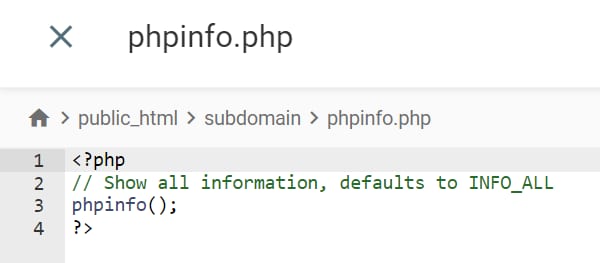
Add the following code to the file:
<?php
// Show all information, defaults to INFO_ALL
phpinfo();
?>
The file will look like this:
After this, access this file by the URL: type your domain name, then the folder name, and add the filename. For the file above, the path would be:
https://domain.tld/subdomain/phpinfo.phpThe PHP version should be displayed at the top:
Changing the PHP version using files is not recommended, as it doesn’t include PHP extensions and options. Thus, it might affect the website’s work. See How to check your PHP version for other methods, including WordPress Site Health, cPanel, and SSH.
Upgrade an outdated PHP version in Hostinger
Upgrade to PHP 8.3 or newer if your website uses PHP 8.2 or older. PHP 8.1 and older versions no longer receive security fixes from the PHP project. PHP 8.2 stops receiving security fixes on December 31, 2026.
Check that your theme and plugins support the new PHP version before you upgrade. See How to change the PHP version of your Hostinger hosting plan for the steps.
Once you know your PHP version and build date, you can confirm your website is protected and plan any upgrade to a supported PHP version.