Change the PHP version for subfolders or subdomains in Hostinger by adding a SetHandler rule to the .htaccess file in that domain, subdomain, or folder. This rule overrides your hosting plan’s PHP version for that location, but it doesn’t include PHP extensions and options.
Step 1 – Open the .htaccess file
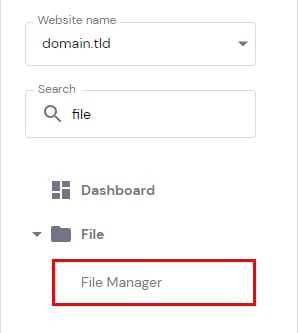
Go to Websites → Dashboard, search for File Manager on the sidebar, and click on it:
Then, access the folder to which you would like to apply a different PHP version:
-
If you want to edit a domain, access its public_html folder.
-
For a subdomain, the corresponding folder will be inside the domain’s public_html folder:

For a specific folder, go to the desired folder’s path. Once in the correct location, open the .htaccess file by double-clicking on it.
If the .htaccess file doesn’t exist, you can create it directly in the file manager. Make sure to include a dot (.) at the beginning of the filename:

Step 2 – Edit the .htaccess file
Add the following code to the very beginning of your .htaccess file:
<FilesMatch ".(php4|php5|php3|php2|php|phtml)$">
SetHandler application/x-lsphp74
</FilesMatch>
Make sure to replace the application/x-lsphp74 portion of the code with the version that you would like to use. Check this table for the possible values:
| PHP version | Code |
| 7.3 | application/x-lsphp73 |
| 7.4 | application/x-lsphp74 |
| 8.0 | application/x-lsphp80 |
| 8.1 | application/x-lsphp81 |
| 8.2 | application/x-lsphp82 |
| 8.3 | application/x-lsphp83 |
| 8.4 | application/x-lsphp84 |
| 8.5 | application/x-lsphp85 |
It is recommended to use only PHP version 8.2 or higher. Lower versions are deprecated and can generate security risks and performance issues on your website.
Your domain, subdomain, or subfolder now runs the PHP version set in its .htaccess file. To change the PHP version for your entire hosting plan instead, see How to change the PHP version of your Hostinger hosting plan.
NOTES
-
To check if the change was applied correctly, you can create a phpinfo.php file.
-
Using this method to change the PHP versions will not include PHP extensions and options.
-
Using the
php -vcommand on SSH will show the PHP version of the hosting plan, not the domain or subdomain.