Hermes Agent is an open-source, self-improving AI agent developed by Nous Research that can execute tasks, learn from interactions, and expand its capabilities over time. On Hostinger VPS, Hermes Agent is available through the Application Catalog, allowing you to deploy it quickly using Docker without manual setup. This guide will walk you through deploying Hermes Agent and starting to use it via the command-line interface.
Deploying Hermes Agent
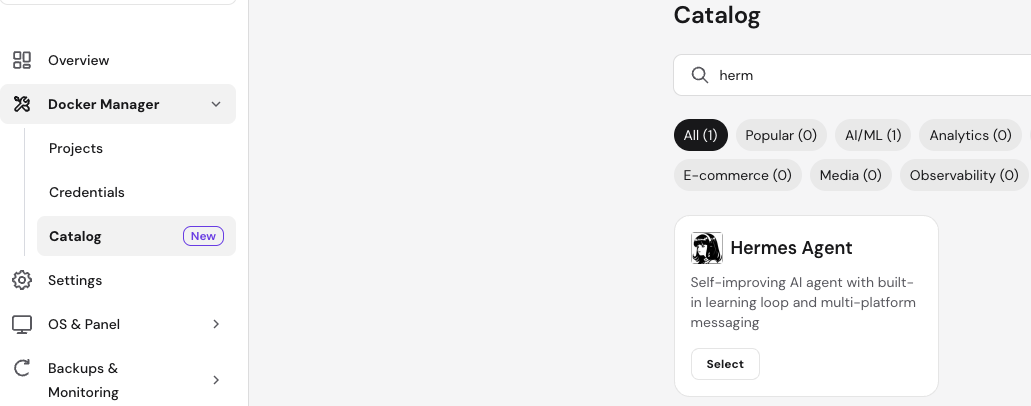
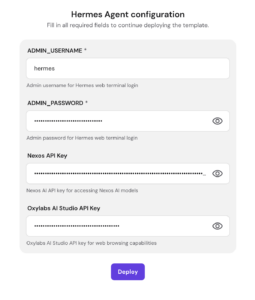
To get started, open your VPS dashboard and navigate to Docker Manager → Catalog. Search for Hermes Agent and click Select. During deployment, you will be asked to think of an admin username and password. Make sure to keep them safe.
You can also connect Hermes Agent using Hostinger’s built-in credits instead of managing keys yourself. Hostinger AI Router credits give Hermes access to models like Claude, Gemini, and GPT through a single gateway. If you added Hostinger credits with your VPS purchase, the Hostinger AI Router API key is generated automatically and filled in for you, so there’s nothing to copy or paste.
Oxylabs credits enable web search and data extraction, letting your agent reliably read JavaScript-heavy pages and sites that block basic requests. Purchasing scraping credits auto-fills that key the same way. If you prefer, you can still enter your own Oxylabs API key manually in the field. And if you don’t add any credits during purchase, Hermes will still deploy — you’ll just need to configure your own provider credentials before it can run tasks.
You can provide one API key during deployment and add more providers later if needed. Once you fill in the required fields, click Deploy. The platform will automatically create and start the Hermes Agent container along with required services such as Traefik.
Accessing Hermes Agent
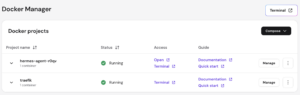
After deployment is complete, Hermes runs inside a Docker container and is accessed via the terminal. From your VPS dashboard, press on “Open” button next to your Hermes Project to directly open Hermes CLI.
Using Hermes CLI
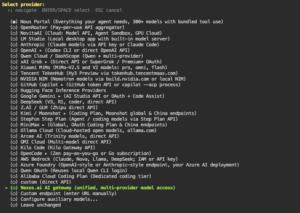
The first time you open Hermes inside the container, it launches a short setup flow.
Use the arrow keys to navigate and Enter or Space to select.
- Choose a setup mode. Select Full setup. Quick Setup signs in through the Nous Portal with no API keys, while Full setup lets you connect your own providers — including the Hostinger AI and Oxylabs credits added with your VPS.

- Select your model provider. If you purchased Hostinger AI Router AI credits, choose Hostinger AI Router from the provider list. Your API key is already filled in, so leave it as is and continue.

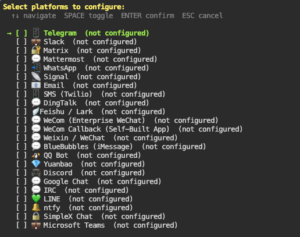
- Select your communication channels. Toggle the platforms you want your agent to use, such as Telegram or WhatsApp, then confirm.

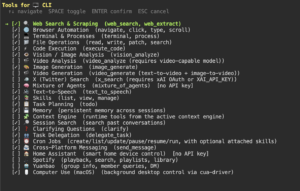
- Enable tools. If you purchased Oxylabs credits, make sure Web Search & Scraping is checked, then select Oxylabs as its provider. This lets Hermes reliably search the web and extract content from pages.


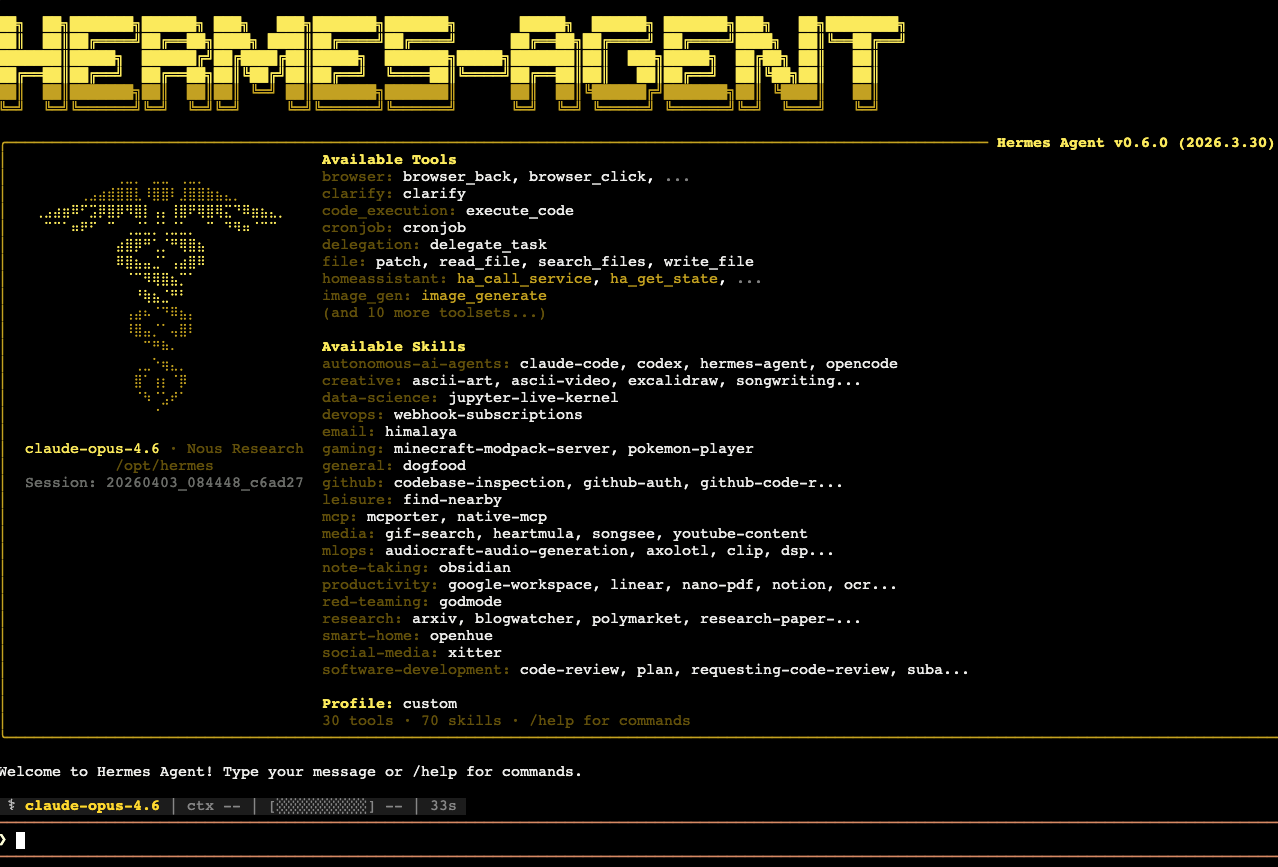
Once setup is complete, Hermes starts in CLI mode and you can begin interacting with your agent directly from the terminal. You can type messages, commands, or tasks, and Hermes will process them using the configured language model.
The CLI interface provides access to built-in tools, skills, and commands. You can explore available commands by typing /help, which will display supported actions and usage options.
Hermes supports a wide range of capabilities, including code execution, task delegation, file manipulation, and integrations with external services. You can assign tasks, ask questions, or build workflows directly from the CLI.
Managing LLM providers
Hermes uses API keys to connect to language models. While you provide one key during deployment, you can later configure additional providers depending on your needs. This allows you to switch between models or use multiple providers for different types of tasks.
If you’re using Hostinger AI Router or Oxylabs credits, you can check your balance and top up at any time from Docker Manager → Projects, where the credit cards appear at the top of the page. Each card also has a Copy key button if you need the key elsewhere. Keep an eye on your balance — if Hostinger credits run out or go negative, Hermes will stop generating responses until you top up.
Refer to the official Hermes documentation for detailed configuration options and advanced setup instructions.
Next steps
After gaining access to the CLI, you can start experimenting with Hermes by assigning tasks, exploring built-in skills, and building automation workflows. You can also customize your agent’s environment, integrate additional tools, and extend its functionality as your use cases evolve.
Hermes Agent on Hostinger VPS provides a powerful and flexible environment for running autonomous AI agents. By deploying it through the Application Catalog and accessing it via the terminal, you can quickly begin interacting with your agent and building intelligent workflows. With support for multiple LLM providers and a rich CLI interface, Hermes offers a scalable foundation for advanced AI-driven automation.
Additional resources
- Overview of Oxylabs AI Studio credits at Hostinger
- Negative nexos.ai credit balance causes and fixes
- How to connect the Hermes desktop app to a Hostinger VPS
Watch this video to see real-world Hermes Agent use cases, including competitor analysis, job search automation, and note organization: