Email Templates let you save messages you send often and insert them instantly when writing or replying to emails.
Use templates for replies, follow-ups, introductions, or updates to save time and stay consistent.
Create an email template
- Access your Webmail
- Open the email composer
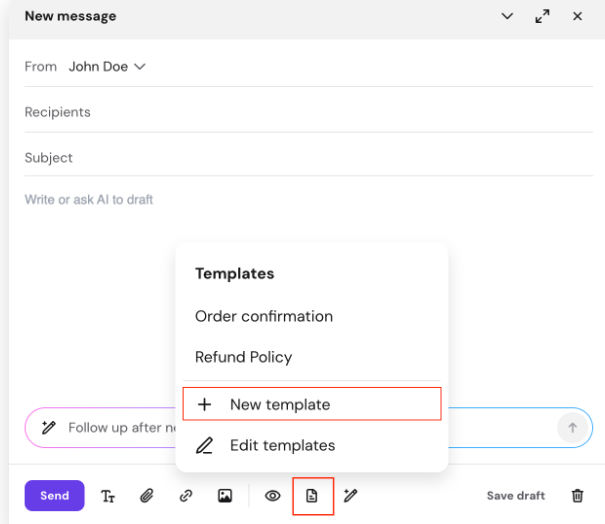
- Click the Templates icon in the toolbar
- Click New template
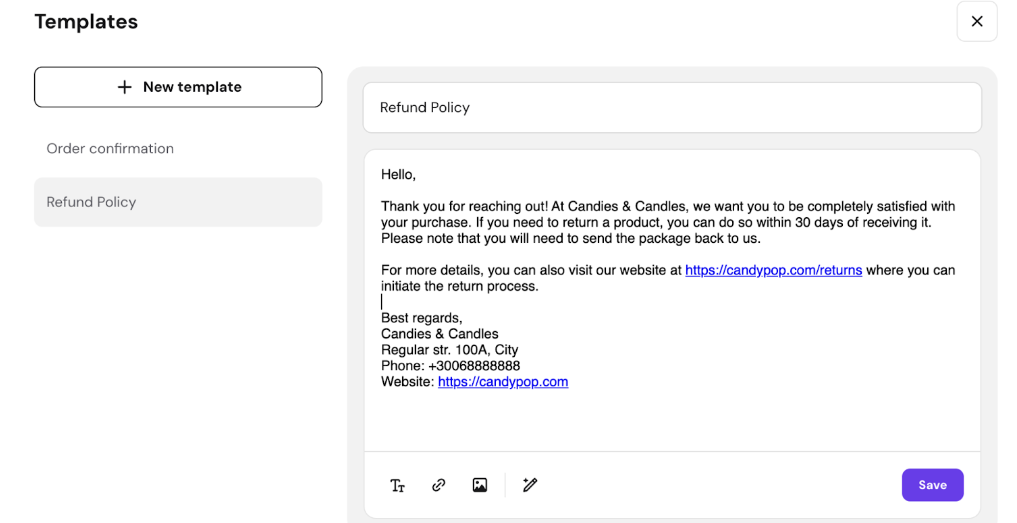
- Enter a name for your template
- Add your message content
- You can write it manually or use AI to generate it
- Click Save
Edit an existing template
- Access your Webmail
- Open the email composer
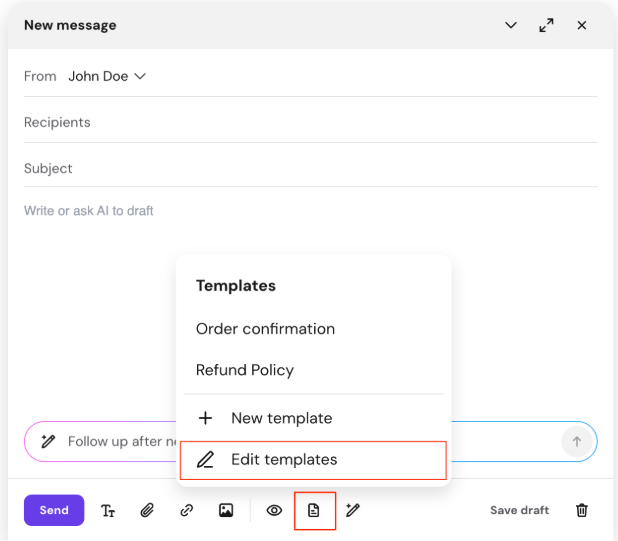
- Click the Templates icon
- Click Edit templates
- Select a template from the list
- Update the content
- You can also use AI to rewrite it
- Click Save
Use a template in an email
You can use templates when writing a new email, replying, or forwarding.
- Access your Webmail
- Open the email composer
- Place your cursor where you want the template to appear
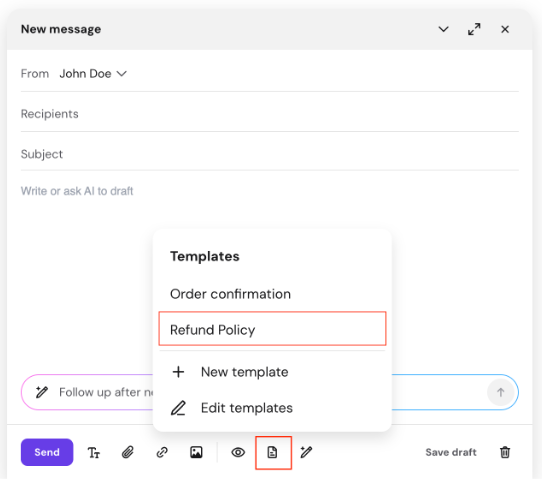
- Click the Templates icon
- Select a template from the list
- The template content will be inserted into your message.
- Review and adjust if needed
- Click Send
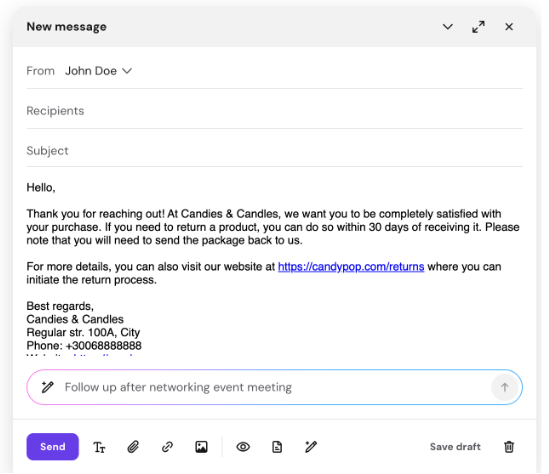
With templates set up, you can send common replies, follow-ups, and updates faster while keeping your messaging consistent across Hostinger Mail.