In Hostinger AI Builder manual mode, you can change the line spacing in two ways:
-
Globally – affects all text elements of a particular style
-
Locally – affects a particular text element
Changing the line spacing globally
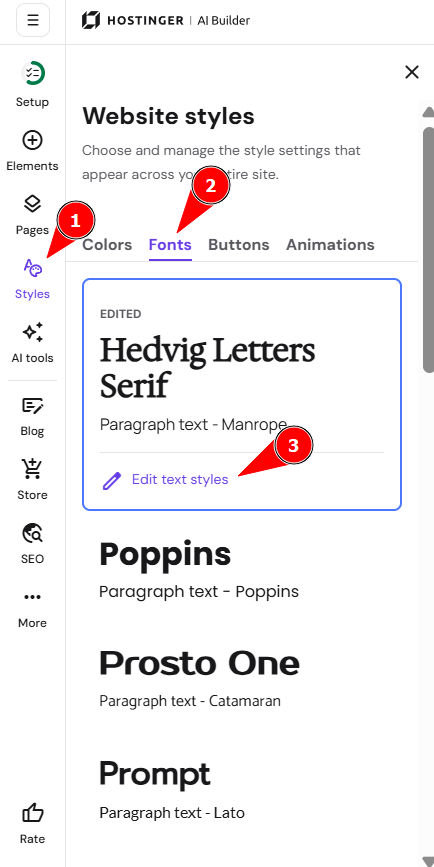
- Expand the Website styles panel on the left. Open the Fonts tab and click Edit text styles:

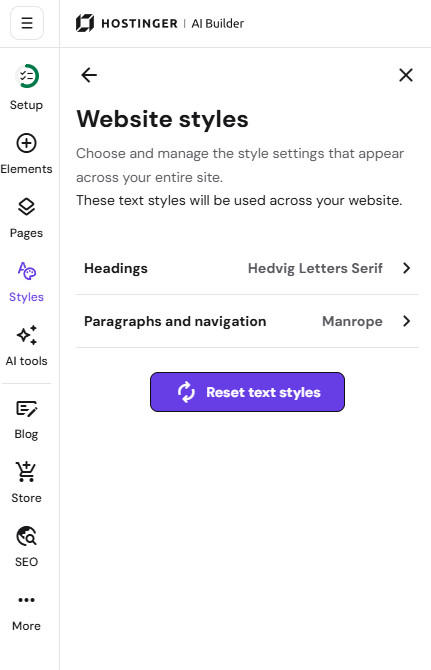
- Select Headings or Paragraphs and navigation, depending on what you’d like to change:

- Select the particular text style (Heading 1, Heading 2, etc.) and change the Line height:

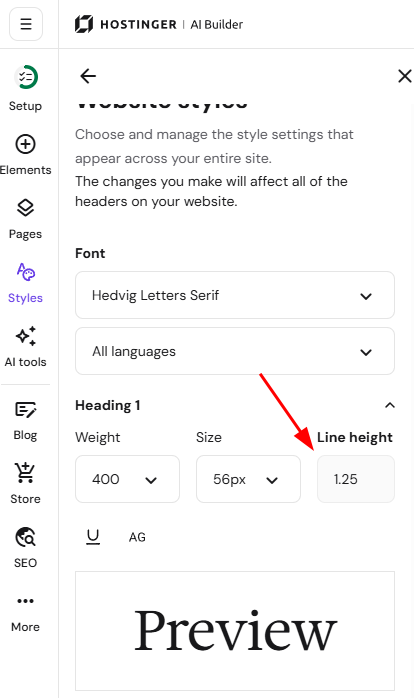
The line spacing will change for all texts written in the particular style you edit, e.g., Heading 1.
Changing the line spacing for a particular text element
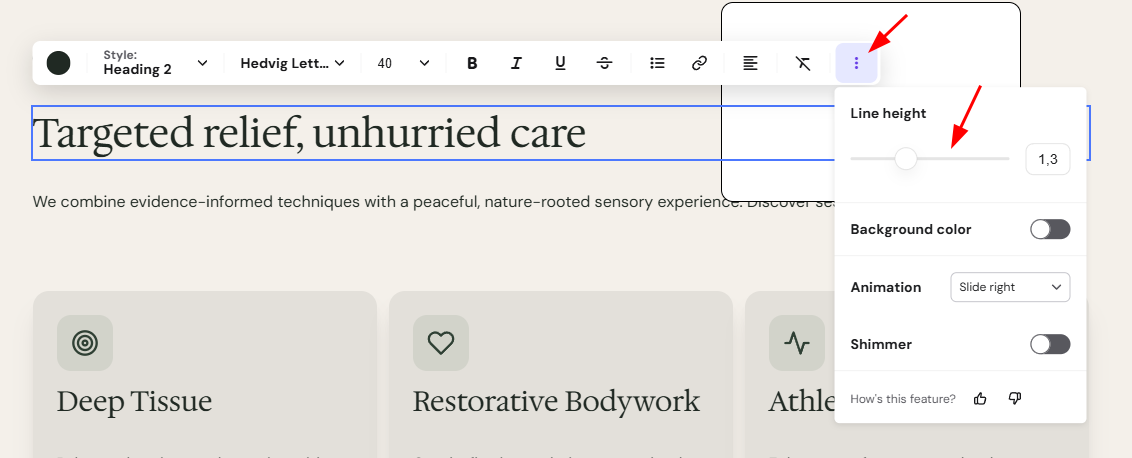
Click on a preferred text element and select Edit text. Then, click on the ellipsis ⋮ button to see more options and change the line height:
In text elements:
-
ENTER – starts a new paragraph
-
SHIFT+ENTER (Windows) or COMMAND+ENTER (macOS) – starts a new line