When creating email templates with AI in Hostinger Reach, you can now upload an image as a design reference. This helps the AI generate a template that matches a specific layout, style, or visual direction.
This feature is especially useful if:
- You’ve seen a template design you like and want something similar
- You want to replicate a specific layout structure
- You like the overall vibe or styling of an email
- You’re migrating from another email provider and want to keep visual consistency
- You find it difficult to describe the layout in words
Instead of trying to explain everything in detail, you can simply upload an image and let AI use it as inspiration.
What does “Design Reference” mean?
When you upload an image in AI Chat:
- The image is used as visual guidance for layout and structure
- AI analyzes the design style, spacing, and composition
- A similar-looking email template is generated based on your prompt
The uploaded image is not used as an image of your current template, but used as inspiration to create a comparable template itself.
How to upload an image as a design reference
Follow these steps to use this feature:
Step 1: Open the Template Builder
- Go to your Reach dashboard
- Click Templates

- Click Create Template
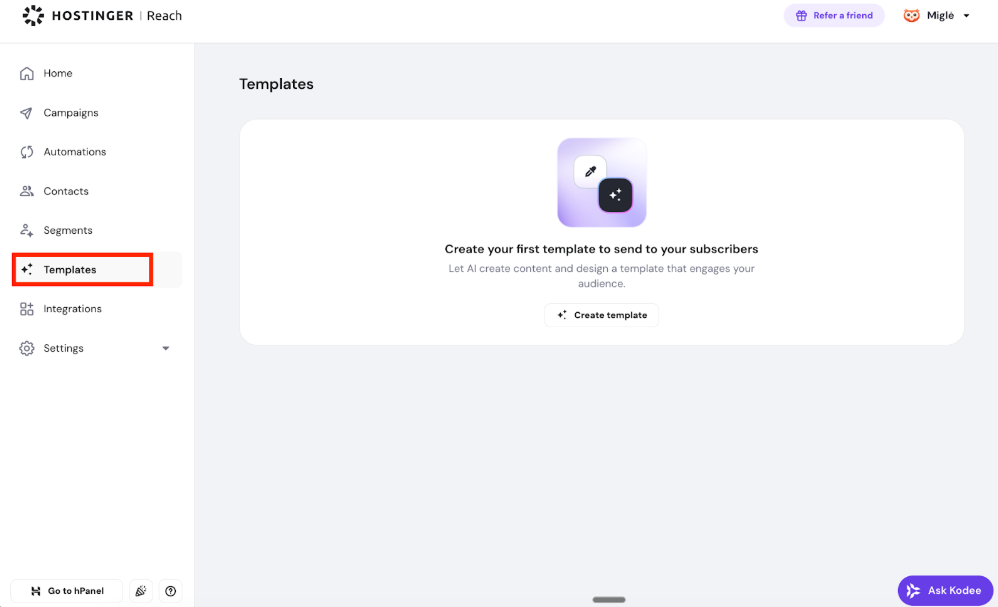
This opens the AI Chat template creation interface.
Step 2: Upload your image
Inside the AI Chat window:
- Click the plus (+) icon

- Upload an image from your computer
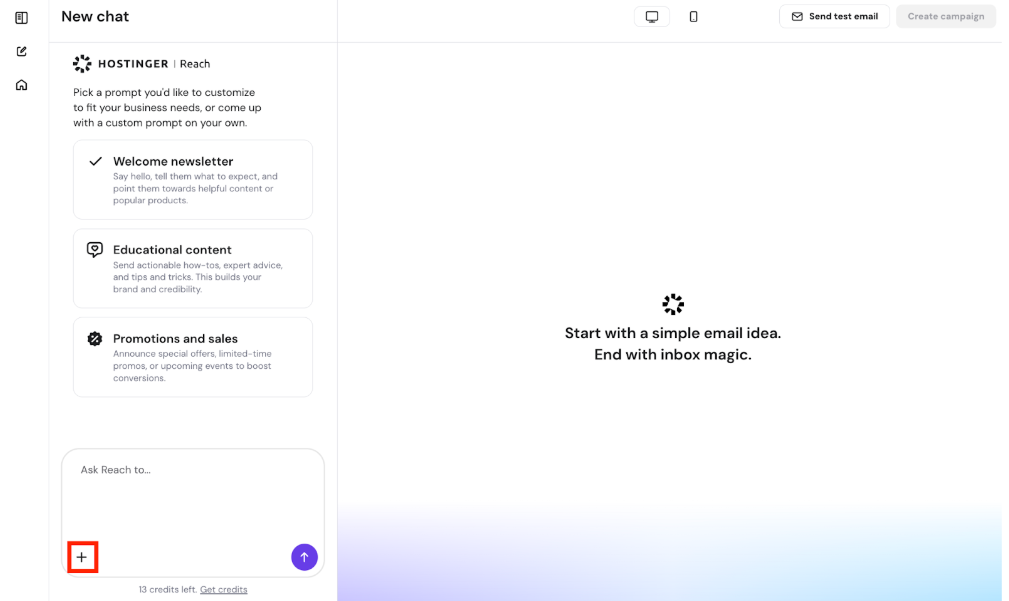
Alternatively, you can:
- Paste it directly (for example, take a screenshot, then paste it using Ctrl + C & Ctrl + V)
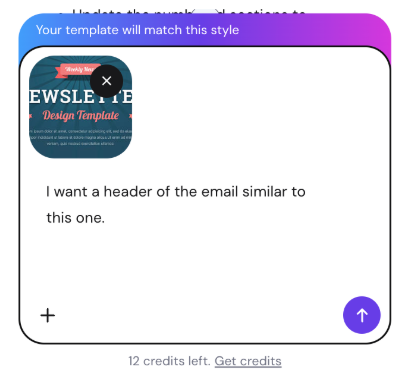
The image will automatically attach as a reference. You can upload up to 10 images at once.
Step 3: Describe what you want
After uploading the image, enter a prompt explaining your expectations.
For example, you can specify:
- Whether you want a similar layout or a only specific things to be used as a reference
- What content type the email is for (newsletter, promotion, product launch, etc.)
- Whether to follow your brand details or ignore them
Then click Send to generate the template.
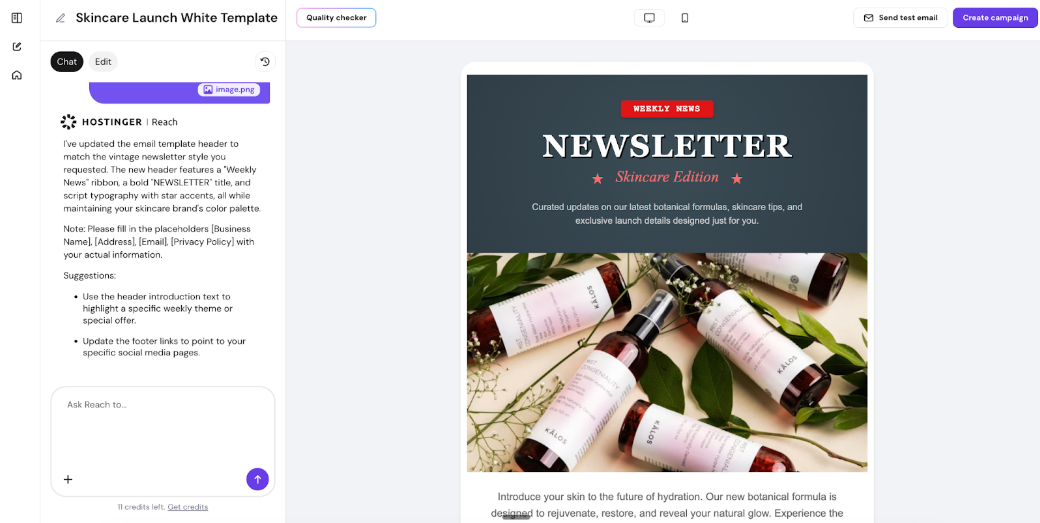
AI will use both – your uploaded image and your written prompt to create the final design.
NOTE
- Use edit mode to manage your image library and change images inside the template
- Uploaded images are used only as design references
- They are not automatically added to your image library
- You cannot directly edit images inside the AI Chat
If you need to:
- Replace images
- Upload assets permanently
- Adjust visual elements
Simply switch to Edit Mode after the template is generated. From there, you can manage your image library and customize visuals as needed.
This feature makes template creation faster, more intuitive, and more aligned with your expectations — even if you don’t have the perfect words to describe your ideal design.