Adding collaborators to your Hostinger Reach plan allows other people to help you create, manage, and optimize your email marketing. This is especially useful if you work with a freelancer, agency, or team member.
What is the collaborators feature?
The Collaborators feature allows you to grant another Hostinger user access to your Reach plan so they can:
- Access your Reach dashboard
- Create and manage email campaigns
- Set up and edit automations
- Manage contacts, segments
- Only for Admin level permissions: manage billing-related actions Such as purchase additional AI credits, upgrade your plan
How to share access to your Reach plan
If you are the owner of a Reach plan, follow these steps to grant access to someone else.
Step 1 – Open the collaborators option
- Log in to your Hostinger Reach dashboard
- Click your profile dropdown in the top-right corner
- Select Add Collaborators
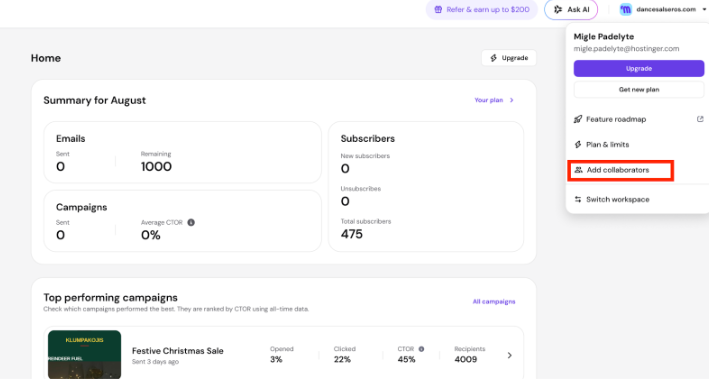
If you are on a free plan, this feature will be locked and you will be prompted to upgrade.
If you are on a paid plan, you will be redirected to the hPanel Account Sharing page.
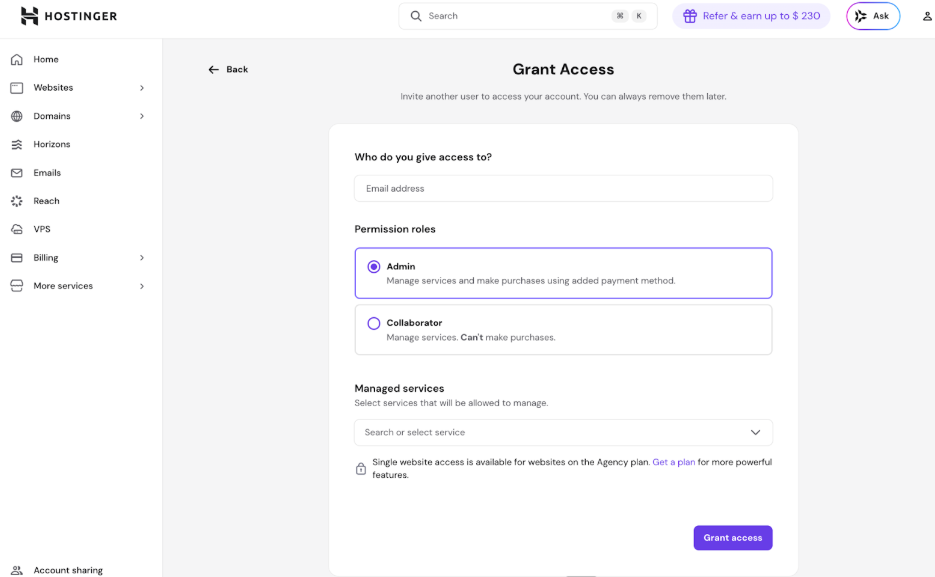
Step 2 – Enter collaborator details
On the Account Sharing page:
- Enter the email address of the person you want to grant access to
- The person should have an active Hostinger account
- Select the permission role
- Choose the services you want to share
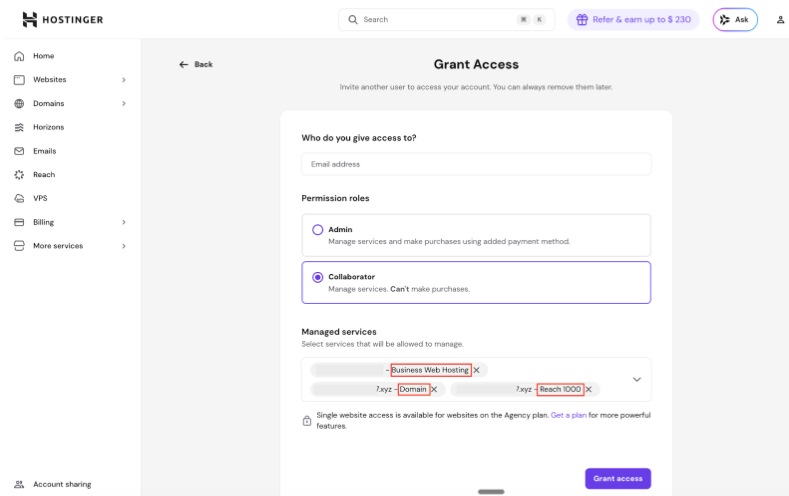
- If you have a domain connected to Reach, enter the domain name to quickly find the correct plan.
- If no domain is connected yet, you’ll see the Reach plan title, which you can select as the managed service.
- Confirm and send the invitation
The invited person will receive an email and must accept the invitation to gain access.
Important: Sharing Website or Domain Access
If your Reach plan is connected (or will be connected) to:
- A Hostinger AI Builder site
- A WordPress website
- A domain
You must also grant access to those specific services separately in Managed services.
Giving access only to the Reach plan does not automatically grant access to connected domains or websites.
Without additional permissions, your collaborator will not be able to:
- Connect domains
- Manage website integrations
- View or manage related hosting services
Make sure to share all relevant services if full setup assistance is needed.
What happens after the invitation is accepted?
Once the collaborator accepts your invitation:
- They log in to their Hostinger hPanel account
- Click Reach in menu
- Select the shared plan
- Enter the Reach dashboard
They will be able to manage the account based on the permission level you assigned.
How to request access to someone else’s Reach plan
If you are a freelancer, agency, or helping a friend manage their Reach account, you can request access directly.
Step 1 – Request access in hPanel
- Log in to your Hostinger hPanel account
- Click Account Sharing (bottom-left corner)
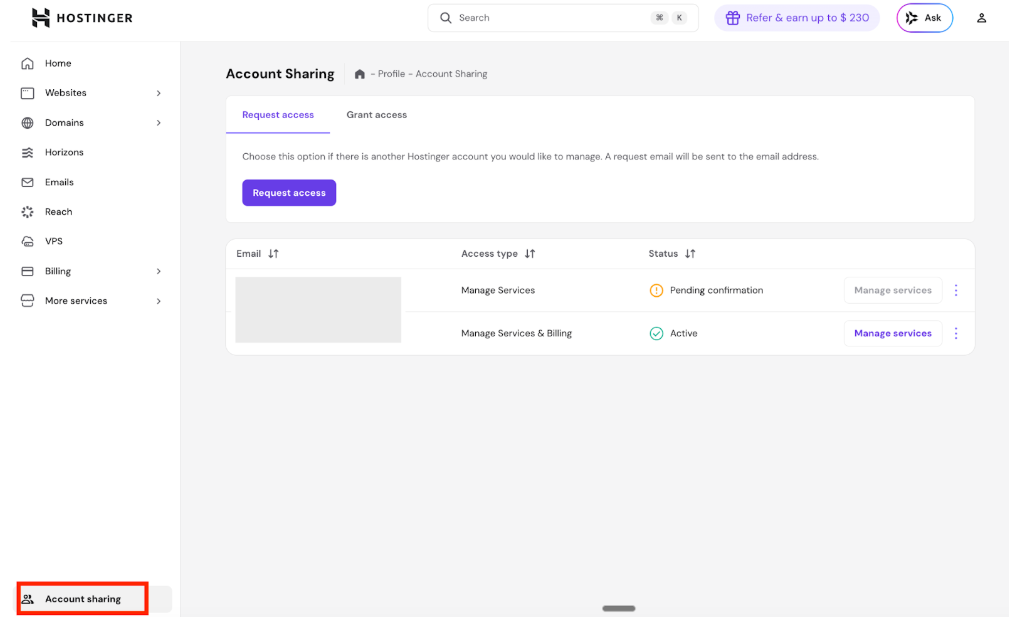
- Click Request Access
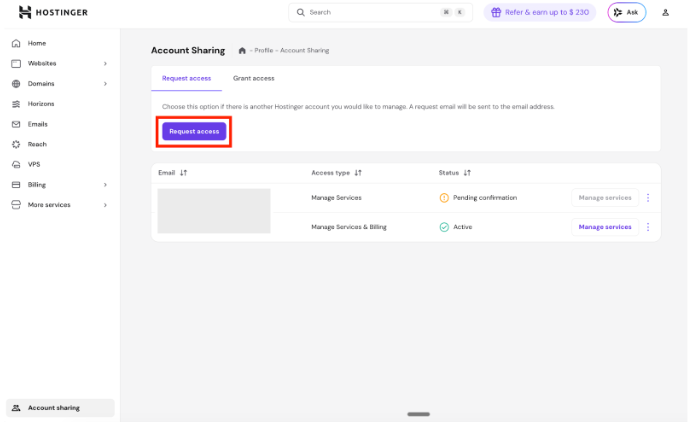
- Enter the email address of the account owner
- It must be the email linked to their Hostinger HPanel account
- Select the requested permission role
- Send the request
Step 2 – Wait for approval
The account owner will receive an email notification.
Once they approve your request:
- You will gain access to the selected services
- You will be able to impersonate and manage their Reach plan from your own hPanel account
The Collaborators feature in Hostinger Reach makes it easy to work with team members, freelancers, or agencies.
If you plan to connect domains or websites, remember to grant access to those services separately to ensure smooth collaboration.