Double opt-in in Hostinger Reach sends a confirmation email to every new automatically synced contact, who must click Confirm your email before becoming a Subscribed contact. Double opt-in keeps fake or mistyped email addresses off your list, which improves deliverability. Enable it in Hostinger Reach under Settings → Double opt-in.
How Double Opt-in works
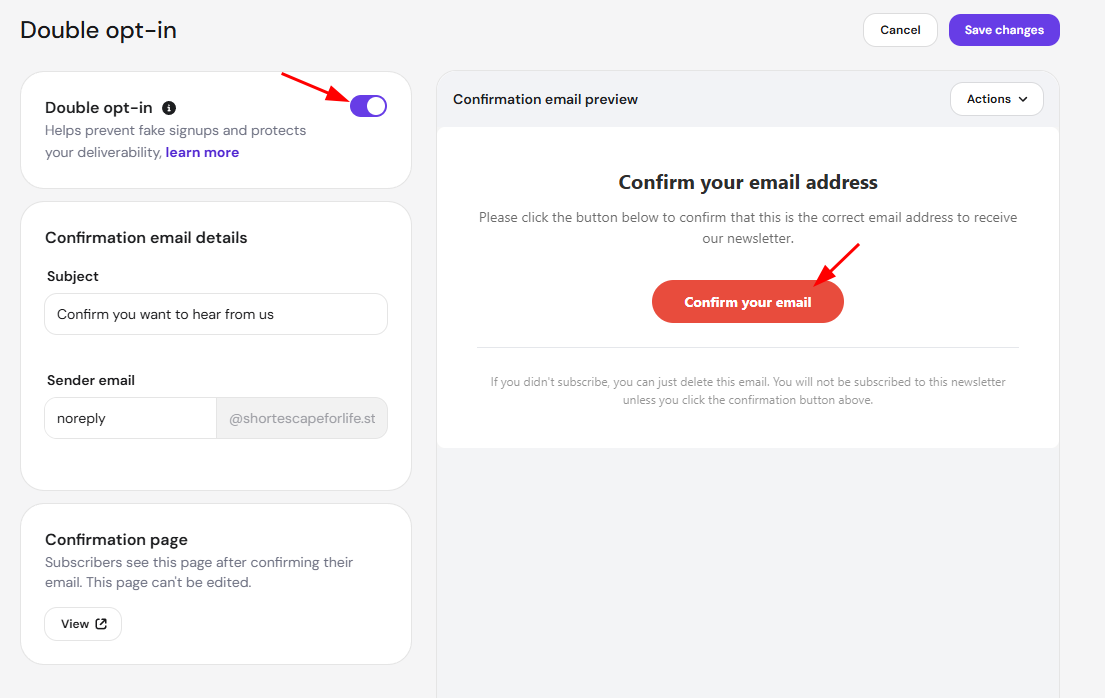
Double opt-in works by sending a confirmation email to every new contact who subscribes. The recipients must confirm their subscription by clicking a button in the email.
When double opt-in is enabled:
- A user submits their email address to subscribe your newsletter
- Reach automatically sends a confirmation email.
- The user must click Confirm your email button.

- Only after confirmation the contact appears as a Subscribed contact in your Reach account.
This means you can be confident that your email marketing campaigns are sent only to real and confirmed recipients.
When Double Opt-in applies
Double opt-in works only for automatically synced contacts, meaning contacts that are submitted through integrations where you do not manually control each email address.
This includes contacts synced through:
- WordPress forms and plugins
- Hostinger AI Builder manual mode forms and eCommerce checkout forms
- Public API integrations such as custom subscription forms connected via API
Double opt-in does not apply when:
- You add contacts manually in the Reach dashboard
- You upload contacts via a CSV file
In these cases, it is expected that you already have the recipient’s consent to send email marketing.
Double Opt-in emails and email limits
Confirmation emails are sent automatically and do not require any extra automation setup to send confirmation emails.
Additionally:
- Double opt-in confirmation emails do not count toward your monthly email sending limits.
- If the feature is enabled, it works automatically for all contacts who were added automatically..
How to enable Double Opt-in in Reach
To manage double opt-in settings:
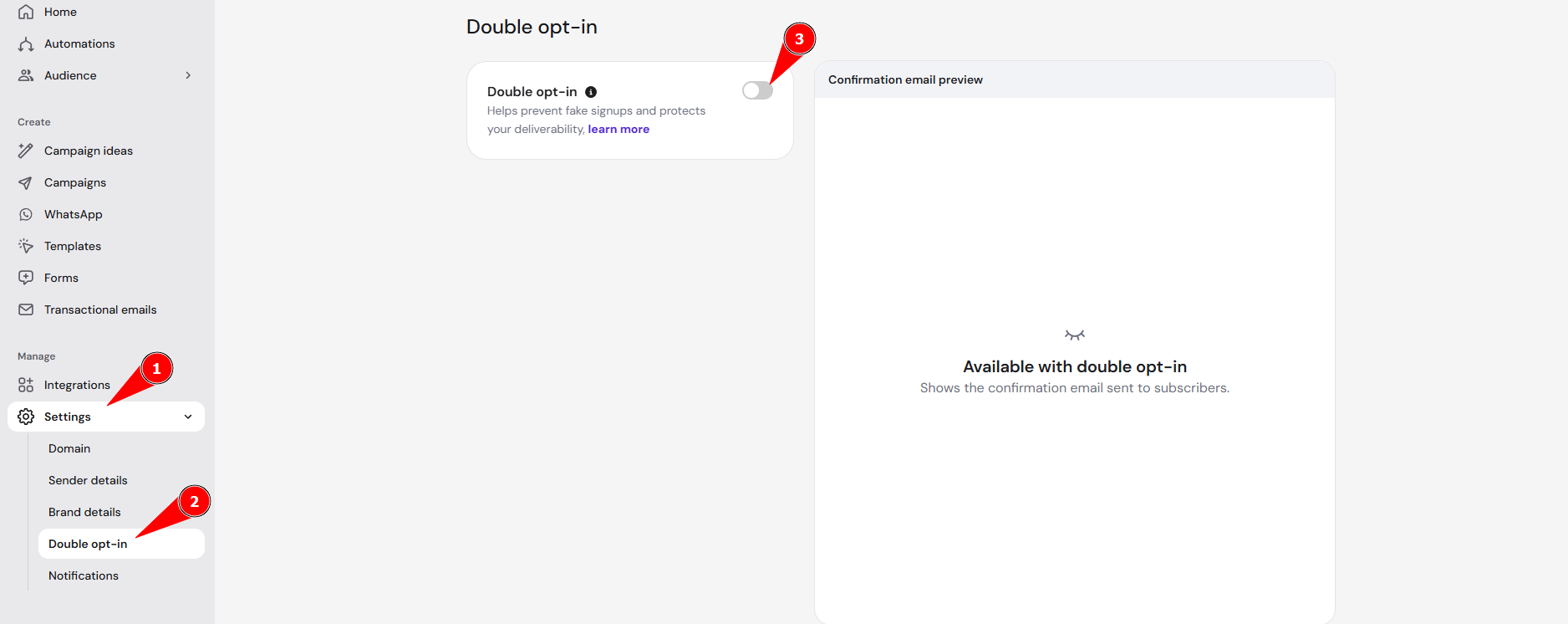
- Open your Reach dashboard.
- Go to Settings.
- Select Double opt-in.
- Toggle Double opt-in ON.

To enable and use double opt-in, you must first connect a working domain.
You can connect:
- A domain purchased at Hostinger
- A domain purchased from another provider
If you do not have a domain, you will need to purchase one before you can send professional email marketing campaigns.
Customizing the Double Opt-in email
After enabling double opt-in, you will be able to preview the confirmation email in the Double opt-in section.
You cannot edit the confirmation email content like text. But, you can customize the default confirmation email by:
- Applying your brand details (based on your Reach brand details settings)
- Resetting the style to use the default Reach style
- Editing the subject line
- Editing the sender email
You can also preview the confirmation page that recipients see after clicking the confirmation button.
Contact statuses and Double Opt-in
When double opt-in is enabled and a contact is automatically synced, their status will initially be:
- Waiting for opt-in
Once the recipients confirms their email through the confirmation email, their status changes to:
- Subscribed
Reach also shows whether a contact joined through:
- Double opt-in (confirmation required)
- Single opt-in (no confirmation email)
Single opt-in means the contact was added as subscribed immediately, without receiving a confirmation email.
Sending emails to contacts waiting for Opt-in
You can only send email marketing campaigns and automations to contacts with the Subscribed status.
If a contact is still Waiting for opt-in, they will not receive:
- Scheduled newsletters
- Marketing campaigns
- Automations
Once the recipients confirm their email, contact status automatically changes to Subscribes, and all campaigns and automations will work normally.
How Double Opt-In affects smart segments
When your form is connected to Hostinger Reach, every form submission is synced automatically. Reach also creates unique tags based on your form titles and generates segments to help you easily target contacts coming from specific forms.
Normally, a segment is created automatically as soon as the first submission from that form appears in Reach.
However, if Double Opt-In is enabled, keep in mind that segments are created only after the recipients confirm their subscription. This means:
- Segments for a form will not appear immediately after the first form submission, the segment is created only once the first contact from that form becomes Subscribed
- Automations that are triggered by related segment will also start working only after the segment is created and contact is Subscribed
With double opt-in enabled in Hostinger Reach, only contacts who confirm their email address become Subscribed, so your campaigns and automations reach real, interested recipients.