Hostinger Ecommerce shipping is set up in Store Manager → Settings → Shipping, where you create shipping zones by country and add flat-rate shipping options with price or weight conditions. Stores in Lithuania, Latvia, Estonia, and India can also use integrated carriers.
In the Store Manager → Settings → Shipping, you can create an unlimited number of shipping zones and up to 25 shipping options per shipping zone.
Create and manage shipping zones
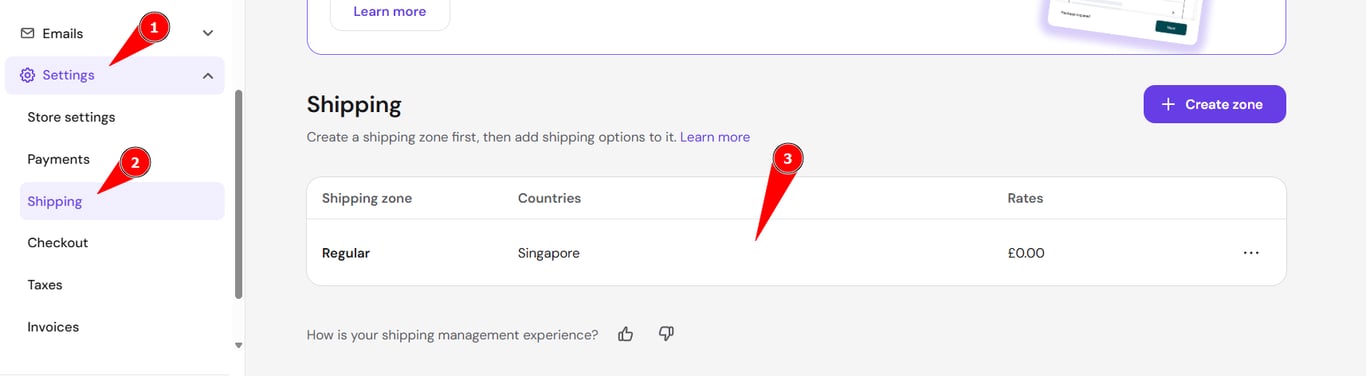
The default shipping zone is your store’s country. To change it, follow these steps below:
- Access your Store Manager
- Go to Store settings → Shipping
- Click on the shipping zone to open its settings:
Rename the shipping zone if necessary, and click on Add country to select all the preferred countries. Finally, save the changes:
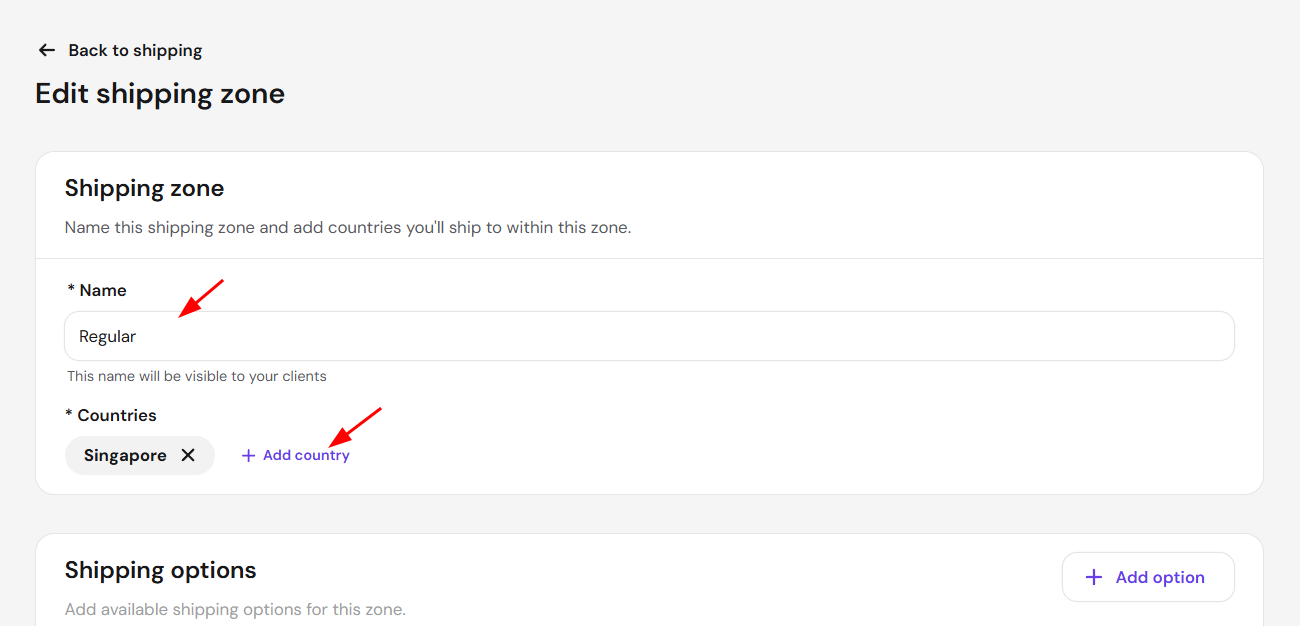
One country/state can be added to one shipping zone
Create and manage shipping options
You can offer up to 25 shipping options per shipping zone. Each shipping option can have different flat rates and conditions.
Add a new shipping option
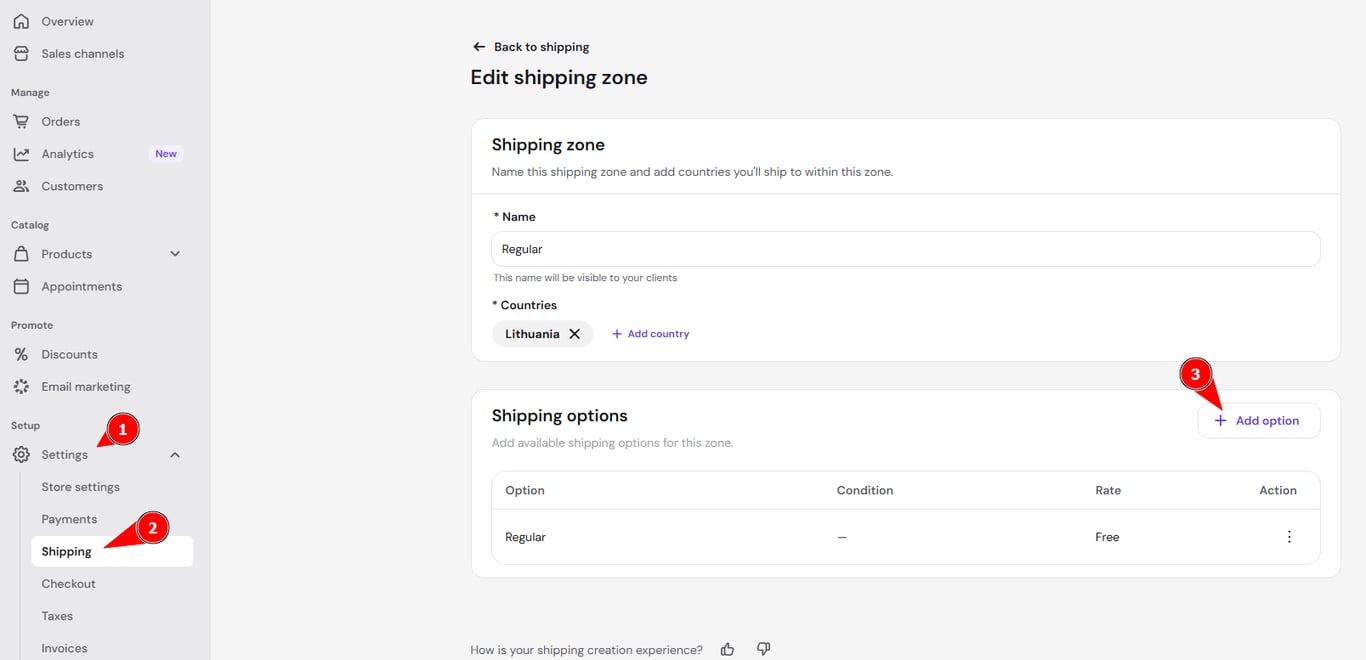
- In the Settings → Shipping, click on the shipping zone in question to edit it.
- In the Shipping options section, click on Add option.
- Insert the name of the shipping method; your customers will see it in their cart and at checkout.
- Insert the shipping rate; it’s a flat rate that’s charged for a customer’s entire order (not per product).
- (Optional) Click on Add conditions to specify the minimum/maximum order value or order weight.
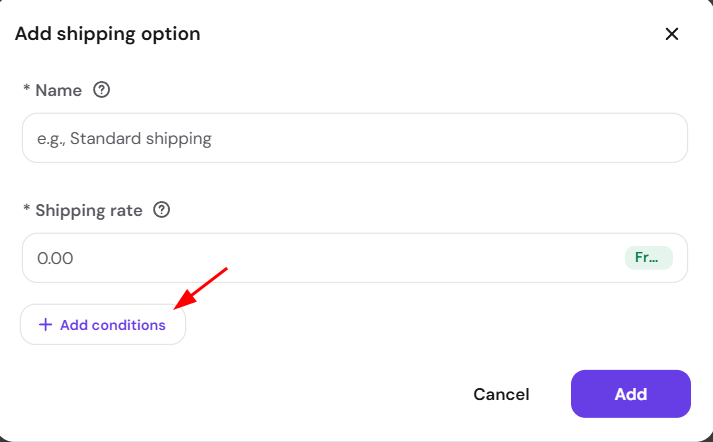
- Finally, click on Add to save the changes.
If a delivery option is based on order weight, make sure to specify product weight for all your products, including their variations
Edit existing shipping options
- In the Settings → Shipping, click on the shipping zone in question.
- In the Shipping options section, click on the shipping option in question to open its settings.
- Make the required changes and save them.
Shipping options in the specific countries
If your store country is Lithuania, Latvia, or Estonia, you can enable the following shipping methods:
-
For stores based in Lithuania: LP Express, Omniva, DPD Pickup
-
For stores based in Latvia: Omniva, DPD Pickup
-
For stores based in Estonia: Omniva, DPD Pickup
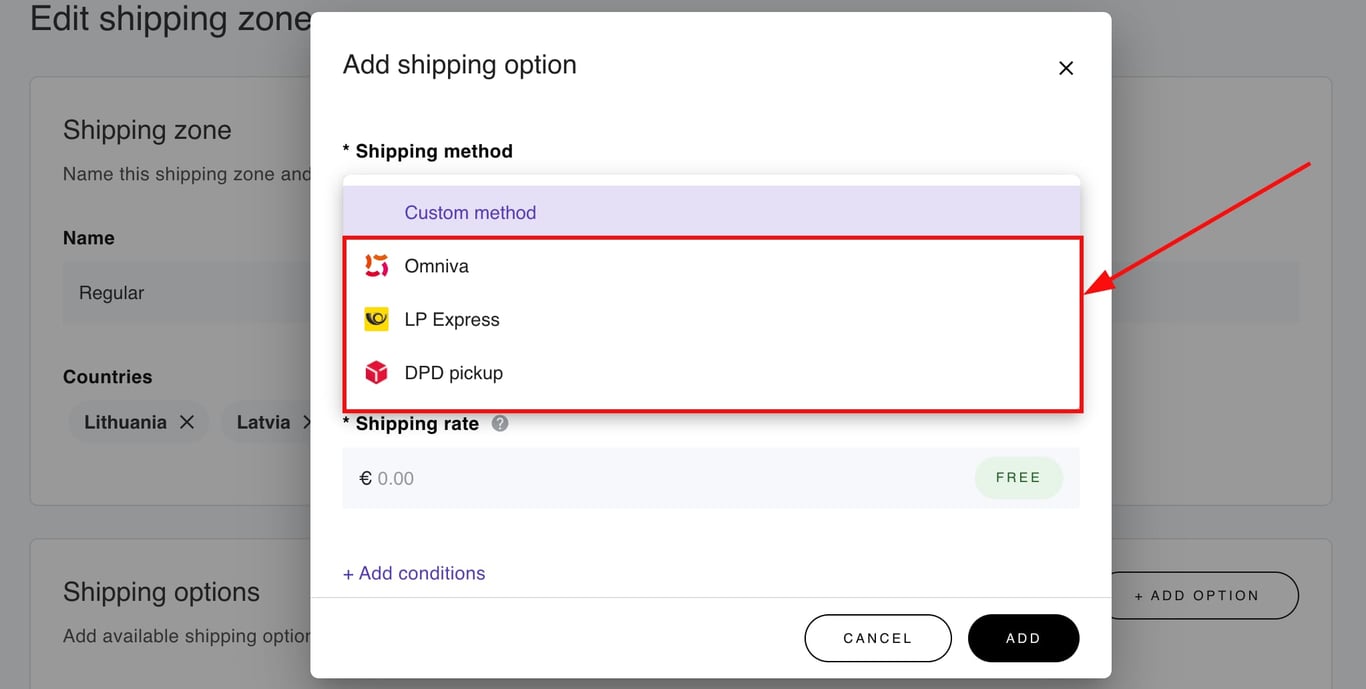
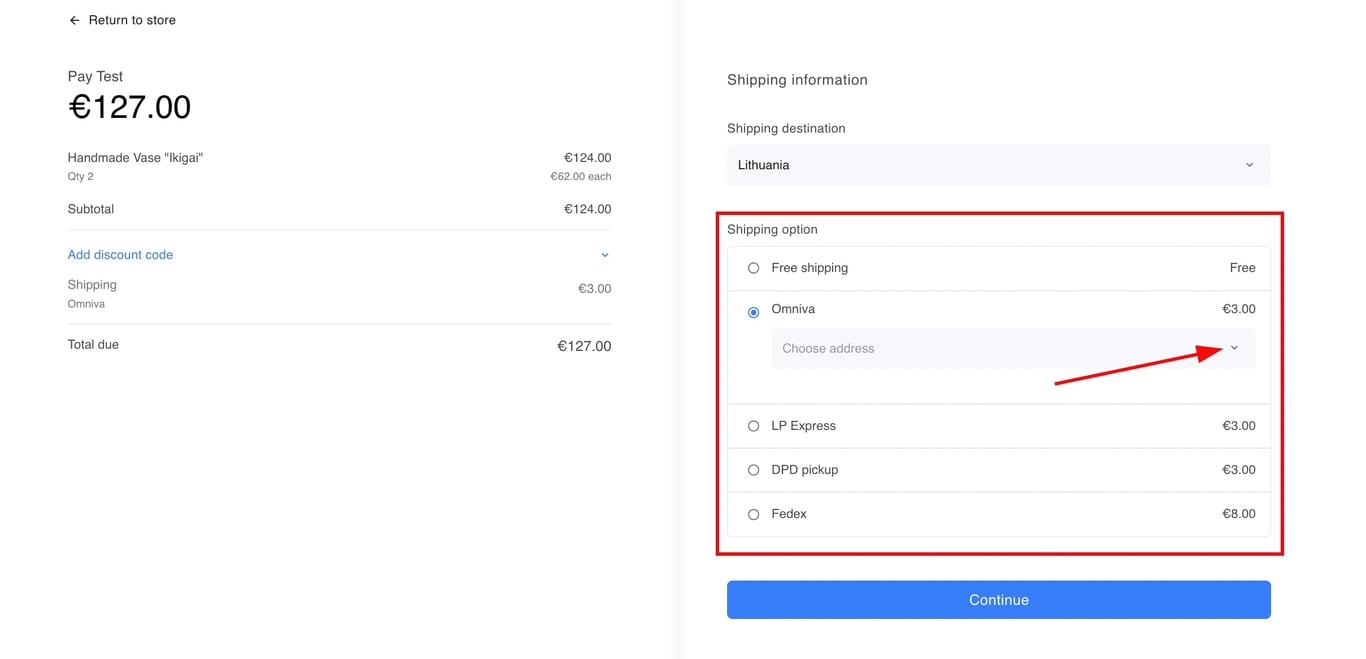
These shipping options are fully integrated and, by default, offer all available parcel shops in the customer’s country. DPD Pickup points are available only for deliveries to Lithuania, Latvia, and Estonia, so add a separate shipping option for customers in other countries:
Parcel lockers in Express Checkout
If Express Checkout is turned on for your store, customers can choose a parcel locker directly in the Apple Pay or Google Pay sheet. The sheet uses the delivery address saved in the customer’s wallet to show the delivery options:
- Courier delivery options appear first.
- Each parcel locker shipping option (Omniva, DPD Pickup, or LP Express) then lists the 3 lockers nearest to the customer’s address, with the distance and shipping rate.
The selected locker is saved to the order. If the customer closes the wallet sheet without paying, the regular checkout form stays unchanged.
If you ship with LP Express, you can create LP Express labels for multiple orders with one CSV export.
NOTES
- Hostinger Ecommerce doesn’t calculate live carrier rates, so you set shipping rates for each shipping zone by order price or order weight.
- Shipping rates apply to the entire order and not to an individual product, so you can’t limit a product to one specific shipping method.
- Shipping zones support countries or states only. They don’t support blocking a specific postcode prefix such as BT, restricting delivery to specific towns, or showing customers a postcode checker.
- See Hostinger Ecommerce: Limitations and unsupported features for other shipping limitations, such as pickup time slots.