The Copy Website tool allows you to replicate your WordPress website’s files and databases from one domain or subdomain to another within the same Hostinger hosting plan. This is ideal for duplicating the same website with a different domain name or when using it as a base template for further edits. Copy Website is not a staging tool. To test changes on a live WordPress website before publishing them, use the WordPress staging tool instead.
Before you start
Before duplicating a WordPress website, ensure that:
- You have a web Premium hosting plan or greater.
- You have added the destination domain, subdomain or temporary domain to your hosting plan.
- If the destination domain contains data, create and download a backup, as this process overwrites all existing data on the target domain.
- To test changes and publish them to your live website, use the WordPress staging tool instead of Copy Website. The staging tool is available for Business hosting plans and higher.
Step 1 – Access the Copy Website tool
- Go to Hostinger dashboard → Websites.
- Locate the WordPress website you wish to copy and click Dashboard.
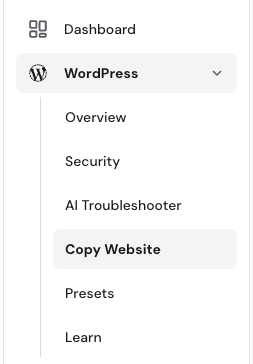
- On the left sidebar, select WordPress → Copy Website.

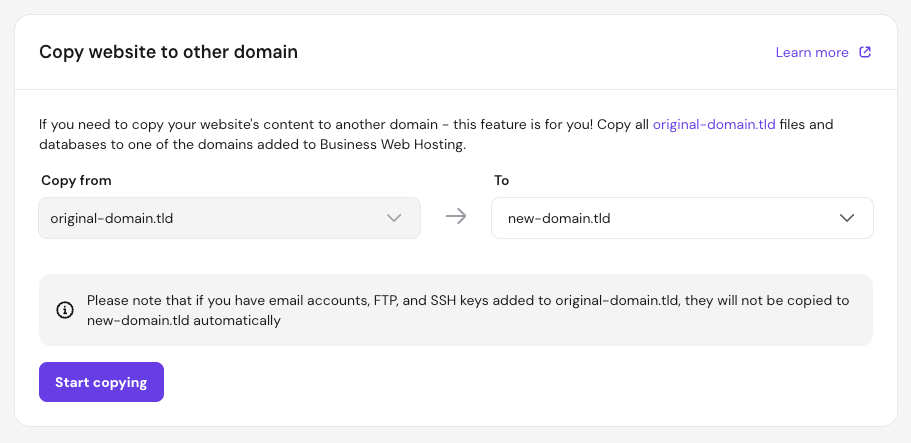
- The source website is automatically added to the Copy from field.
Step 2 – Select the destination and start copying
- Use the dropdown menu to select your destination domain or subdomain.
- Click Start copying.

- If the target is not empty, a data loss warning will appear. If you are ready to overwrite the destination content, check the confirmation box and click Start copying anyway.
The duplication process typically takes up to 15 minutes depending on the size of your website. Once completed, the status will be updated in the list after reloading the page.
Your original WordPress website is now duplicated on the new domain. All internal links and database references are updated automatically to ensure the copy works correctly on the new URL. You can now manage and edit both websites independently.
NOTES
- You can copy multiple websites, but the tool processes them one at a time; subdomains must be copied individually.
- Only website files and databases are transferred. You must manually recreate email accounts, FTP accounts, and SSH keys for the new destination domain.
- Content can only be copied to a root domain or subdomain (e.g.,
original-domain.tldtonew-domain.tld). Copying to a specific subfolder (e.g.,new-domain.tld/folder) is not supported. - This feature only supports copying websites within the same Hostinger hosting plan. If the target is on a different hosting plan or a different user account, refer to this guide: How to move a WordPress website automatically.
Additional resources
- If your goal is to test changes on a WordPress site, you can use the automated WordPress staging tool available for Business hosting plans and higher. This process is faster and allows you to push changes to your live site automatically.