Set up New Relic at Hostinger to monitor the real-time performance of your PHP web applications. Enable the newrelic PHP extension in PHP Configuration, then add your New Relic license key and application name to the .htaccess file.
Step 1 – Preparation
First, make sure that:
-
You have created an account on New Relic and have a free or paid plan
-
You have generated an INGEST – LICENSE API key
Step 2 – Enable PHP extension
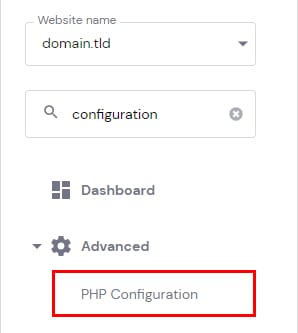
Go to Websites → Dashboard on your Hostinger dashboard, search for PHP Configuration on the sidebar and click on it:
Next, click on the PHP Extensions tab, scroll down to find newrelic and click on the checkbox to enable:
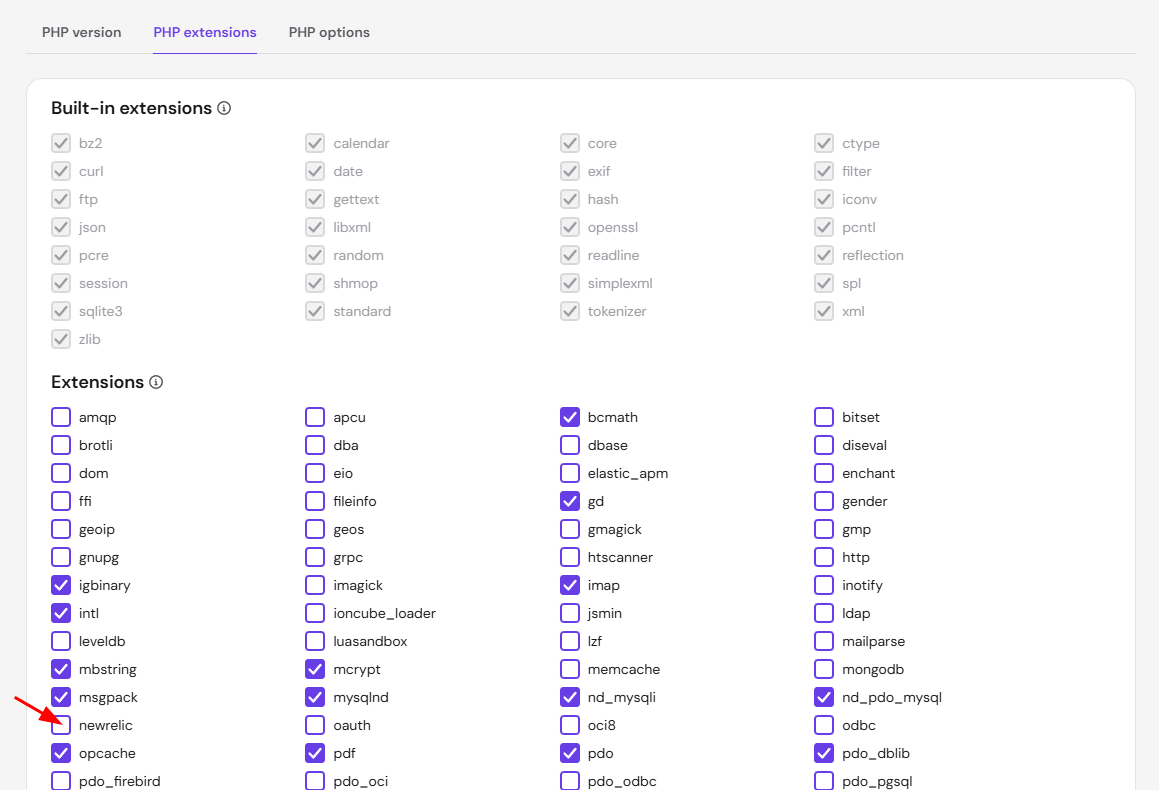
Click on Save to apply the change, and it will be active in a couple of minutes.
Step 3 – Edit .htaccess file
Now that you have enabled the New Relic PHP extension, add the following lines to your .htaccess file:
php_value newrelic.license "license"
php_value newrelic.appname "test_app"
Make sure to replace license with the value of your New Relic INGEST – LICENSE key, and test_app with the name of your PHP application.
New Relic now collects performance data from your PHP application, and you can view the reports in your New Relic account’s dashboard.
Additional resources