Add a password to any page on your Hostinger AI Builder manual mode website.
Password-protect a page
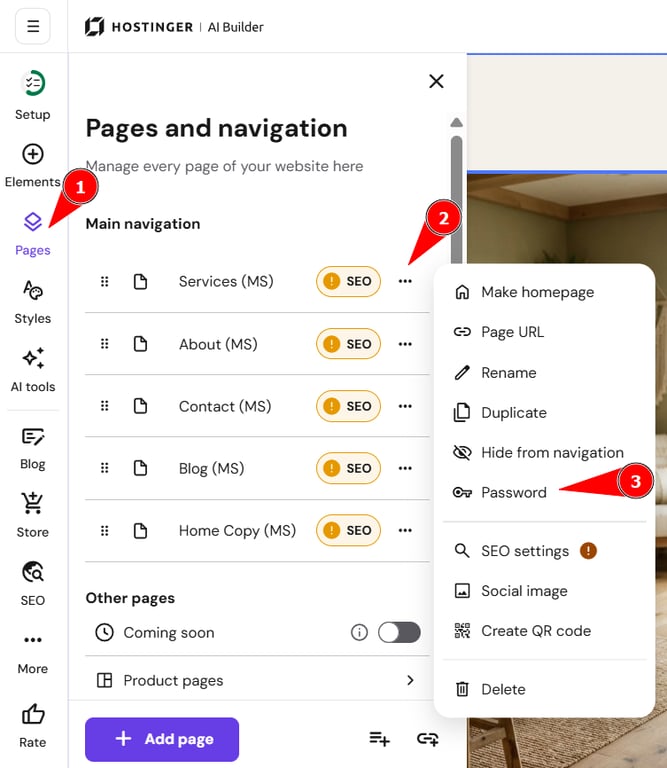
- In the builder, expand the Pages and navigation panel on the left, and find the page in question. Then, open its settings, and click on Password:
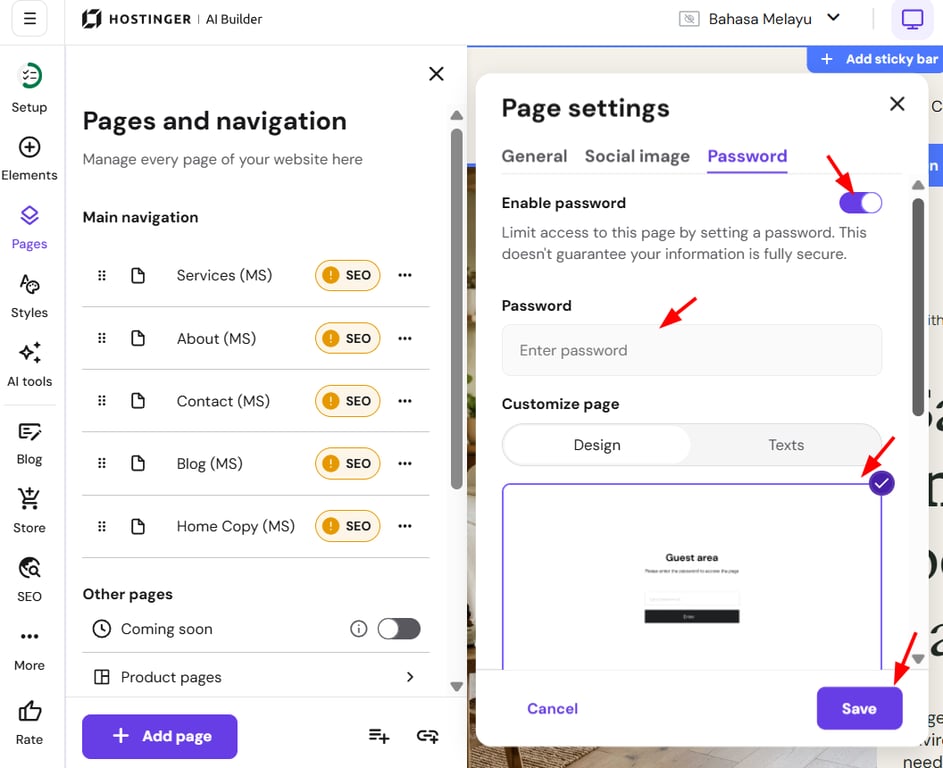
- Click on Enable password, and insert the preferred.
- Choose the design and customize the texts of the guest area.
- Finally, save the changes and update your website.
NOTES
-
You can freely view the page (without entering the password) in the preview mode; the password is only required on the live website
-
Each page can have a different password, and each login area can have a different design
-
The login page will include a link that will take the visitor back to the homepage (unless you password-protect the homepage)
-
The password is hashed using SHA-256 therefore it is never stored in plain text