Change the currency in your Hostinger AI Builder online store if you selected the wrong one during setup.
Change your store currency
- Go to the store management area, then change your store currency directly from Settings → Payments, as long as no online payment provider has been connected. If an online provider is already connected, disconnect it first, then change the currency and reconnect.
 Manual payment methods (cash on delivery, bank transfer, etc.) do not need to be removed before changing the currency.
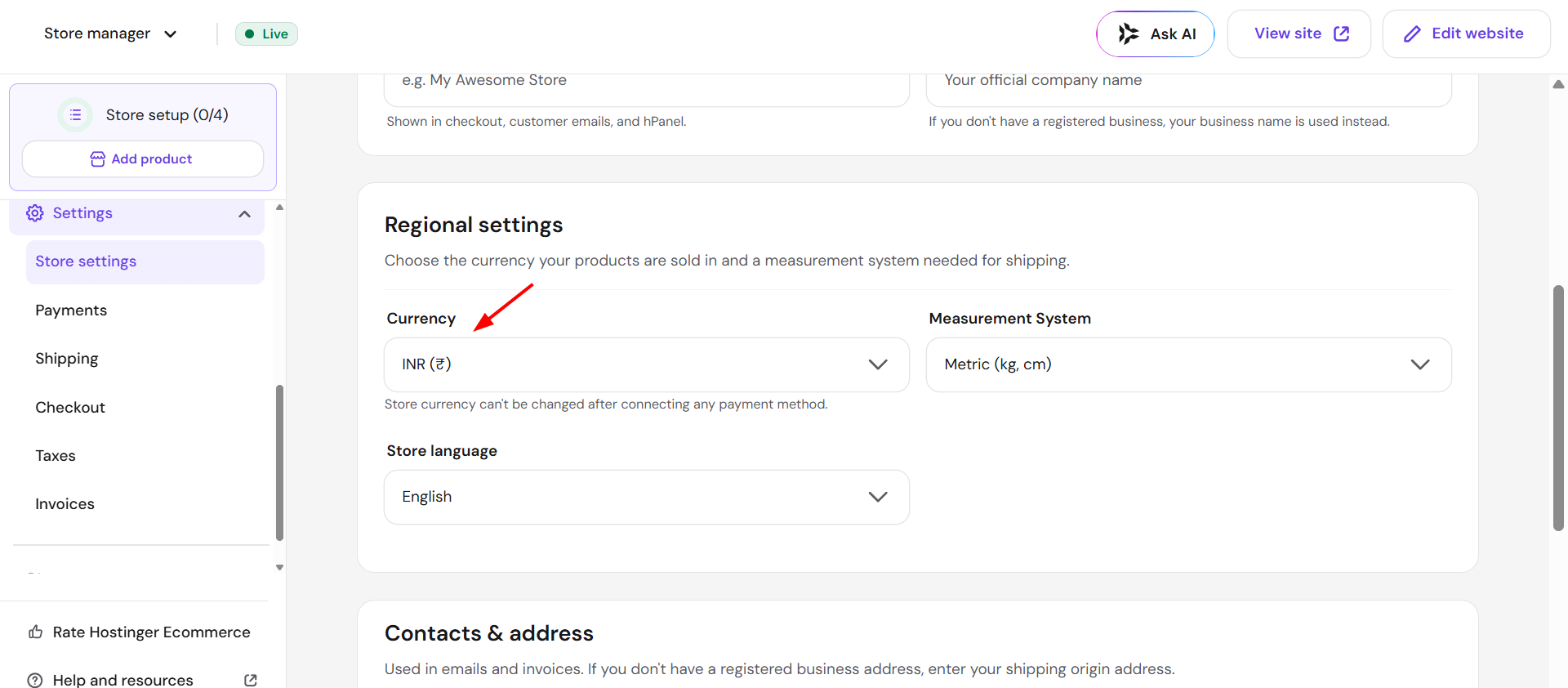
 - Change the currency in the Settings → Store settings → Regional settings:

- Finally, set up the preferred payment methods in the Store settings → Payments again.

NOTES
-
Changing the currency won’t affect product prices or shipping prices; you should edit them manually if necessary
-
The new currency won’t reflect in existing orders; it will reflect in the new orders only
- See the list of supported currencies for your online store.
Now you know how to change the currency in your online store created with Hostinger AI Builder.