Selecting a hosting plan for your clients at Hostinger lets you pre-choose the plan they need before they sign up, which shortens their onboarding. You add and manage these clients directly in your Hostinger dashboard.
You can also pre-select more than one product for the same client — for example, a hosting plan together with a professional email plan. Everything added to the cart is sent as a single bundle, and if the client is new to Hostinger, you earn a referral commission on the full eligible bundle value.
There are two ways to select a hosting plan for your clients: Account Sharing and Referrals. Both start from the Home section of your Hostinger dashboard.
Option 1 – Account Sharing
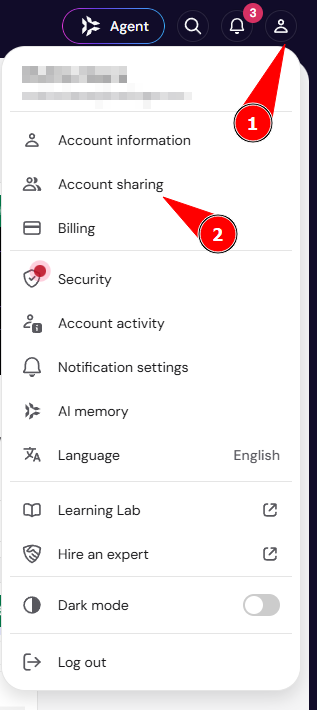
- Click your profile icon in the top-right corner and select Account sharing.
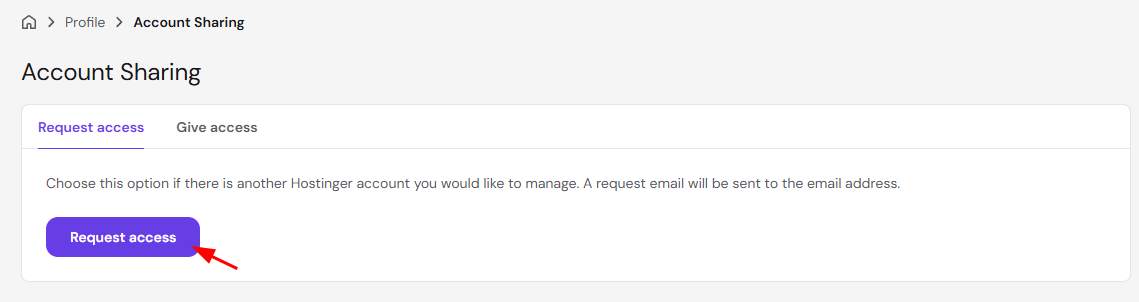
- On the Account Sharing page, stay on the Request access tab and click Request access.
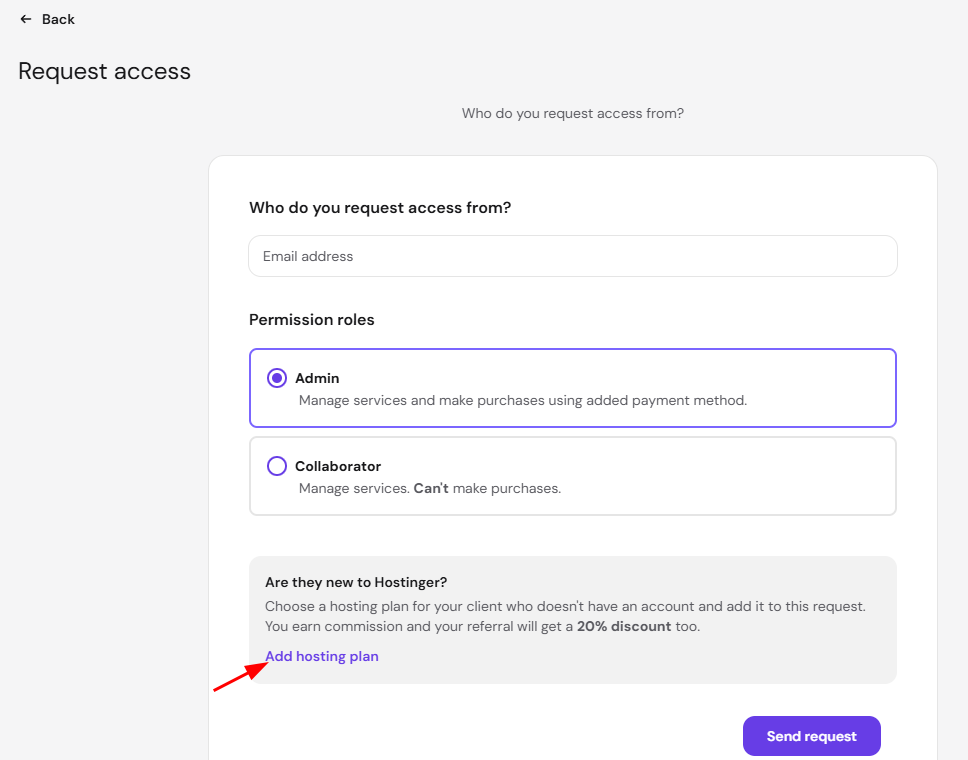
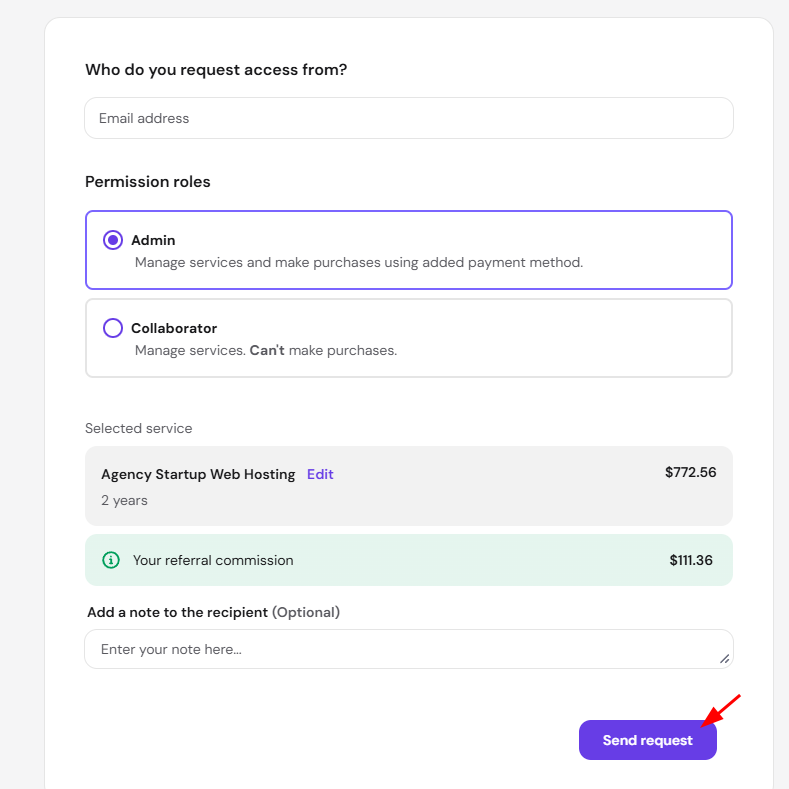
- Enter the email address of the account you want to request access from, and choose a permission role: Admin to let them manage services and make purchases with your payment method, or Collaborator to let them manage services only, without making purchases.
- If your client is new to Hostinger, click Add hosting plan to select a plan for them. You earn a referral commission, and your client gets a 20% discount.
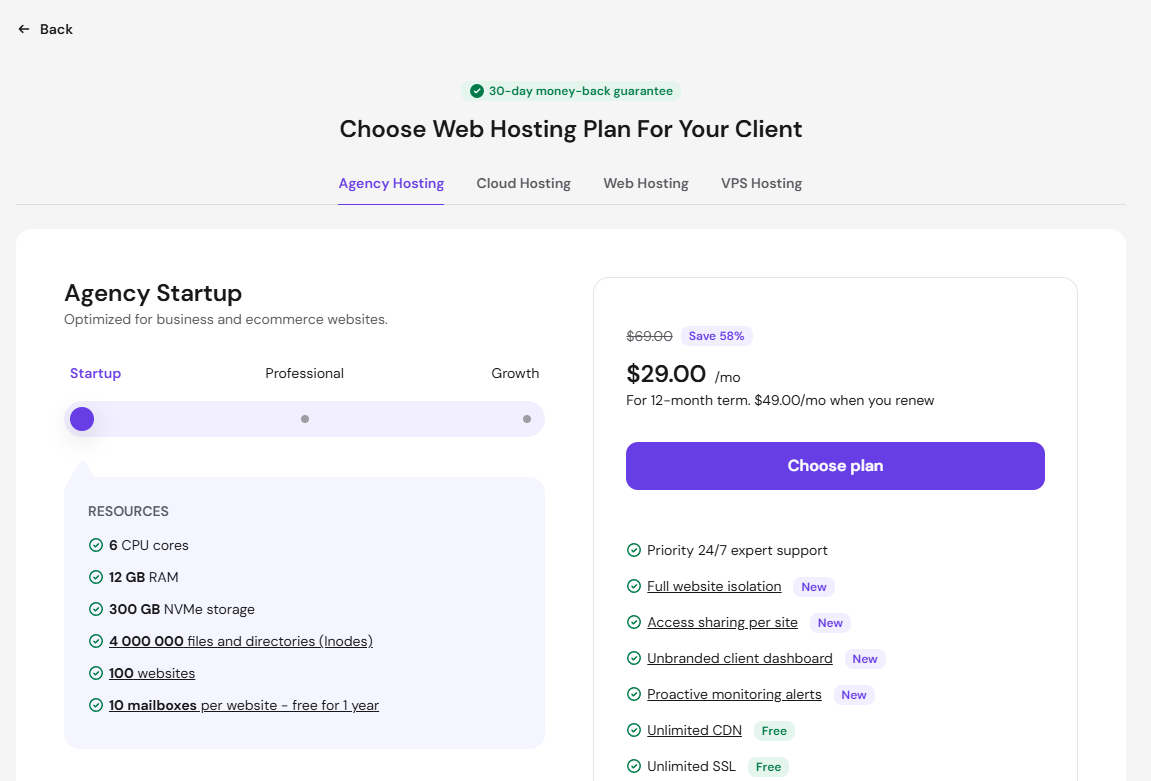
- Select a product tab — Agency Hosting, Cloud Hosting, Web Hosting, or VPS Hosting — choose a plan tier, and click Choose plan.
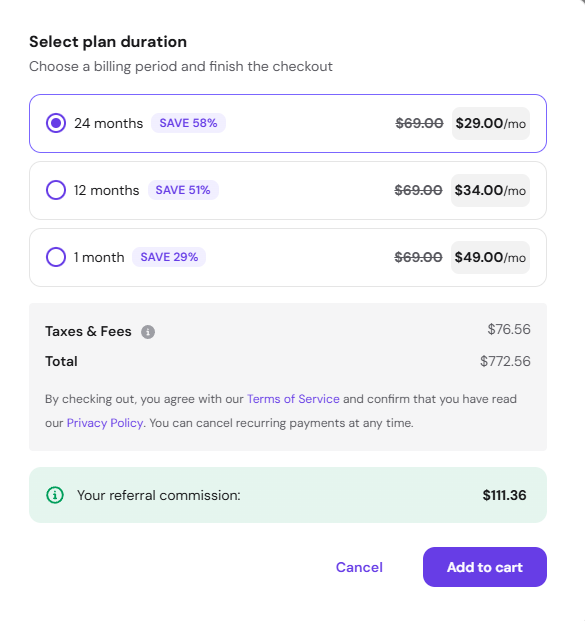
- Select a billing period and click Add to cart. Your referral commission for that plan appears above the button.
- Add an optional note for the recipient and click Send request.
- An email is sent to the requested account to accept access and complete the order.
Option 2- Referrals
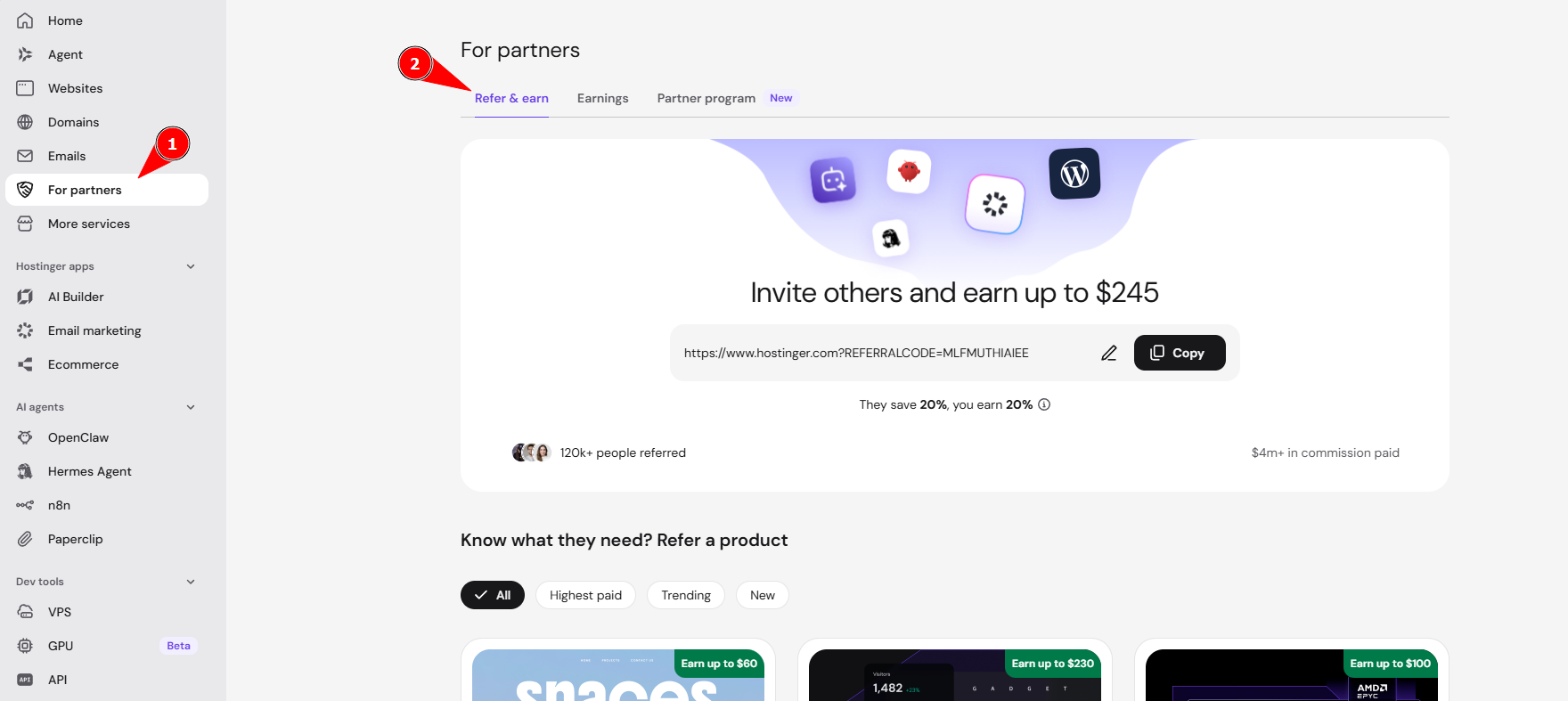
- Click For Partners in the Home section of your Hostinger dashboard to open the Refer & Earn page.
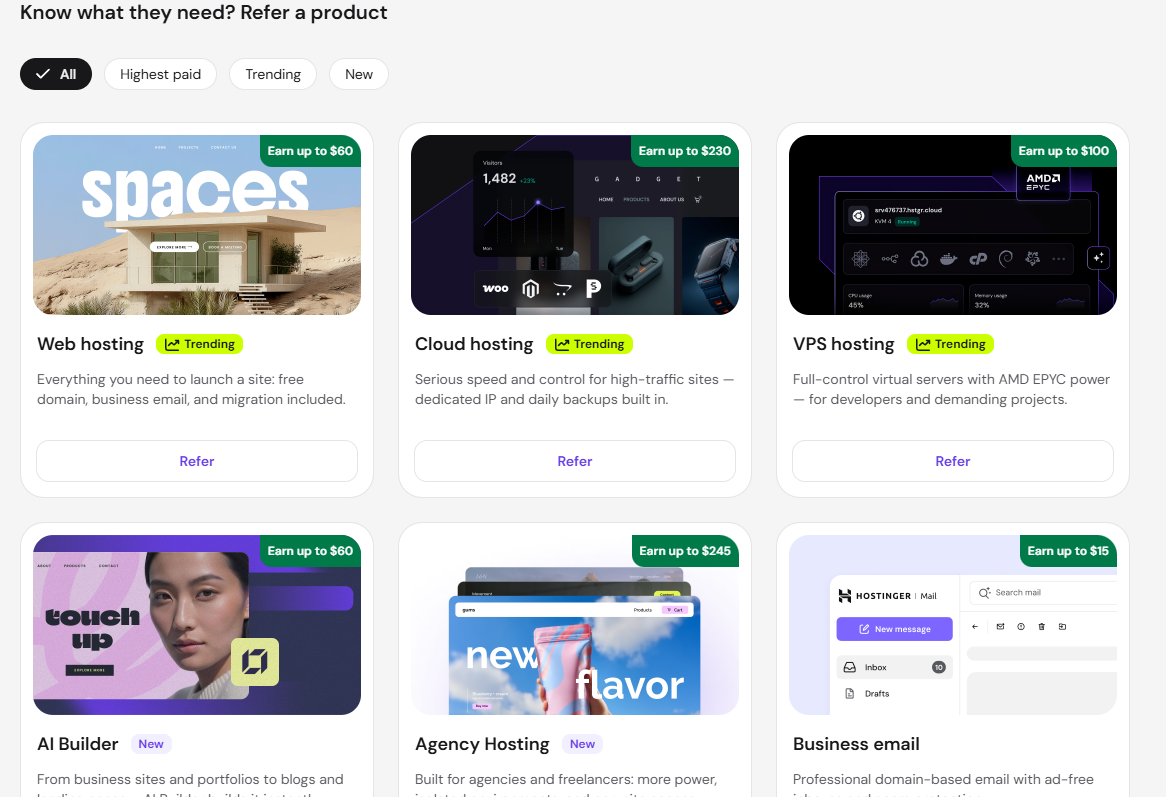
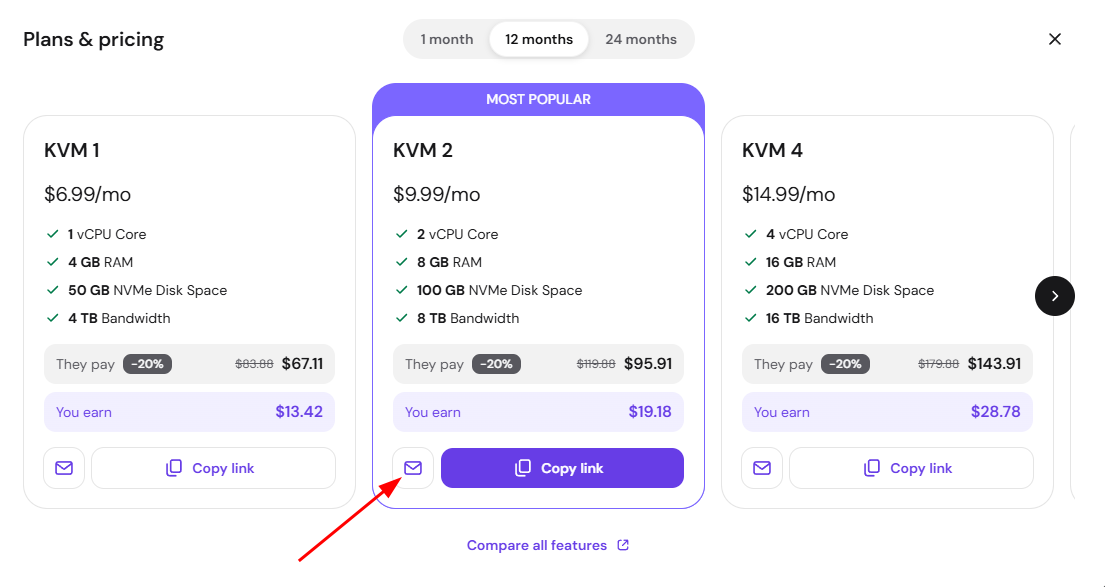
- Find the product your client wants, and click Refer to open the Plans & pricing modal.
- Choose a billing period at the top of the modal, then compare plans by price, what your client pays, and what you earn, or select Compare all features for a full breakdown.
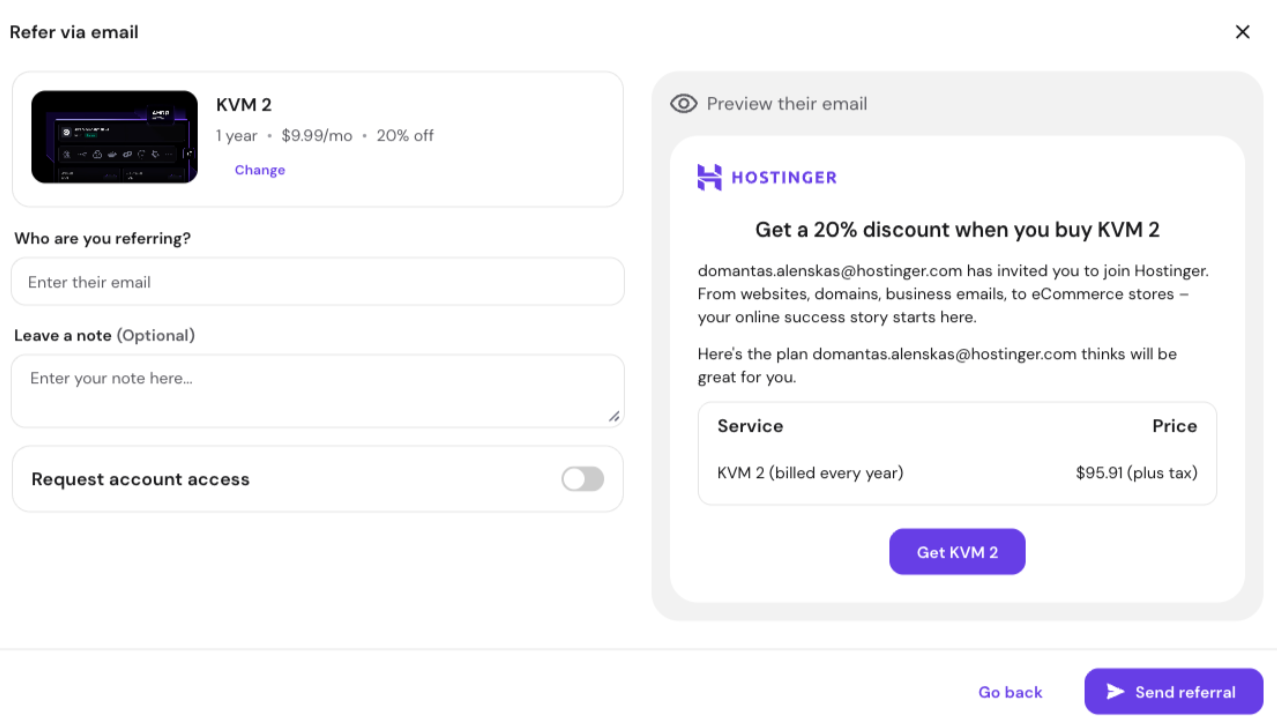
- Click Copy link on a plan card to copy a referral link for that specific plan, or click the mail icon to refer that plan by email.
- In the Refer via email modal, enter your client’s email address, add an optional note under Leave a note, and turn on Request account access if you want access to manage their plan.
- Review the exact message your client will receive in the Preview their email panel, then click Send referral.
Referring a bundle
When a client buys several products in one order, the referral is calculated on the whole eligible bundle rather than a single plan:
- First purchase — If the client is new to Hostinger, they get a 20% discount at checkout and you earn a 20% commission on the eligible bundle value. This is the same for regular Referral Program users and approved Hostinger partners.
- Upgrades and renewals (approved Partner Program users only) — If any product in the bundle is later upgraded or renewed, approved partners earn a 10% commission on that upgrade or renewal.
- Refunds — If the client refunds some items, you keep the commission on the products that were not refunded. If they refund everything in the bundle, the referral is Declined.
- Eligibility — Each product is assessed separately. Ineligible items, such as domains, are excluded from the commission calculation.
The standard 45-day waiting period applies before a bundle referral is approved. See How to use the Referral Program at Hostinger for full details.
Once your client accepts the access request or completes the order through your referral link, the pre-selected hosting plan is ready for them to use.