To change your VPS SSH password at Hostinger, open the Settings page of your server in Hostinger dashboard, enter a new strong password in the Root password option, and click Update. Once the Latest Actions page shows the change as successful, you can log in to your VPS with the new password.
Change your SSH password
You can easily change your server’s SSH password from Hostinger dashboard:
-
Navigate to the VPS section of Hostinger dashboard and click on Manage next to your server
-
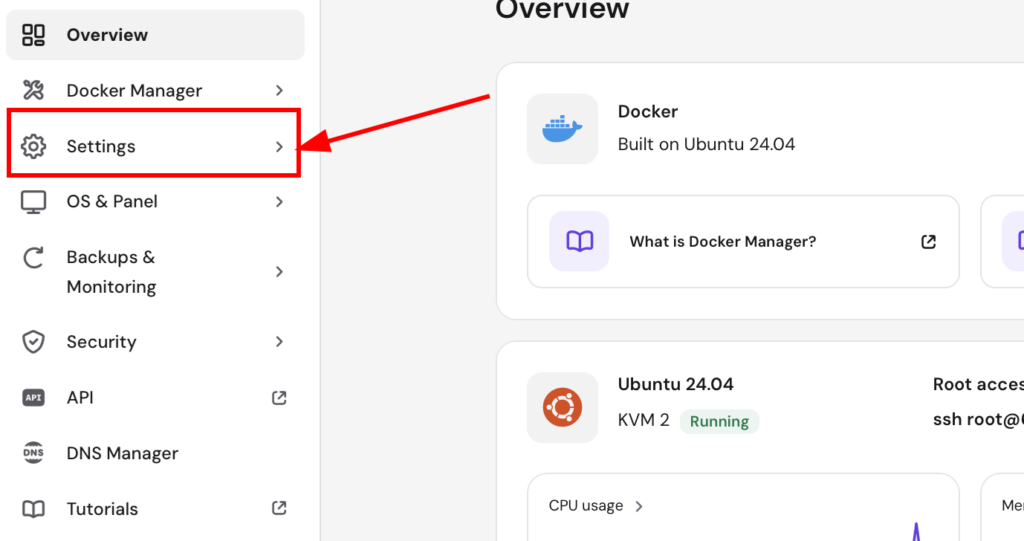
Go to the settings page from the sidebar
-
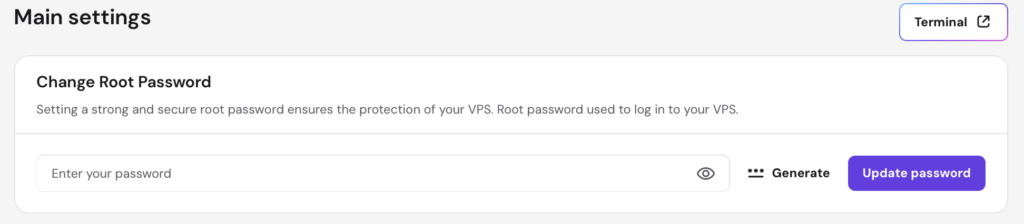
On the main settings, locate the Root password option, enter a new strong password, and click on Update:
-
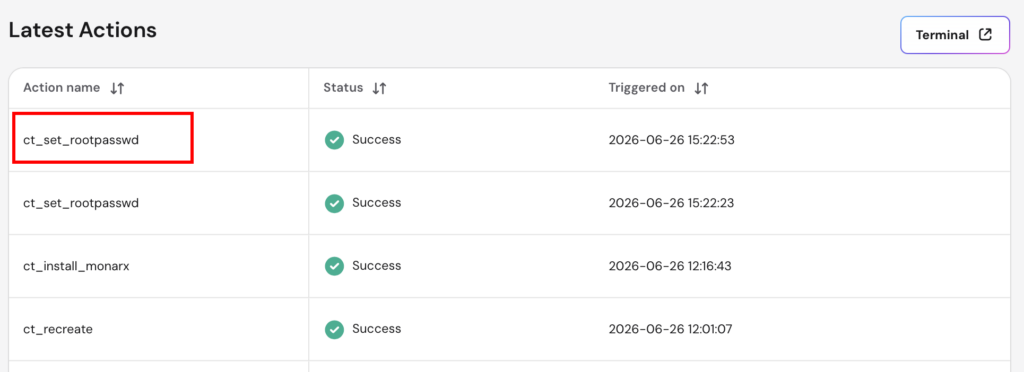
The password change can take a few moments to be applied. To verify when it’s completed, select Backup & Monitoring → Latest Actions page on the sidebar, and you’ll find it as ct_set_rootpasswd:
-
Once the status shown is Success, you can log in to your VPS using the new password. See how to connect to your VPS via SSH for the connection steps.
Your VPS now accepts the new root password for SSH connections.