Hostinger Managed apps runs OpenClaw on its own server resources, with dedicated CPU, RAM, and disk space. Hostinger handles the infrastructure, and you get root access to your app through a browser-based Web console. After you purchase a Managed apps plan, you set up OpenClaw from the Hostinger dashboard by choosing an AI provider and, optionally, connecting a messaging app.
Before you start
- You need an active Managed apps plan.
- This article covers OpenClaw in the Managed apps section of the Hostinger dashboard. If your OpenClaw app is listed under AI agents → OpenClaw, follow Hostinger Managed OpenClaw: Overview and setup instead.
- See How to get started with OpenClaw in Hostinger for more details about OpenClaw installation in Hostinger.
Managed apps plans for OpenClaw
Each Managed apps plan runs OpenClaw in its own dedicated microVM. The plan sets your CPU, RAM, disk space, and bandwidth.
|
Plan |
CPU |
RAM |
Disk space |
Bandwidth |
|
APP 1 |
1 vCPU |
4 GB |
25 GB NVMe |
2 TB |
|
APP 2 |
2 vCPU |
6 GB |
50 GB NVMe |
4 TB |
|
APP 3 |
3 vCPU |
8 GB |
100 GB NVMe |
6 TB |
|
APP 4 |
4 vCPU |
10 GB |
150 GB NVMe |
8 TB |
How to set up OpenClaw in Managed apps
Step 1 – Start the setup
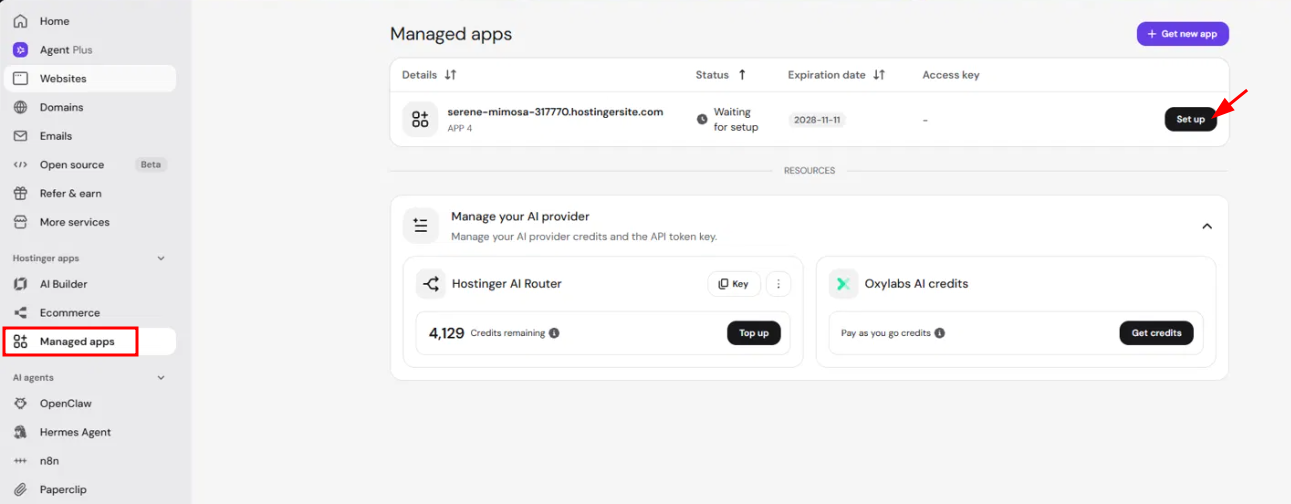
- In the Hostinger dashboard, go to Managed apps in the left sidebar.
- Find your app with the status Waiting for setup and click Set up.
Step 2 – Choose an AI provider
Select the AI provider that powers OpenClaw. You can change it later.
- Hostinger AI Router: uses your Hostinger AI credits, with no separate account needed. Select an existing AI Router API key or click New key. Click Top up to add credits.
- OpenAI, Anthropic, xAI, or Gemini: enter an API key from that provider.
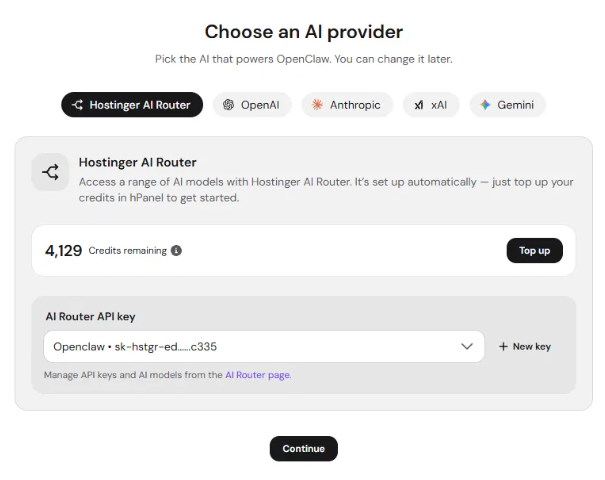
Click Continue. OpenClaw setup starts and takes a few minutes. You can leave the page, and the setup will keep going.
Step 3 – Connect a messaging app
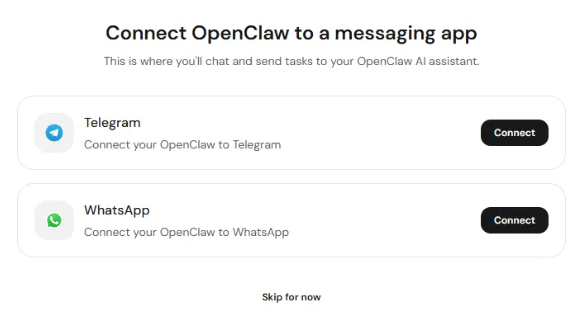
Choose where you’ll chat with OpenClaw and send it tasks. Click Connect next to Telegram or WhatsApp and follow the steps in Connect Telegram or WhatsApp. To do this later, click Skip for now.
Step 4 – Open OpenClaw
- When setup finishes, click Copy access key.
- Click Open app.
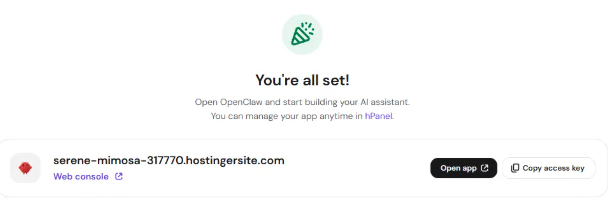
- Paste the access key into the login field and click Login.
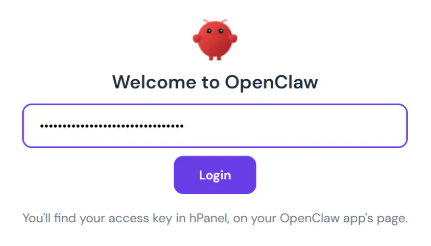
Your OpenClaw app opens at its own address, such as name-123456.hostingersite.com.
How to manage OpenClaw in Managed apps
Go to Managed apps and select your app to open its Overview page. If you have several apps, switch between them with the Select app menu.
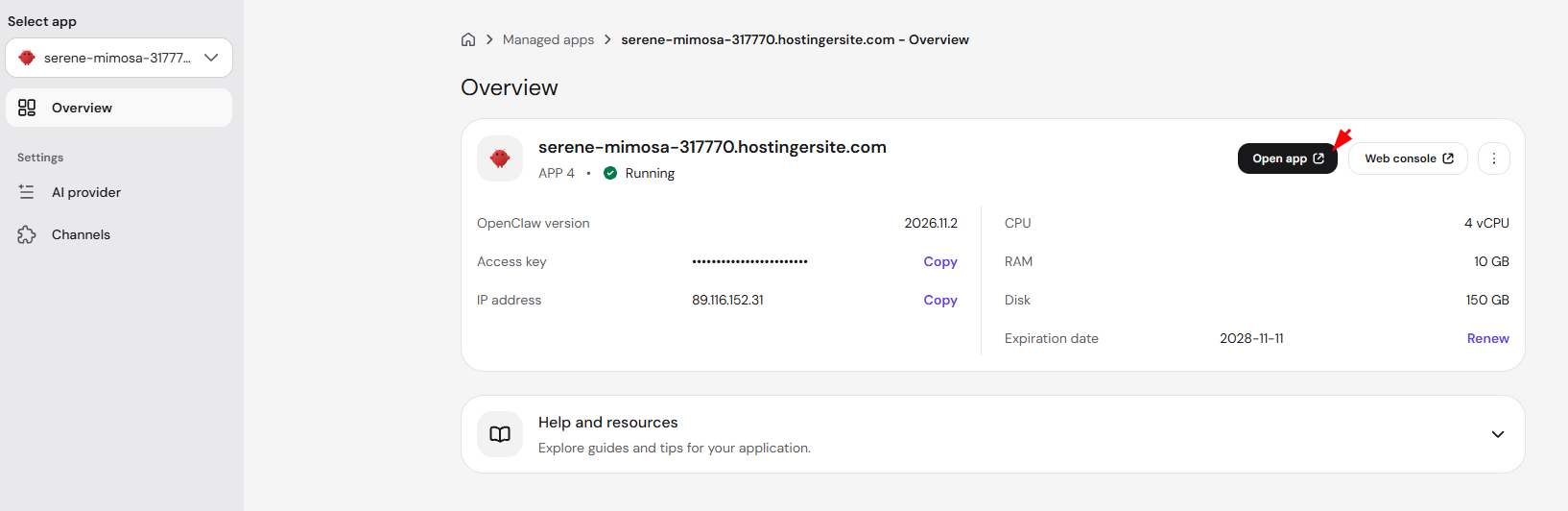
The Overview page shows:
- OpenClaw version: the version installed on your app.
- Access key: the key you use to log in to OpenClaw. Click Copy to copy it.
- IP address: your app’s IP address.
- CPU, RAM, and Disk: the resources included in your plan. To get more resources, choose a bigger plan.
- Expiration date: when your plan expires. Click Renew to extend it.
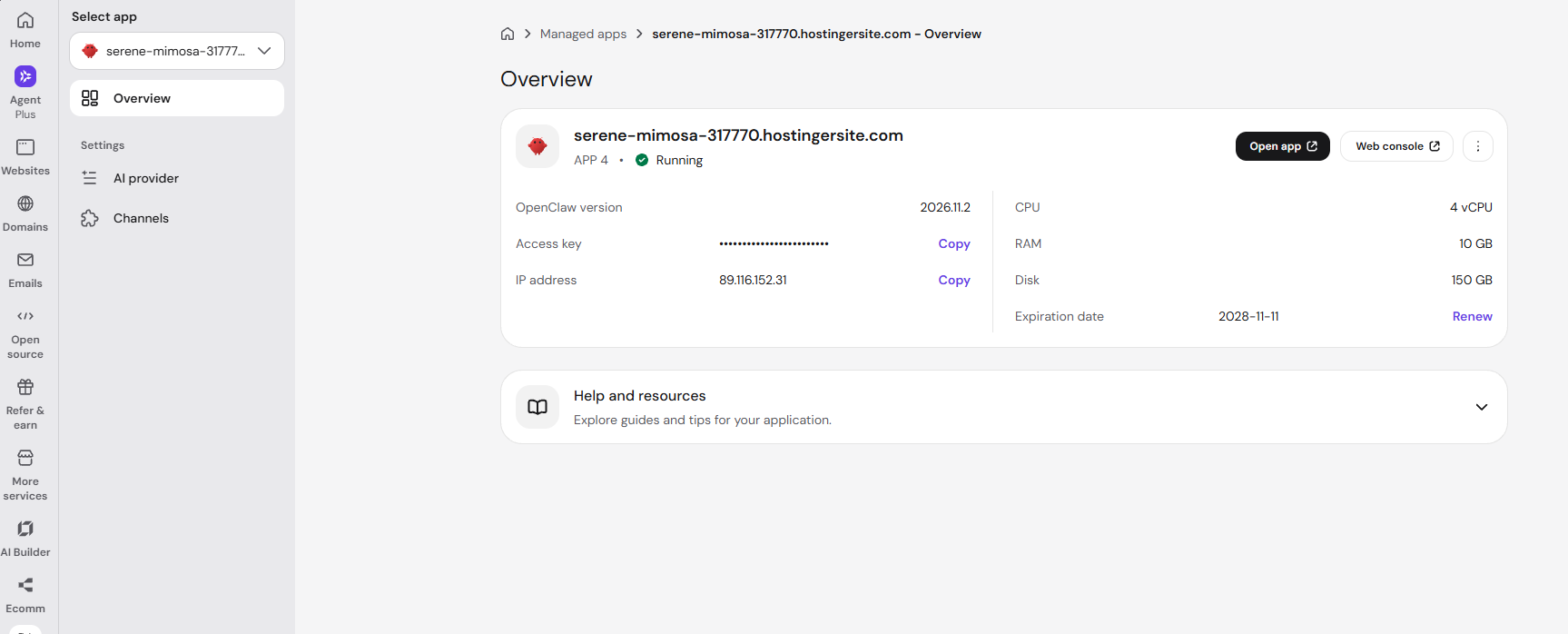
Use the buttons at the top of the page to work with your app:
- Open app: opens OpenClaw in a new tab.
- Web console: opens a terminal in your browser. See Use the Web console.
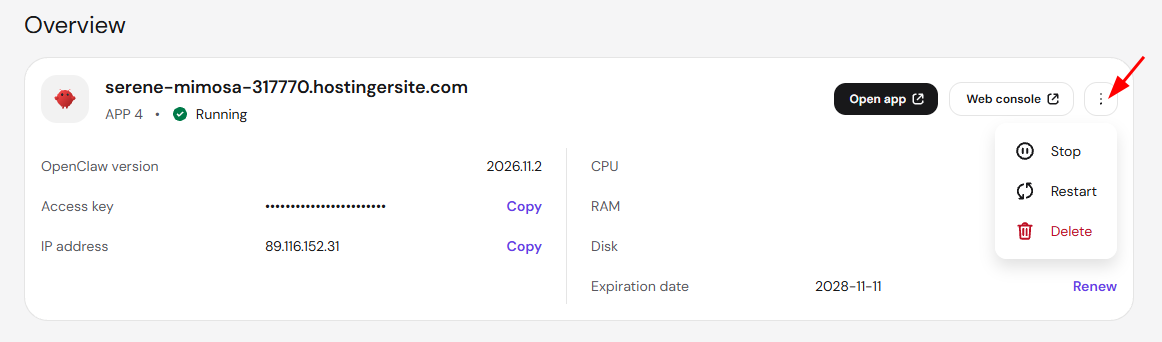
- Three-dot menu (⋮): Stop, Restart, or Delete your app.
How to change the AI provider in Managed apps
- On your app’s page, go to Settings → AI provider.
- Select Hostinger AI Router, OpenAI, Anthropic, xAI, or Gemini.
- For Hostinger AI Router, select an AI Router API key. For other providers, enter your API key.
- Click Save changes.
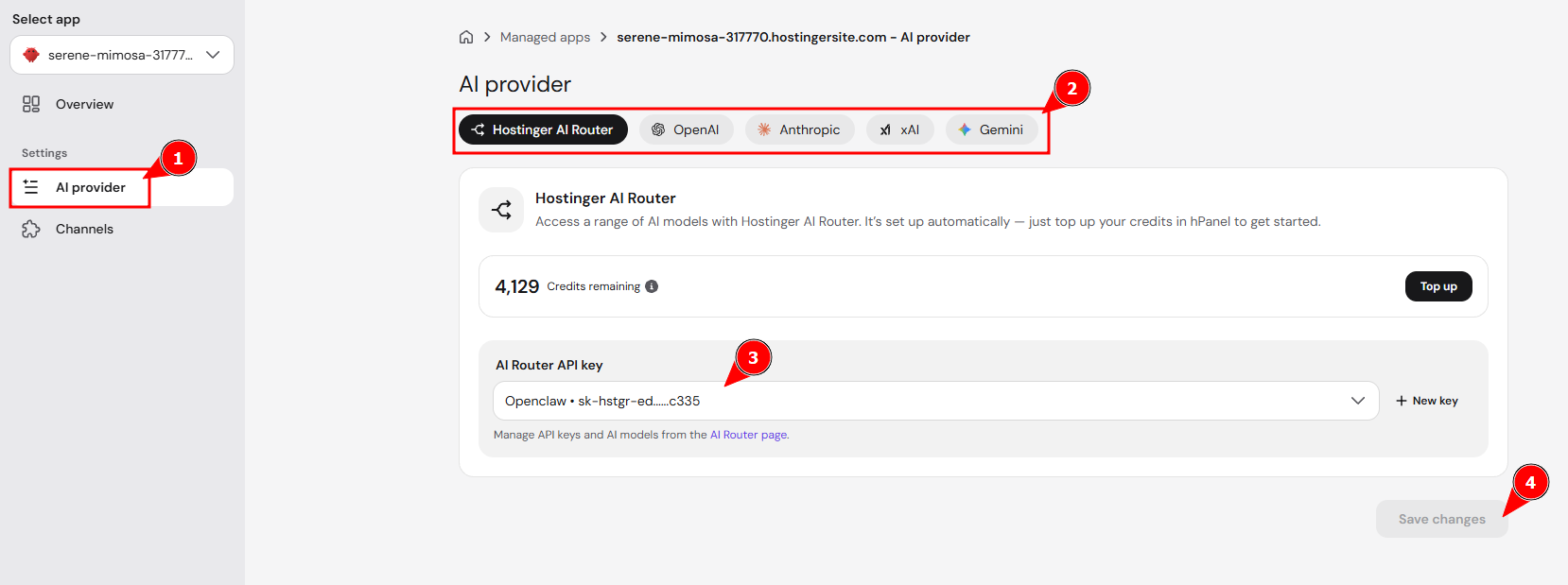
You can get API keys from platform.openai.com (OpenAI), console.anthropic.com (Anthropic), console.x.ai (xAI), and aistudio.google.com (Gemini).
To check your Hostinger AI credits or buy Oxylabs AI credits for web search, go to Managed apps and open Manage your AI provider under Resources.
How to connect Telegram or WhatsApp to OpenClaw in Managed apps
On your app’s page, go to Settings → Channels.
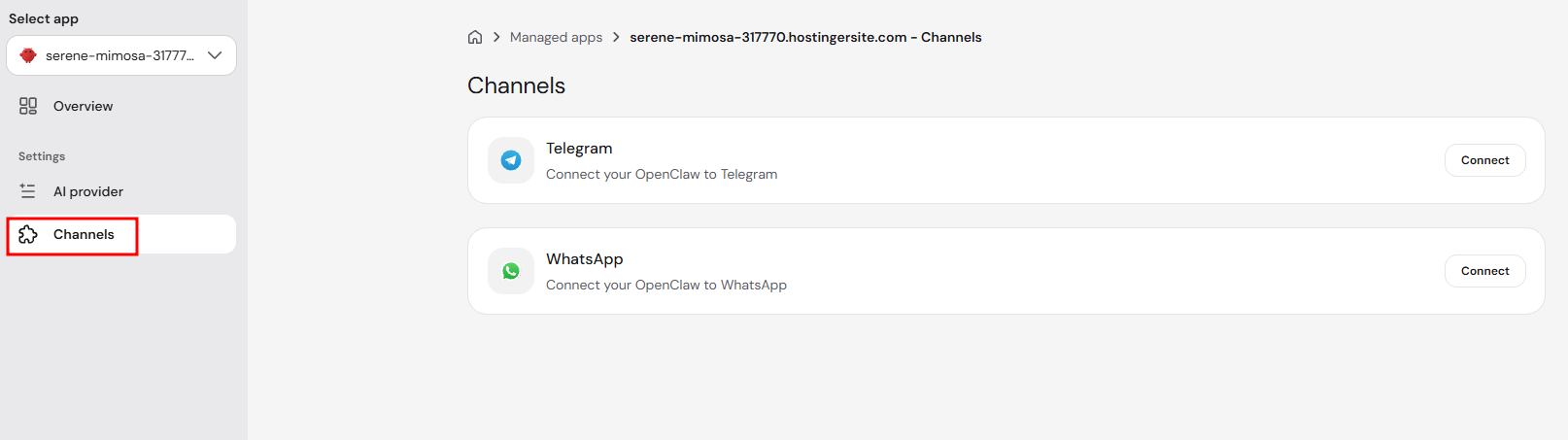
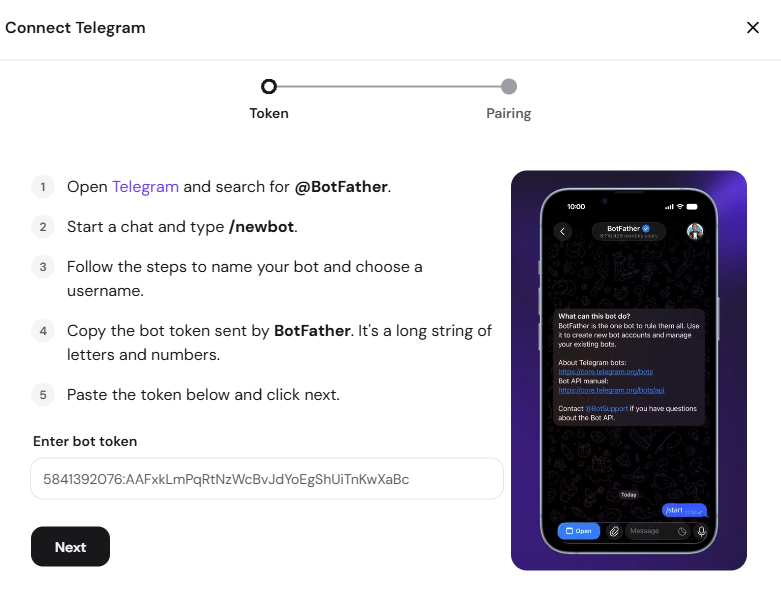
Option 1 – Connect Telegram
- Click Connect next to Telegram.
- Open Telegram and search for @BotFather.
- Start a chat and type /newbot.
- Follow the steps to name your bot and choose a username.
- Copy the bot token that BotFather sends you.
- In the Hostinger dashboard, paste the token into Enter bot token and click Next.
- Complete the Pairing step.
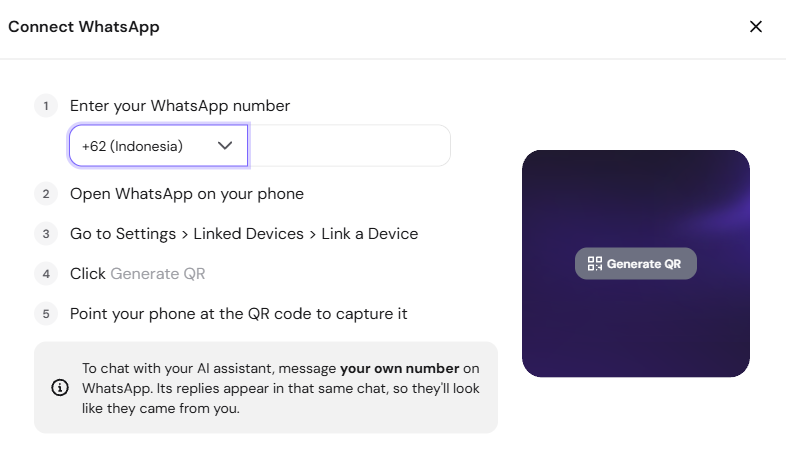
Option 2 – Connect WhatsApp
- Click Connect next to WhatsApp.
- Select your country code and enter your WhatsApp number.
- On your phone, open WhatsApp and go to Settings → Linked Devices → Link a Device.
- In the Hostinger dashboard, click Generate QR.
- Scan the QR code with your phone.
NOTE
- To chat with OpenClaw on WhatsApp, message your own number. Its replies appear in that same chat, so they look like they came from you.
How to use the Web console in Managed apps
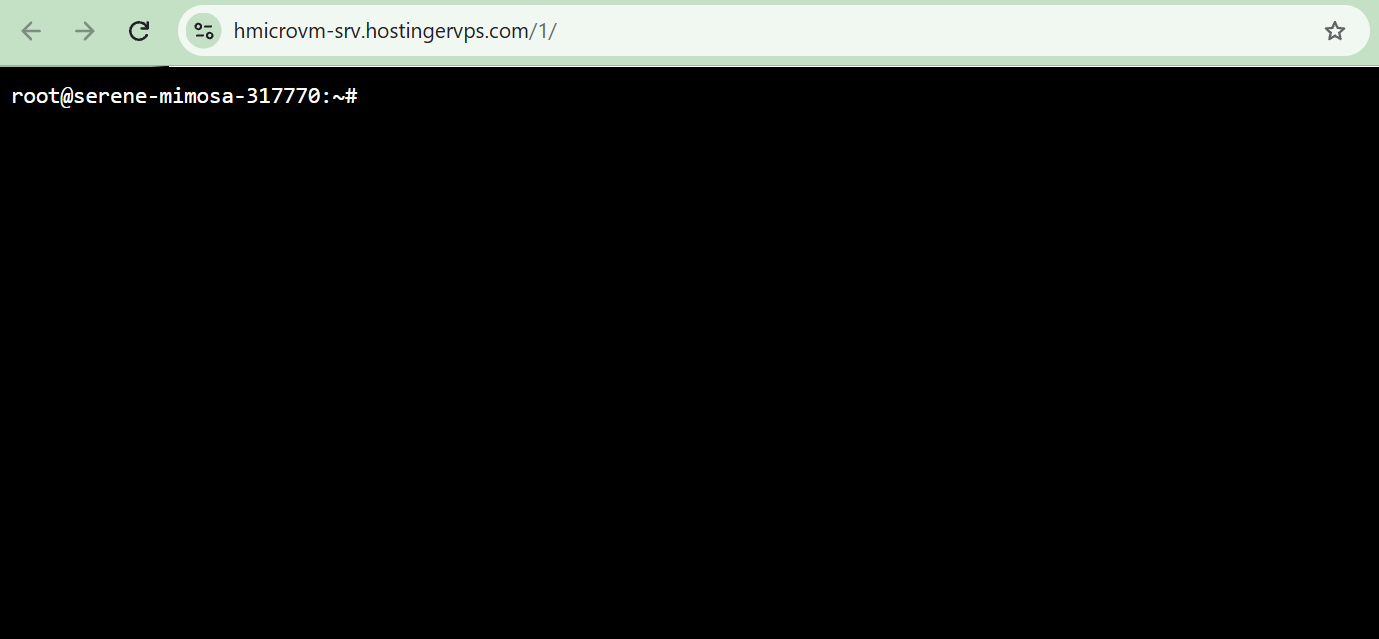
The Web console is a terminal that opens in your browser and logs you in as the root user, with no password needed. Use it to run commands on your app’s server.
- On your app’s Overview page, click Web console.
- The console opens in a new tab, ready for commands.
Root access lets you change any file or setting on your app’s server. Changing system files can stop OpenClaw from working.
Your OpenClaw app is now set up in Managed apps. You can chat with it from Telegram or WhatsApp, change its AI provider at any time, and use the Web console when you need full control.