The Hostinger File Manager terminal lets you run commands on your hosting plan directly in your browser, without a separate SSH client. The terminal opens below the editor in Hostinger File Manager and starts in your website’s folder. The terminal runs over SSH, so SSH access must be turned on for your hosting plan.
Before you start
- Your hosting plan includes SSH access. On plans without SSH, the Terminal icon doesn’t appear in Hostinger File Manager.
- Your account uses the new Hostinger File Manager, with a Deploy button in the top-right corner.
How to open the terminal in Hostinger File Manager
- Go to Hostinger dashboard → Websites, hover over your website, and click Manage site.
- On the sidebar, click Files → File Manager.
- Click the Terminal icon in the toolbar, or press Ctrl + `. You can also click Open terminal on the File Manager start screen.
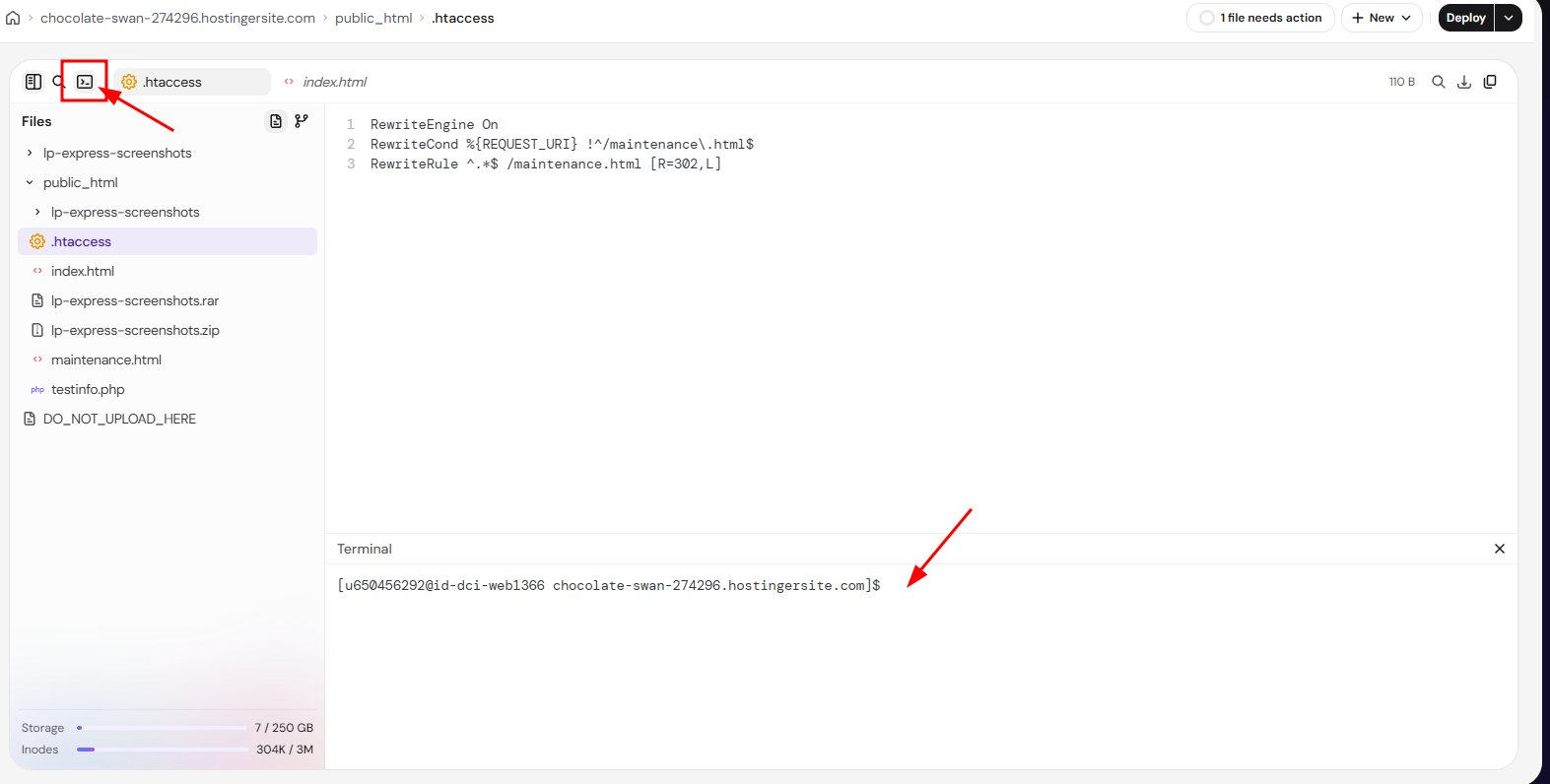
The terminal opens below the editor, with a prompt showing your username and website, for example [u123456789@server domain.tld]$. To close the terminal, click the X icon in its top-right corner.
Turn on SSH to use the Hostinger File Manager terminal
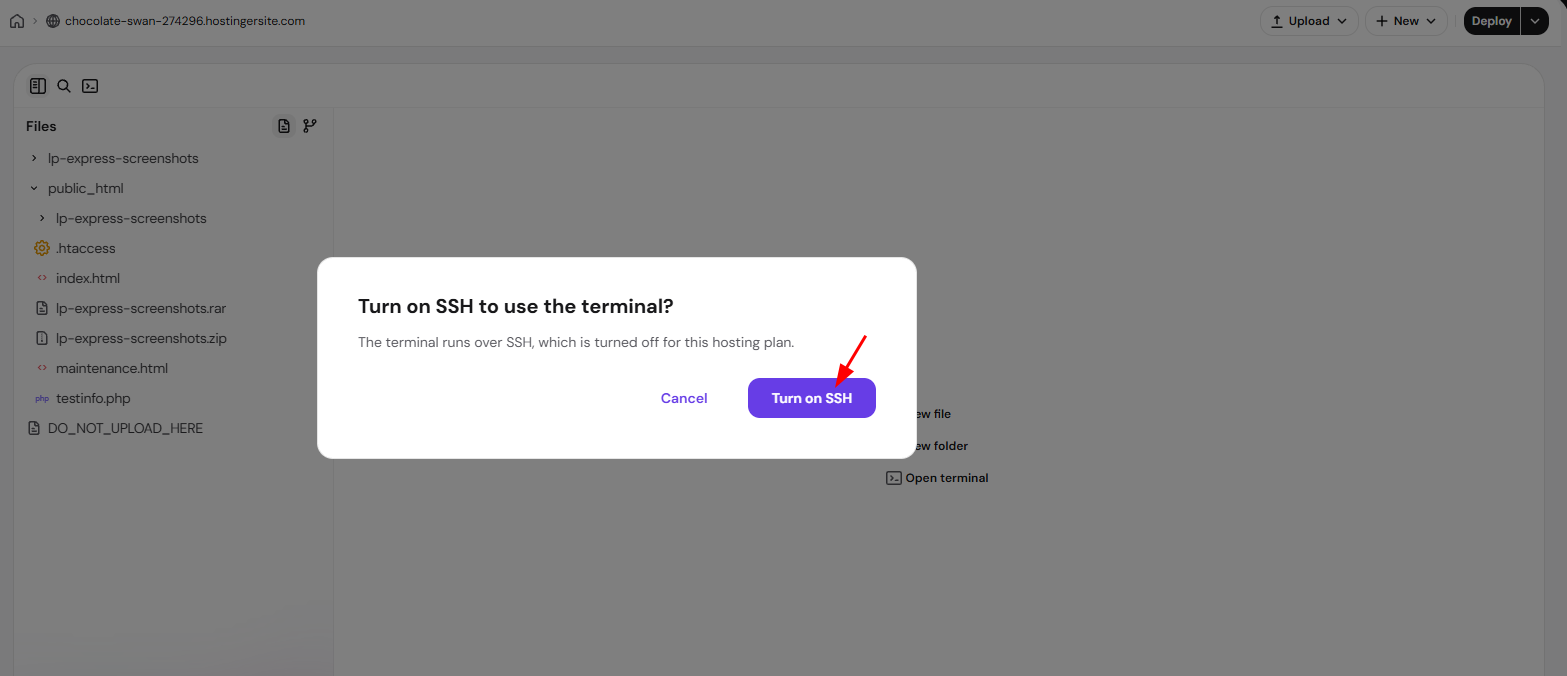
If SSH is turned off for your hosting plan, Hostinger File Manager asks Turn on SSH to use the terminal? when you open the terminal. Click Turn on SSH to enable SSH access and open the terminal.
Where the Hostinger File Manager terminal starts
The terminal always starts in the folder of the website you opened Hostinger File Manager from, even when the file tree shows another website’s files. To work in another folder, use the cd command, for example cd public_html. For other commands, see Common SSH commands at Hostinger.
You can now run commands on your hosting plan without leaving Hostinger File Manager. To learn more about the rest of the interface, see How to use the Hostinger File Manager.