A Node.js 503 error or a “too many processes” error at Hostinger usually means your hosting plan reached its process limit (NPROC) or memory limit. To fix it, stop the running processes, restart or redeploy the app, and then check the logs for the cause. If the limit is reached repeatedly, reduce the number of Node.js apps or upgrade your hosting plan.
Before you start
- This article covers Node.js websites. For 503 errors on WordPress or PHP websites, see how to fix the 503 error at Hostinger.
Why Node.js websites reach the process limit
The process limit (NPROC) is the number of processes and threads your whole hosting plan can run at once. All websites on the plan share this one limit, including WordPress and PHP websites.
Node.js websites use the process limit faster than other websites for five reasons:
- Each Node.js app runs as its own process.
domain.tldandwww.domain.tldeach run a separate process.- One Next.js app can use about 10–11 threads.
- Older deployments could leave previous copies of the app running. New deployments no longer do this, but existing copies keep running until the app is restarted.
- Apps that start their own child processes, for example an Express.js server that starts Next.js, can leave one extra process behind on every restart.
Bring a Node.js website back online
Step 1 – Stop running processes
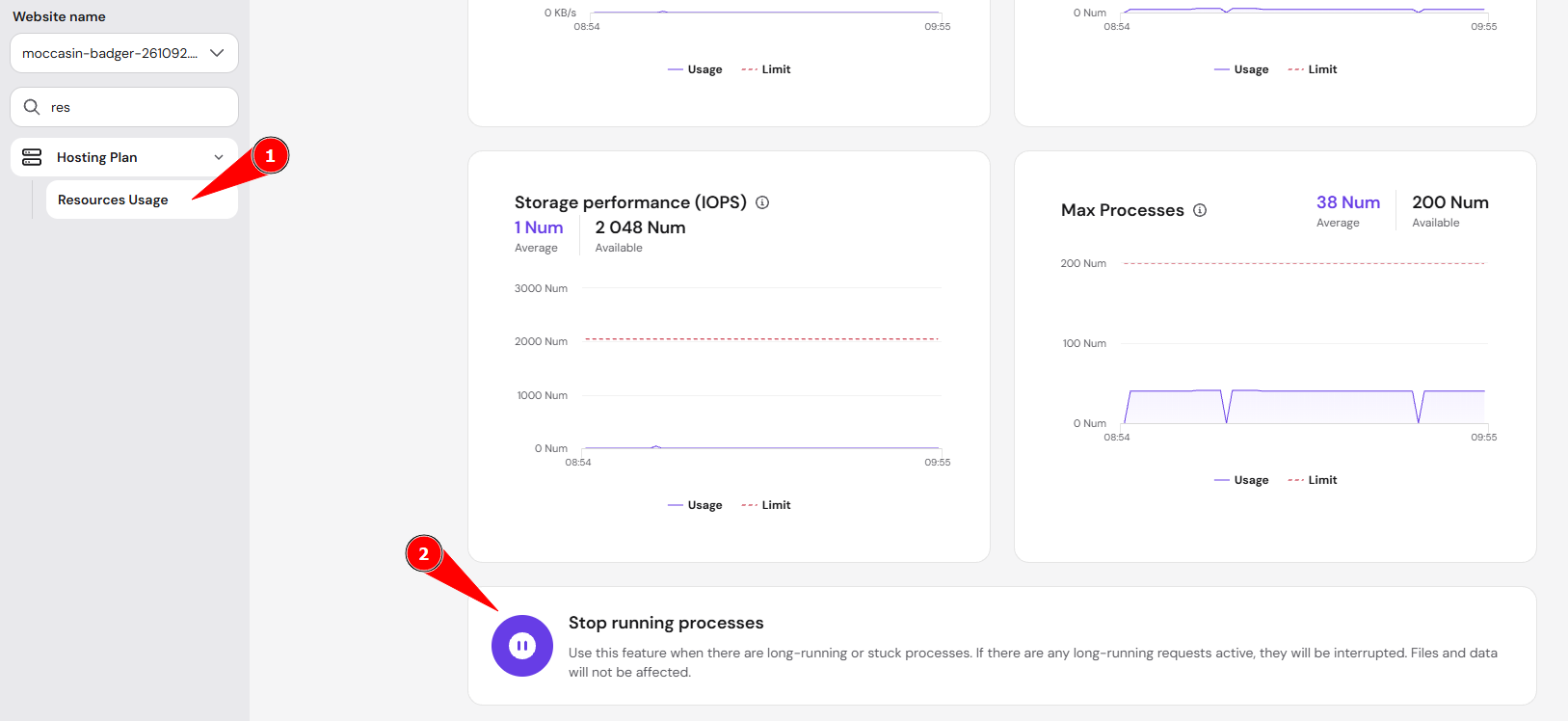
Open the Resource Usage page of your hosting plan and click Stop running processes. This frees the process limit for all websites on the plan. See how to check resource usage in Hostinger.
Step 2 – Restart or redeploy the app
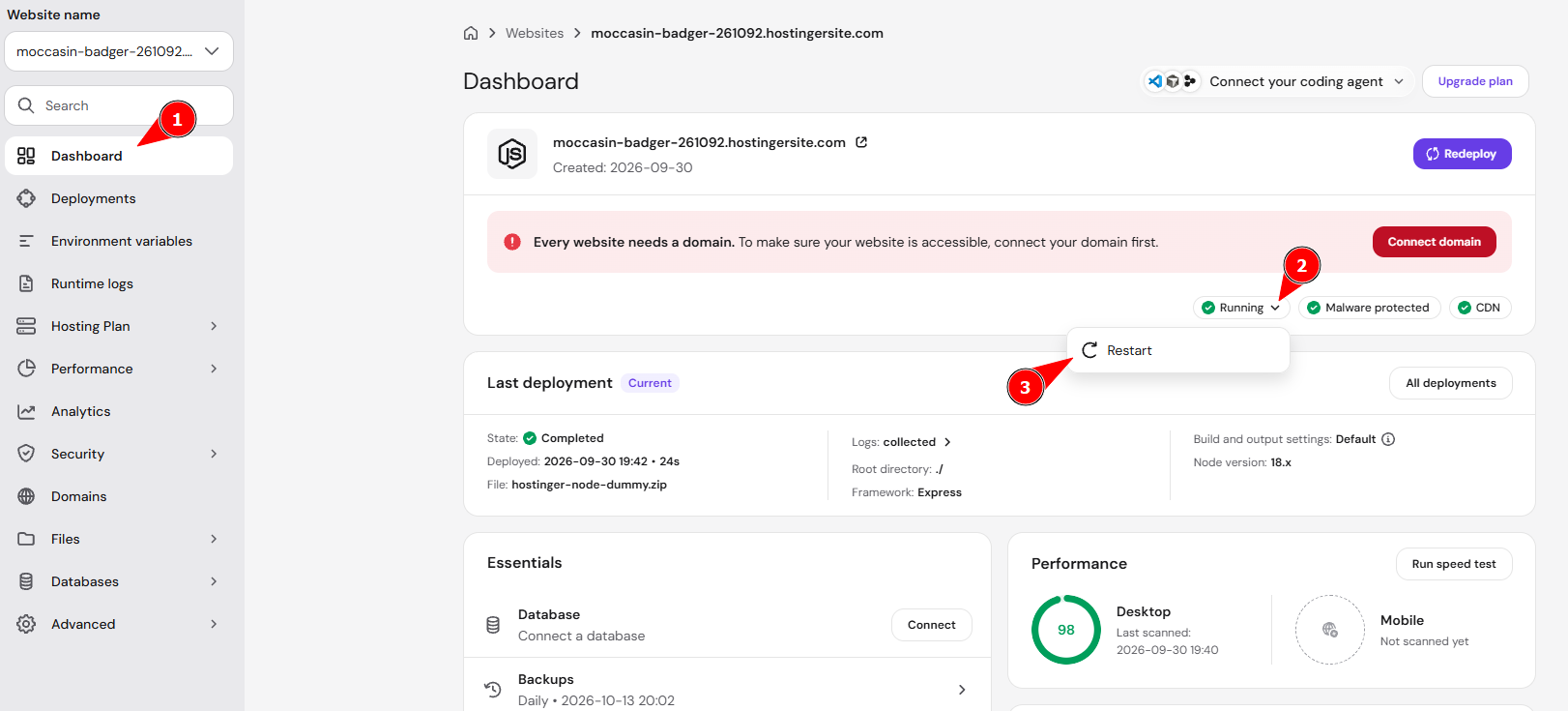
Open the website dashboard of your Node.js app, click Running, and select Restart. If the app still doesn’t load, redeploy the Node.js application.
NOTE
- The Restart option is available only for server-side apps such as Express.js, Next.js and NestJS. Static front-end apps don’t run a Node.js process.
Find the error behind a Node.js 503 error
There are three places to check for the error that stopped your Node.js app:
- Runtime logs in the website dashboard show crashes, unhandled errors, missing environment variables, and port conflicts such as
EADDRINUSE. See how to use Node.js runtime logs at Hostinger. - Build logs in the Deployments section show why the last deployment failed. See how to troubleshoot Node.js deployment build errors at Hostinger.
- The
stderr.logfile indomains/domain.tld/hbuilds/current/nodejs, which you can open in the Hostinger File Manager, holds raw error output. An emptystderr.logfile doesn’t mean there are no errors, because many apps write errors to the runtime logs instead. See understanding empty stderr.log in Node.js applications.
If no error appears in the logs
Run the app on your own computer with the same Node.js version and NODE_ENV=production. The error usually appears there. You can also add an error logger at the top of your app’s entry file so uncaught errors are always recorded:
process.on('uncaughtException', (err) => {
  console.error('Uncaught exception:', err);
});
Prevent repeated process limit errors on Node.js websites
Four changes keep a Node.js app within the process limit:
- Don’t run cluster mode or PM2 inside your app. Hostinger already starts and manages the Node.js process.
- Avoid starting extra child processes from your app.
- Apply the Next.js process optimization described in how to redeploy a Node.js application if your Next.js app shows high process usage.
- Reduce the number of Node.js apps on the plan, or upgrade your hosting plan if the limit is reached several times a month.
The process limit for each plan is listed in Hostinger Node.js hosting limits for web and cloud plans. For general guidance on plan limits, see what to do if your hosting plan limits are reached in Hostinger.
Once the processes are freed and the app restarts, your Node.js website loads again. Check the Resource Usage page regularly to spot the process limit before it causes another 503 error.