Connect Google Analytics 4 (GA4) and Meta Pixel to a Hostinger AI Builder agentic mode store by entering your tracking IDs in Store Manager → Integrations. Hostinger AI Builder then loads the tags on your published store and reports store events automatically, from product views to purchases. Tracking depends on visitor consent, so every store needs a cookie banner. Stores created before this feature need a short update first.
Before you start
- These steps apply to online stores built with Hostinger AI Builder agentic mode. For manual mode, see How to connect Google Analytics in manual mode and How to connect Meta Pixel in manual mode.
- Have your GA4 Measurement ID (
G-XXXXXXX), your Meta Pixel ID, or both ready.
Connect Google Analytics and Meta Pixel to an agentic mode store
Add Google Analytics and Meta Pixel to an agentic mode store from the Integrations page of the Store Manager, without code.
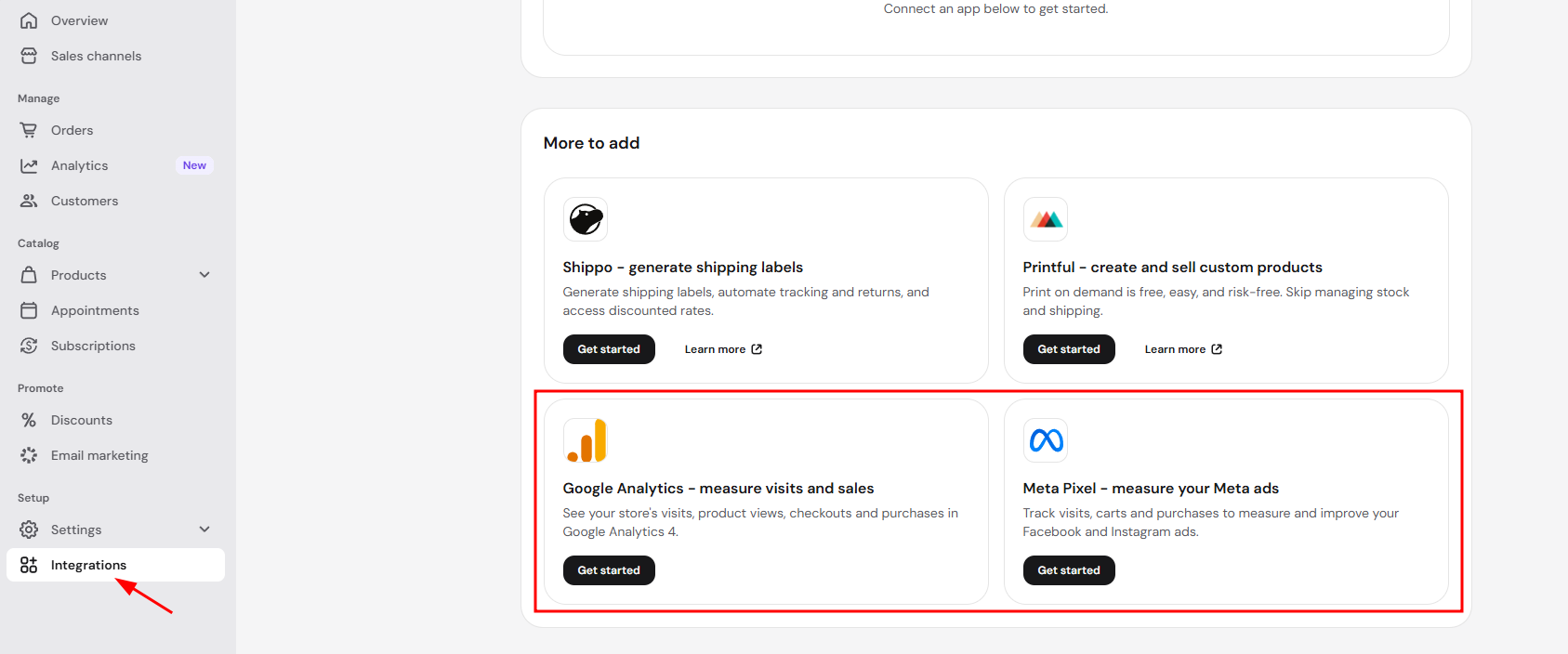
- In the Store Manager, go to Integrations.
- Under Your integrations, click Manage next to Google Analytics or Meta Pixel.
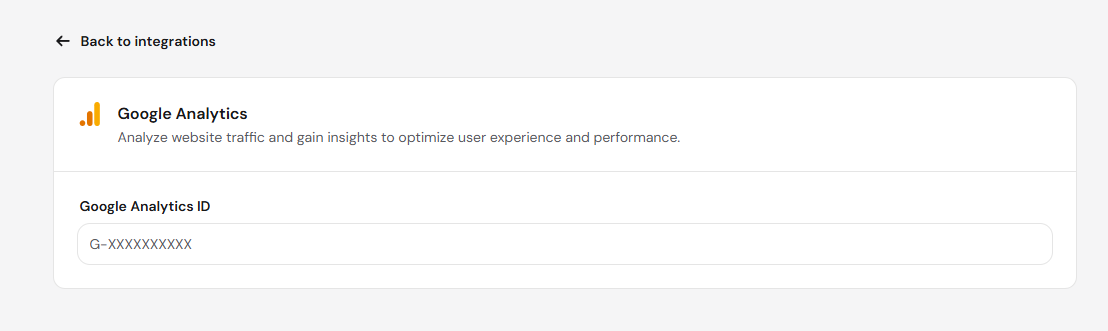
- Enter your Measurement ID in the Google Analytics ID field.
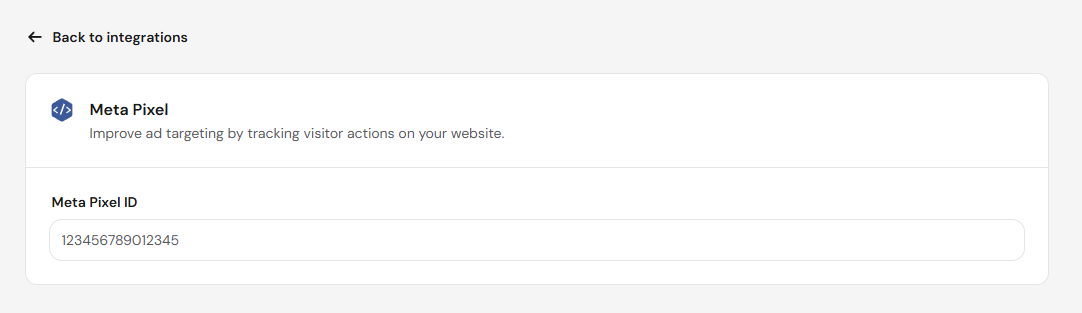
Or enter your Meta Pixel ID in the Meta Pixel ID field.
Hostinger AI Builder loads the tags on your published store and sends store events without extra setup.
Store events tracked in agentic mode stores
Agentic mode stores send store events to Google Analytics automatically, in three groups:
- Storefront events:
view_item,select_item,add_to_cart,remove_from_cart, andview_cart. - Checkout events: one event for each checkout step.
- Purchase events:
purchase, sent when the buyer returns from checkout.
Meta Pixel receives Meta standard events, including PageView, InitiateCheckout, AddShippingInfo, AddPaymentInfo, and Purchase.
Cookie consent for Google Analytics and Meta Pixel in agentic mode stores
Google Analytics and Meta Pixel only collect full tracking data after the visitor accepts cookies on your store’s cookie banner.
- Google Analytics runs in Google Consent Mode v2 (advanced mode). The tag is on every page, but it sets no cookies until the visitor accepts analytics cookies.
- Meta Pixel loads only after the visitor accepts marketing cookies.
- The cookie banner covers three categories: Analytics, Marketing, and Platform analytics.
The Hostinger AI Builder agent writes a cookie banner for each store, in the store’s language and design.
Without a cookie banner, visitors can’t accept cookies. Google Analytics then receives only cookieless pings, which don’t appear in Realtime or reports.
Enable tracking on older agentic mode stores
Agentic mode stores created before Google Analytics and Meta Pixel integrations were available need a cookie banner and store events before tracking works.
- Open the store in the Hostinger AI Builder editor. Opening the store updates its template.
- Ask the agent to add a cookie banner and the store events.
- Publish the store again.
NOTES
- Stores built in Hostinger AI Builder manual mode keep using the integrations settings in the manual mode editor.
- Standalone stores with only a manual sales channel don’t show these integrations.
Your agentic mode store now sends visits, cart activity, checkouts, and purchases to Google Analytics and Meta Pixel once visitors accept cookies.