Hostinger CDN DNS records change the moment you enable the CDN: the root A and AAAA records and the www record start pointing to Hostinger’s Content Delivery Network (CDN) instead of your hosting plan, and Hostinger manages them for as long as the CDN stays on. Enabling Hostinger CDN requires the domain to use Hostinger nameservers, editing the root or www records means disabling the CDN first, a subdomain added as its own website gets its own CDN switch, and disabling the CDN restores direct routing to the hosting plan after a short propagation window.
Before you start
- Hostinger CDN requires the domain to use Hostinger nameservers. Hostinger can only update records in DNS (Domain Name System) zones it manages, so a domain on external nameservers — including Cloudflare — cannot be routed through the CDN until the nameservers are changed at the registrar.
What changes in your DNS zone when Hostinger CDN is enabled
Enabling Hostinger CDN changes the DNS records that route visitors to your website. The A and AAAA records of the domain, and the www record, point to the CDN instead of directly to your hosting server. Hostinger manages these records while the CDN is enabled, which is why they cannot be edited manually, and restores direct routing when the CDN is disabled. All other records — MX for email, TXT for verification, and subdomains — are not affected.
|
Record |
Before |
With Hostinger CDN |
|
|
IP address of your hosting plan |
CDN addresses, managed by Hostinger |
|
|
A record or CNAME to your hosting plan |
CNAME to a CDN hostname, managed by Hostinger |
|
MX, TXT, other subdomains |
Unchanged |
Unchanged |
DNS changes take up to 24 hours to propagate worldwide, although most visitors are routed through the CDN within minutes.
How to change A, AAAA, or www records while Hostinger CDN is enabled
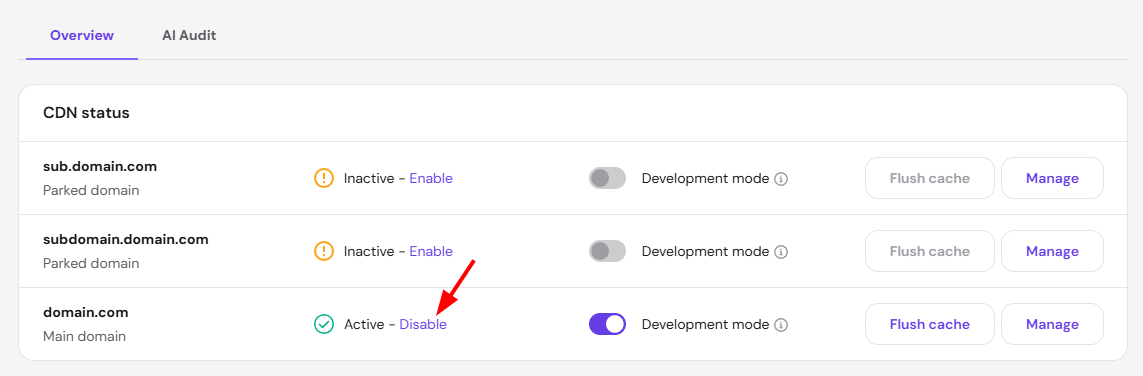
The root and www records are locked while Hostinger CDN manages them. Disable the CDN first to point the domain elsewhere or use a custom record:
- Go to Hostinger dashboard → Websites → Dashboard → Performance → CDN and click Disable.

- Wait a few minutes for the records to be restored, then edit them in the DNS zone by following How to manage DNS records at Hostinger.
- Leave the CDN disabled for that domain — enabling it again replaces the root and www records with CDN records.
NOTES
- Keep a copy of any custom A or AAAA record for the root domain or www before enabling Hostinger CDN, since these are replaced when the CDN is enabled.
- A website that must keep a custom A record, such as one served from an external server, cannot use Hostinger CDN for that hostname.
Subdomains and Hostinger CDN
Hostinger CDN is enabled per website in Hostinger dashboard. A subdomain that is added as its own website, such as shop.domain.tld, has its own CDN switch, and its records are updated when the CDN is enabled for it. Subdomains that exist only as DNS records, for example pointing to another service, are not routed through the CDN and their records are not changed.
SSL certificates for www after enabling Hostinger CDN
The CDN serves the SSL certificate for both domain.tld and www.domain.tld. Check that the www record is the CNAME managed by Hostinger — not a custom record left from an earlier setup — if www shows a certificate error after enabling the CDN, then allow time for propagation. Follow Hostinger CDN: Troubleshooting website errors and contact support with the domain name if the error persists after 24 hours.
What happens to DNS when Hostinger CDN is disabled
Disabling the CDN restores the A, AAAA, and www records to your hosting plan’s address. Some visitors may still be routed through the CDN or briefly see a Hostinger placeholder page instead of the website during propagation; this resolves as DNS caches expire, usually within hours. Clear the browser cache or test from another network if the placeholder persists on one device only.
When to contact Hostinger support about DNS and the CDN
Contact Hostinger support about three DNS and CDN issues:
- The CDN cannot be enabled although the domain uses Hostinger nameservers.
- Records were changed by an automatic activation and you need help restoring them.
- The website is unreachable more than 24 hours after enabling or disabling the CDN.
Include the domain name, the records you expect, and the time of the change while contacting the support.
With the root and www records managed by Hostinger CDN and everything else in your hands, DNS changes stay predictable while the CDN handles your traffic.