A Payment Link in Hostinger Ecommerce sends customers straight to a pre-filled checkout for specific products, without requiring a storefront or website. Share the link in social bios, email campaigns, printed flyers, or as a QR code on packaging, so customers can complete a purchase in one step.
What is a Payment Link?
A Payment Link is a sales channel you create for one or more products, with the variants and quantities already selected. Customers who open the link go directly to checkout instead of browsing a store first.
Payment Links work alongside your other Hostinger Ecommerce sales channels, such as Quick link store, AI Builder, and Custom sales channel. Adding a Payment Link does not affect your existing channels.
Add the Payment links sales channel
Before creating your first Payment Link, add Payment links as a sales channel.
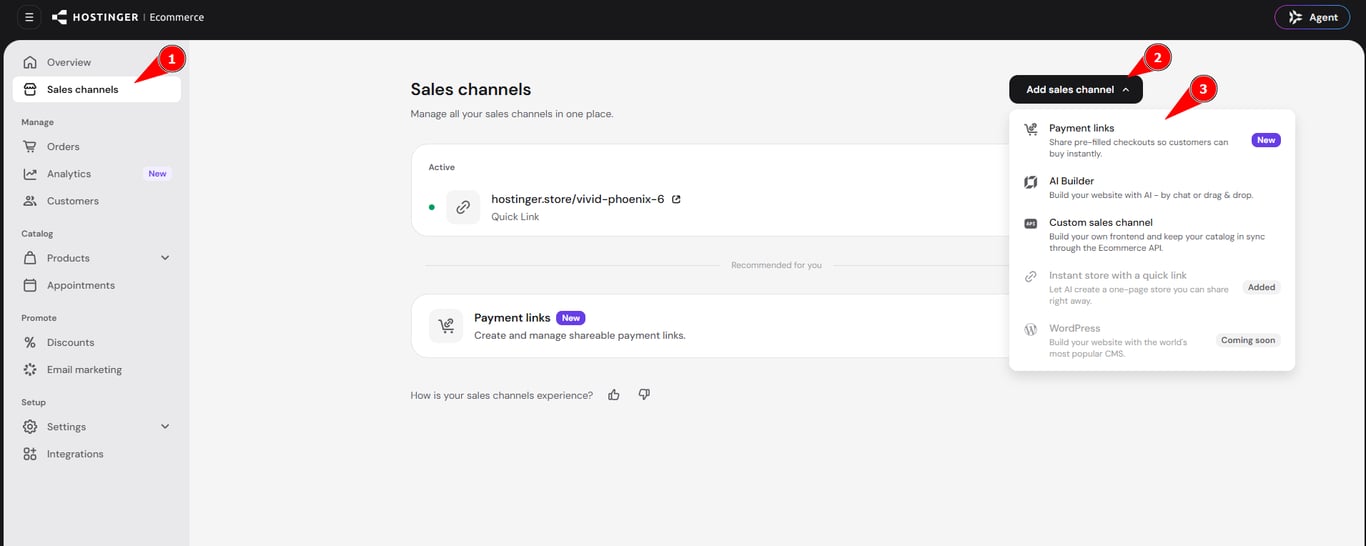
- Go to Sales channels on the side menu.
- Click Add sales channels.
- Choose Payment links.
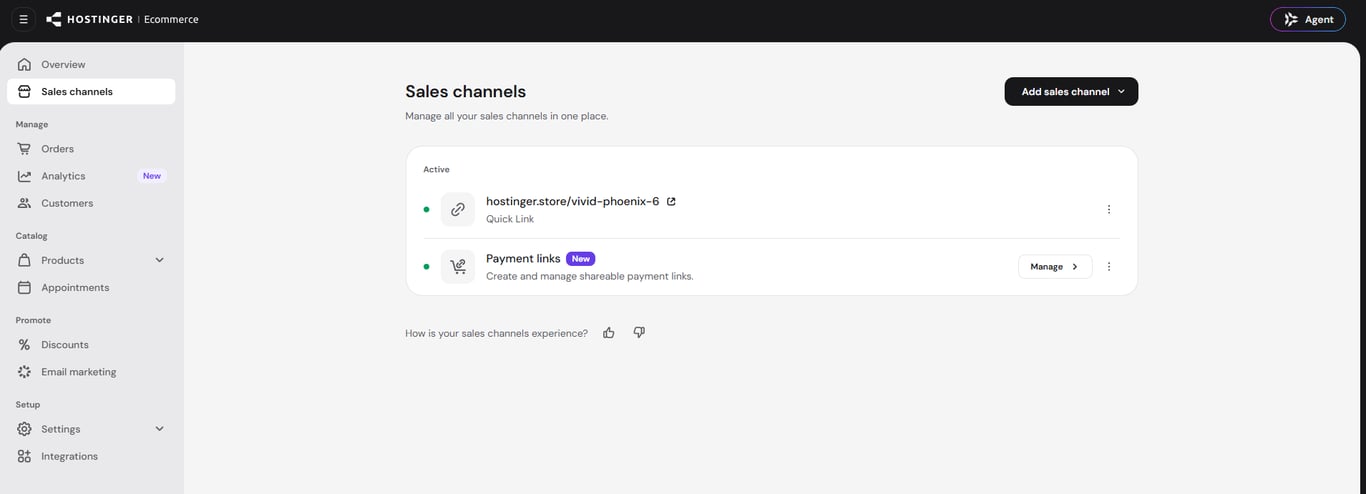
Payment links then appears under Sales channels in the side menu.
Create a Payment Link
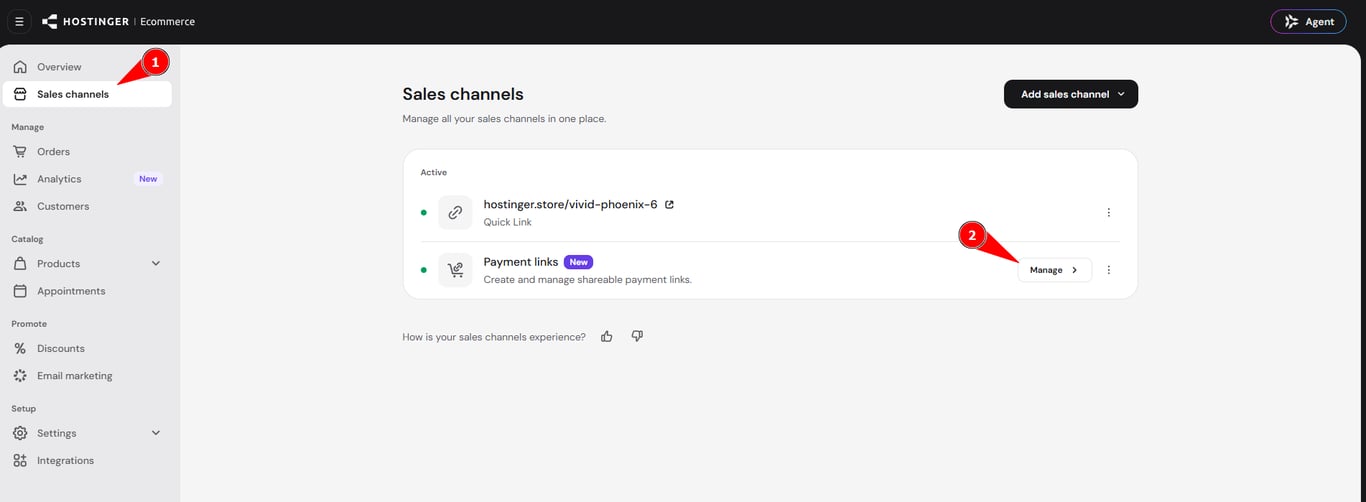
- Select Sales channels in the side menu.
- Click Manage next to the Payment links sales channel.
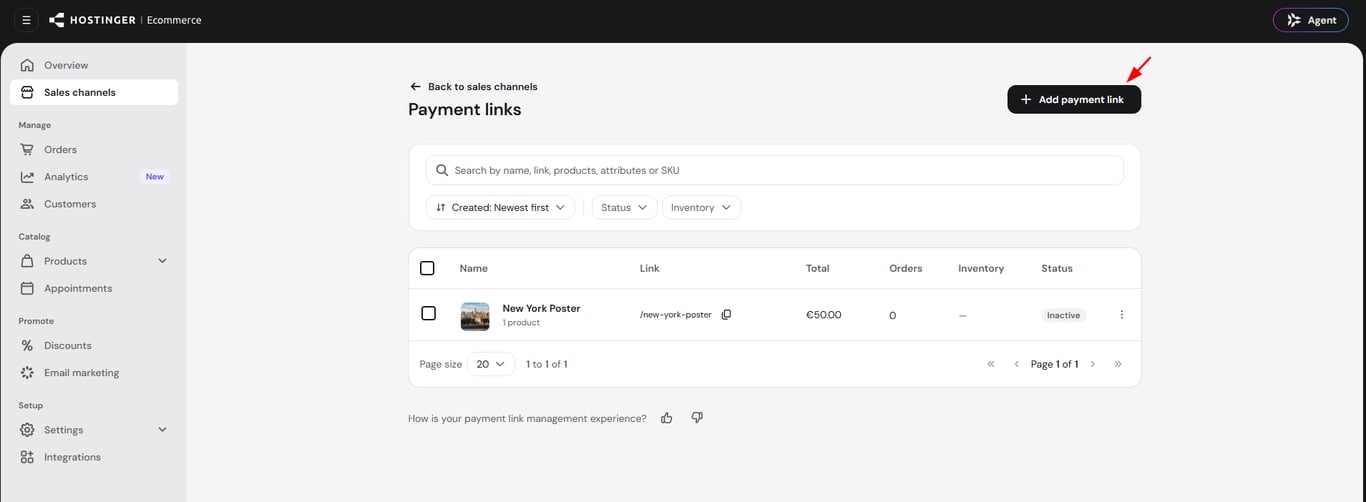
- Click Add payment link.
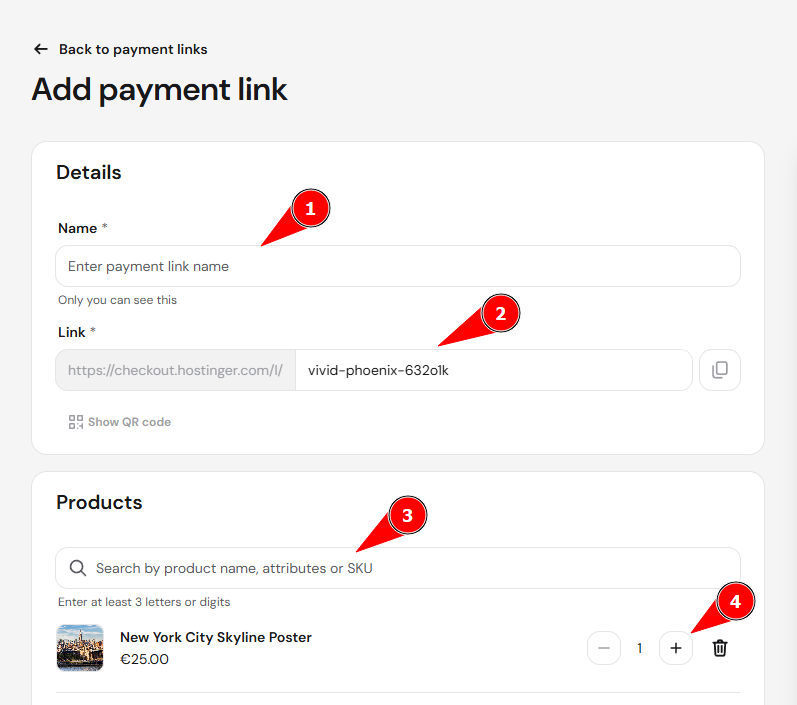
- Enter a Name for the link. Only you can see this name.
- Enter a Link slug, for example your-slug, which forms the shareable URL checkout.hostinger.com/l/your-slug.
- Search for a product and add it to the link.
- Select the specific variants and quantities to include. You can add multiple variants of the same product to one link, each with its own quantity.
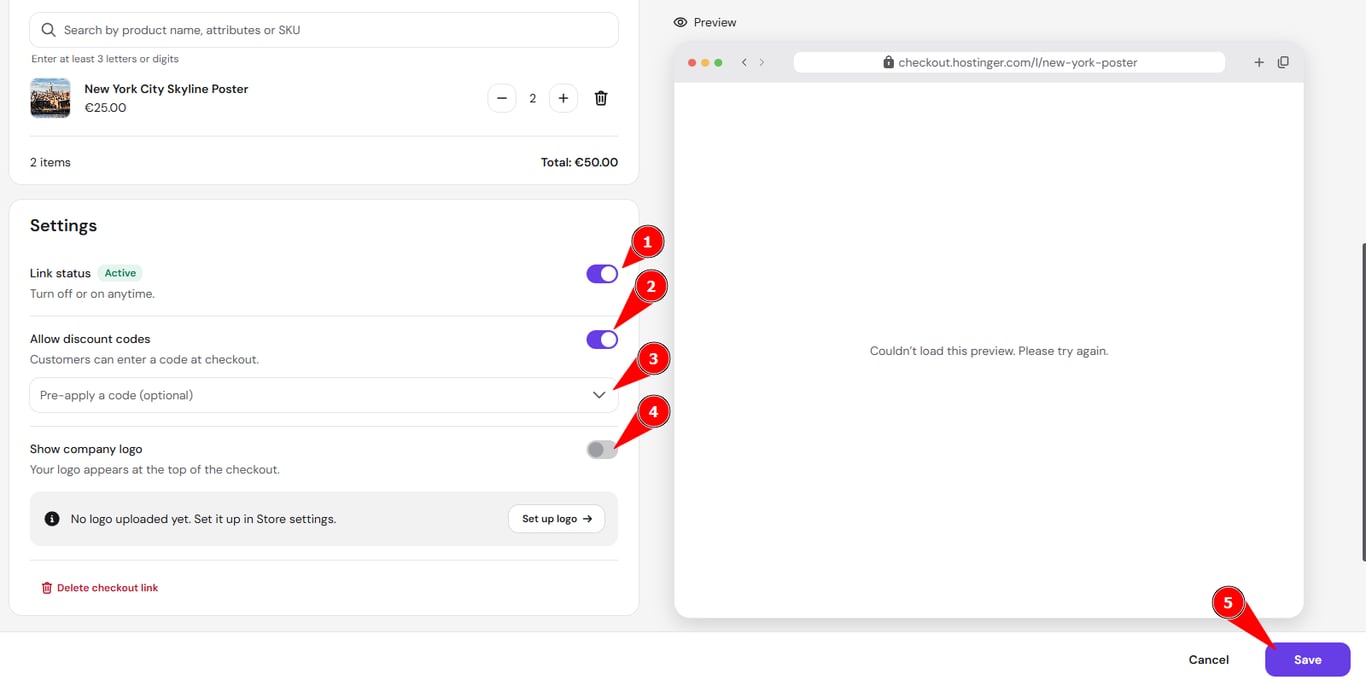
- Under Settings, keep Link status set to Active, or turn it off to deactivate the link without deleting it.
- Turn on Allow discount codes if you want customers to enter a code at checkout, or select a specific code to pre-apply so it’s already applied when the customer arrives.
- Turn on Show company logo to display your store’s logo on the checkout page.
- Click Save.
Share the Payment Link
After you save a Payment Link, you can share it in the following ways:
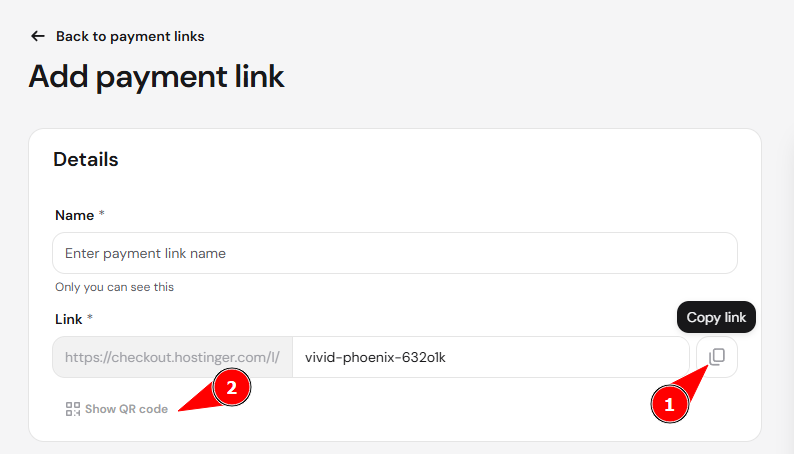
- Copy the link directly.
- Select Show QR code to display a QR code for the link, then copy, download, or print it. This is useful for packaging, posters, and in-person sales.
Customers who open the link or scan the QR code land on a checkout page pre-filled with the selected products, ready to enter their contact, delivery, and payment details.
Manage an existing Payment Link
To edit a Payment Link after creating it, select Payment links in the side menu, then select Manage next to the link you want to update. From here, you can change the name, slug, products, variants, quantities, and settings, or view the QR code again.
Limitations
Payment Links have the following current limitations:
- You pre-select the exact products, variants, and quantities included in a link. Customers cannot change the variant selection during checkout
- Products with required custom fields or appointment booking are not supported in a Payment Link.
Once your Payment Link is set up, you can share it anywhere your customers already are, without needing a storefront to complete a sale.