Hostinger AI Builder includes a native running text element — also known as infinitely scrolling text or a scrolling ticker — that scrolls a message infinitely across the page, without requiring custom code or third-party embeds.
Add a running text element in Hostinger AI Builder manual mode
To open the Add elements panel and learn about other available element types, see Hostinger AI Builder: How to add and customize website elements in manual mode.
- Click Elements in the left sidebar.
- Click Running text in the Add elements panel.
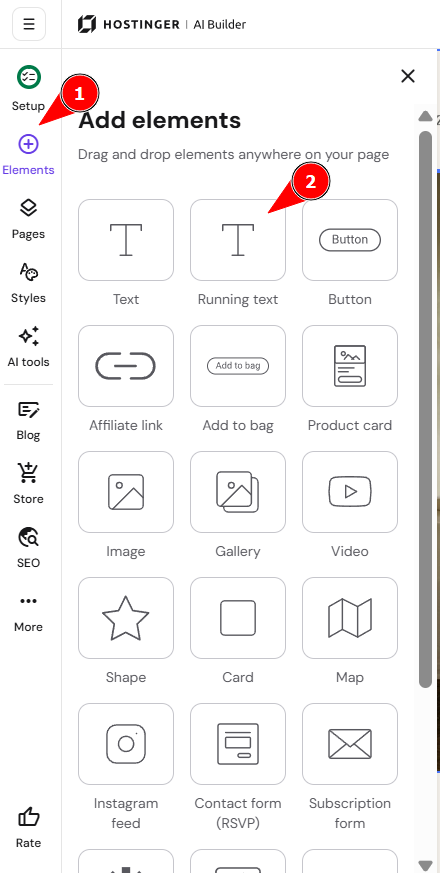
- Drag the running text element onto your page.
Edit the running text element in Hostinger AI Builder manual mode
Click Edit running text and enter your message in the Text field.
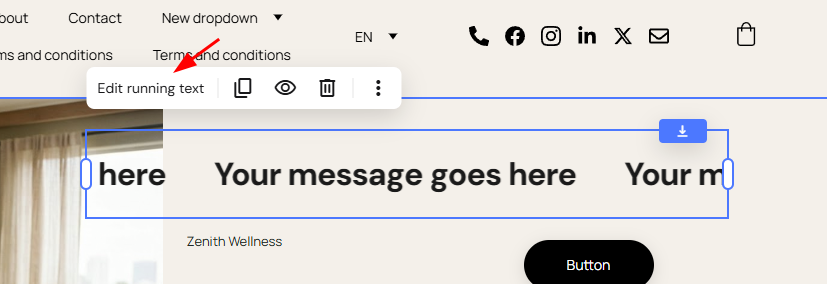
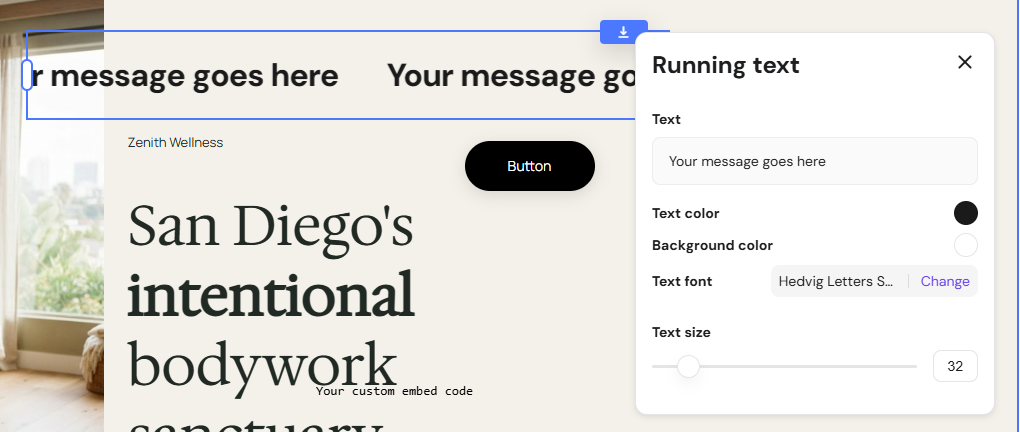
Additionally, you can also customize these:
- Set a text color for the running text element.
- Set a background color for the running text element.
- Set a text font for the running text element.
- Set a text size for the running text element.
To apply an entrance or directional animation to your running text element, see Hostinger AI Builder: How to add animations in manual mode.
Your running text element now scrolls your message infinitely across the page, making it suitable for promoting discounts, announcements, or other important information.
NOTES
- The running text element is a native Hostinger AI Builder feature and doesn’t require custom code or third-party embeds.
- Running text is also called infinite scrolling text or a scrolling ticker.
Frequently asked questions
Does Hostinger AI Builder support infinitely scrolling text?
Yes. The running text element scrolls your message infinitely across the page and is also referred to as infinite scrolling text or a scrolling ticker.
Is the running text element the same as the logo marquee?
No. The logo marquee section is built specifically for scrolling brand/partner logos, while the running text element is for scrolling text messages like promotions or announcements.