Updating your Hostinger Managed Hermes AI model settings in Hostinger dashboard allows you to switch between Hostinger AI Router, which uses your Hostinger AI credits, and third-party providers like OpenAI, Anthropic, and Google Gemini. You can configure your provider credentials and select a specific language model directly within your application management panel.
Before you start
- An active Hostinger Managed Hermes service.
- Hostinger AI credits for Hostinger AI Router, or an API key with active credits from your chosen third-party AI provider.
Use Hostinger AI Router in Managed Hermes
Hostinger AI Router is set up automatically in Managed Hermes and spends your Hostinger AI credits, so you don’t need an API key from each AI vendor.
- Log in to your Hostinger account and navigate to the Managed Hermes section in Hostinger dashboard.
- Click Manage next to your active Hermes application.
- Click AI provider in the left sidebar menu.
- Select the Hostinger AI Router tab.
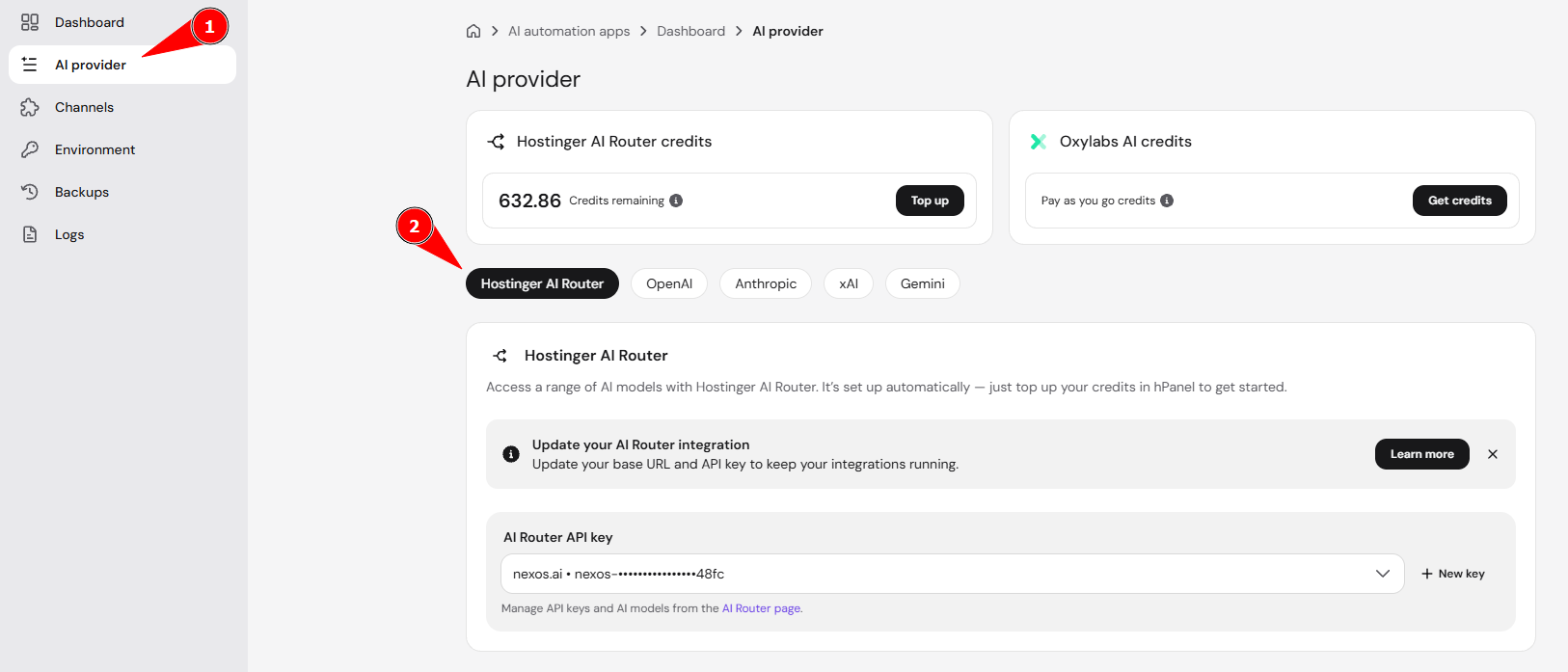
- Under AI Router API key, select a key from the dropdown, or click New key to create one.
To manage your Hostinger AI Router API keys and choose which AI models each key can use, open the AI Router page in Hostinger dashboard. To add Hostinger AI credits, click Top up on the Hostinger AI Router credits card. If you have no Hostinger AI credits yet, top up and create a Hostinger AI Router API key before your app can use AI.
NOTE
- If you still have nexos.ai credits, your app keeps using your nexos.ai key, and the Top up and Hostinger AI Router API key options stay unavailable until your nexos.ai credits run out.
Change the AI provider and model with your own API key
To update your provider and pick a new language model for your assistant, follow these steps:
- Log in to your Hostinger account and navigate to the Managed Hermes section in Hostinger dashboard.
- Click Manage next to your active Hermes application.
- Click AI provider in the left sidebar menu.
- Select the provider tab for your chosen vendor, such as OpenAI, Anthropic, or Gemini.
- Enter the API key obtained from your provider in the designated field.
- Click Save to enable model selection.
- Select your preferred model from the AI Model dropdown menu.
- Click Save to confirm your changes.
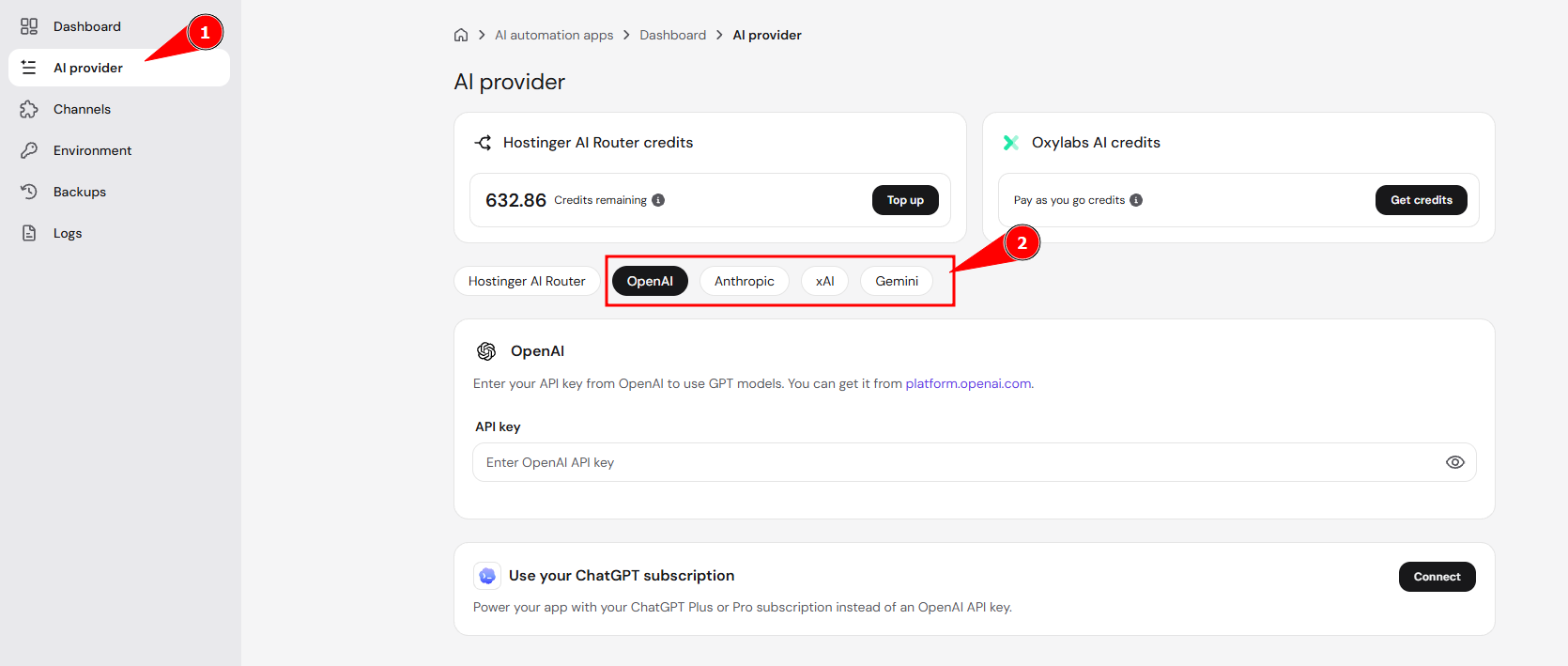
Launching Managed Hermes after saving updates the system automatically, making your assistant ready for use with the new model immediately.
NOTE
- Managed Hermes requires a valid API key with available credits to process requests properly.