Resolving Hostinger VPS Docker App Catalog deployment errors requires removing stored registry credentials or, for network pool errors, either clearing orphaned Docker networks or expanding the server’s network pool. Removing stored GitHub Container Registry credentials resolves registry access errors. Depending on the cause, either pruning unused Docker networks or expanding the default address pool resolves subnet pool exhaustion.
Before you start
This guide applies to deployment failures from the Hostinger Docker App Catalog on VPS plans. If you deployed a custom Docker Compose file or pulled an image from an external URL, these specific causes and steps do not apply.
Fix registry access denied errors
Registry access denied errors occur when stored Docker credentials interfere with public image pulls from the GitHub Container Registry.
Error log message
The deployment log displays one of the following error messages:
-
Image ghcr.io/hostinger/hvps-<app>:latest Error error from registry: denied
-
Error response from daemon: error from registry: denied
Cause of the error
Hostinger Docker App Catalog applications pull from public repositories that do not require authentication credentials. If a GitHub Container Registry credential exists on the server under Docker Manager, Docker attaches that credential to every pull request from ghcr.io. If the stored credential is expired, revoked, missing required scopes, or unauthorized for organization Single Sign-On, the public image pull fails.
Identify stored credentials
- Navigate to VPS in Hostinger dashboard and select your server.
- Go to Docker Manager → Credentials.
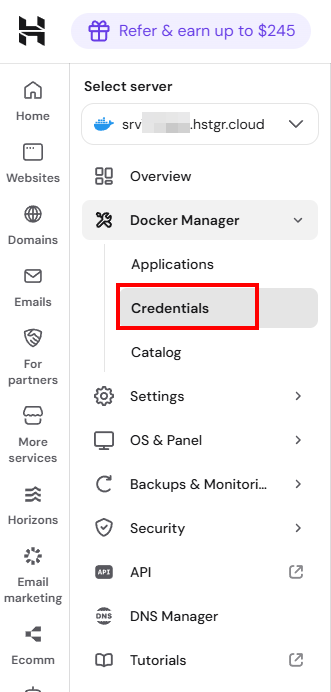
- Check the Docker credentials section for a GitHub Container Registry entry.
Resolve the registry error
If you do not need the stored GitHub Container Registry credential for private images:
- Open Docker Manager → Credentials.
- Click the trash icon next to the GitHub Container Registry credential to delete it.
- Retry the catalog application deployment in Hostinger dashboard.
If you require the stored GitHub Container Registry credential for private images:
- Confirm that your personal access token has not expired.
- Confirm that the token includes the read:packages scope.
- Ensure the token is authorized for organization Single Sign-On if the image belongs to an organization.
- Update the credential in Docker Manager with the valid token.
- Retry the catalog application deployment in Hostinger dashboard.
Fix Docker network pool exhausted errors
Docker network pool exhaustion occurs when the server has no remaining subnets available to assign to a new deployment. This has two possible causes, and they require different fixes.
Error log message
The deployment log displays the following error message:
-
failed to create network <app-name>-xxxx_default: Error response from daemon: all predefined address pools have been fully subnetted
Cause of the error
By default, Docker allocates addresses from a limited pool that supports approximately 31 networks in total. Every Docker network on the server, catalog-related or not, consumes one of these slots. Once the limit is reached, no new network, and therefore no new deployment, can be created.
There are two distinct reasons a server reaches this limit:
- Orphaned networks from repeated deployment attempts. Repeated deployment attempts or deleted applications without network cleanup can leave unused networks active on the server, gradually consuming the available pool.
- Legitimate Docker usage across many projects. Servers running a large number of Docker projects, including custom or self-hosted projects outside the Docker App Catalog, can reach the same 31-network limit through normal use. In this case there are no unused networks to remove, and the server requires a larger address pool rather than cleanup.
Identify the cause
- Connect to your VPS using SSH.
- Run docker network ls | wc -l to count all active Docker networks on the server.
- Run docker network prune, then run docker network ls | wc -l again.
If the network count drops after running docker network prune, the server had orphaned networks. Proceed to Resolve orphaned networks below.
If the network count does not change, the networks are active and in use by existing projects. Proceed to Resolve pool exhaustion from active usage below.
Resolve orphaned networks
- Connect to your Hostinger VPS using SSH.
- Execute the docker network prune command to remove all unused networks from the server.
- Retry the catalog application deployment in Hostinger dashboard.
Resolve pool exhaustion from active usage
If the server is running many legitimate Docker projects and has no orphaned networks to remove, expand the Docker daemon’s default address pool instead:
- Connect to your Hostinger VPS using SSH.
- Open the Docker daemon configuration file: sudo nano /etc/docker/daemon.json
- Add the following configuration, merging it with any existing settings in the file:
{ "default-address-pools": [ { "base": "172.17.0.0/12", "size": 24 }, { "base": "192.168.0.0/16", "size": 24 } ] } - Validate the file is properly formatted: sudo python3 -m json.tool /etc/docker/daemon.json
- Restart the Docker daemon: sudo systemctl restart docker
- Retry the catalog application deployment in Hostinger dashboard.
Restarting the Docker daemon can briefly affect running containers. We recommend performing this step during a low-traffic period and confirming that your containers are configured to restart automatically before proceeding.
Removing invalid registry credentials, clearing unused network subnets, or expanding the server’s address pool restores normal deployment functionality for Hostinger VPS Docker App Catalog applications.
NOTES
- The docker network prune command only removes networks that are not attached to running containers.
- Clean up unused networks with docker network prune between failed deployment attempts to prevent subnet exhaustion.
- Expanding the default address pool only affects networks created after the change. It does not remove or affect existing networks.